

How to Do a Stocktake in Shopify: A Complete Guide
Perform Shopify Stocktakes and keep your stocks equally distributed in your inventory management system and physical warehouses.

A Shopify stocktake is the process of physically counting your inventory and comparing it against the quantities recorded in Shopify, so you can catch and fix discrepancies before they cause overselling or stockouts. You can do it three ways: exporting and re-importing a CSV, using the Quick Count extension in Shopify POS, or using dedicated stocktake software. Which one makes sense depends on your catalog size, how many locations you run, and whether you're currently on Stocky, which Shopify is shutting down on August 31, 2026.
This guide walks through what a stocktake actually does for your business, the stocktaking methods available to you, how to run one step by step, and what the Stocky shutdown means if you're still relying on it.
What Is a Stocktake and Why It Matters
A stocktake is a count of all the goods you have in stock, checked against what your inventory system says you should have. When the two don't match, you've found a discrepancy, and catching it early is what stocktaking is for.
Regular stocktakes matter because they:
Prevent overselling items you don't actually have
Reduce stockouts on items you have more of than your system shows
Improve the accuracy of purchasing and replenishment decisions
Build confidence in your reporting and financials
Why Inventory Discrepancies Happen
Inventory discrepancies show up when your physical stock and your digital records disagree. Left unresolved, they lead to overselling, missed sales, and stockouts. The most common causes are:
Manual data entry errors
Miscounted items during receiving or fulfillment
Unrecorded shrinkage or theft
Sync delays between your store and sales channels
These problems tend to concentrate in five areas of operations:
Real-time sync gaps - software that doesn't sync inventory across multiple stores or channels fast enough
Unsellable inventory - damaged or expired stock still counted as sellable
Receiving issues - deliveries logged without checking quantity, quality, or condition
Fulfillment errors - wrong items picked, missed scans, unauthorized substitutions
Returns processing errors - returned items inspected or restocked incorrectly
Types of Stocktaking Methods
The right stocktaking method depends on your SKU count, order volume, and how fast your inventory turns over.
Real-Time Tracking (Perpetual Stocktaking)
Inventory management software updates stock levels automatically as orders, receiving, and fulfillment happen, cutting down on manual counts. Best for high-volume ecommerce and 3PL operations.
Cycle Counting
A rotating count of small inventory groups on a set schedule daily, weekly, or monthly instead of auditing the whole warehouse at once. Best for high-growth ecommerce businesses that can't afford to shut down for a full count.
Spot Checking
A quick, random check of a small selection of products or locations rather than a full count. Useful for catching discrepancies early without interrupting daily operations. Best for fast-moving consumer goods and high-shrink categories.
Periodic Stocktaking
Counts run on a structured interval weekly, monthly, quarterly to track the financial health of your stock. Best for brands with a manageable, stable inventory footprint.
Annual Stocktaking
A full physical count of every location, typically done once a year for tax and financial reporting. Best suited to accounting and audit purposes.
When Should You Do a Stocktake?
The right timing depends on your business, but the most common triggers are:
Before your financial year ends, to verify inventory valuation
After peak sales periods like Black Friday, to check what actually sold
As soon as discrepancies are detected between physical and digital stock
After receiving large shipments, to confirm quantity and condition
After opening or changing a location
After migrating to a new inventory management system, to confirm the data transferred correctly
How to Perform a Stocktake in Shopify
There are three practical ways to run a stocktake in Shopify: CSV export/import, the Quick Count extension in Shopify POS, or a third-party stocktake app.
Method 1: CSV Export and Import
Export inventory. Go to Shopify Admin → Products → Inventory and export your current inventory as a CSV.
Count physical stock. Manually count your inventory and compare it to the exported numbers.
Update the CSV. Enter the correct counts in the "On hand" column and save the file.
Import and reconcile. Import the updated CSV back into Shopify and review the resulting discrepancies.
This method works well for headquarters-level reconciliation across a large catalog, but it's manual and doesn't help staff counting on the floor in real time.
Method 2: Shopify POS Quick Count
Quick Count is a POS extension available with a Shopify POS Pro subscription, and it's the tool Shopify points merchants to for in-store counts now that Stocky is being phased out.
Activate Quick Count in Shopify Admin under Point of Sale → Settings → POS apps.
Open Quick Count from inside the Shopify POS app on each device.
Count by scanning a barcode, using your device's camera, or searching by product name or SKU.
Adjust the counted quantity for each item as you go.
Tap Submit to sync the session and update inventory in Shopify Admin.
A few limits to know: each session handles up to 1,000 variants, so larger catalogs need multiple sessions or devices running in parallel. There's no cap on how many sessions you run, and you can spread counting across multiple days or zones, but a session isn't saved until you submit it, so a crashed device before submission means recounting that session.
Method 3: Third-Party Stocktake Apps
You can also install a dedicated stocktake software from the Shopify App Store. These sync directly with your store and typically add features Shopify's native tools don't have, like multi-device counting, cycle counting, or inventory valuation reports. Follow the app's setup instructions to connect it to your store before starting a count.
What Happened to Stocky's Stocktake Feature
If you've used Stocky for stocktakes before, here's what's changing. Stocky's stocktake tool accessed through Shopify Admin → Apps → Stocky → Inventory → Stocktakes, lets merchants run manual or barcode-based counts, with adjustments syncing automatically back into Shopify. It required a Shopify POS Pro subscription; it was not a free standalone tool.
Stocky is being shut down, now two things matter here for anyone still using it. First, historical Stocky data, past purchase orders and stocktakes, won't automatically move into Shopify. You need to manually export anything you want to keep, using Stocky's built-in reports, before the shutdown date. Second, supplier records can't be exported from Stocky at all; if you rely on vendor data configured there, you'll need to recreate it manually in your new system.
Shopify's own recommendation for merchants who only need basic tracking is to move to Quick Count and the native Stocktakes tools in Shopify Admin. Merchants who relied on Stocky for more.
How to Perform a Stocktake in Channel Bay
Channel Bay gives you a structured stocktake workflow from creating a session through to confirming your final counts, without the manual back-and-forth of CSVs or the 1,000-variant session limits of POS-only tools. If you move to Channel Bay, your all past stocktakes that you have created in Stocky will be directly transferred to the software.
Step 1: Create a session.
Go to the dashboard → Stocktakes → Create session.
Step 2: Schedule and scope it.
Name the session, select the warehouse, and set a schedule date. Click Create and set up the session.
Step 3: Add products.
Add items by vendor, category, product, or variant, and search by product name, SKU, or barcode.
Step 4: Enter counts.
Record the counted quantity against each product's expected quantity. You can check which products are still uncounted or add more by browsing, then save as a draft or save and view the variance before finalizing.
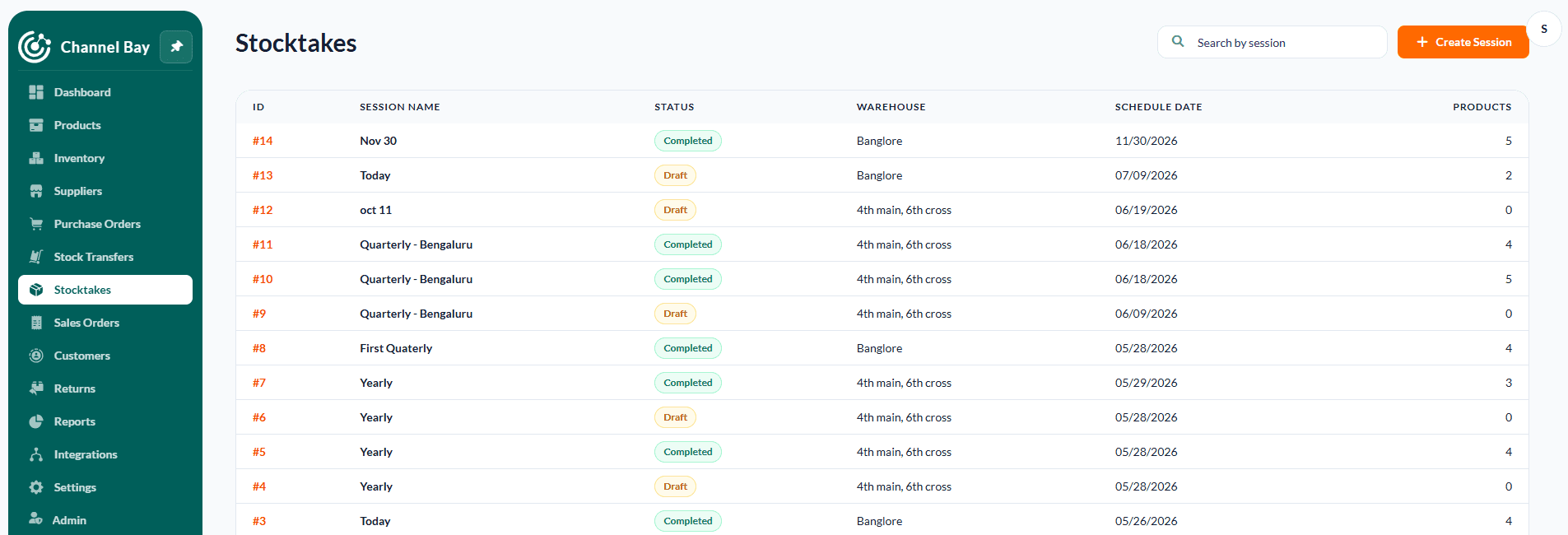
Once finalized, your stocktakes list shows the session name, status (draft or completed), warehouse, schedule date, and product count for every session you've run, giving you full visibility across every stocktake, past and in progress.
Conclusion
Accurate stocktakes are the foundation of reliable inventory management. Comparing your physical stock against your digital records on a regular schedule helps you catch discrepancies early, avoid stockouts and overselling, and make better purchasing decisions. Whether you're running manual CSV counts, using Quick Count on the floor, or relying on dedicated stocktake software, consistency is what keeps your numbers trustworthy.
For merchants managing stock across multiple warehouses and sales channels, especially those transitioning off Stocky before the August 2026 deadline. Channel Bay brings that consistency into one dashboard, with a stocktake workflow built for exactly that kind of complexity.
FAQs
What is the purpose of a Shopify stocktake?
A Shopify stocktake compares your physical inventory count against what's recorded in Shopify, so you can catch and correct discrepancies before they cause overselling, stockouts, or inaccurate reporting.
What are the common types of stocktaking methods?
The main methods are real-time (perpetual) tracking, cycle counting, spot checking, periodic stocktaking, and annual stocktaking, each suited to different catalog sizes and turnover rates.
How do I perform a Shopify stocktake?
You can export and re-import a CSV through Products → Inventory, use the Quick Count extension in Shopify POS (POS Pro required), or use dedicated stocktake software that syncs with your store.
What happens to my Stocky stocktake data after the shutdown?
Historical Stocky data, including past stocktakes and purchase orders, won't automatically transfer to Shopify. You need to manually export what you want to keep before August 31, 2026, and supplier records can't be exported at all or use a software which can help you transfer all your stocktakes data automatically just after adding.
How do stocktakes prevent overselling and stockouts?
By catching mismatches between your recorded and actual stock early, stocktakes let you correct inventory levels before customers can order items you don't have, or before a false stockout hides items you do have.

