

How to Create a Purchase Order in Shopify: A Step-by-Step Guide
Learn how to create a purchase order in Shopify with step-by-step instructions, setup requirements, workflow tips, and key considerations for merchants

To create a purchase order in Shopify, go to Products > Purchase orders, hit Create purchase order, select a supplier and destination, add products with quantities and cost per item, set payment terms and currency, then save and mark as ordered. When the shipment arrives, receive it through the linked inventory transfer so stock updates automatically. Shopify's built-in purchase order workflow, now integrated directly into the admin, handles the full ordering and receiving cycle without extra apps.
This guide walks through the exact steps, the setup you need before you start, and the structural limits of Shopify purchase orders you should know about before your operation gets bigger.
What is a Purchase Order in Shopify
A purchase order in Shopify is a commercial document you issue to a supplier to request inventory. It records the products being ordered, quantities, variants, agreed cost per item, delivery location, expected arrival date, payment terms, currency, and any notes. Once saved, the ordered quantities show up as incoming inventory on the product record, which keeps your available stock accurate while you wait for the shipment.
Shopify purchase orders are linked to inventory transfers, so the same document that captured the supplier agreement also tracks what shipped, what was received, and what it actually cost to land.
What to Set Up Before You Create a Purchase Order in Shopify
Shopify won't let you create a purchase order until four things exist in your store.
1. At Least One Supplier
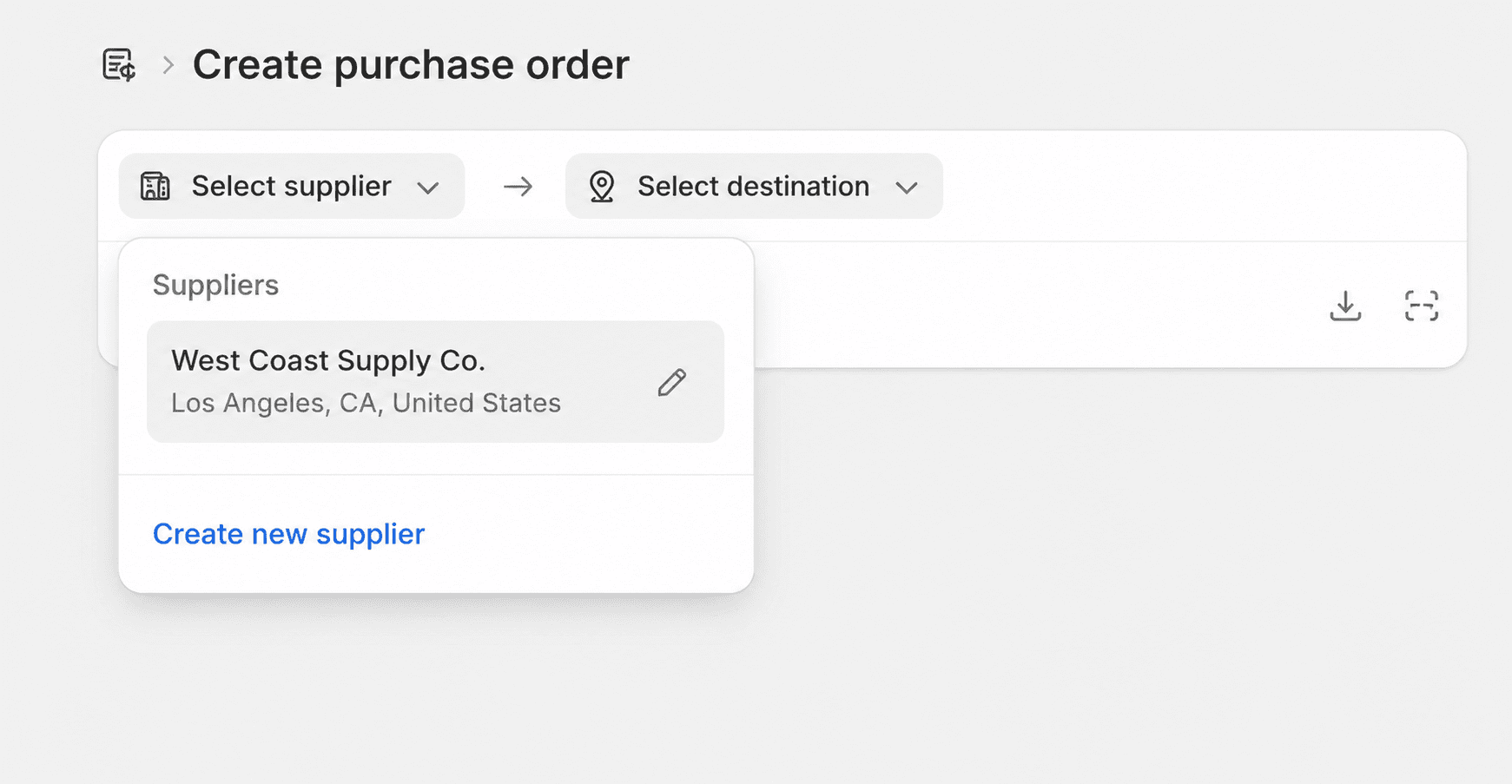
Add a supplier from Products > Purchase orders > Create purchase order > Select supplier > Create new supplier.
Enter the company name and contact details, then save. Suppliers you create here are reusable across future POs.
2. At Least One Active Physical Location
The store must have a location activated to receive incoming stock. Go to Settings > Locations > Add location, name it, and enter the address.
If you want the location's stock available to online shoppers, tick Fulfill online orders from this location.
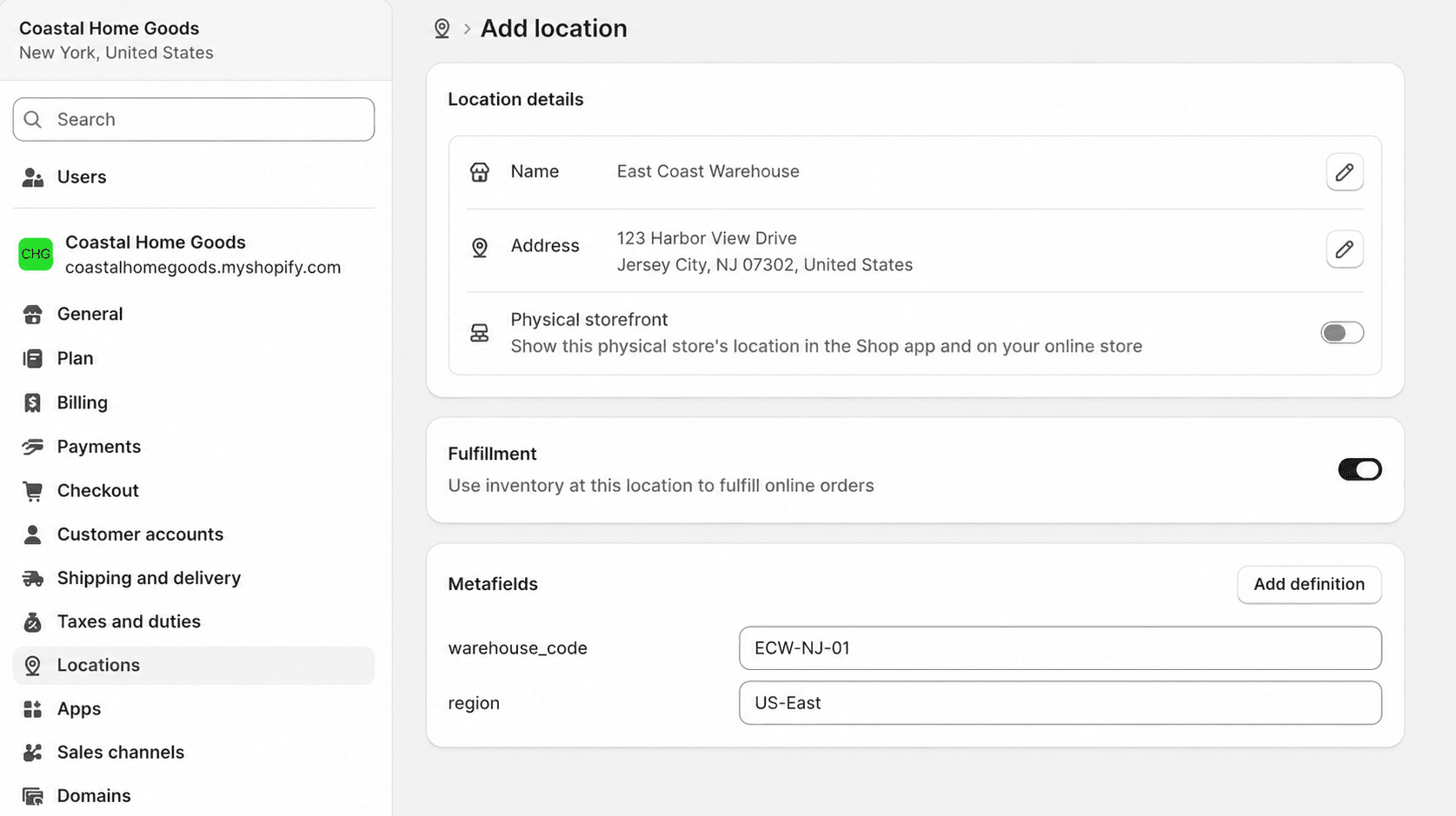
Active location limits by Shopify plan (current as of 2026):
Plan | Active locations |
Starter | 2 |
Basic | 10 |
Grow | 10 |
Advanced | 10 |
Plus | 200 |
Deactivated locations don't count against the limit. Apps that physically hold inventory for you (3PLs, dropshipping apps, custom fulfillment services) do count as locations.
3. Products Catalog
You can't add ad-hoc line items to a Shopify purchase order. Every item on the PO has to exist as a product in Products > All products first. Add products individually, or bulk import via CSV.
4. Inventory Tracking Enabled on those Products
Open a product, scroll to Inventory, and check Track quantity. For products with variants, tick Track quantity on each variant.
To do this in bulk, select products from the product list, click Bulk edit, add the Track quantity column, and check the boxes.
Once tracking is on, Shopify shows the on-hand count as 0 for the location. Don't manually adjust that yet. Let the purchase order populate the incoming inventory instead, so the audit trail stays clean.
How to Create a Purchase Order in Shopify: Steps
With suppliers, locations, products, and tracking in place, the actual purchase order takes a few minutes.
Step 1: Review Inventory and Decide what to Reorder
Go to Products > Inventory. You'll see columns for Unavailable, Committed, Available, On hand, and Incoming for every SKU at every location. Use the available and incoming counts to decide which SKUs need replenishment and by how much. This is a manual review. Shopify does not auto-trigger POs when stock hits a threshold.
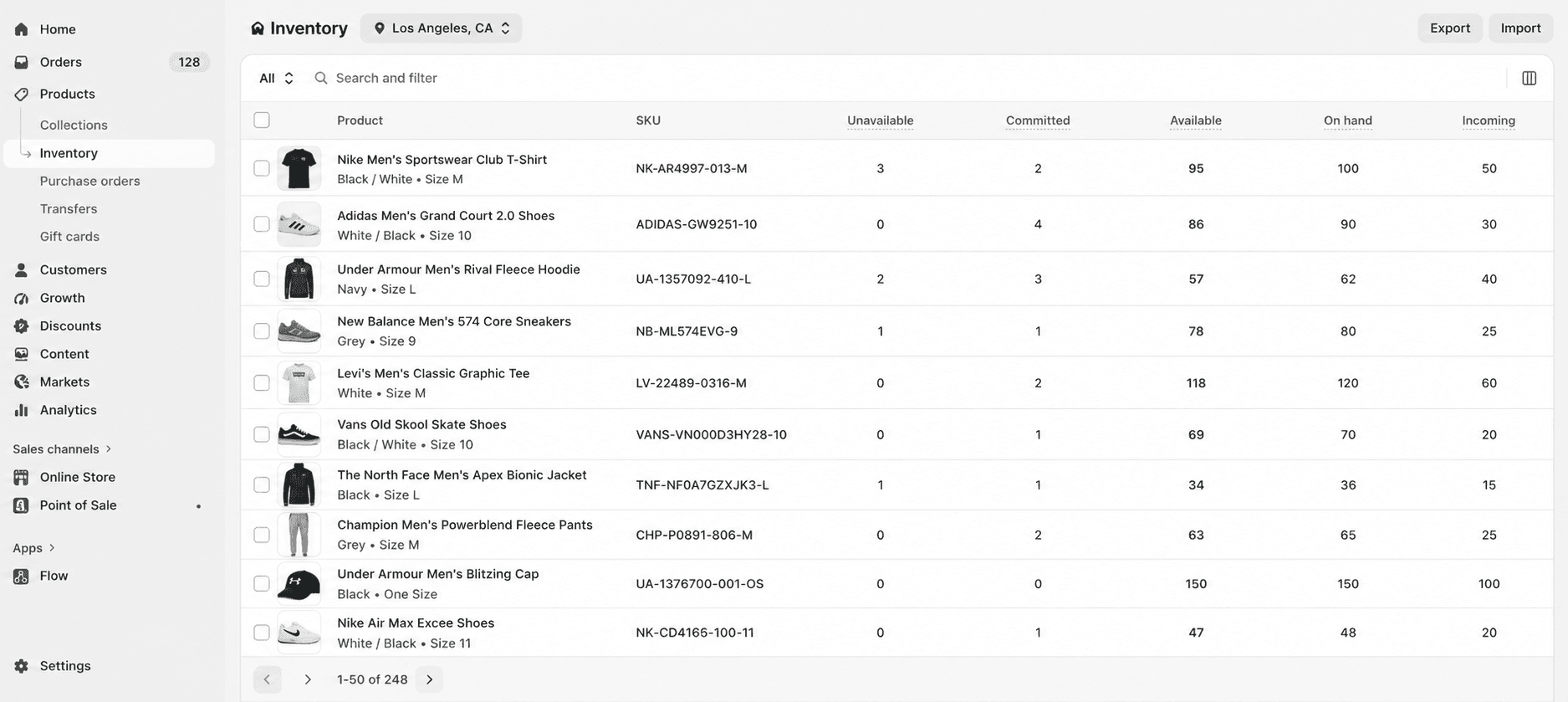
Step 2: Open the Purchase Order Screen
Go to Products > Purchase orders and click Create purchase order.
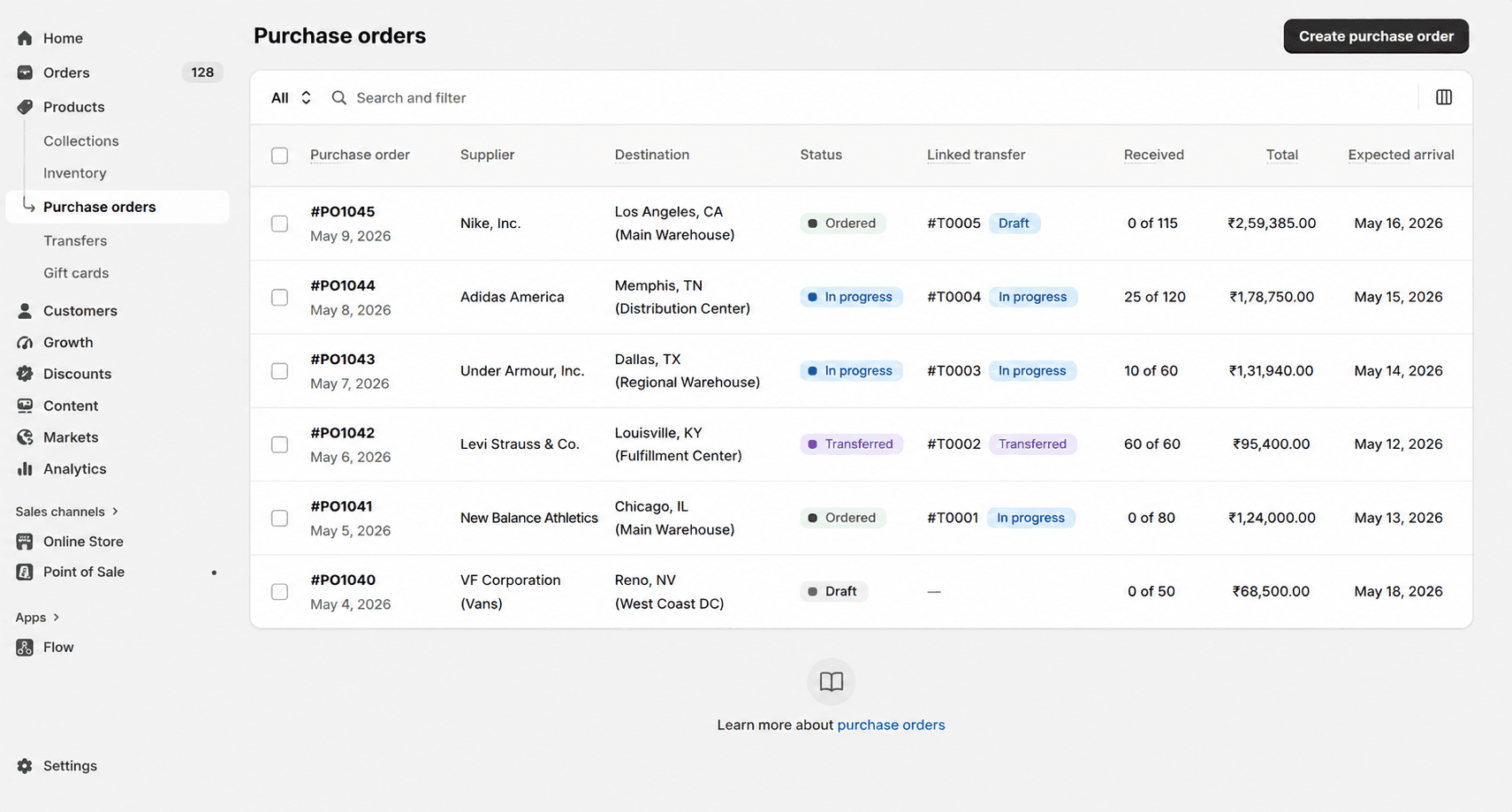
Step 3: Set the Supplier and Destination
Select the supplier you're ordering from and the destination location where the stock will land.
Step 4: Add Products
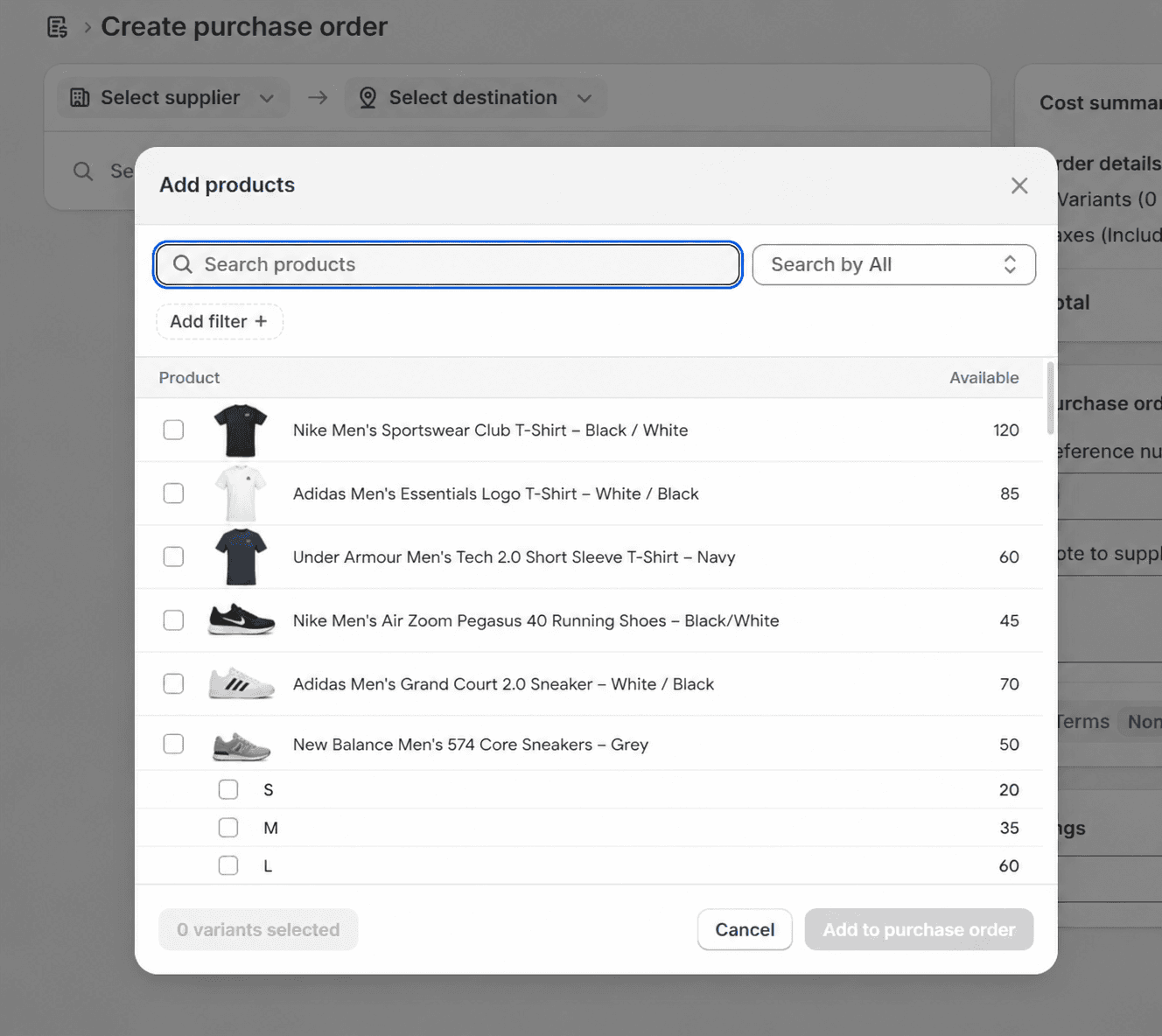
Click Add products. You have three ways to add line items:
Manually, by searching product name or SKU
By barcode, using a scanner or Bluetooth device
In bulk via CSV, including SKUs or barcodes, quantities, and optional cost and tax fields
Step 5: Enter Quantities, Cost-Per Item, Payment Terms, Currency, Reference No. and Note.
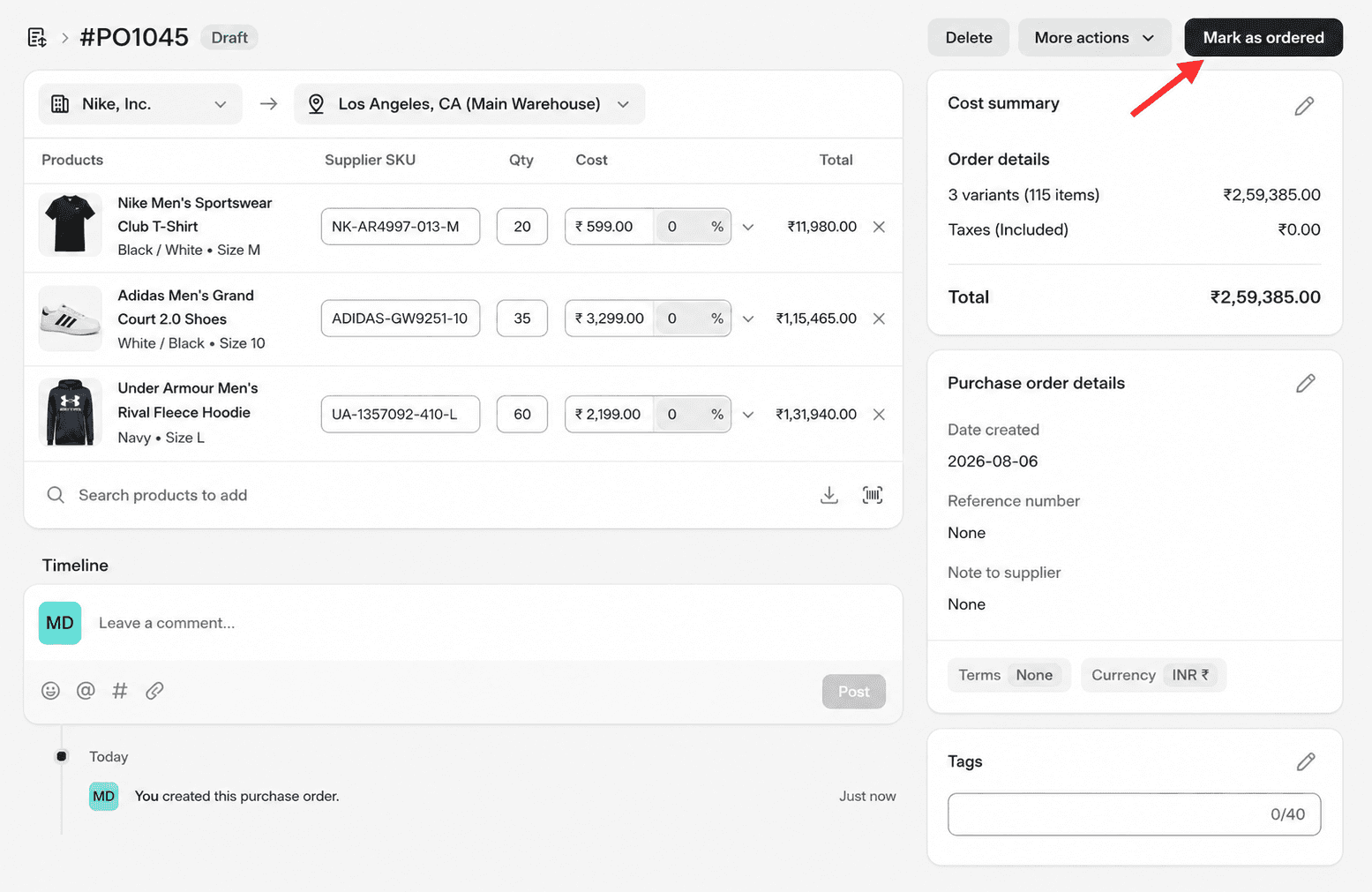
For each line, enter the expected quantity and the cost per item. Shopify multiplies the two automatically to show the line total and the PO subtotal.
Add a supplier reference number if you have one, and any notes for internal or supplier reference. Set payment terms (Net 15, Net 30, Net 60, etc.) and select the currency the supplier bills in.
Step 6: Save and Mark it as Ordered
Save the purchase order. To send it to your supplier, open More actions → Export to generate a PDF, then email the PDF from your own inbox.
Once the supplier confirms the order, return to the purchase order and click Mark as ordered. This updates the ordered quantities as incoming inventory on the related product records.
Step 7: Mark as in Transit
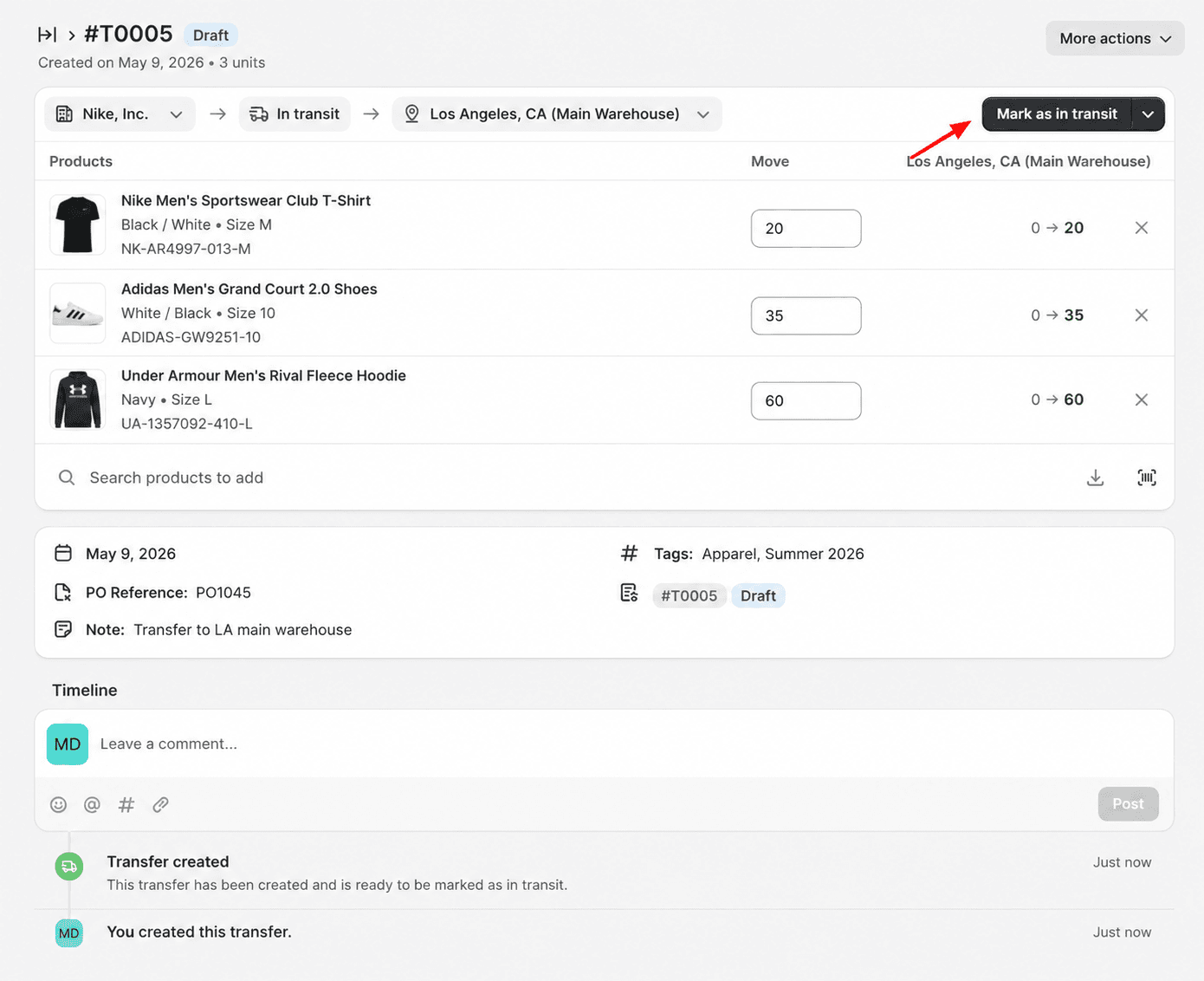
After marking the purchase order as ordered, create a linked inventory transfer by clicking Create transfer (or the transfer link in the purchase order).
Then click Mark as in transit. This will update your inventory so the ordered items are officially recorded as incoming stock while they are being shipped. Until the shipment is received, the transfer status remains In Progress.
Step 8: Receive the shipment
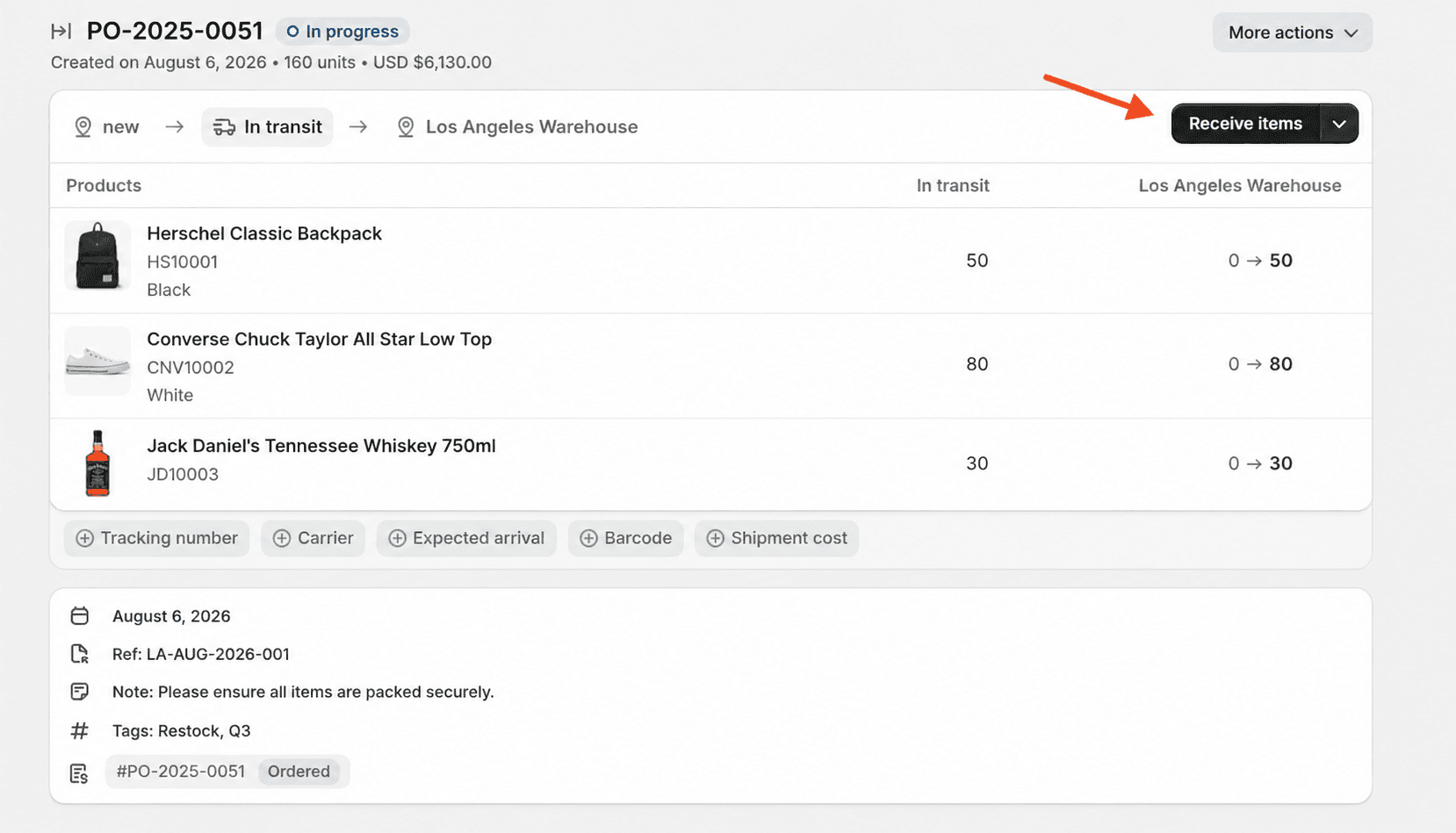
When the shipment arrives, open the linked inventory transfer from the purchase order. Enter the quantities you actually received. If everything arrives in full, click Accept all. If it's a partial shipment, enter the received quantity per line and leave the rest open for later.
Step 9: Record the Partial Delivery
Review the delivered inventory. If any items are damaged or don't meet your expectations, you can reject them while receiving the shipment in Shopify.
Click Receive items.
In the Accept column, enter the quantity of items you want to add to your inventory.
In the Reject column, enter the quantity of items you want to return to the supplier.
After verifying the quantities, click Save to update the purchase order and inventory.
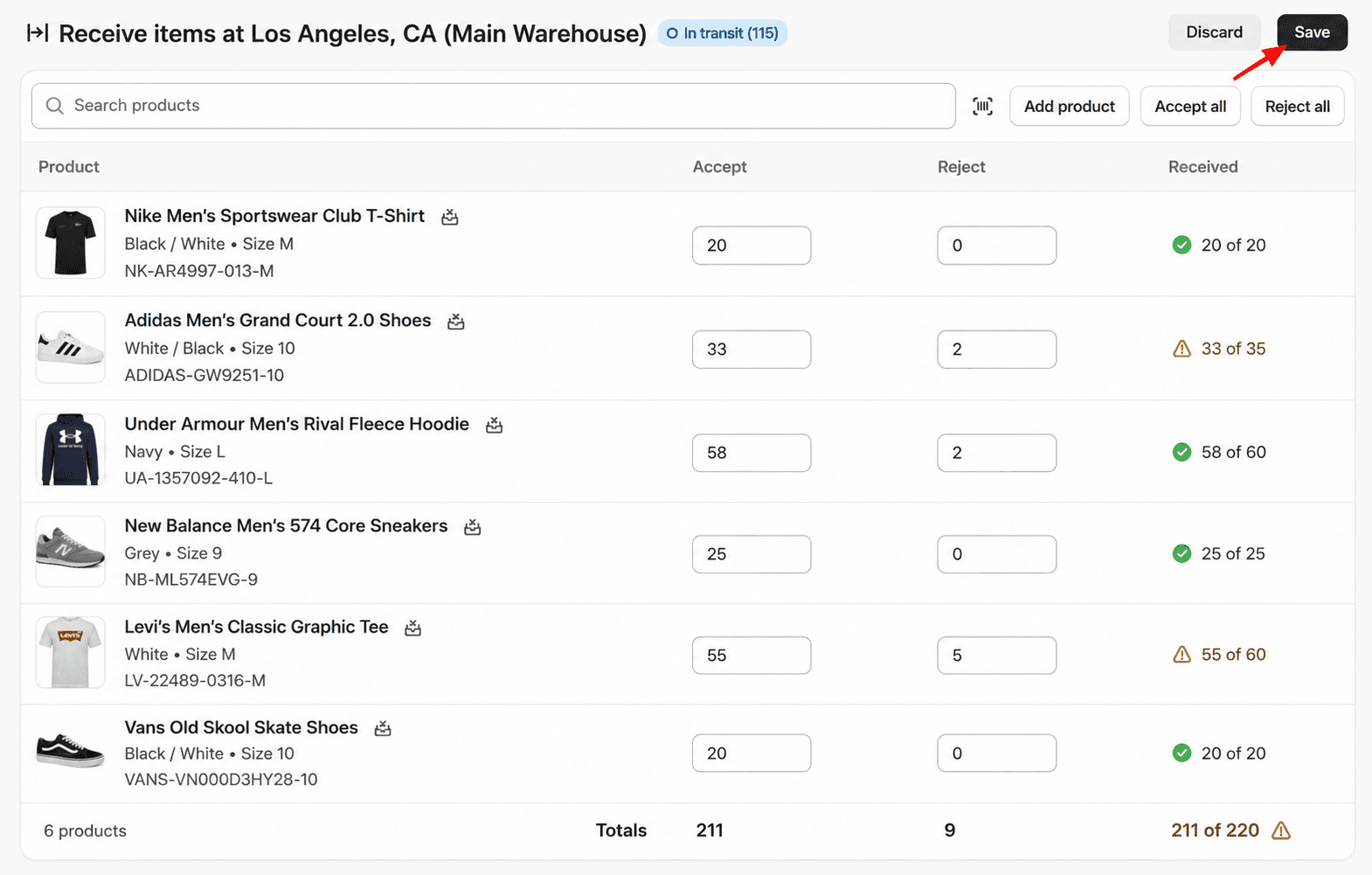
Received quantities are added to on-hand stock at the destination location. Shipping charges, duties, or other fees can be added as separate cost adjustments on the transfer, and Shopify rolls them into the transfer's cost summary so you can compare the original PO value with the true landed cost.
Receiving on the sales floor
If you're using Shopify POS at the receiving location, retail staff can open the linked transfer directly in POS, scan incoming products, and confirm quantities from the floor instead of the admin.
What's New with Shopify Purchase Orders in 2026
As Shopify has retired the Stocky app, purchase orders and inventory transfers now live natively inside the Shopify admin, with a few notable additions:
Linked inventory transfers. Marking a PO as ordered auto-creates a pre-populated transfer, so what was ordered and what was received live in one connected view.
POS receiving. Retail staff can receive PO shipments through the linked transfer in Shopify POS.
Bulk CSV import for line items. Import SKUs, barcodes, quantities, cost, and tax into new or existing purchase orders.
Per-shipment cost adjustments. Shipping, duties, and other fees can be added to individual shipments on the transfer, and Shopify combines them into the total cost of receiving.
Beyond Basic Purchase Order Management in Shopify
Shopify's native workflow covers the ordering-to-receiving cycle well for straightforward operations. A few structural limits are worth knowing before you scale:
No automatic reordering. There's no built-in reorder point that triggers a PO when stock drops. Every PO is created manually.
No native email to suppliers. You export the PO as a PDF and send it from your own inbox. Shopify doesn't email the supplier for you.
No landed cost automation on the PO itself. You can add cost adjustments on the linked transfer after the fact, but the PO document itself doesn't calculate duties, freight, or brokerage into the per-unit cost automatically.
Manual supplier lead-time tracking. Expected delivery dates are free-text. There's no historical lead-time analysis by supplier.
For merchants with a few suppliers and predictable reorder cycles, none of this is a blocker. For anyone reordering across dozens of suppliers, running reorder points on velocity, or needing accurate landed cost baked into COGS, these gaps usually get filled by a dedicated purchase order and inventory app.
If your purchasing workflow needs automatic reorder points, landed cost calculations, or multi-supplier management beyond what the native Shopify workflow covers, Channel Bay can layer that on top without pulling data out of Shopify.
Frequently Asked Questions
What is a purchase order in Shopify?
A purchase order in Shopify is a document that records what you're ordering from a supplier: products, quantities, cost per item, destination location, payment terms, and currency. Once saved and marked as ordered, the quantities appear as incoming inventory on the product records and stay linked to an inventory transfer for receiving.
Can I create a purchase order in Shopify without an app?
Yes. Shopify purchase orders are a native feature in Products > Purchase orders. No third-party app is required to create, send, or receive a PO. Apps become useful when you need automatic reorder points, landed cost automation, or multi-supplier workflows that go beyond the native tools.
Does Shopify email the purchase order to my supplier automatically?
No. Shopify generates the PO as a PDF you export from More actions > Export. You send that PDF to the supplier from your own email. There is no built-in supplier email inside the purchase order workflow.
How do I receive a purchase order in Shopify?
Open the inventory transfer linked to the PO, enter the quantities received per line, and click Accept all for a complete shipment or save partial receipts for the rest. Received quantities are added to on-hand inventory at the destination location. Shipping and duty costs can be added to the transfer as cost adjustments.
Can Shopify auto-create a purchase order when stock is low?
Not with the native workflow. Shopify shows available and incoming quantities, but you decide when to reorder and create each PO manually. Automatic reorder-point triggering is a common reason merchants add a dedicated purchase order app on top.

