

Custom Shopify Purchase Order Template: Built From Your Own Design
Create a Shopify purchase order template from your own PDF, Canva design, or sample PO. Dynamic product rows, multiple supplier templates, and batch receiving.

A custom Shopify purchase order template starts from a document you already use: a PDF, a Canva design, a supplier's sample PO, or a short written brief. It's then connected to your live purchase order data, so every PO fills itself in correctly whether it has 5 lines or 50. In Channel Bay, the team builds the template for you in about an hour and adds it to your account. You pick it when you generate or send a PO. Custom templates are available on the Basic and Pro plans.
Most purchase order tools call their templates "customizable". In practice that usually means a logo slot, a colour picker and a fixed set of fields you can shuffle around. That works until a supplier asks for their own format, or a long order pushes the totals onto a page of their own.
This guide covers what changes when the template is built from your design, what a template can and can't print, how to create one, and how to handle the harder case: one PO that arrives in several batches, sometimes from several of your supplier's warehouses.
Key takeaways
A custom template is built from your reference in HTML and Liquid, the same approach Shopify uses for its own Order Printer documents. You don't write any code.
You can keep a different template for each supplier and choose one each time you generate or send a PO.
Every batch you receive gets its own document, with its own template, showing only what arrived in that shipment.
Each batch keeps its own supplier invoice number. When one PO ships from several supplier warehouses, that number tells the supplier which shipment, and so which warehouse, a return belongs to.
What a custom template changes
Every purchase order needs the same core parts: who's buying, who's supplying, the PO number and dates, the line items, and the totals. For a field-by-field breakdown and free downloadable formats, see our guide to the Shopify purchase order template.
A custom template doesn't change that list. It changes who controls the document. With a standard template, you fit your POs into the layout you were given. With a custom one, the layout is built to match yours, down to the column widths and where the barcode sits. It stays the same no matter how many lines the order has.
Why drag-and-drop template builders fall short
Drag-and-drop editors are fine for a basic PO. They become restrictive once a supplier expects a particular layout or your orders carry a lot of data, because you can only change what the editor exposes.
You can move sections, but you can't control the document
Reordering blocks and changing a font isn't the same as controlling the layout. Most builders still fix the column widths, table structure, spacing and section positions. When a supplier sends you the exact PO format their team processes, you can get close but rarely match it. So you either compromise on the layout, or spend an afternoon fighting the editor.
Designing the template becomes your job
A professional PO shouldn't require you to become a designer. If you work with four suppliers who each want something slightly different, you end up maintaining four hand-built layouts.
Long orders break the layout
A table that looks clean with 6 lines can spill awkwardly at 40. Columns get squeezed, rows split across pages, and the totals end up on a page away from the lines they belong to. Visual editors also tend to struggle with variant details, per-line notes and calculated totals, which is exactly the data a purchasing team needs.
What Shopify's own purchase orders give you
Shopify admin has native purchase orders, and they do export a document. Shopify's help centre says you can "save your purchase order as a PDF to submit to your supplier", from More actions → Export PDF (Shopify Help Center). The same page doesn't describe any way to change how that PDF looks.
Shopify does build customisable documents elsewhere. Its Order Printer app, used for invoices, packing slips and pick lists, lets you customize templates "by using HTML, CSS, and Liquid code" . That's the right approach for a document that has to match an exact format. But it's aimed at customer orders, not purchase orders, and you write the code yourself.
Channel Bay takes the same approach for purchase orders. The difference is that the team writes the template for you.
How Channel Bay builds a custom purchase order template
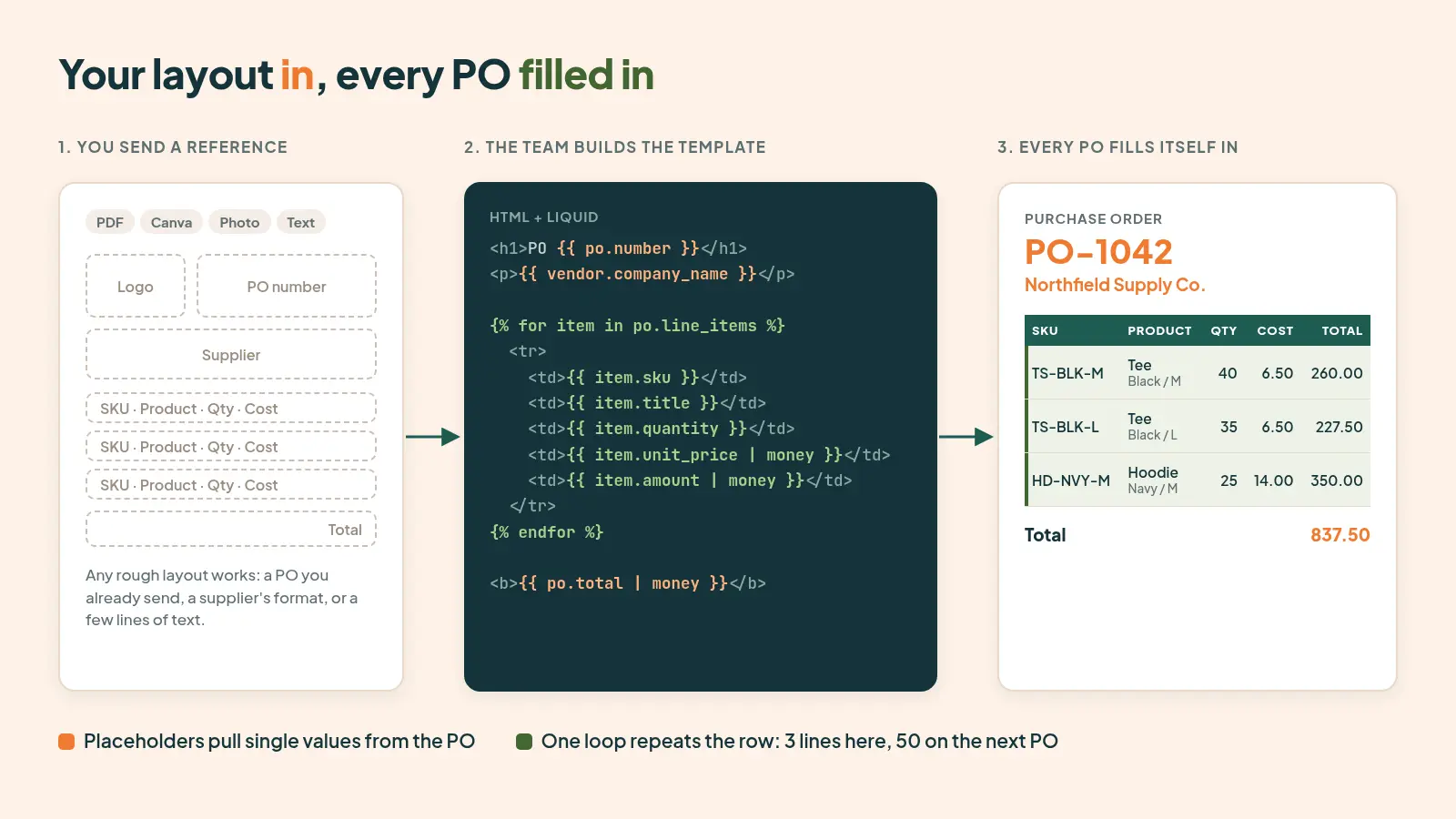
You send a reference, and the Channel Bay team builds the template, connects it to your purchase order data, and adds it to your account. It takes about an hour. There's no editor to learn, because you never edit the template directly.
Start from a PDF, Canva design, sample PO or brief
Any format works. Send whatever shows how the finished document should look:
a PDF of a PO you already send
a photo of a printed PO
a Canva design
a supplier's required format
a sample PO from another business that you like
Starting from nothing? A few lines describing what goes where is enough.
Built in HTML and Liquid, connected to your data
Each template is HTML with Liquid placeholders, the same combination Shopify's Order Printer uses. The placeholders pull in values from the PO when the document is generated. A loop repeats the line-item row once for every product on the order, so a 50-line PO flows into the same layout as a 5-line one and the totals still land where they should.
Two things make this safe to rely on:
It's rendered from your saved PO. The document always reflects the current supplier, lines and totals, so there's no separate copy to keep in sync.
A broken template can't block you. If a custom template ever fails to render, Channel Bay falls back to the default document instead of stopping you from sending the PO.
What a custom template can print
A template can only print data that Channel Bay passes to it. It's worth knowing the list before you design around a field that isn't there. Today, a purchase order template can use:
Area | Fields available |
|---|---|
Your business | Business name, address, phone, email, tax ID, logo |
Supplier | Company name, contact name, email, phone, tax ID, payment terms, address |
PO details | PO number, status, order date, expected delivery date, supplier cancel date, currency, payment terms, notes, supplier invoice number and date, created by |
Deliver to | Location name, address, phone |
Line items | Product and variant name, SKU, barcode, product image, quantity, unit cost, discount, line total, received quantity, line notes |
Totals | Subtotal, discount, tax, shipping, adjustments, total, total quantity |
Anything that's the same on every PO, such as your terms and conditions, Incoterms or a return address, can go into the template as fixed text.
Anything that changes per product and isn't in the table, such as your supplier's own SKU codes or HS codes, can't be filled in automatically today. If you need a field like that, mention it when you send your reference, and the team will tell you what's possible.
How to create a purchase order template for your Shopify store
These five steps take you from nothing to a working template:
List what each supplier needs to see. Start with the core parts of a PO, then note anything supplier-specific: a barcode position, a particular column order, fixed terms, or a delivery instruction.
Gather a reference. Find a PDF, image, Canva file or supplier sample that shows the layout you want. If you don't have one, write a few lines on what goes where.
Check your fields against the table above. Mark each field as live data from the PO, fixed text, or something that isn't available yet. This is the step that prevents surprises.
Send it to the Channel Bay team. Share the reference and your field list as a file, an image or a plain text description. The template is built, connected to your data, and added to your account in about an hour.
Test it with your smallest and largest POs. Preview a one-line PO and your longest real one. On long orders, the preview shows the first 8 and last 7 lines with a "more items" marker in between. Generate the full PDF to check page breaks, and confirm the totals sit with the right rows.
Using a different template for each supplier
One template rarely fits every purchase. Different suppliers have different paperwork, international orders need details a local supplier ignores, and seasonal buys often follow a different process. Most stores stretch one template to cover everyone. It's easier to keep several.
Situation | What that template adds |
|---|---|
Domestic supplier, regular restock | A simple layout with line items, totals and payment terms |
International supplier | The supplier's purchasing currency, their tax ID, and your Incoterms as fixed text |
Supplier with a required format | Their exact layout, barcode placement and column order |
Seasonal or bulk buy | Delivery windows, split-delivery notes, and a table built for long orders |
Each template has its own name, so the right one is easy to find in the picker. Adding a template for one supplier never changes the layout you use for everyone else.
Choosing a template when you generate or send a PO
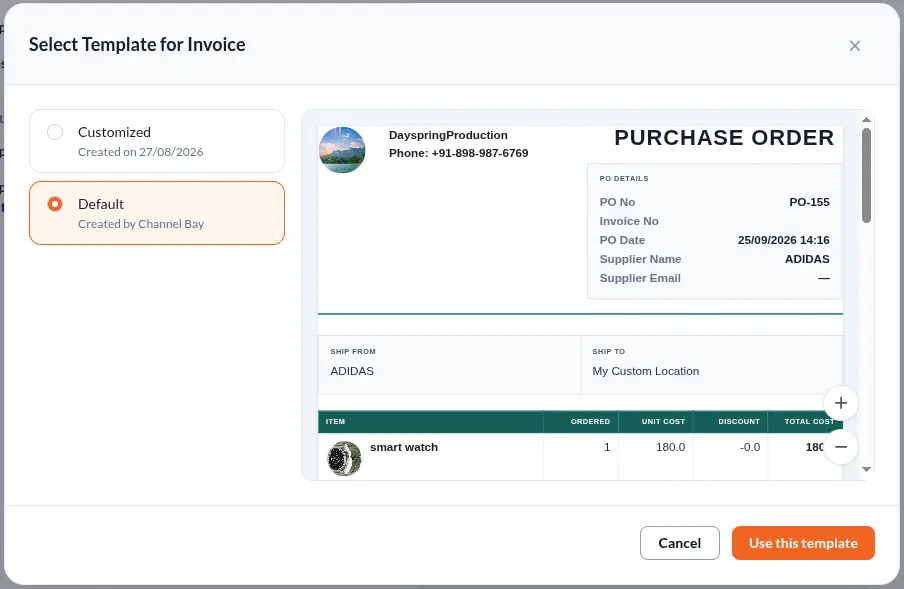
You choose the template when you produce the document, not when you create the PO.
To download or print: open the PO, go to More Actions → Generate Invoice, pick a template or Default, check the preview (you can zoom in), and click Use this template.
To email the supplier: use More Actions → Send Invoice. When you attach the PDF, choose the Invoice template for this email, or Default Template. The subject and body come from your purchase order email template.
Channel Bay calls this supplier-facing document the purchase order invoice, so that's the button to look for.
Receiving documents for partial and batch shipments
Purchase orders don't always arrive in one go. A supplier might send part of an order this week, more next week, and the rest later. In Channel Bay, every delivery you receive is saved as its own batch. Each batch can have its own document, with its own template.
Why reprinting the original PO misleads the warehouse
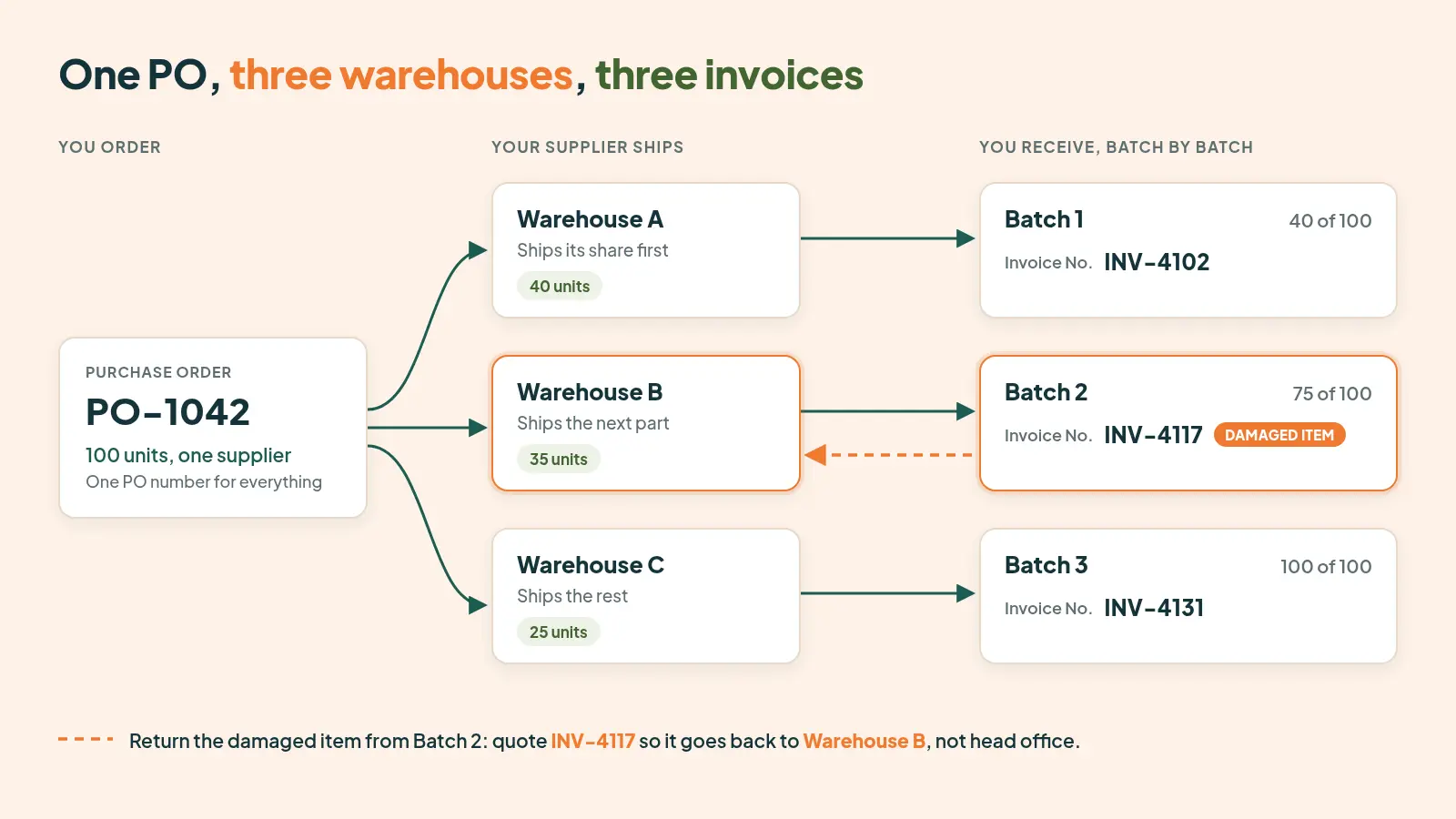
Say a PO covers 100 units, and it arrives like this:
Shipment | Units received | Running total | Supplier invoice |
|---|---|---|---|
Batch 1 | 40 | 40 of 100 | INV-4102 |
Batch 2 | 35 | 75 of 100 | INV-4117 |
Batch 3 | 25 | 100 of 100 | INV-4131 |
If you reprint the original PO when Batch 1 arrives, it shows 100 units when only 40 came through the door. Whoever checks the delivery has to work out the difference by hand, and that's where receiving errors creep in.
One document for each batch
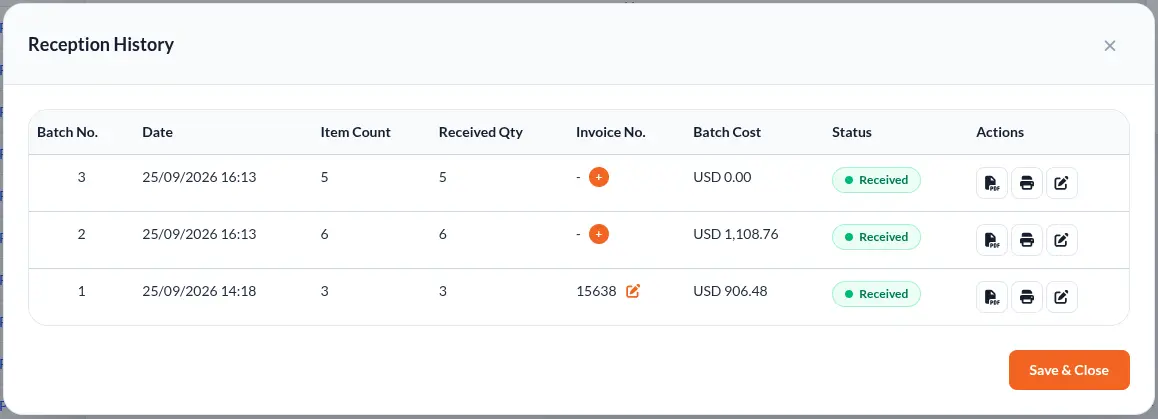
A batch document lists only the products and quantities in that shipment. You open it from the PO's View Reception History, using the PDF icon (View Invoice) on the batch you need. Warehouse and purchasing teams get a clean record of each delivery, which makes it far easier to match deliveries against supplier invoices when one PO arrives in three or four shipments.
Receiving layouts that don't have to match the PO
Batch documents use their own templates, separate from your PO templates. So the receiving document doesn't have to look like the original order. It can show the batch number, date received, quantity received, batch cost, freight and the supplier's invoice number, laid out around how your team checks stock in.
When one PO ships from several supplier warehouses
Split shipments don't only happen because a supplier runs short. Larger suppliers often fulfill one PO from more than one of their own warehouses, and each warehouse sends its own batch with its own invoice. You end up with one PO, three batches and three invoice numbers.
Every batch keeps its own invoice number
In Channel Bay, each batch has its own invoice number. Open Reception History, click the + in the batch's Invoice No. column (or the edit icon to change one), enter the supplier's number, and click Save & Close. The number then prints on that batch's document. When the supplier's accounts team asks about a particular invoice, you can go straight to the batch it covers. There's no need to work backwards from the PO total.
Each warehouse also ships separately, so each batch can carry its own Freight Charge when you receive it. A supplier credit for one shipment goes in as a negative Adjustment on that batch. The PO's shipping and adjustment totals are then built from the batches, so the costs stay attached to the delivery they came with.
Why it matters for returns
That link matters most when stock has to go back. A damaged or incorrect item usually has to return to the warehouse that shipped it, not to the supplier's head office.
Quote the invoice number of the batch it arrived in, and the supplier can route the return to the right place. If you'd reprinted the original PO instead, you'd have one PO number covering all three warehouses, and nothing on the page to say which one sent the faulty item.
Do you need a custom Shopify purchase order template?
Not always. If you order from one or two suppliers a few times a year and nobody asks for a particular format, Shopify's native PDF export or a free template will do the job. A custom build would be overkill.
A custom template earns its place when one or more of these is true:
A supplier requires a specific PO format or barcode layout.
You work with several suppliers who each need different information.
You buy internationally and need currency, tax IDs or Incoterms on the PO.
Your POs regularly run long enough that standard layouts start to split badly.
Orders often arrive in split shipments, or from several of a supplier's warehouses, and you need a record of each batch and its invoice.
Frequently asked questions
Does Shopify have a built-in purchase order template?
Shopify admin includes native purchase orders, and you can export one as a PDF from More actions → Export PDF. Shopify's help centre doesn't describe a way to change that PDF's layout. If you need a document that matches a supplier's format or holds long orders cleanly, you need an app with customizable purchase order templates.
I'm moving off Stocky, does my PO layout come with me?
No. Nothing moves a PO layout across automatically, and Shopify's help centre notes that "historical purchase orders can't be imported into Shopify" (Shopify Help Center). If your suppliers are used to the PO you sent from Stocky, send a PDF of one as your reference, and the template can be built to match it.
How much time you have depends on the banner in your Shopify admin. For some stores, Stocky access has already ended. For others, it runs until 1 March 2027.
Which plans include custom templates, and how long does one take?
Custom templates are available on the Basic and Pro plans. Once the team has your reference, a template takes about an hour to build. On every other plan, and whenever you choose Default, Channel Bay uses its standard PO document.
Can I use my existing PDF or Canva design as a PO template?
Yes. Send an existing PDF, image, Canva design, supplier document or sample PO as the reference. The Channel Bay team builds the template to match it and connects it to your PO data, so you don't have to recreate the design yourself.
Can I edit the template myself?
Not directly. There's no template editor in the app, because templates are added to your account by the Channel Bay team. To change a template, send the change to the team, the same way you sent the original reference.
Can I use a different template for each supplier?
Yes. Keep as many as you need, for example a simple one for domestic restocks and a detailed one for international suppliers. Choose the template when you generate or send the PO, and preview it before you do.
Can I create a separate document for each receiving batch?
Yes. Every delivery you receive is saved as its own batch, and each batch has its own document showing only what arrived in that shipment. It also shows the supplier's invoice number for that batch. That matters when a supplier ships one PO from several warehouses, because returns usually have to go back to the warehouse that sent the batch.
Where Channel Bay fits
Channel Bay is an inventory management platform for Shopify merchants, built around purchase orders. Purchase orders, automated PO emails and partial or batched receiving are included on every plan, including Free, with Channel Bay's standard documents. Custom templates for POs and receiving batches are available on the Basic and Pro plans.
If your suppliers need a particular format, or your orders arrive in pieces, send the Channel Bay team a sample PO, a screenshot or a few lines describing what you need. Your template will be ready in about an hour.

