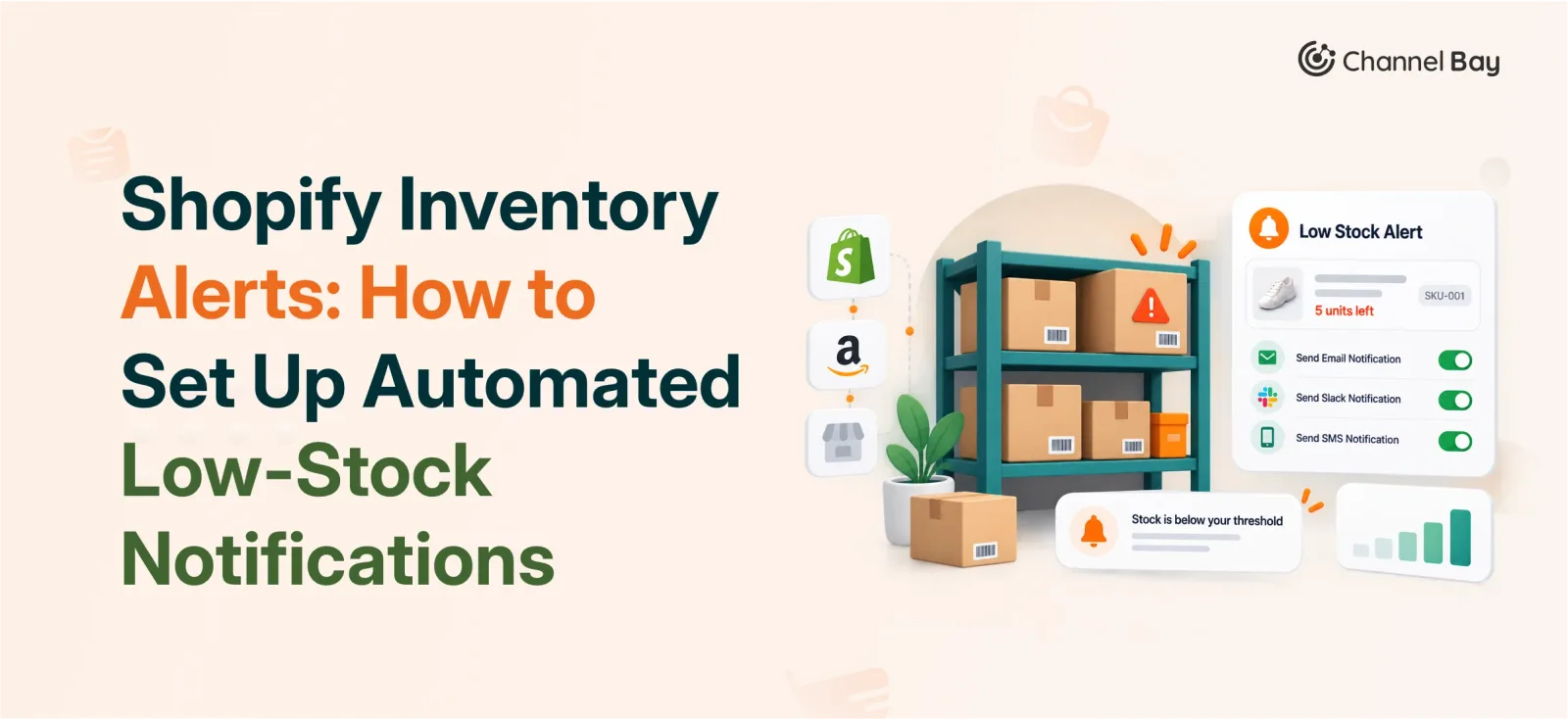
Shopify Inventory Alerts: How to Set Up Automated Low-Stock Notifications
Learn how Shopify inventory alerts work, where Shopify Flow falls short, and how to set up automated low-stock alerts backed by real-time synced data.
On this page
- What Counts as a Shopify Inventory Alert
- Types of Shopify Inventory Alerts
- How to Set Up Automated Inventory Alerts for Low Stock
- Why Inventory Sync Determines Whether Your Alerts Are Accurate
- Shopify's Native Limitations
- When Shopify Flow Isn't Enough
- Building a Connected Inventory Alert System
- The Bottom Line
Key Takeaways
- Shopify's admin shows stock levels but does not send low-stock notifications on its own. You need Shopify Flow or a dedicated inventory alert system.
- There are four core alert types (low-stock, out-of-stock, restock, overstock) plus situational ones (reorder point, negative inventory, receiving, customer back-in-stock).
- An alert is only as accurate as the inventory data behind it. If stock across channels and locations isn't synced in real time, alerts fire on stale numbers.
- Shopify Flow automates alerts within Shopify's own data. It cannot see inventory changes on other channels or warehouses until that data syncs back in.
A Shopify inventory alert is a notification that fires when a product's stock hits a condition you define, such as falling below 10 units or reaching zero. Shopify's admin shows you inventory levels, but it does not email or notify anyone on its own. To get an actual alert, you need Shopify Flow or a third-party inventory alert system.
That distinction matters more than it sounds. Most merchants who search for "shopify inventory alerts" assume the feature already exists inside their admin. It doesn't, not in the proactive, notify-my-team sense.
This guide covers the alert types worth setting up, how to configure automated low-stock alerts step by step, why alert accuracy depends entirely on inventory sync, and where native Shopify tools stop being enough for multi-channel sellers.
What Counts as a Shopify Inventory Alert
Shopify's native admin gives you two passive signals, not alerts:
Low-stock indicators: A visual flag next to products with low quantities, which merchants need to identify themselves.
Out-of-stock status: shown when available inventory hits zero (customers may still be able to order if "Continue selling when out of stock" is enabled).
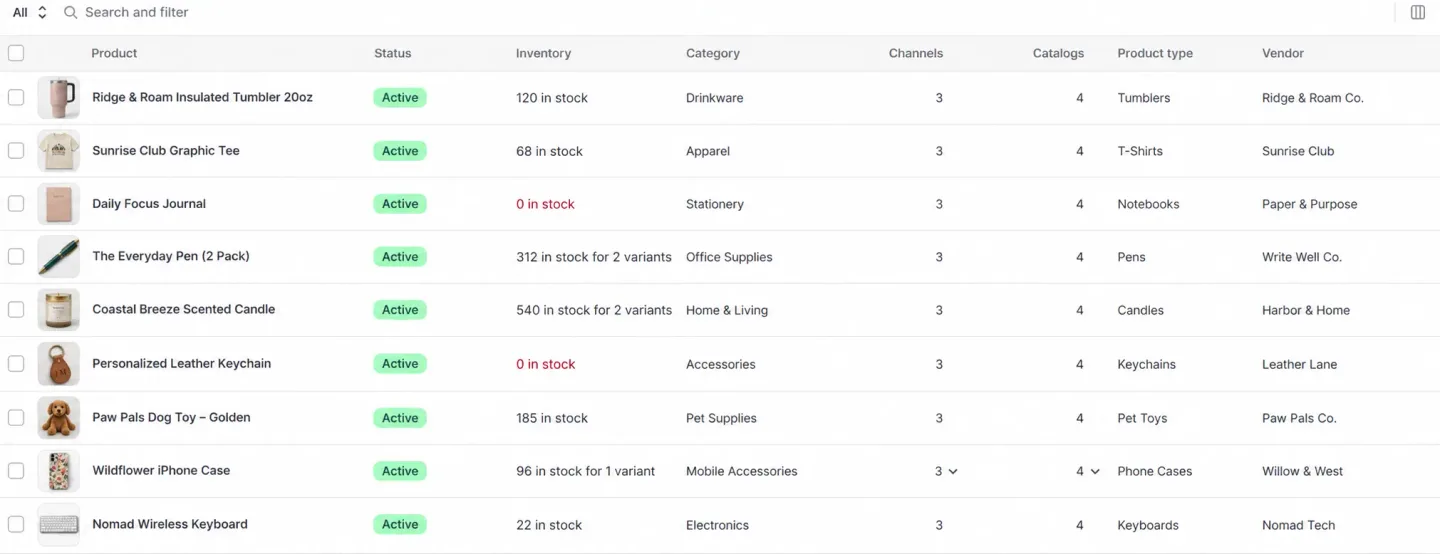
Neither of these pushes a notification to anyone. An actual alert system watches inventory continuously, compares it against a threshold you set, and sends a notification (email, dashboard, or connected tool) the moment that threshold is crossed. Shopify Flow can build this on top of the native data; dedicated inventory tools extend it across channels and locations.
Note: Shopify does not always include a dynamic visual “low-stock” badge on the storefront by default, although some modern themes offer built-in low-stock threshold settings.
Types of Shopify Inventory Alerts
The right mix depends on catalog size, sales channels, and how proactively your team manages replenishment. Most stores need some combination of the following.
Core Alerts
| Alert type | Fires when | Who typically needs it |
|---|---|---|
| Low-stock | Inventory drops to a set level (e.g., 10 units) | Purchasing team |
| Out-of-stock | Available inventory reaches zero | Purchasing + store manager |
| Restock | Inventory is replenished | Sales/support team |
| Overstock | Inventory exceeds a set maximum | Inventory manager |
Situational Alerts
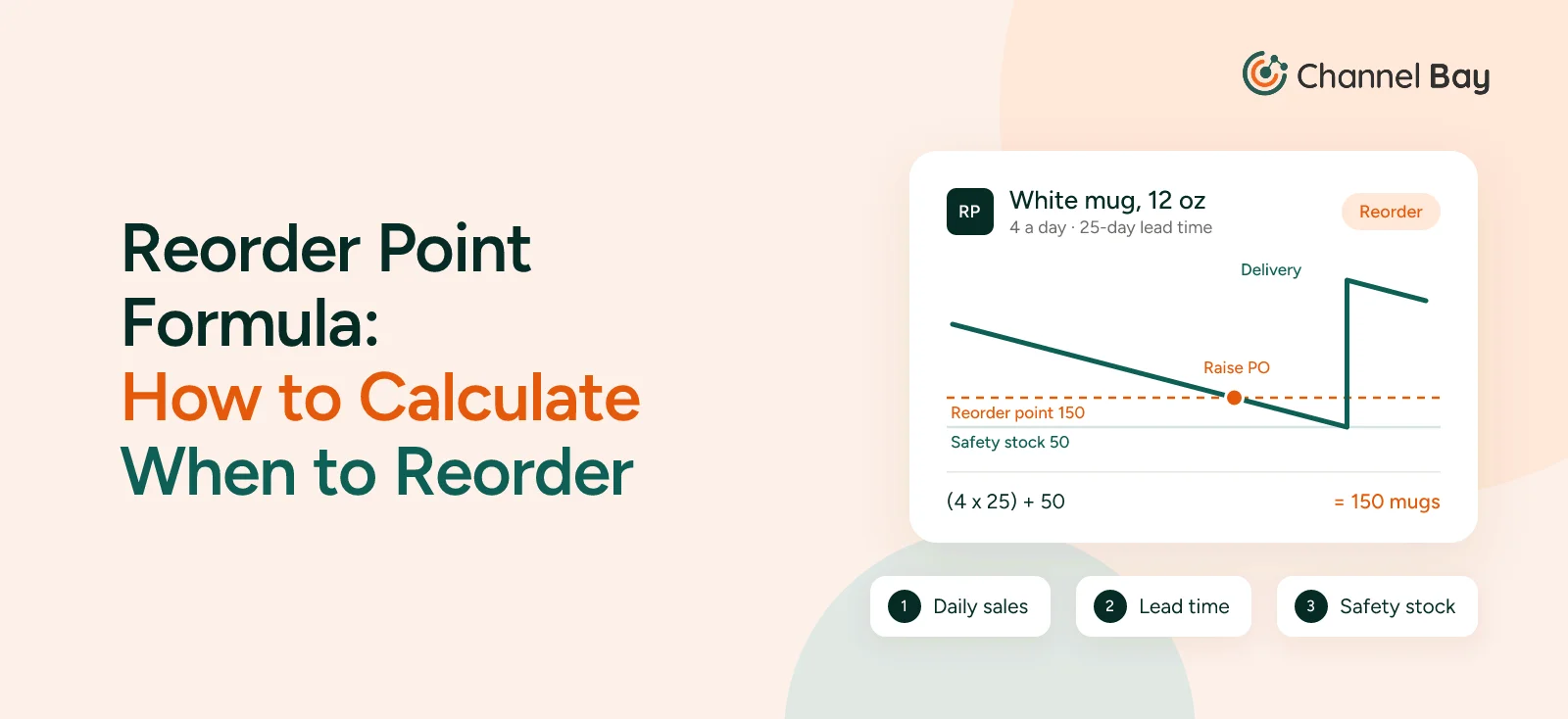
Reorder point alerts: trigger using the formula: Reorder Point = (Lead Time × Daily Sales Rate) + Safety Stock, giving purchasing a head start before stock actually runs out.
Negative inventory alerts: flag inventory below zero, usually a sign of overselling or a sync delay worth investigating.
Receiving/purchase order alerts: notify the warehouse team when expected inventory arrives.
Customer back-in-stock alerts: notify shoppers, not staff, when a sold-out product is available again.
A small single-location store might only need low-stock and out-of-stock alerts. A multi-location or multi-channel seller usually needs reorder points and negative inventory alerts too, since those are the ones that catch problems a simple stock count misses.
How to Set Up Automated Inventory Alerts for Low Stock
The setup follows one path: define your threshold, build the workflow, decide what triggers it, and route it to the right person.
Step 1: Set a Low-Stock Threshold per Product
A single store-wide threshold rarely works well. A fast-selling item needs an earlier warning than a slow-moving one.
Standard product → alert at 10 units
Slow-moving product → alert at 5 units
Best-seller → alert at 25 units
Fixed thresholds work fine when demand is predictable. If you deal with seasonality or long supplier lead times, thresholds need to vary by product rather than sit at one flat number.
Step 2: Build the Alert Workflow in Shopify Flow
Shopify Flow watches for the condition you define and fires a notification when it's met:
Inventory changes → Flow checks the level against your threshold → notification sends
For example, when a product's available inventory drops below 10 units, Flow can email your purchasing team automatically, removing the need to check the admin manually for every SKU.
Step 3: Choose What Triggers the Alert
Beyond low stock, common trigger conditions include:
Inventory reaching zero
Inventory hitting its calculated reorder point
Negative inventory appearing
Incoming inventory being received
Stock exceeding an overstock threshold
Only build alerts around conditions that require someone to actually act. An alert nobody responds to is noise.
Step 4: Route the Alert to the Right Person
| Alert type | Send to |
|---|---|
| Low-stock, reorder point | Purchasing team |
| Receiving, stock adjustments | Warehouse team |
| Location-specific low-stock | Store manager |
| Negative inventory, overstock | Inventory manager |
An alert that reaches the wrong inbox is functionally the same as no alert.
Why Inventory Sync Determines Whether Your Alerts Are Accurate
A threshold is only useful if the inventory number behind it is current. If the same product sells on Shopify, a marketplace, and a physical store, and those channels don't sync quickly, your alert can fire on a quantity that changed an hour ago.
Example: A product sells on Shopify. Inventory drops. If that change syncs to your connected channels within seconds, your alert system checks the real current level. If it syncs in a nightly batch instead, your "low-stock" alert might fire on a number that was accurate this morning but is wrong by afternoon, or worse, miss a stockout that already happened.
Sync also changes what you do after an alert fires. If Store A drops below its 5-unit threshold but Warehouse B is holding 30 units, a transfer solves the problem faster than a new purchase order, but only if your system shows you Warehouse B's stock in real time, not from yesterday's export.
Shopify's Native Limitations
Shopify's built-in tools are enough for a simple, single-location store. They fall short in specific, predictable ways once a business grows:
No proactive email alerts. The admin shows low-stock indicators; it does not send anyone an email when a threshold is hit.
Fixed thresholds only. Thresholds don't adjust automatically for sales velocity, seasonality, or supplier lead time.
No cross-location recommendation. Shopify shows inventory by location but won't tell you whether to transfer stock or reorder.
No forecasting. Native alerts reflect current inventory, not projected future need.
When Shopify Flow Isn't Enough
Shopify Flow closes the biggest gap. It turns Shopify's own inventory data into real alerts. It has two limits worth knowing before you build around it:
It only sees Shopify's data. If stock changes on another sales channel or in a warehouse system and hasn't synced back into Shopify yet, Flow is working with outdated numbers.
It doesn't forecast. Flow triggers on the inventory level right now. It can't project when you'll hit that level based on sales velocity or lead times.
For a single-channel Shopify store, this is rarely a problem. For merchants selling across marketplaces, physical retail, and multiple warehouses, it becomes the reason alerts start feeling unreliable.
Building a Connected Inventory Alert System
For multi-channel and multi-location sellers, the fix is connecting inventory data before the alert fires, not after. Channel Bay does this by keeping inventory synced across connected channels and locations in real time, then layering alerts on top of that synced data rather than on a single channel's view of stock.
In practice, that means:
Low-stock, out-of-stock, and reorder point alerts sent by email and shown on a central dashboard
One dashboard view across every connected channel and location, instead of checking each one separately
Alerts based on the current synced quantity, not the last export
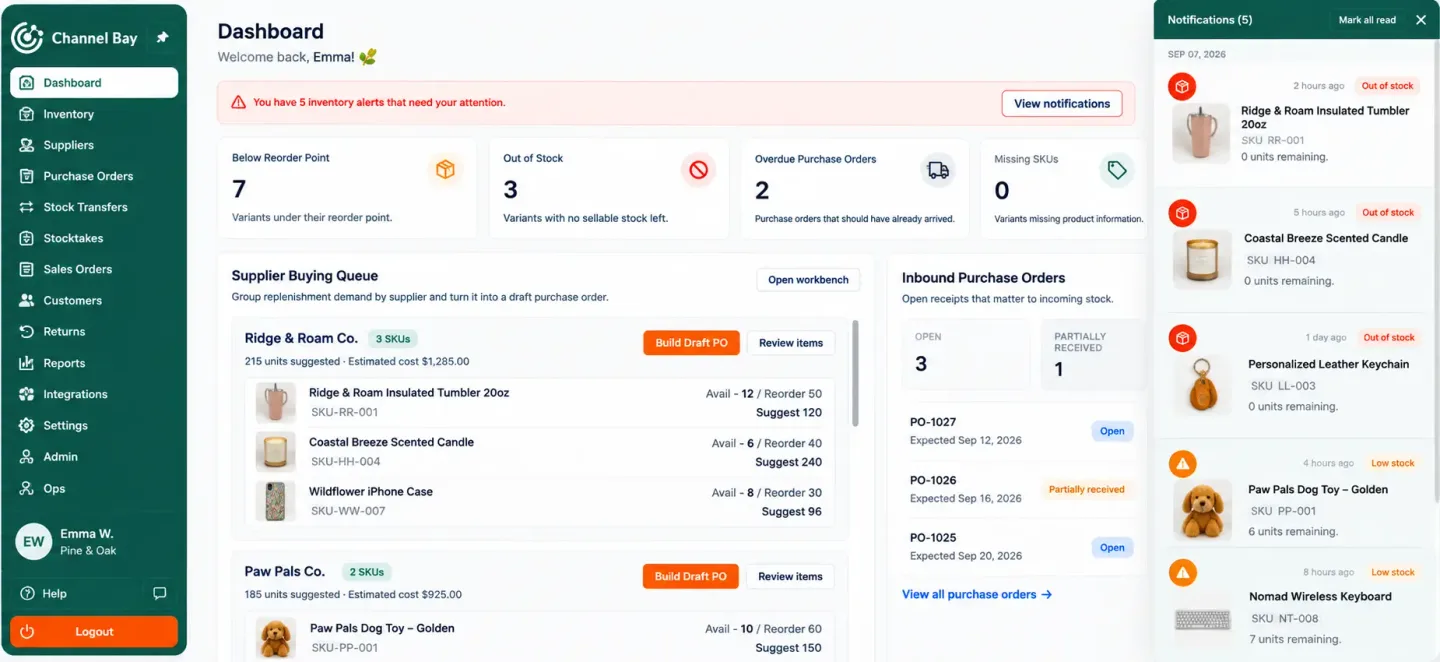
Example: A product set to alert at 10 units triggers a notification the moment synced inventory hits that level, whether the sale that caused it happened on Shopify, a marketplace, or in a physical store. The team can then check stock across every location before deciding whether to reorder or transfer.
The Bottom Line
An inventory alert is only as good as the data behind it. Set thresholds that match how fast each product actually sells, route alerts to the person who can act on them, and make sure the inventory number triggering the alert is current across every channel you sell on, not just Shopify's own count.
Frequently Asked Questions
Can Shopify notify me when inventory is low?
How do I set up automated inventory alerts for low stock?
What's the difference between a low-stock alert and a reorder point alert?
Does inventory syncing actually affect alert accuracy?
What inventory alert types should a growing Shopify store set up?
Can inventory alerts prevent unnecessary reordering?

Guides from the team that builds and supports Channel Bay, the Shopify inventory app for purchase orders, stocktakes, stock transfers and multichannel stock sync. About Channel Bay