

Is Your Stocky Still Working? How to Check, and What to Do Either Way
Is Stocky still working? Some Shopify stores keep it until March 2027, most don't. How to tell in five seconds, and the migration route for each case.


Is Stocky still working? For most Shopify stores, no: access ended on 1 September 2026, and Stocky is now read-only with a data export. A subset of stores still have a fully working Stocky, API included, until 1 March 2027. Open Stocky and look at the banner. That one screen tells you which situation you are in, and almost everything else follows from it.
Your banner says | What still works | Your deadline | Your route | |
A: ended | "Stocky is no longer available" | Read-only app and a Request data export button | Export window of at least 90 days from 31 August 2026 | Request the Shopify export, then bring the file across |
B: retiring | "Stocky is retiring in N days" | Everything, including the API | 1 March 2027 | Connect a replacement to your live Stocky while the API answers |
Most stores are in the first row. Shopify's own help centre documents only that case. If you are looking at a retirement countdown, you will not find it explained anywhere official, which is why this post exists.
Key takeaways
The Stocky banner decides your route: "no longer available" means read-only with an export, "retiring in N days" means everything still works until 1 March 2027.
If your access has ended, request the Shopify data export today. The window is "at least 90 days" from 31 August 2026, a floor rather than a published deadline.
The Shopify export does not include suppliers, and historical purchase orders cannot be imported back into Shopify.
If Stocky still works, its API returns full supplier records and purchase orders with line items, so migrate while the API still answers.
No route moves supplier to product links, purchase order status or received quantities, so close open purchase orders before you move.
How to check whether Stocky is still working on your store
There are two Stocky screens, and they are not subtle.
Screen A: Stocky has ended

A card headed "Stocky is no longer available," followed by "Stocky access ended on September 1, 2026 at 12:00 PM UTC." Below it sits a green Request data export button and a link to Shopify's migration guide.
Screen B: Stocky is retiring
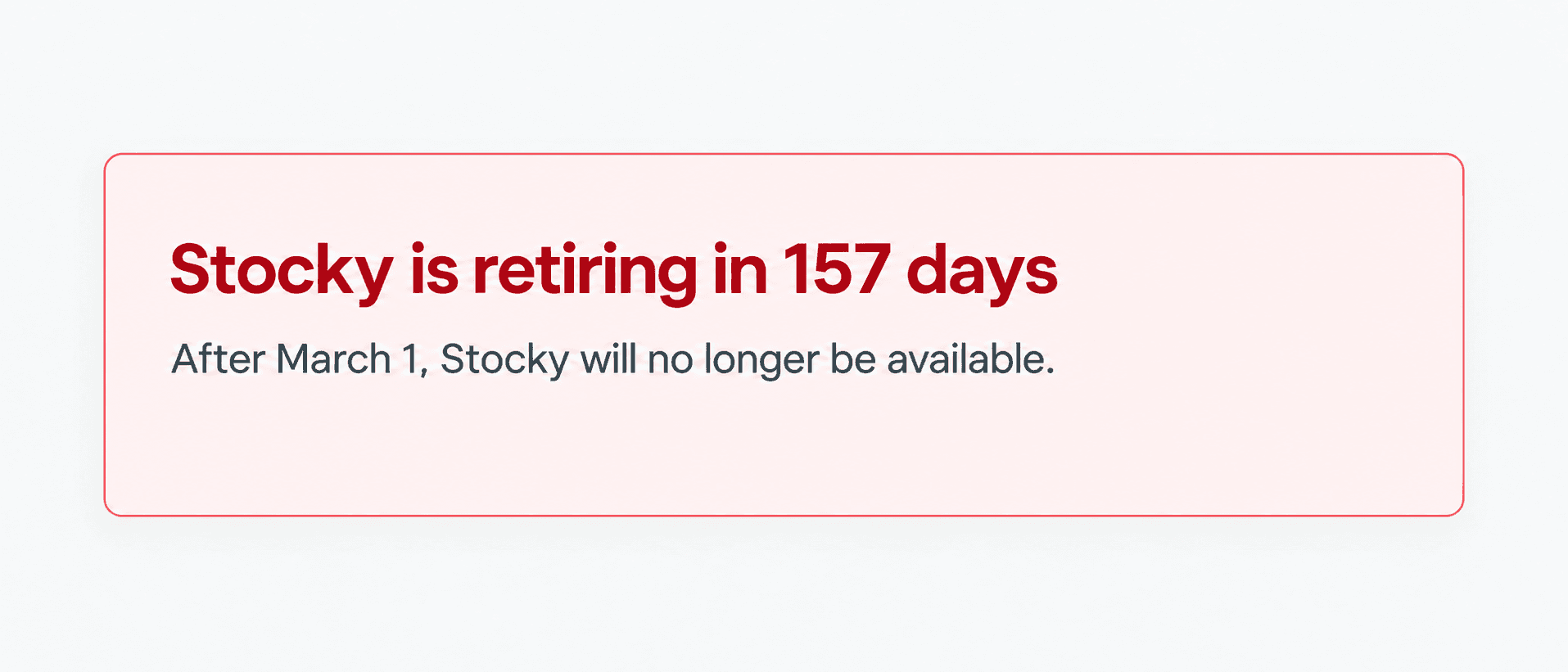
A red card headed "Stocky is retiring in N days," where N counts down, followed by "After March 1, Stocky will no longer be available." There is no export button, because you do not need one yet.
That is the whole diagnostic. It takes five seconds and it decides your route.
If Stocky is no longer available: request your data export now
Your app is read-only and the API is gone. Shopify's documentation is unambiguous: "Stocky APIs stopped working on August 31, 2026." Any tool that offers to connect to your Stocky account and pull the data across cannot do that any more. Ours included.
What you still have is the export. Click Request data export. Shopify then tells you it will email a download link when it is ready, and warns that "exports can take 24 hours or more to prepare, depending on how much data was in your Stocky account." You can only run one export at a time, so start it before you finish reading this.
That file is now the only copy of your Stocky history you can count on. Download it, back it up somewhere that is not your email inbox, and do not rely on being able to generate a second one later.
We have run this route ourselves rather than just read about it. We requested an export on 18 September, waited for the link, and brought the resulting file in, with no accuracy problems in what came across. If you are in this group, the export is a real migration path and not merely an archive, provided you request it in time.
If Stocky is retiring: use the working API before 1 March 2027
A subset of stores did not lose access on 1 September. We have seen the retirement banner in a live merchant admin. We have not found a pattern in who got it, and Shopify has not published one. If you have it, treat it as a windfall rather than the norm, because the merchants around you mostly do not.
What it buys you is the thing the ended group lost: a working API. That matters more than the extra months. When your Stocky ends, every tool's ability to import from it ends at the same moment. The deadline is not "migrate by March." It is "migrate while the API is still answering."
How long the Stocky data export window lasts
For stores whose access has ended, Shopify says you have "read-only access to export your data for at least 90 days after that date."
Read "at least" carefully. Ninety days from 31 August is roughly the end of November 2026, and that is a floor, not a published deadline. Shopify has not said when read only access actually ends, so you cannot plan around a date. You can only plan around doing it now.
If you have not requested your export yet, that is the single most time-sensitive thing on your list, ahead of choosing a replacement tool. A tool you can pick next month. The data you cannot.
What the Stocky data export leaves out
Three limits in Shopify's documentation deserve more attention than they get.
Suppliers - "Suppliers can't be exported from Stocky." Your supplier book, with the names, contacts and terms you built up, does not come out in the export. This surprises people, and it is the biggest reason a migration takes longer than expected.
Historical purchase orders - "Historical purchase orders can't be imported into Shopify." You can export them for your records, but Shopify's native purchase orders will not take them back in.
Purchase order details - Shopify's CSV upload adds product line items to a new draft purchase order, and the same page says it "can't import past purchase order statuses, received quantities, or supplier links."
On its own, inside Shopify, the export is a record rather than a migration. It preserves your history for reference. It does not rebuild your purchasing setup anywhere until something reads it back in.
What the Stocky API exports that the data export does not
If Stocky still works on your store, the API gives you considerably more. When we built our Stocky importer, the API exposed three things: purchase orders, suppliers and tax types. Narrow, but what it did return, it returned properly.
Suppliers came across in full. Not just names; company name, account number, contact name, email, phone, fax, both address lines, city, province, postal code and country. This is the exact opposite of the export's behaviour, and the clearest illustration of why the two routes are not interchangeable. Same data, same app. One route hands it over, the other does not.
Purchase orders came across with their line items, including cost price, supplier cost price and retail price per line, invoice numbers, dates and shipping.
If your banner is counting down, that difference is the argument for moving now rather than in February.
How Channel Bay differs from Stocky for stocktakes and purchasing
Most Stocky comparisons list the same features back at you. The differences that came up in the evaluations we recorded were narrower and less glamorous than the feature grids suggest, and stocktakes came up more often than you might expect.
Stocktakes filtered by more than product type
Merchants moving off Stocky told us its counts could be filtered by product type and nothing else. If you count by section, brand, supplier or anything else you organise your shop floor around, that one limitation shapes your whole counting day. In Channel Bay you browse products into a stocktake by Vendor, Type, Collection or Tag, and filtering by Shopify collection was recorded in our own tracker as a clear difference from Stocky.
The rest of the counting workflow follows:
Counted and uncounted filters, with the option to remove uncounted products or set them to zero before you review variance and submit.
A Stocktake Timeline showing who created, edited and completed each session.
CSV item imports, so you can start from a prepared SKU or barcode list instead of building the count by hand.
If you are rebuilding your counting process after Stocky, our walkthrough of how to do stocktakes in Shopify covers the native side first.
Purchase orders and receiving
On purchasing, the meaningful differences are similar in character:
Orders saved as Draft or Planned and activated later.
Receiving batches that can be reopened and corrected until the order is closed.
A Freight Charge and Adjustment per delivery.
Label printing for every unit received.
For how the purchasing side works end to end, see Shopify purchase order management.
What Channel Bay does not have yet
Bundles and bill of materials support is still in progress, not shipped. If you build or kit products from components, that is a genuine gap today, and you should weigh it before switching, not after.
What a Stocky migration does not move, whichever route you take
Being straight about this is more useful than a feature table.
Supplier to product links
Stocky's API never exposed which products belong to which supplier, at product level or at variant level. It simply was not in the payload. The only way to reconstruct it is to walk your historical purchase orders and infer the links from what you actually ordered. That works only for suppliers you previously raised a purchase order against. A supplier you set up but never ordered from leaves no trace to recover.
Purchase order status
The API returned no order-level status field, so there is no way to know whether a migrated purchase order was open, partially received, closed or cancelled. In Channel Bay every imported Stocky order is marked Imported and is read only. That is not a design preference, just the honest representation of data we cannot see.
Received quantities
The API reported whether a line had been received, but never how much of it. A purchase order where you received 40 of 100 units migrates showing all 100 as ordered, with no record of the 40. Our code can only count the full ordered quantity of any line marked received, because there is no partial number anywhere in the data to count instead.
Structured purchase order numbers
If your numbering carries a location or store prefix, in a pattern like <location>-<sequence>, the API did not expose that structure, so do not expect imported numbers to read the way they did in Stocky. Channel Bay keeps imported numbers outside its own numbering on purpose. New purchase orders continue their own sequence and never collide with your Stocky history.
How to rebuild Stocky supplier links from purchase order history
Rebuilding suppliers to product associations by hand is where migrations stall. It was the most widely shared request across the merchants we worked with in 2026: seven of them asked for a better answer.
The shortcut is inference from your order history. We reconstruct the links from your purchase orders and hand them back as a pre linked import, rather than making you map them one product at a time.
It is not magic, and the limit is worth repeating: it only recovers suppliers you previously ordered from. Anyone else goes in by hand or by CSV.
Close open Stocky purchase orders before you migrate
The simplest migration is one with no open or partially received purchase orders at the moment of the move. Received quantities do not come across, so a closed order has nothing left to reconcile.
If you still have access to Stocky:
Close out what you can first.
Isolate orders that are genuinely still open, rather than trying to reconcile part received ones afterwards.
For anything in transit, decide now where you want to receive it.
Ten minutes of tidying before a migration saves considerably more afterwards.
How imported Stocky purchase orders work in Channel Bay
In Channel Bay, Stocky orders appear in the same list as native ones, tagged by source, showing their Stocky supplier and status badges. Fields Stocky did not provide a dash rather than a guess.
They are read only, and their selection checkboxes are disabled, so they cannot be bulk-edited or exported. To act on one, use Copy to Channel Bay, which creates a separate editable order from the historical one.
The honest caveat: because imported orders stay read only, they do not appear in the Purchase Order Report until they have been copied. If you need your migrated history inside native reporting, that is a per-order action today, and at volume it is a real limitation rather than a minor one.
Run Channel Bay alongside Stocky during migration
Migrations stall less often over a missing feature than over not knowing whether switching is safe. The way round that is to not make it a switch on day one.
When you connect Shopify, Channel Bay asks for a sync direction:
Bi-Directional pulls data from Shopify and pushes inventory updates back.
Fetch-Only fetches from your store and does not push any inventory updates to it.
If your Stocky is still working, Fetch-Only gives you a clean parallel period. Stocky carries on running your purchasing and stock exactly as it does now. Channel Bay reads the same store alongside it, so you can check products, suppliers and imported history against what you know is true before anything is written to your live stock numbers.
That parallel period is the single best use of an extended deadline, and stores whose access has ended do not get one.
Channel Bay pricing for stores leaving Stocky
Migration is not tied to a plan. Every new install starts with a 14-day free trial, which is enough time to bring your Stocky data across before you choose anything.
After the trial, Channel Bay starts at $0. Every paid plan includes 3,000 orders, then charges $0.005 per order above that, up to a fixed monthly ceiling.
Plan | Price | Monthly cap | What it adds |
Free | $0 | n/a | Multi-location inventory, purchase orders, automated PO emails to suppliers, partial and batched receiving, and guided stocktakes, for one shop with fewer than 1,000 orders in the last 365 days |
Lite | $10/month | $75 | The same features as Free, for one shop with 1,000 or more orders in the last 365 days |
Basic | $30/month | $100 | Real-time multichannel sync, stock transfers, order management, returns and reporting |
Pro | $60/month | $200 | Forecasting and reorder suggestions, team permissions, cost and retail price sync, label printing, multi-currency conversion, API reporting |
For a store leaving Stocky, the useful detail is where the purchasing and counting core sits: purchase orders, receiving and stocktakes are in every plan, Free included. Of the extras covered above, the Purchase Order Report comes with reporting on Basic, and label printing is on Pro.
The caps are the whole pricing story. Per order pricing without a ceiling means the bill grows with your best months, so check whether the tool you are comparing against publishes a cap. There is no volume at which this one gets away from you.
How to start your Stocky migration, depending on your banner
Both routes start the same way: install Channel Bay and use your 14-day trial for the move.
If your Stocky still works, send us your Stocky API key and we will connect it server-side. It is not a self-serve field. A person on our side runs the import, which also means we can tell you what came across and what did not before you commit. Do this while the API still answers.
If your access has already ended, request your data export from Shopify first, then send us the file. We will work through what the export contains and tell you honestly what can be rebuilt and what cannot. Suppliers will need reconstructing, and we will tell you what that looks like for your catalogue specifically rather than guessing.
Either way the first step is the same: go and look at that banner. More on what Channel Bay replaces, and what it costs, on the Stocky alternative overview.
Frequently asked questions
What is the Stocky discontinuation date?
For most stores, access ended 1 September 2026 at 12:00 PM UTC; Shopify's documentation describes this as "as of August 31, 2026." A subset of stores show a retirement banner giving them until 1 March 2027. Check your banner, because the answer is genuinely different per store.
What is Stocky's app status in 2026?
Read-only for most stores, with a data export available for at least 90 days after 31 August 2026. Still fully functional for stores showing the retirement countdown.
Can I still export my Stocky data?
Yes, if you are within the read-only window. Click Request data export and Shopify emails you a download link when the file is ready. Shopify warns that exports can take 24 hours or more. Suppliers are not included.
Do I need a paid plan to migrate off Stocky?
No. Migration is not tied to a plan, and every new install gets a 14-day free trial, which is enough time to bring your data across. Stores with fewer than 1,000 orders in the last 365 days can then stay on the Free plan.
Can I import my old purchase orders back into Shopify?
No. Shopify states plainly that "historical purchase orders can't be imported into Shopify." They can be brought into a third-party tool for reference, but they arrive read-only.
Why does my store still have Stocky when others don't?
We don't know, and we would rather say so than invent a reason. We have not found a pattern, and Shopify has not published anything about the extended group at all.
The short version
Look at the banner. If it counts down to March, you have a working API and should use it now rather than in February. If it says Stocky is no longer available, request your export today, because "at least 90 days" is a floor and nobody has published the ceiling.
Then, separately and less urgently, pick your replacement.

