How to Track Purchase Orders in Shopify
Learn purchase order tracking in Shopify: mark POs as ordered, receive stock with inventory transfers, read statuses, and see where native tracking falls short.
On this page
- What Is Purchase Order Tracking?
- How to Track Purchase Orders With Shopify's Native Purchase Orders
- Shopify Purchase Order Status List: What Each Status Means
- Why Does Inventory Tracking Matter for Purchase Orders?
- What Are the Limitations of Shopify's Native Purchase Order Tracking?
- What Does Reliable Purchase Order Tracking Look Like?
- Conclusion
Key Takeaways
- Shopify lets you create purchase orders, record supplier details, and track purchasing activity.
- A native purchase order has two statuses: Draft and Ordered. Receiving progress is tracked on the linked inventory transfer.
- Inventory transfers track incoming stock, receiving, and partial shipments.
- Inventory tracking determines whether Shopify records stock quantities for a product, so received units show up at the right location.
- Reviewing purchase orders, transfers, and stock levels together shows what has been ordered, received, and remains outstanding.
Purchase order tracking in Shopify takes three steps: create a purchase order (PO) and mark it as Ordered, create an inventory transfer from it, and receive stock on that transfer as shipments arrive. The PO itself shows only Draft or Ordered. The linked transfer shows what has arrived and what is still outstanding.
Merchants track POs to know what they have ordered from suppliers, what has arrived, and what is still outstanding. Without a reliable purchase order tracker, incoming stock turns into guesswork and replenishment planning gets harder.
Shopify provides native purchase orders to record supplier orders and track incoming inventory through inventory transfers. This guide explains how to track purchase orders in Shopify, what each status means, how inventory tracking fits in, and when a dedicated purchase order tracking system makes sense.
What Is Purchase Order Tracking?
Purchase order tracking is the process of monitoring inventory ordered from suppliers, from creating a purchase order to receiving the products. A PO records the products, quantities, costs, supplier details, and payment terms. Tracking turns that record into answers to five questions:
- What products have been ordered?
- Which purchase orders have been submitted to suppliers?
- How much inventory has arrived?
- What quantity is still outstanding?
- Which location is the incoming inventory going to?
Purchase order tracking differs from customer order tracking. Customer order tracking follows purchases made by shoppers. Purchase order tracking follows inventory you buy from suppliers.
A purchase order tracker can be as simple as the Purchase orders list in your Shopify admin or as complete as a dedicated app. Some merchants start with a spreadsheet, but a spreadsheet does not update itself when stock arrives.
How to Track Purchase Orders With Shopify's Native Purchase Orders
Shopify tracks a purchase order across two connected records: the PO and a linked inventory transfer. Follow these three steps.
Mark the Purchase Order as Ordered
- In your Shopify admin, go to Products > Purchase orders.
- Click Create purchase order and select a supplier.
- Add products, quantities, and costs, and select a destination location.
- Click Save as draft.
- Optional: click More actions > Export PDF to share the order with your supplier.
- After the supplier confirms, open the draft and click Mark as ordered, then confirm.
The Ordered status means the PO has been submitted to the supplier. It does not mean inventory has arrived. Marking a PO as ordered cannot be reversed, so confirm with the supplier first. For the full setup, see our guide to creating a purchase order in Shopify.
Create an Inventory Transfer to Track Incoming Stock
After you mark a PO as Ordered, you can create an inventory transfer from it. The supplier, products, and quantities carry over from the PO.
- Go to Products > Purchase orders and open the Ordered PO.
- Click Create transfer.
- Select a destination location and click Save.
- Process the transfer. Shopify creates a shipment automatically.
When stock arrives, go to Products > Transfers, open the transfer, and click Receive items. For each item, choose Accept, Reject, or Cancel and enter the quantity. If a supplier delivers in several shipments, receive each one as it arrives. The transfer keeps tracking what remains outstanding. Our guide to receiving inventory in Shopify covers receiving in more detail.
Review Purchase Order and Inventory Status
The Purchase orders list shows two columns that matter most. Linked transfer shows the transfer's name and status. Received shows how many items have arrived. Open a PO and its Linked transfer card previews received items and quantities for each shipment.
Between the PO and its transfer, you can confirm:
- Products and quantities ordered
- Destination location
- Quantities received
- Quantities still outstanding
- Transfer status
Reviewing both records separates inventory that has been ordered from inventory that has actually arrived.
Shopify Purchase Order Status List: What Each Status Means
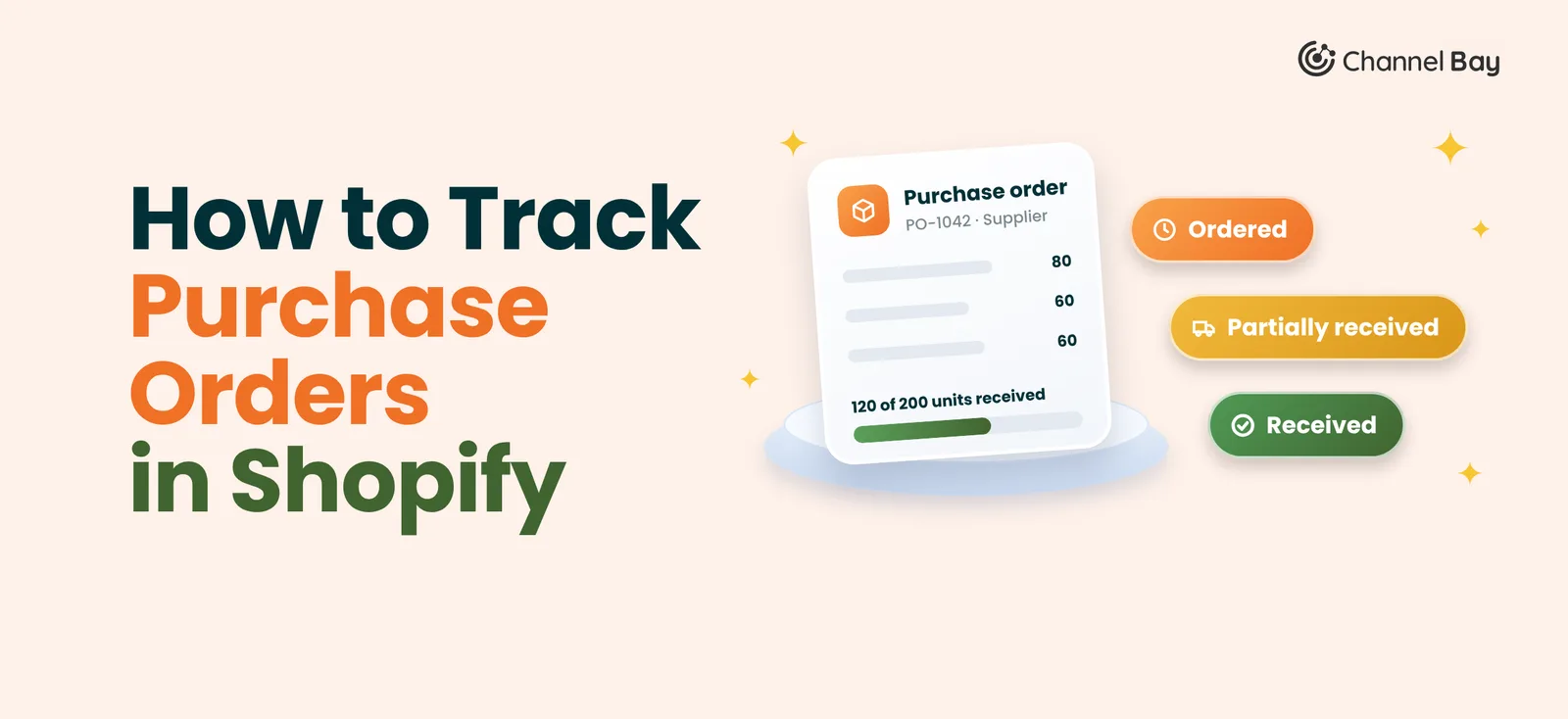
Shopify's native purchase order has two statuses: Draft and Ordered. Receiving, partial receipt, and completion are tracked on the linked inventory transfer, not as extra PO statuses.
| Status | Record | What it means |
|---|---|---|
| Draft | Purchase order | The PO is being prepared or reviewed. You can edit all details. |
| Ordered | Purchase order | The PO has been submitted to the supplier. |
| In progress | Linked transfer | Some quantities are still unaccounted for, including partial receipt. |
| Transferred | Linked transfer | All quantities are accounted for. |
The PO keeps its Ordered label while the transfer moves from In progress to Transferred. If a supplier ships in parts, receive each shipment separately and read received and outstanding quantities from the transfer.
Why Does Inventory Tracking Matter for Purchase Orders?
Inventory tracking decides whether the units you receive show up as stock you can sell. When tracking is on for a product, Shopify records quantities by location, and received units are added to the destination location. When it is off, Shopify does not track quantities for that product, so you cannot rely on its counts.
Shopify shows inventory in five states:
| State | What it means |
|---|---|
| On hand | All units at a location. It equals Committed + Unavailable + Available. |
| Available | Units you can sell. |
| Committed | Units set aside and not sellable, such as units in unfulfilled orders. |
| Unavailable | Units held for other reasons, such as damaged stock, quality control holds, or safety stock. |
| Incoming | Units on their way from inventory transfers or apps. They cannot be sold until received. |
Incoming inventory comes from transfers, which is one more reason to create the linked transfer for every PO. Here is an example. You order 100 units and accept 60 on the first delivery. Shopify adds 60 units to the destination location. The other 40 are still outstanding. Our guide to seeing incoming inventory in Shopify shows where that figure appears.
How to Turn On Inventory Tracking
- In your Shopify admin, go to Products and open the product.
- In the Inventory section, turn on Track quantity. For a product with variants, open the variant first.
- Save your changes.
You need at least one location to track inventory. Turning tracking off can make sense for digital or made-to-order products. For physical stock you buy from suppliers, keep it on so received units are recorded.
What Are the Limitations of Shopify's Native Purchase Order Tracking?
Native tracking covers purchase order creation, supplier details, inventory transfers, and receiving. It works well for a few suppliers and one location. Merchants with many suppliers or locations usually want more visibility into purchasing, supplier follow-ups, and planning.
Limited Visibility Across Multiple Purchase Orders
The Purchase orders list supports filters and saved custom views, and it shows the linked transfer and received count for each PO. It does not roll up outstanding units per product or supplier across all open orders. With many open POs, you open several records to see what is incoming.
Managing Supplier Communication and Follow-Ups
Shopify lets you export a PO as a PDF to submit to your supplier. Its help pages do not describe emailing the PO or scheduling follow-ups. You confirm details and chase late deliveries outside Shopify, then update the PO yourself. Because Mark as ordered cannot be reversed, confirm the order before you click it.
Tracking Partial Receipts and Stock Movements
Transfers support multiple shipments and partial receiving. You can accept, reject, or cancel quantities and see what remains outstanding. The limit is structural. Each PO supports one linked transfer at a time, and the two records do not update each other automatically. You can also add items to the transfer that were not on the PO, so compare both when counts look off.
Connecting Purchase Orders With Inventory Planning
A PO starts from the products you choose. It does not tell you what to reorder or how much. Purchase order tracking gets more useful when you review incoming inventory next to current stock and expected demand, and that comparison happens outside the PO.
What Does Reliable Purchase Order Tracking Look Like?
Reliable purchase order tracking connects purchasing with receiving and inventory visibility. It provides a clear view of the quantities ordered, received, outstanding, and available at each location. A purchase order tracking system, whether native Shopify functionality or inventory management software, should support each stage of this process. Only the first two are native PO statuses; the remaining stages describe the broader tracking workflow.
- Draft: Prepare the PO with supplier and product details.
- Ordered: Submit the PO to the supplier.
- Incoming: Track expected stock through the linked inventory transfer.
- Partially received: Record the quantities received when only some products have arrived.
- Transferred: Complete the transfer once all quantities have been accounted for.
- Inventory reviewed: Review updated stock levels and determine what needs to be reordered.
When managing purchase orders through Shopify alone, the Purchase Orders list and linked inventory transfers cover the first five stages. The final stage requires reviewing stock levels and demand separately. Another challenge is identifying which purchase orders require attention, particularly those with delayed deliveries, outstanding quantities, or expired timelines.
How Does Status-Based PO Tracking Help Identify Orders That Need Attention?
Grouping purchase orders by status makes it easier to monitor progress and identify orders that require follow up. Instead of reviewing every PO individually, you can organise them into groups based on their current stage.
| Status | What it includes |
|---|---|
| All POs | Every purchase order except closed ones |
| Drafts | Draft and Planned orders |
| To receive | Open, Overdue, and Partially Received orders |
| Overdue | Orders whose expected delivery date has passed |
| Expired | Orders in the Expired status |
| Received | Fully Received and Closed orders |
These groups help narrow down purchase orders based on their status while allowing further filtering by supplier, location, and date range. This makes it easier to prioritise pending receipts, follow up on delayed deliveries, and review completed orders.
Why Do Overdue, Expired, and Received Orders Matter?
Overdue orders require supplier follow up. When a delivery is delayed beyond its expected date, the PO is marked as Overdue and displays an indication of how many days it is late. This helps purchasing teams identify delays and follow up with suppliers or revise the expected delivery date.
Expired orders require a decision. Open, Overdue, and Expired orders with no quantities received can be cancelled. However, cancelling a purchase order does not automatically notify the supplier, so the supplier must be informed separately.
Received orders provide confirmation of completed deliveries. Purchase orders can display receiving progress, such as 40 of 100 units and 3 of 5 products, making it easier to identify how much stock has arrived and whether any quantities remain outstanding.
Conclusion
Tracking purchase orders in Shopify comes down to three moves: mark the PO as Ordered, create a linked inventory transfer, and receive stock on that transfer. Keep inventory tracking on so received units land at the right location, and read progress from the linked transfer, since the PO itself only shows Draft or Ordered.
Native purchase orders give you a solid foundation for a few suppliers and locations. As volume grows, you spend more time reconciling records than buying. That is the point to look at a purchase order tracking system that puts ordered, received, outstanding, and available stock in one view.
Frequently Asked Questions
How do I track a purchase order in Shopify?
What statuses does a Shopify purchase order have?
Can I track partial deliveries from a supplier?
Do I need inventory tracking turned on to receive purchase orders?
What is a purchase order tracker?
Is a spreadsheet enough to track purchase orders?

Guides from the team that builds and supports Channel Bay, the Shopify inventory app for purchase orders, stocktakes, stock transfers and multichannel stock sync. About Channel Bay