How to See Incoming Inventory in Shopify
Incoming inventory in Shopify is stock on its way. See where to find it on the Inventory page, what makes it appear and why a purchase order may show none.
On this page
Key Takeaways
- Incoming inventory is stock on its way to a location. In Shopify you find it on the Inventory page, under the Incoming column, and you can click the figure to see which transfers, purchase orders or apps make it up.
- Incoming units can't be sold. Shopify says they become Available only after they are received at the location.
- Shopify's purchase order help describes no incoming quantity on the purchase order itself. Its transfer help says that moving a transfer to in transit marks the stock as incoming, so the linked transfer is the step to check.
- Incoming stays on the books until every unit on the transfer is accepted, rejected or cancelled. A balance that never ships has to be cancelled, or it keeps showing as incoming.
- Channel Bay has its own Incoming column. For a Channel Bay product it totals what is still owed on open purchase orders and inbound stock transfers.
Incoming inventory is stock that is on its way to one of your locations but hasn't been received yet. In Shopify you see it on the Inventory page, in the Incoming column, and you can click a figure to see which transfers, purchase orders or apps it comes from. Shopify says incoming units can't be sold until they are received.
The harder question is why the column shows nothing for a purchase order you have already placed, or still shows units that will never arrive. This guide covers where to look, what puts stock into Incoming, and how to correct it. It is part of our Shopify purchase order guide.
Where Do You See Incoming Inventory in Shopify?
You have four places to look, and they answer different questions:
| Where | What you see | What it is good for |
|---|---|---|
| Products, then Inventory | An Incoming quantity for each variant at each location | How many units are on the way, per location |
| Click an Incoming figure | The transfers, purchase orders or apps that make up the figure | Which order a number comes from |
| A product or variant page | The inventory card lists every active location, and shows Incoming above 0 at locations that don't fulfill the variant | One product across locations |
| Products, then Transfers | Status, Received and Expected arrival for each transfer | When it should land and how much has been received |
On the Inventory page you can filter by Incoming quantity, sort by it, and show or hide the column. Save a filtered list as a view, and you have a one-click list of everything that is on its way (Shopify Help Center, viewing inventory, read 11 November 2026). The same help page describes the Incoming column as quantity expected from transfers or purchase orders.
Shopify's inventory states page adds a tip: click a variant's incoming quantity to see which transfers, purchase orders or apps are part of that number (Shopify Help Center, inventory states, read 11 November 2026). When two orders for one product overlap, that click is how you tell them apart.
For dates, use the Transfers list. It has an Expected arrival column, and the list sorts by it (Shopify Help Center, viewing transfers, read 11 November 2026). The date lives on the shipment, so add it when the supplier ships. The purchase order list has two columns for progress: Linked transfer, with the transfer's name and status, and Received (Shopify Help Center, viewing purchase orders, read 11 November 2026).
What Counts as Incoming Inventory?
Shopify defines incoming inventory as stock on its way to your location from transfers, purchase orders or apps. It isn't Available, so it can't be sold, and it isn't part of On hand. After you receive it from a purchase order or a transfer, its state changes to Available and it counts in On hand (Shopify Help Center, inventory states, read 11 November 2026).
The purchase order is where people expect it to start, but the help pages point to the transfer. Shopify's purchase order help says a purchase order has two statuses, Draft and Ordered, and that receiving, partial receipt and closing are tracked on the linked transfer (Shopify Help Center, creating purchase orders, read 11 November 2026). It describes no incoming quantity at the Ordered step. The transfer help says that Move to in transit changes the status to In progress and marks the inventory as incoming (Shopify Help Center, creating and processing transfers, read 11 November 2026).
So the working rule is: a purchase order in Shopify is paperwork, and a transfer in progress is stock on the way. Our create a purchase order in Shopify guide shows the clicks, and the inventory transfer guide covers transfers between your own locations.
How Incoming Inventory Moves From Order to Shelf
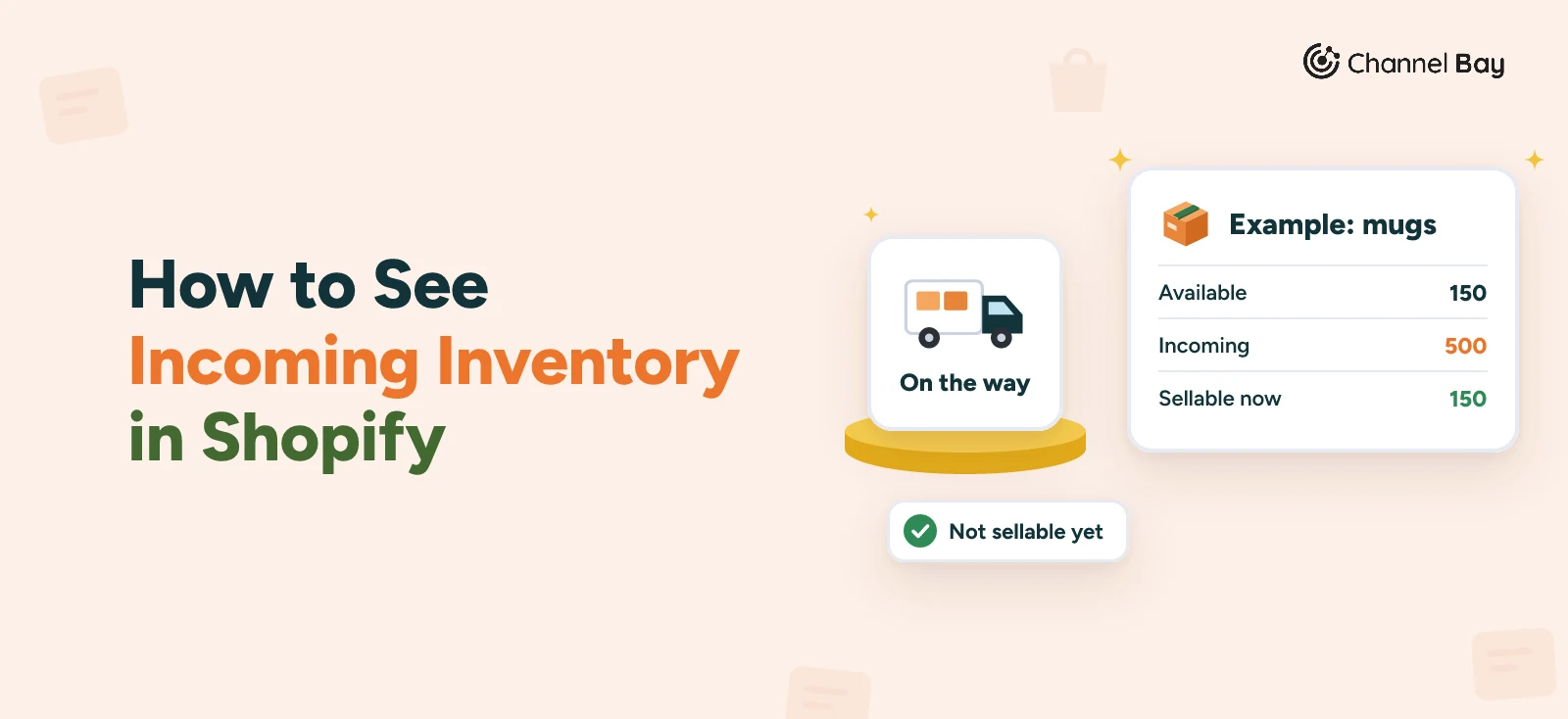
Take the mug brand from our other guides. It holds 150 mugs and has placed PO-2026-0142 for 500 more. The figures are illustrative, and the table follows what Shopify's help describes. Shopify's purchase order help describes no incoming quantity at the Ordered step, so the first row is left as none described.
| Step | Incoming | Available |
|---|---|---|
| PO-2026-0142 is marked Ordered, no transfer yet | None described | 150 |
| Transfer created from the PO and moved to in transit | 500 | 150 |
| 300 mugs arrive and you accept them | 200 | 450 |
| The other 200 never ship, and you cancel them | 0 | 450 |
The last row matters. Shopify says the transfer stays In progress until every unit is accounted for, and that accepted, rejected or cancelled units all count as accounted for (Shopify Help Center, receiving inventory from a purchase order, read 11 November 2026). On a purchase order transfer, a cancelled unit is removed, because the origin is a supplier. If you skip the cancel, the 200 stay in Incoming, and our receiving guide covers that dead balance.
Why Is the Incoming Number Wrong?
Most wrong figures come from one of these:
- The purchase order has no transfer. Shopify's help describes creating the transfer as a separate step after Ordered, so marking the PO Ordered isn't enough on its own. Open the PO, click Create transfer, then Move to in transit.
- The transfer is still a draft. Shopify's page describes the incoming marker for the In progress status. A transfer that hasn't been processed isn't described as incoming.
- The balance never shipped. The supplier short-shipped and nobody cancelled the rest. The transfer stays In progress, and the units stay incoming.
- The wrong location. Incoming is counted per location. A transfer to the warehouse doesn't show on the shop's row. The multi-location purchase orders guide covers choosing the destination.
- Two orders for one product. The figure is the total. Click it to see how many units come from each order.
- An app is adding to it. Shopify says apps can create incoming inventory too, so a figure higher than your own POs may not be an error.
What Should You Do With the Figure?
Count incoming stock when you decide what to reorder, but not as stock you can promise. Order against available plus incoming, so two POs don't cover the same gap, as the reorder point guide explains. Then treat the date with care. A figure with no expected arrival date tells you quantity and nothing about timing, and a late supplier holds your Incoming figure up while the shelf stays empty. Add the arrival date to each shipment, and review the Transfers list weekly, the way our open purchase order guide suggests for POs.
Common Mistakes With Incoming Inventory
- Reading Incoming as sellable. Shopify says it isn't available to sell until it is received.
- Reordering from Available alone. Stock that is already on the way gets ordered twice.
- Leaving a short delivery open. The missing units stay in Incoming until you cancel them.
- Trusting a figure with no date. Check the transfer's expected arrival before you count on it.
- Looking for it on the purchase order. The purchase order records the agreement, and the transfer records the movement.
How Channel Bay Shows Incoming Stock
Channel Bay is our app, so we're not neutral here. It keeps its own purchase orders and shows what is still owed on them as incoming, as of November 2026.
- An Incoming column on the Inventory page. In Variant view, open Columns and add Incoming. It isn't one of the default columns, and it is on every plan.
- What it adds up. For a Channel Bay product, it is the units still owed on Open, Partially Received, Overdue and Expired POs, plus the units still to arrive on inbound stock transfers. Drafts, planned POs, closed POs, cancelled POs and fully received ones are left out. Our open purchase order guide covers those statuses.
- By location. A Location filter narrows the figure to that warehouse, and a variant's detail panel shows Incoming next to Available for each warehouse.
- On the PO form. The product list can show an Incoming Qty column, hidden by default, so you see what is on the way before you order more.
- On the dashboard. The Inbound Purchase Orders card counts Open, Partially Received and Overdue POs and lists the five most urgent, overdue first. It leaves out Expired POs, which the Incoming figure includes, so the two can differ.
- In a report. The Inventory on Hand report has an Incoming column and a CSV export. It doesn't count transfers when no location is chosen, so its total can differ from the list.
Some limits to know about:
- Shopify rows keep Shopify's figure. For a product that comes from Shopify and isn't linked to a Channel Bay product, the column shows the Incoming quantity Shopify reports. Channel Bay doesn't create a Shopify transfer from a Channel Bay PO, so those units won't appear in Shopify's own Incoming column.
- No arrival total by date. The column shows quantity. Dates are on each PO's expected delivery, and late ones become Overdue.
- Forecasting is a separate plan feature. The suggested order subtracts the unreceived PO units, on plans that include forecasting, such as Pro.
Channel Bay is free for stores with fewer than 1,000 orders in the last 365 days, and the prices are on the pricing page. See how Channel Bay handles purchase orders.
Where to Start
Open Products, then Inventory, filter by Incoming and save the view. Click the biggest figure and check that each order behind it still has a transfer that is in progress. Anything that shows a purchase order with no transfer, or a transfer for units that stopped shipping, is a figure you can't count on.
Frequently Asked Questions
How do I see incoming inventory in Shopify?
What does incoming inventory mean in Shopify?
Why does my Shopify purchase order show no incoming inventory?
Is incoming inventory part of on hand or available?
How do I remove incoming inventory that never arrived?
Can I see when incoming stock will arrive in Shopify?

Guides from the team that builds and supports Channel Bay, the Shopify inventory app for purchase orders, stocktakes, stock transfers and multichannel stock sync. About Channel Bay