How to Receive Inventory in Shopify (Including Partial Deliveries)
Since June 2026, you receive Shopify purchase orders on a linked transfer. Steps for full, partial and damaged deliveries, backorders, extra units and freight.
On this page
- What changed on 22 June 2026
- Before the delivery: create the transfer at the right location
- How to receive a full delivery in Shopify
- How to receive damaged or wrong items
- How to receive a partial delivery across several shipments
- What to do with a balance that's never coming
- What to do when more arrives than you ordered
- Where to add freight, duty and other costs
- How to receive on Shopify POS
- How to fix a receiving mistake
- How Channel Bay handles receiving
Key Takeaways
- Since 22 June 2026, you receive a Shopify purchase order on a linked inventory transfer, not on the PO. Mark the PO as ordered, create a transfer to the location the stock is going to and process it, then click Receive items on the transfer when the delivery arrives.
- Every unit gets one of three receive actions. Accept adds it to stock at the destination. Reject records it without adding stock, for damaged or wrong items. Cancel is for units the supplier never shipped.
- The transfer stays In progress until every unit is accepted, rejected or cancelled, and only then changes to Transferred. A balance that's never coming has to be cancelled, or the transfer stays open and the units keep showing as incoming.
- Receive at the location where the stock physically arrives. If it lands at a warehouse and some goes on to a shop, receive it at the warehouse and move it with a separate transfer.
- Add freight and duty to each shipment as cost adjustments. Shopify's help doesn't say these change a product's cost per item, so work out the landed cost and update it yourself.
To receive inventory in Shopify, mark the purchase order as ordered, click Create transfer, choose the location the stock is going to and process the transfer. When the delivery arrives, open that transfer and click Receive items. Then accept, reject or cancel each item with a quantity. Since 22 June 2026, receiving a Shopify purchase order happens on the linked inventory transfer, not on the PO itself.
Receiving a full delivery takes a few clicks. The rest of this guide is about the deliveries that don't match: some units broken, part of the order now and the rest in two weeks, a balance that's never coming, or more units than you ordered. It also covers where to add freight and duty, which location to receive into, and receiving on Shopify POS. It's part of our guide to Shopify purchase order management.
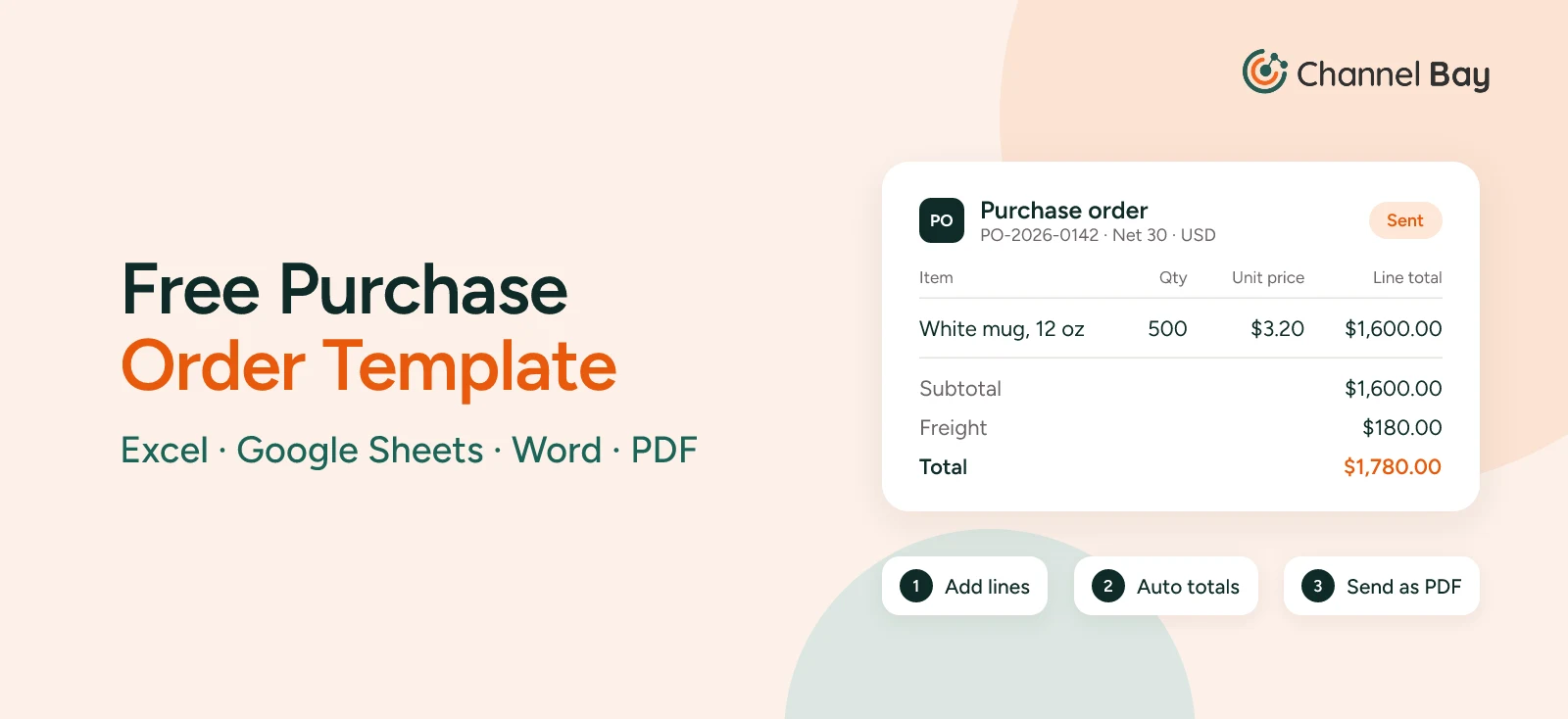
The example is the same order used in our goods receipt guide: PO-2026-0142, for 500 white mugs (MUG-WHT-12) at $3.20 each plus $180 freight, $1,780 in total, delivered to the main warehouse on 10 November.
What Changed on 22 June 2026
On 22 June 2026, Shopify connected purchase orders to inventory transfers (Shopify Changelog). The purchase order records what you ordered and what it cost. The transfer records the stock moving into your location. To receive stock against a PO, you now create a transfer from it and receive on the transfer.
The two records do different jobs, and they have different statuses:
| Purchase order | Linked transfer | |
|---|---|---|
| What it records | What you ordered, from whom, at what price and on what terms | What arrived, at which location, and what was accepted, rejected or cancelled |
| Statuses | Draft, Ordered | Draft, Ready to ship, In progress, Transferred, Canceled |
| Where receiving happens | Not here | Receive items on the transfer |
| Freight and duty | The agreed cost | Cost adjustments on each shipment |
Two consequences are easy to miss. First, once the transfer exists, the PO and the transfer work independently, and a change to one doesn't update the other (Shopify Help Center). Second, each PO has one linked transfer at a time. A store with a single location still creates a transfer for every PO it receives, an extra step that has drawn complaints on the Shopify Community forum.
If you haven't created the purchase order yet, start with how to create a purchase order in Shopify. For the paperwork side of receiving, such as counting against the PO and filling in a goods received note, see our guide to goods receipts.
Before the Delivery: Create the Transfer at the Right Location
You can only create a transfer from a PO that's marked as ordered. Marking it as ordered can't be undone, so do it once the supplier has confirmed (Shopify Help Center). Then:
- Go to Products > Purchase orders and open the PO.
- Click Create transfer.
- Select the destination location: where the stock will physically arrive.
- Click Save. The supplier becomes the transfer's origin, and the PO's items and quantities are copied across.
- Process the transfer with Mark as in transit (Shopify's help calls this Move to in transit). Shopify creates a shipment, and the transfer changes to In progress. The stock now shows as incoming at the destination and can be received (Shopify Help Center).
While the transfer is processed, you can add the supplier's tracking number and an expected arrival date to the shipment.
Receive at the Location Where the Stock Lands
Choose the location the delivery is going to, not the one the stock will end up at. If the mugs land at the main warehouse and 100 of them go on to a shop, receive all of them at the warehouse, then move the 100 with a separate inventory transfer between locations. Receiving straight into the shop makes the shop show stock that's still sitting in the warehouse.
It's a set-up we hear about often from merchants with stores: deliveries come into one central warehouse, and stores are restocked from there. It keeps the damaged units at the warehouse too. If 20 units are rejected on arrival, they never reach a store's sellable stock.
Check that every product on the PO is stocked at the destination. If you accept a product that isn't, Shopify asks whether to Stock and fulfill it there, or choose Not now to record the quantity without making it available (Shopify Help Center).
How to Receive a Full Delivery in Shopify
When the delivery arrives, count it against the PO first. Then record it on the transfer:
- Go to Products > Transfers and open the transfer linked to the PO.
- Click Receive items.
- For each item, choose a receive action in the Receive action column and enter a quantity in the Quantity column. If everything arrived in good condition, click Accept all.
- Click Save.
Accepted units become available at the destination. If all 500 mugs had arrived intact, accepting 500 would account for every unit, and the transfer would change to Transferred.
With an external barcode scanner, you can skip opening the transfer and clicking Receive items: scan the shipment's barcode on the Transfers page, and Shopify opens the receiving page for that shipment (Shopify Help Center). In the Shopify admin, you scan the shipment, not each item. To scan items one by one as you count, receive on Shopify POS (see below).
Count before you press Accept all. One merchant we work with asked us to remove the one-click receive-all button from Channel Bay's receiving screen, because one wrong click puts a whole PO into stock before anyone has counted it.
How to Receive Damaged or Wrong Items
Use Reject for units that arrived but that you won't put into stock. Rejected units are recorded on the transfer but don't add to inventory at any location (Shopify Help Center).
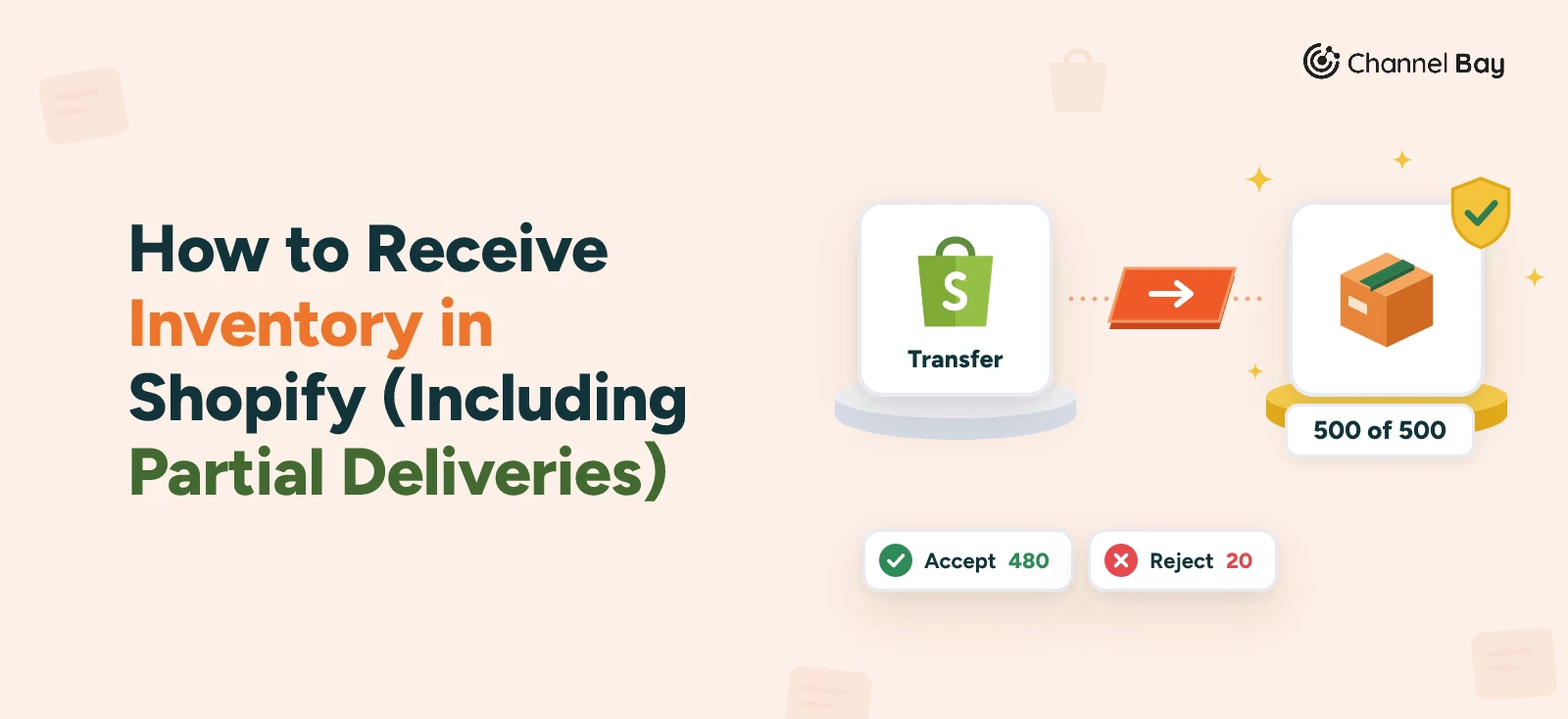
PO-2026-0142 arrived on 10 November as 25 cartons of 20. The supplier had packed one carton without dividers, and all 20 mugs in it were broken. To receive it:
- Open the transfer and click Receive items.
- On the MUG-WHT-12 line, choose Accept and enter 480.
- Click the plus icon to add a second row for the same item. Choose Reject and enter 20.
- Click the comment icon next to the rejected row and add a note, such as "Broken, packed without dividers".
- Click Save.
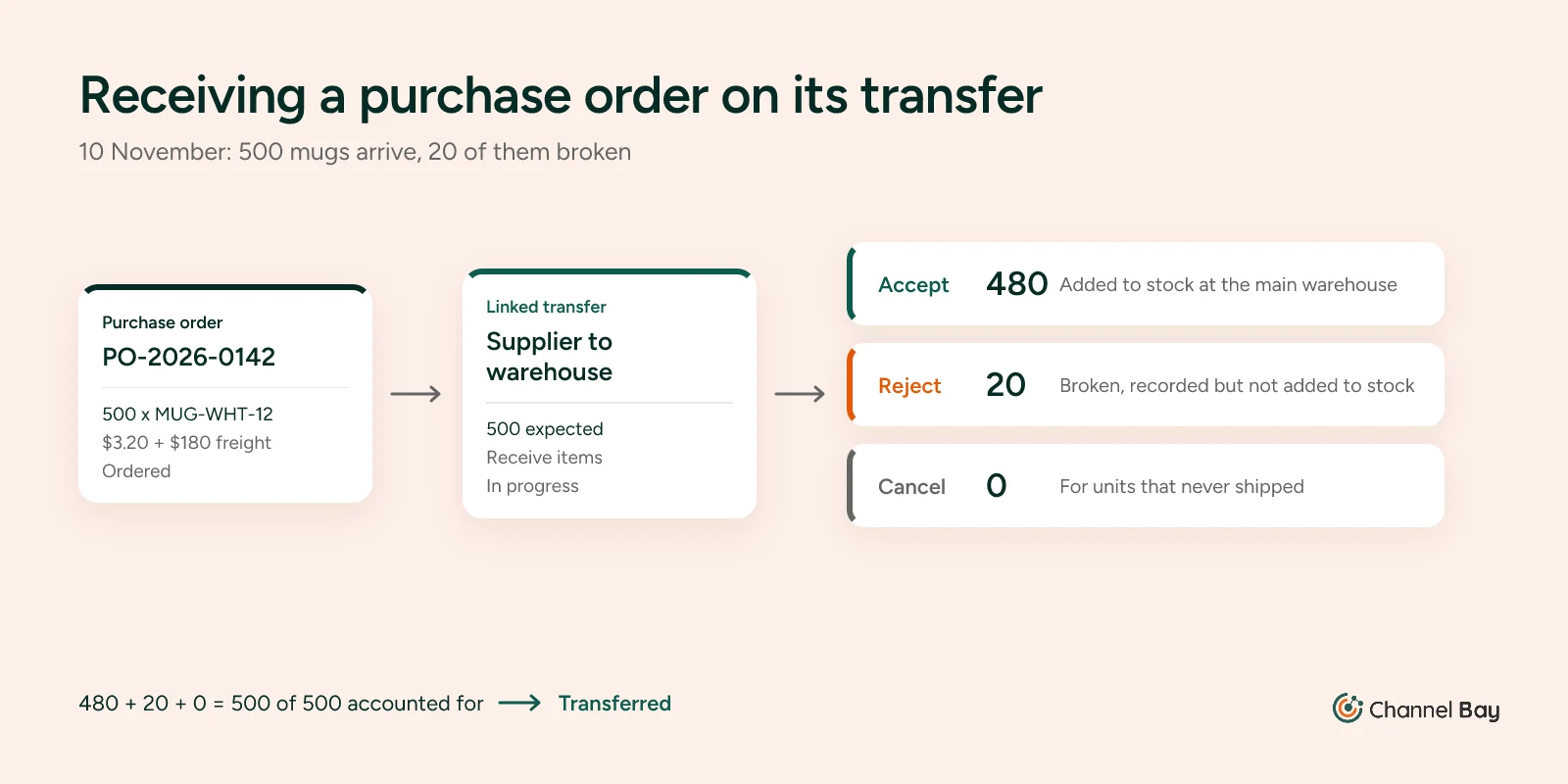
That accounts for all 500 mugs, so the transfer changes to Transferred. The warehouse records the same delivery on its goods received note, GRN-0457: 500 ordered, 500 delivered, 480 accepted, 20 rejected.
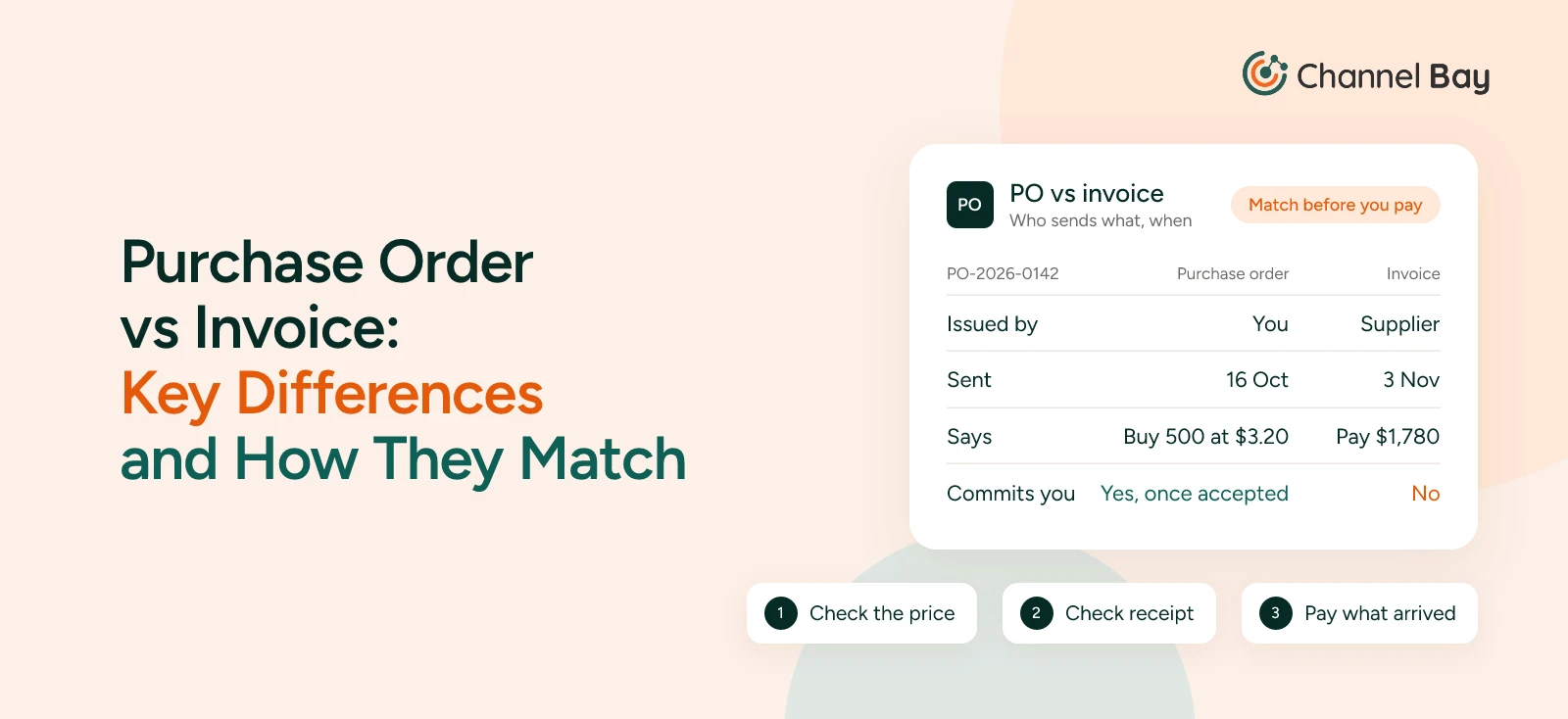
Rejecting the units doesn't send them back or ask the supplier for anything. The supplier still needs to hear from you. In the example, the supplier's invoice INV-3318 billed the full $1,780, so payment was held until the supplier issued credit note CN-0291 for the 20 broken mugs: 20 x $3.20 = $64. The business paid $1,716. Our guide to purchase order vs invoice shows that match line by line.
Keep the rejected units physically apart from good stock, labelled with the PO number. Merchants tell us the worry isn't the record. It's a box of damaged stock ending up on a shelf and being picked for an order.
The PO doesn't change when you receive. PO-2026-0142 still says 500 mugs for $1,780, and Shopify purchase orders have no closed status. In a purchasing system with one, you'd cancel the 20 and close the PO, as in our goods receipt guide. In Shopify, rejecting them settles the transfer, and the transfer is the record of what you accepted. The credit note is the record of what you didn't pay for.
How to Receive a Partial Delivery Across Several Shipments
Receive what arrived, and leave the rest outstanding on the same transfer. The transfer stays In progress until every unit is accounted for.
Suppose the supplier had shipped 400 mugs on 10 November and confirmed that the other 100 would follow two weeks later:
- On 10 November, open the transfer, click Receive items, accept 400 and save. The transfer's Total column shows 400 of 500, and it stays In progress.
- When the 100 arrive, open the same transfer and receive them. If all 100 are good, accept them. The total reaches 500, and the transfer changes to Transferred.
One transfer can hold several shipments, and Shopify tracks each arrival separately, so you can see what's been received and what's still outstanding (Shopify Changelog). If the supplier tells you in advance how it's splitting the order, edit the first shipment down to 400 while that shipment is still Draft or In transit (each shipment has its own status). The other 100 move to another shipment on the same transfer, and each shipment can then carry its own freight bill.
Cost each delivery on its own. If the supplier charges all $180 of freight on the first shipment, the 400 mugs cost ($1,280 + $180) / 400 = $3.65 each. The backorder gets its own cost when it arrives, with its own freight.
What to Do With a Balance That's Never Coming
Use Cancel for units the supplier never shipped. Cancelled units count towards the total, so the transfer can close.
In the partial example, suppose the supplier comes back a week later and says the last 100 mugs won't ship after all. Open the transfer, click Receive items, choose Cancel for 100 and save. The total reaches 500 and the transfer changes to Transferred. Since the origin is a supplier, the cancelled units simply come off the transfer.
Don't leave a dead balance sitting on an open transfer. Until you cancel it, the 100 mugs show as incoming at the warehouse. Anyone deciding what to reorder counts on stock that isn't coming, and the PO looks unfinished long after it's settled. Merchants have asked us how to complete a transfer that was only partly received. Cancel is the answer.
Reject and cancel are easy to mix up. Reject is for units that arrived and that you turned away. Cancel is for units that never arrived. That's why the 20 broken mugs on PO-2026-0142 were rejected and credited, not cancelled and not left open as a backorder. They had arrived. They just weren't sellable.
Keep a balance open while the supplier has given a ship date you believe. Cancel it when there's no date, or when you'd rather buy the stock again on a new PO. Then review your In progress transfers every week, so no balance sits open by default.
What to Do When More Arrives Than You Ordered
Shopify's receiving help doesn't describe accepting more units than a transfer expects. Settle the extra units with the supplier before they go into stock.
Suppose 520 mugs arrive against the PO for 500. Hold the extra 20 apart, and don't save the receipt on the transfer yet. Ask the supplier whether to return them, at its cost if the mistake was its own, or to keep them at the PO price, another $64.
If you keep them, update both records, because they don't update each other. Edit the PO to 520 so it matches the supplier's invoice. Then add the 20 to the transfer as a new shipment: click More actions, then Add products, enter 20 in the Move column, click Save, then click Mark as in transit to send the new shipment (Shopify Help Center). Do this before you accept the first 500. Shopify only adds shipments to a transfer that's Ready to ship or In progress, and once all 500 are accepted, the transfer changes to Transferred. Then receive both shipments.
If the 500 can't wait for the supplier's answer, accept them now and settle the 20 later. Keeping them after the transfer has closed means editing the PO to 520, adding the 20 with an inventory adjustment at the warehouse and updating the cost per item. The closed transfer can't take them, so this is the one case where an adjustment is the right tool. Either way, record them. Extra units that go on the shelf without a record leave the count 20 out from the start, with no cost behind them.
Where to Add Freight, Duty and Other Costs
Add them to the shipment they came with, as cost adjustments (Shopify Help Center):
- Open the transfer and, on the shipment, click the menu button and choose Edit shipment.
- In Cost summary, click Manage.
- Choose an adjustment type, such as Shipping amount or Customs duties, enter the amount and click Save. Add as many adjustments as the shipment needs.
The transfer's cost summary adds up every shipment's adjustments, so you can compare what the delivery actually cost with the cost agreed on the PO. For PO-2026-0142, that's a $180 shipping adjustment on the 10 November shipment.
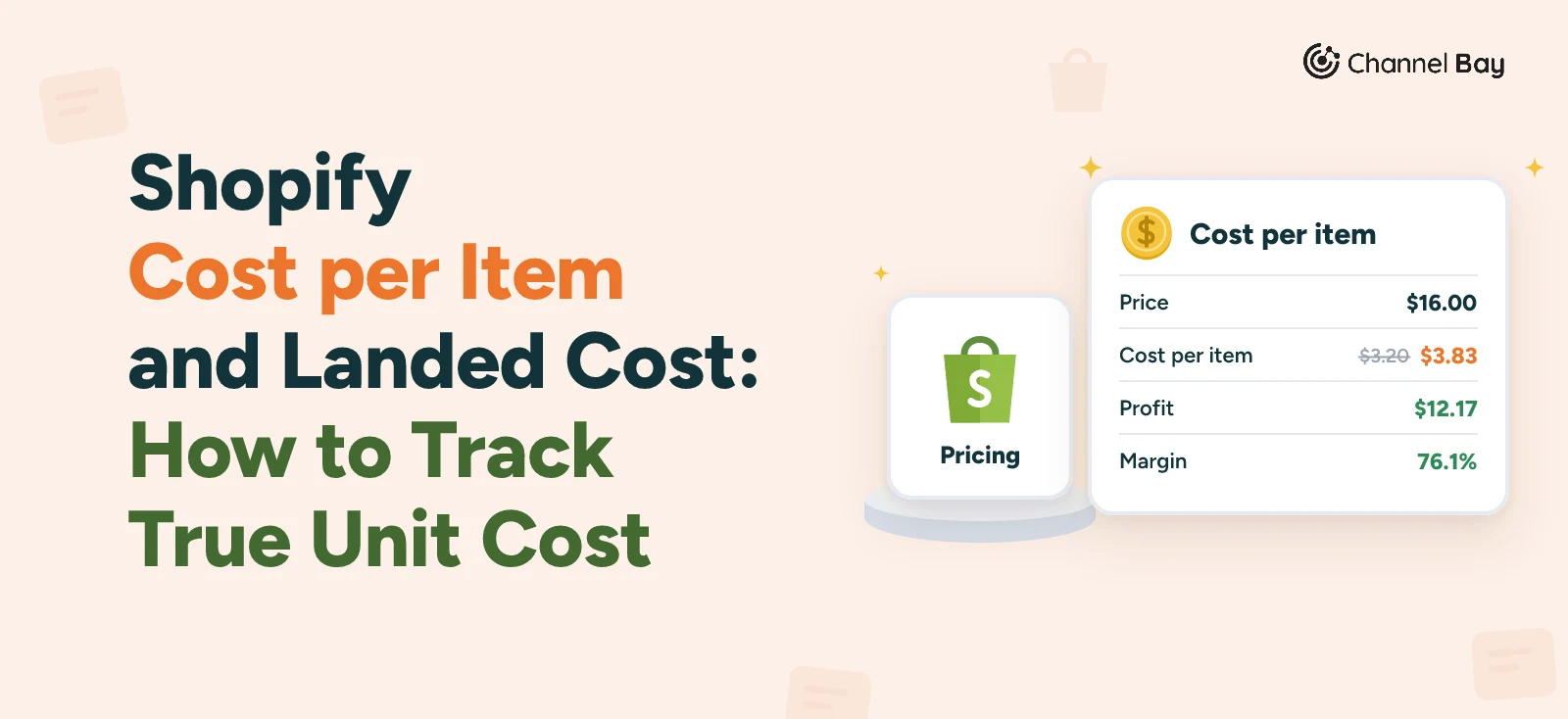
What the help page doesn't say is that any of this changes a product's cost per item. On a PO line, the cost is filled in from your last PO with that supplier, or from the variant's cost per item if there isn't one (Shopify Help Center). So work out the real cost per unit and update the product's cost per item yourself. For PO-2026-0142, with the $64 credit, freight alone takes it to ($1,536 + $180) / 480 = $3.58 per mug, not the $3.20 on the PO line. The brand's freight forwarder also billed $96 in import duty and $24 in fees. Added to the shipment as cost adjustments, they bring the landed cost to $1,836 ($1,716 + $96 + $24), or $3.83 per mug. If the supplier had refused the credit, freight alone would make it $1,780 / 480 = $3.71. How to calculate landed cost covers splitting freight and duty across a PO with several products.
How to Receive on Shopify POS
If the stock arrives at a shop, staff can receive it on Shopify POS (Shopify Help Center):
- In POS, go to Products > Incoming transfers.
- Tap the transfer.
- Tap Accept all and then Accept for everything. Or tap a shipment to accept it, or tap Review items to scan or count each item and accept it.
The location needs a Shopify POS Pro subscription, staff need the Inventory and Manage transfers permissions, and the device must be online. Shopify's POS help describes accepting stock only. When a delivery has damaged or missing units, record the rejected and cancelled quantities on the transfer in the Shopify admin.
How to Fix a Receiving Mistake
If you accepted the wrong quantity, edit the received shipment rather than adjusting stock by hand (Shopify Help Center):
- Open the transfer.
- On the shipment that received the items, click the menu icon and choose Manage received items.
- Change the receive actions or quantities, adding rows if you need to, and click Save.
Fixing it on the transfer keeps the receiving record and the stock count in agreement. An inventory adjustment would fix the count but leave the transfer saying something else.
If you change a quantity on the PO after you've created the transfer, change the transfer too. And archiving a PO doesn't close or cancel its transfer (Shopify Help Center), so settle the transfer first.
How Channel Bay Handles Receiving
Channel Bay receives against the purchase order itself, so there's no separate transfer to create or keep in step with the PO:
- Each delivery is its own batch: Every delivery you receive against a PO is a batch with its own supplier invoice number and freight, costed on its own. The 400 and the 100 in the partial example would be two batches on one PO.
- Count by scanning: Scan barcodes or SKUs to count each item as you unpack it. The barcode has its own column on the receiving screen, next to the SKU, and lines are grouped by variant. Save a delivery as a draft and finish it later.
- Outstanding quantities, always clear: Each line shows what's received and what's still due, and you can never receive more than is outstanding. If the supplier sends extra and you keep it, raise the quantity on the PO first, then receive it. The PO stays partially received until the rest arrives or you close it.
- Cost at the point of receiving: Change a line's unit cost as you receive it if the invoice price differs. Freight is spread across the lines by value to give each unit a landed cost, and with cost sync on, the new cost goes to Shopify.
- The right location, then move it on: Received stock goes to the PO's Shopify location and updates every channel. If part of a delivery needs to go on to a shop, turn the received batch into a stock transfer instead of entering it again.
See how Channel Bay handles purchase orders, or follow the whole receiving process in our guide to goods receipts.
Frequently Asked Questions
How do I receive inventory in Shopify?
How do I partially receive a purchase order in Shopify?
What is the difference between Reject and Cancel when receiving in Shopify?
Why is my Shopify transfer still In progress?
Can I receive a purchase order in Shopify POS?
Can I receive inventory in Shopify with a barcode scanner?
Does receiving a purchase order update the cost per item in Shopify?

Guides from the team that builds and supports Channel Bay, the Shopify inventory app for purchase orders, stocktakes, stock transfers and multichannel stock sync. About Channel Bay