Shopify Multi-Location Purchase Orders: Where Stock Lands and When to Move It
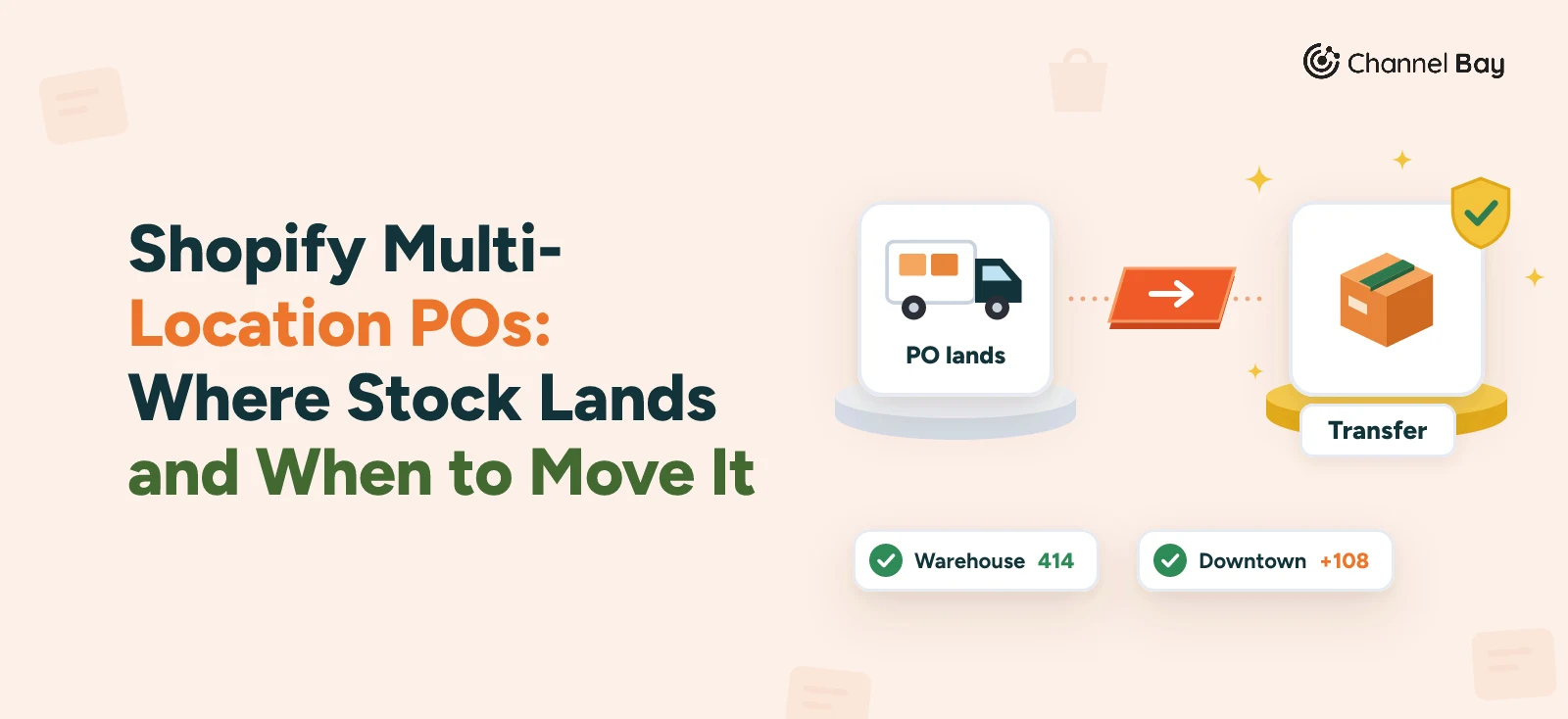
A Shopify purchase order has one destination. How to buy for several locations, receive into the right one, and when to transfer stock instead of buying.
On this page
- How does a Shopify purchase order work with several locations?
- Why should you look at days of stock per location?
- When should you transfer stock instead of buying?
- How much should you order, and where should it land?
- How do you receive a purchase order into the right location?
- What goes wrong with multi-location purchasing?
- How does Channel Bay handle multi-location purchasing?
- Where to start
Key Takeaways
- A Shopify purchase order has a destination location, and its linked transfer has one destination, with only one transfer linked at a time. To split a supplier order across locations, raise one PO per location, or land one PO at a single location and move the rest with transfers.
- Stock only lands where you receive it. Create the linked transfer to the location where the delivery physically arrives, then accept the units there. A processed transfer can't change its destination.
- Look at days of stock per location before you order. Store-wide stock can cover the lead time while one location runs out well before the order arrives.
- Transfer instead of buying when another location holds more than it needs to cover the lead time. A transfer changes where stock is and when a shortage hits, not how much you have to buy in total.
- Channel Bay shows stock at the delivery location and units already on the way to it on the PO, and turns a received batch into a stock transfer. It doesn't suggest transfers between locations.
A Shopify purchase order has a destination location, its linked transfer has one destination, and each purchase order supports one linked transfer at a time. That is fine for a store with one warehouse. With several locations it means you decide, before you order, where the stock lands and who moves it on. This guide covers how Shopify multi-location inventory works for purchasing: how to size an order across locations, when to transfer stock you already own instead of buying, where to land the delivery, and how to receive it into the right place. It is one part of our guide to Shopify purchase order management.
How Does a Shopify Purchase Order Work With Several Locations?
A purchase order records the commercial agreement, and a linked inventory transfer records where the goods go (Shopify Help Center, receiving inventory from a purchase order). Three rules follow from that for a multi-location store:
- One destination, one transfer. A purchase order has a destination location, which you can leave blank on a draft but need before you mark it as ordered. You create a transfer from the ordered PO and choose its destination, and a PO can have only one linked transfer at a time.
- Stock lands when you accept it. On the transfer, you accept, reject or cancel each unit. Accepted units become available at the transfer's destination. Rejected units add to no location, and cancelled units are removed.
- Locations lock once the transfer is processed. You can edit a purchase order's destination at any time, but the linked transfer's origin and destination can't change after it reaches Ready to ship (Shopify Help Center, creating and processing transfers).
How many locations you can have depends on your plan: 2 on Starter, 10 on Basic, Grow and Advanced, and 200 on Shopify Plus. Deactivated locations don't count (Shopify Help Center, locations). The step-by-step receiving process is in our guide to receiving inventory in Shopify.
Why Should You Look at Days of Stock per Location?
Because a store-wide number can hide a shortage. Take the white mug, SKU MUG-WHT-12, sold from a warehouse that ships online orders, a downtown shop and a market stall. The supplier's lead time is 21 days.
| Location | On hand | Sells per day | Days of stock |
|---|---|---|---|
| Warehouse | 150 | 5 | 30 |
| Downtown shop | 24 | 2 | 12 |
| Market stall | 60 | 1 | 60 |
| All three | 234 | 8 | about 29 |
Across the store, 29 days of stock looks comfortable against a 21-day lead time. The downtown shop has 12. An order placed today arrives on day 21, so the shop is out of mugs for 9 days and loses about 18 sales (9 days at 2 a day).
Work out days of stock for each location the way you would for the store: stock at the location divided by what it sells per day. The method for the sales rate is in our guide to Shopify inventory forecasting.
When Should You Transfer Stock Instead of Buying?
When another location holds more than it needs to last the lead time, and the short location can't wait for the order.
The market stall sells 1 a day, so it needs 21 mugs to last the 21 days until the delivery. It holds 60, which leaves 39 spare. The downtown shop needs 42 (21 days at 2 a day) and has 24, so it is short by at least 18. Moving 30 from the stall covers that with some margin:
| Location | On hand now | After moving 30 | Days of stock |
|---|---|---|---|
| Downtown shop | 24 | 54 | 27 |
| Market stall | 60 | 30 | 30 |
Both now clear the 21-day lead time. Do this before you place the order, because a transfer is the fastest way to get stock to the shop before the order arrives. Use it when the location sending the stock keeps at least the lead time's worth, and when the cost of moving the units is less than the sales you would otherwise lose. How to create the transfer itself is covered in our guide to Shopify inventory transfers.
A transfer doesn't change how much you have to buy. The store still holds 234 mugs and sells 8 a day. It only moves stock from where it is spare to where it is short, so the shop no longer runs out before the order arrives.
How Much Should You Order, and Where Should It Land?
Order for the whole store's need, then decide where the delivery lands. Say you want to cover the 21-day lead time plus 60 days of selling, which is 81 days. For each location, that is its daily sales times 81, less what it holds after the transfer:
| Location | Sells per day x 81 days | On hand after the transfer | To order for it |
|---|---|---|---|
| Warehouse | 405 | 150 | 255 |
| Downtown shop | 162 | 54 | 108 |
| Market stall | 81 | 30 | 51 |
| Total | 648 | 234 | 414 |
At $3.20 a mug, 414 mugs cost $1,324.80. You have two ways to buy them:
- One purchase order per location. Three POs of 255, 108 and 51, each with its own destination. This suits a supplier that ships to each address, because nothing is handled twice. It means three POs, three PDFs and three linked transfers to keep in step.
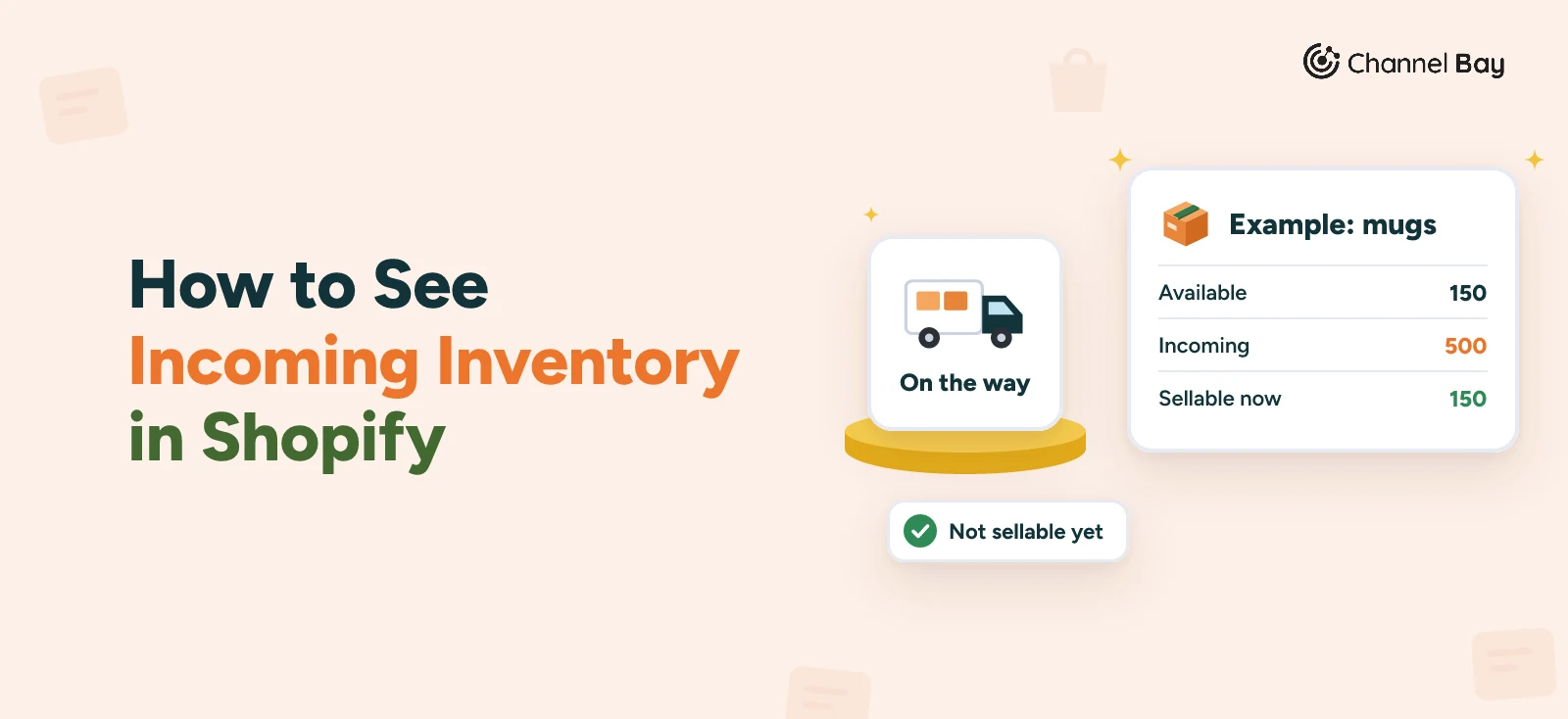
- One purchase order to a single location. One PO of 414 to the warehouse. When it arrives, transfer 108 to the downtown shop and 51 to the market stall, and the warehouse keeps 255. This suits a supplier with a minimum order or price breaks, or one that sends a single pallet. It means two transfers and the cost of moving the stock on.
In either case, the order for the shop is sized on the shop's own sales, not on the warehouse's.
How Do You Receive a Purchase Order Into the Right Location?
Create the linked transfer with the location where the delivery physically arrives as its destination, and accept the units there. If you receive at the warehouse and part of the delivery goes on to a shop, receive all of it at the warehouse and move the rest with a separate transfer, so each location's count matches what is on its shelves.
Two things catch people out:
- A product that isn't stocked at the destination. If you accept units of a product that isn't stocked at that location, Shopify asks whether to stock it. Stock and fulfill makes the units available to sell there, and Not now records the quantity without making it available (Shopify Help Center, receiving and managing transfers).
- A destination chosen wrongly. Once the transfer is processed you can't edit its destination. A Draft transfer can simply be edited. From Ready to ship, duplicate it with the right location and cancel the original. Once it is In progress you can no longer cancel it, so receive the stock where it landed and move it on with a new transfer.
What Goes Wrong With Multi-Location Purchasing?
- Sizing an order on store-wide stock. The order looks big enough, and one location still runs out before it arrives.
- Ordering for a location that another could supply. A slow location holding spare stock is cheaper to draw on than a supplier order, if the transfer is quick enough.
- Forgetting stock on its way. Units on an open purchase order, or on a transfer that hasn't arrived, belong to the location they are going to. Leave them out and you order twice.
- Receiving everything at one location "for now". The other location's count stays wrong until someone moves the stock, so what you see for it isn't what is on its shelves.
- Moving stock without saying why. A month later nobody knows if a transfer was a rebalance, a returned display or a fix for a wrong delivery. Record the reason when you create it, in the transfer's note or tags, so the next buyer doesn't reorder against it.
How Does Channel Bay Handle Multi-Location Purchasing?
Channel Bay keeps the same one-destination rule as Shopify. Every purchase order has a delivery location, and what you receive is added to that location's stock. What it adds is more information on the order, and a quicker way to move stock on afterwards.
- Stock at the delivery location, and what is already on the way. The purchase order's product list can show an At Location column, the stock held at that order's delivery location only, next to Available Qty, which counts every location. An Incoming Qty column shows units already on the way to that location: the unreceived quantity on open purchase orders delivering there, plus the unreceived quantity on stock transfers inbound to it, including ones not yet dispatched. It leaves out the order you are editing. Both columns are hidden by default, and you turn them on from the list's column picker.
- A warning for a product that isn't stocked there. When you add products that aren't stocked in Shopify at the delivery location yet, the form tells you before you save.
- Convert a received batch to a stock transfer. Every delivery you receive against a purchase order is a batch, and each received batch has a Convert Batch to Stock Transfer action. The source is the order's delivery location and can't be changed, you choose the destination, and the batch's lines and quantities are filled in, which you can edit. Items that are inactive or archived, or whose stock at the source is lower than the quantity received, are left out, and the form says how many. That is the second route in the example above: receive 414 at the warehouse, then convert the batch into transfers of 108 and 51.
- A reason on every transfer. The transfer form has a Reason for Transfer field of up to 500 characters, shown on the transfer's details. When any of your transfers started from a purchase order, the transfers list also adds a Source PO column that links back to it.
- Stock moves when the transfer does. Dispatching a transfer takes the units off the source location, and receiving adds them at the destination. A transfer that arrives in parts shows as Partially Received until the rest comes in.
What it doesn't do: a purchase order still has one delivery location, and it doesn't suggest a transfer from a location with spare stock before you raise an order. The sales rate behind days left is store-wide, and filtering the inventory list by location narrows the stock but not the sales, so work out days of stock per location yourself, as in the example above. Stock transfers are included on the Basic and Pro plans, so check the pricing page. The purchase orders and stock transfers pages show the screens.
Where to Start
Pick the five products that sell from more than one location, and work out days of stock for each location against the supplier's lead time. Wherever one location is short and another has spare, move stock first. Then order for the combined need, land the delivery where it physically arrives, and move the rest on with transfers.
Frequently Asked Questions
Can one Shopify purchase order deliver to more than one location?
Which location should receive a purchase order?
Can I change a purchase order's destination after I mark it as ordered?
When should I transfer stock instead of ordering more?
Does Channel Bay forecast demand for each location?

Guides from the team that builds and supports Channel Bay, the Shopify inventory app for purchase orders, stocktakes, stock transfers and multichannel stock sync. About Channel Bay