Common Issues With Purchase Orders in Shopify and How to Solve Them
11 most common Shopify issues with purchase orders, their causes, practical ways to solve them and simplify purchase order management with Channel Bay.
On this page
Key Takeaways
- Shopify’s native PO tool handles basic reorders but breaks down past a few hundred SKUs or a second warehouse.
- Partial deliveries and landed costs are the two issues that silently destroy inventory accuracy.
- Merchants moving off Stocky lose supplier cost history, demand forecasting, and batch receiving unless they move to a dedicated PO app.
- Fixing these problems needs a purchasing layer that connects reorder planning, supplier data, batch receiving, landed costs, and transfers in one workflow.
The most common Shopify purchase order problems are manual PO creation, no inventory visibility during reordering, broken partial-delivery tracking, missing landed cost calculations, and disconnected transfers between locations. These issues get worse the moment a store crosses a few hundred SKUs or adds a second warehouse, because Shopify’s native purchasing was built for simple reorders, not multi-location operations.
This guide breaks down the 11 purchase order issues Shopify merchants hit most often, the exact operational cost of each one, and the workflow changes that fix them.
The 11 Most Common Shopify Purchase Order Issues
Merchants managing more than one warehouse, running over 500 SKUs, or working with multiple suppliers hit the same systemic problems.
1. PO Creation Takes Too Long
Creating purchase orders can involve manually adding products, variants, supplier SKUs, quantities, unit costs, and other details. This becomes repetitive when merchants regularly order the same products from the same suppliers. Even basic product information may need to be entered or checked again when creating a new PO.
Example: A retailer moving from a 20-year-old POS system to Shopify was used to creating purchase orders from supplier invoices. However, the products appeared in a different order in Shopify, making it difficult to match the invoice line by line and enter the order correctly.
2. Supplier Data Lives in Spreadsheets
Supplier SKUs, MOQs, lead times, pack sizes, and tiered pricing are not stored against the supplier in Shopify. Buyers keep this in a side spreadsheet and copy-paste it into each new PO. Every mistake in that spreadsheet becomes a mispriced PO.
Example: Imagine ordering 150 units when a supplier's negotiated price applies only to orders of 200 units or more. Without easily accessible supplier-specific pricing and bulk-edit options, buyers have to check spreadsheets and verify costs manually before submitting each PO.
3. Bulk PO Actions Do Not Exist
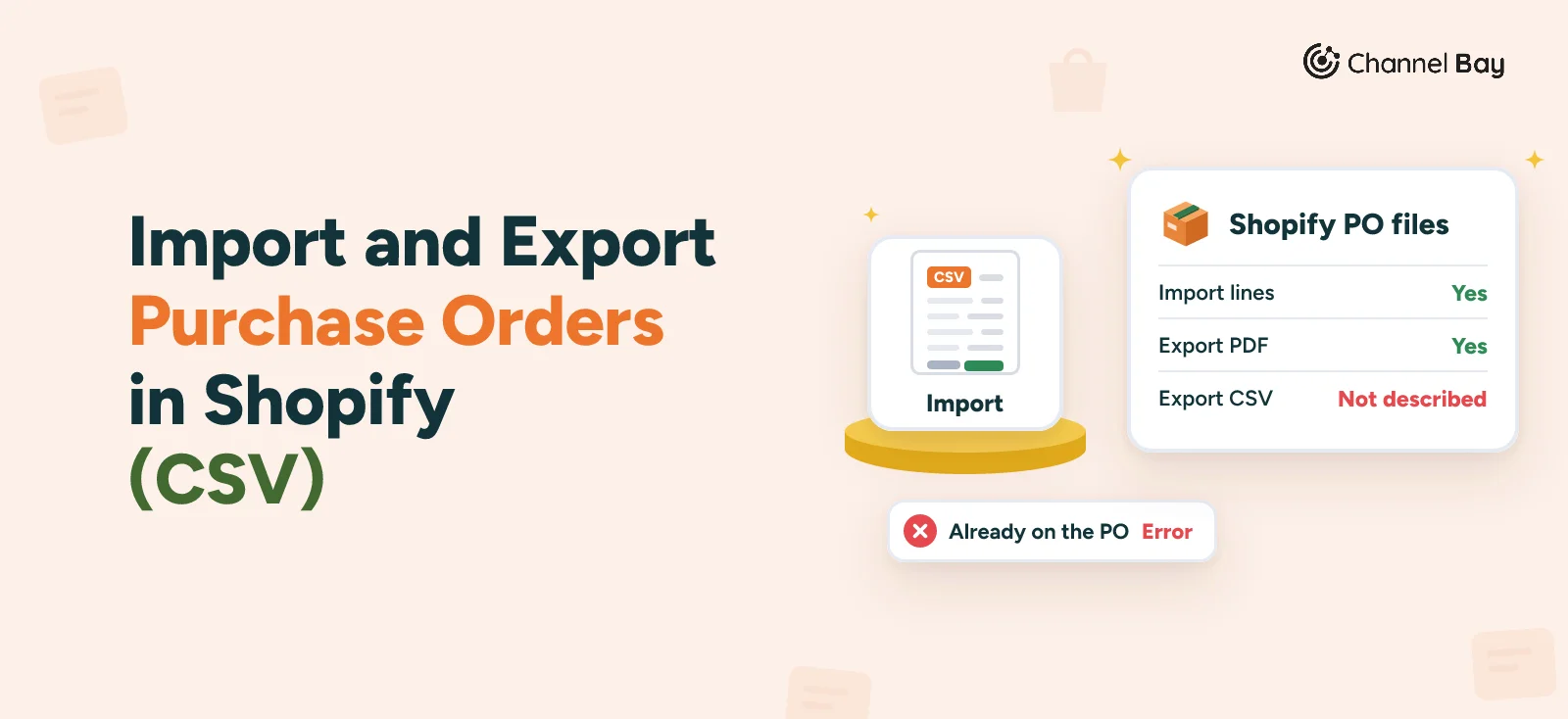
Managing purchase orders individually becomes difficult when merchants have several suppliers and multiple open orders. Merchants have also requested better ways to export purchase orders and edit supplier and product information in bulk. Without these options, routine purchasing updates involve repeated manual work.
Example: When a retailer needs to update supplier costs or tax percentages across several products, Shopify does not provide the requested bulk-edit workflow for these fields. Instead, the buyer has to update product information individually. A discussion requesting bulk editing received 17 replies and 528 views.
4. No Inventory Visibility During Reordering
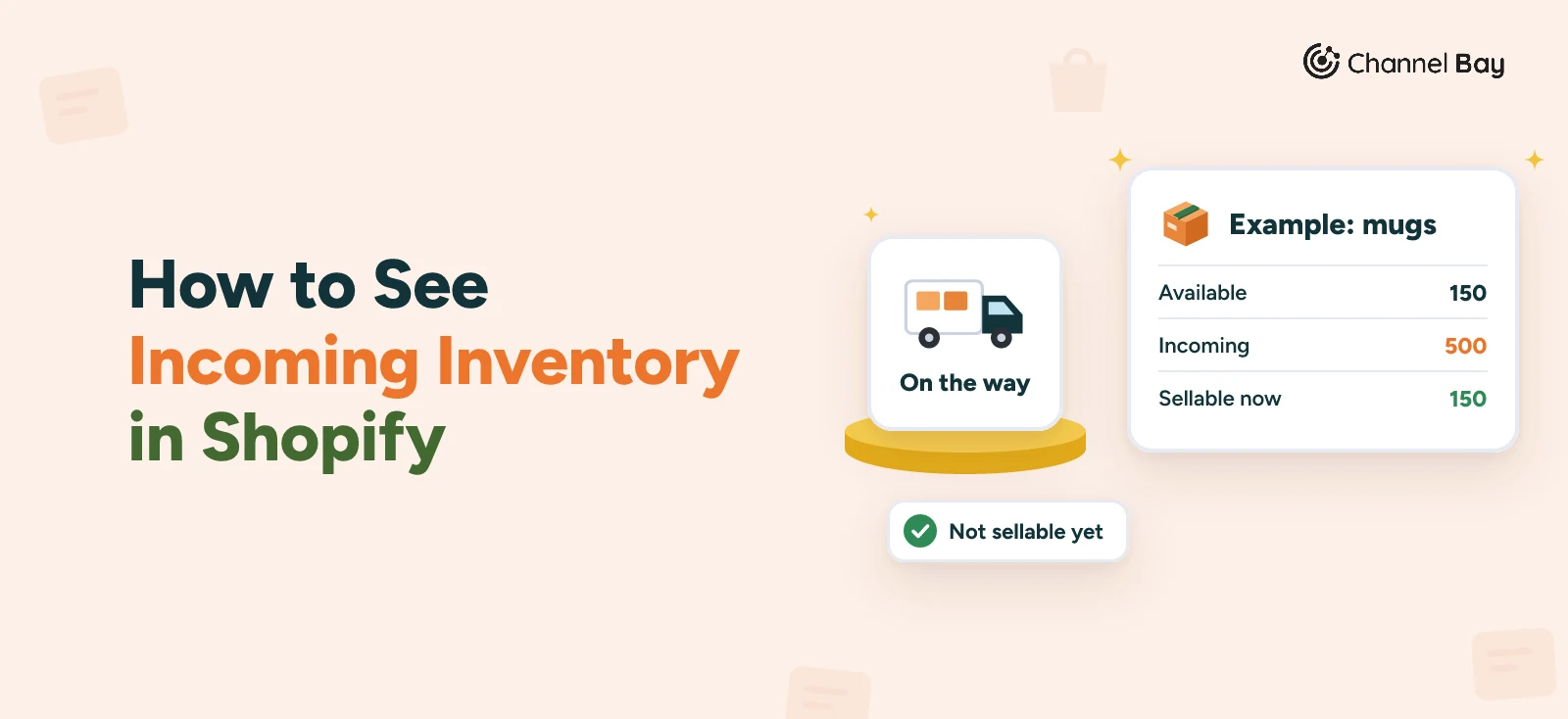
Shopify’s PO screen does not surface available stock, incoming stock, sell-through rate, or days-of-stock remaining in the cart. Merchants either tab between inventory reports and the PO or guess. Both lead to the same outcome: double-ordering SKUs already on the water, or under-ordering the top sellers.
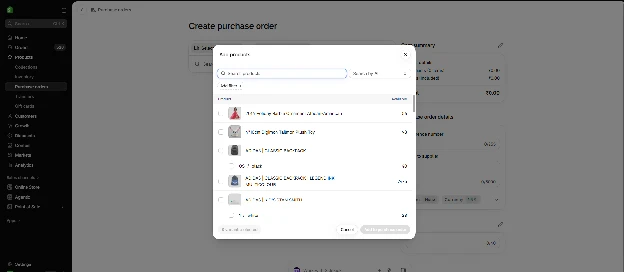
Example: A buyer reorders 500 units of a hoodie not realising another 400 are already in transit, and sits on six months of dead stock.
5. Transfers and POs Run on Separate Rails
When a PO is received into a central warehouse and then split across three retail locations, Shopify treats the receiving and the transfer as unrelated events. Stock often gets double-counted, lost between statuses, or sits in the wrong location on the sales floor dashboard.
Example: A supplier originally confirms an order for 20 products, then adds 5 more products before dispatch. The buyer updates the PO from 20 to 25 products, but the linked inventory transfer continues showing the original items. Both records now need to be checked and updated separately.
6. Barcode Receiving Is Manual
Shopify’s native PO receiving is a typed quantity field. Scanning a barcode does not increment the received count. Warehouse teams receiving a 200-SKU container type each line one by one, which turns a 20-minute scan into a 2-hour entry job and introduces miscounts.
Example: A store receives 100 units across 10 different products. Instead of printing labels directly from the received PO, the team has to open the Retail Barcode Labels app and add products individually. This repeats work that has already been completed during receiving.
7. Multi-Location Receiving Is Clumsy
Each PO is tied to a single destination. Splitting one supplier shipment across three warehouses means creating three POs against the same invoice, which breaks the audit trail back to the supplier.
Example: A warehouse receives 120 units across 3 storage areas. The team needs to identify which products belong in each area after receiving them. Without a suitable putaway sheet, employees have to organise the quantities separately before moving the stock.
8. Landed Costs Are Never Calculated
The purchase price is not the real cost. A $5,000 PO with $500 in freight, $200 in customs, and $150 in inspection fees has a real landed cost of $5,850, which is 17% higher than the invoice. Shopify’s PO does not distribute these landed costs across line items, so COGS, margin, and reorder points stay wrong until someone recalculates by hand.
Example: A product priced at a 40% margin on invoice cost is actually running at 28% once freight and duties land, and the store does not notice until a quarterly P&L review.
9. Partial Deliveries Break the PO
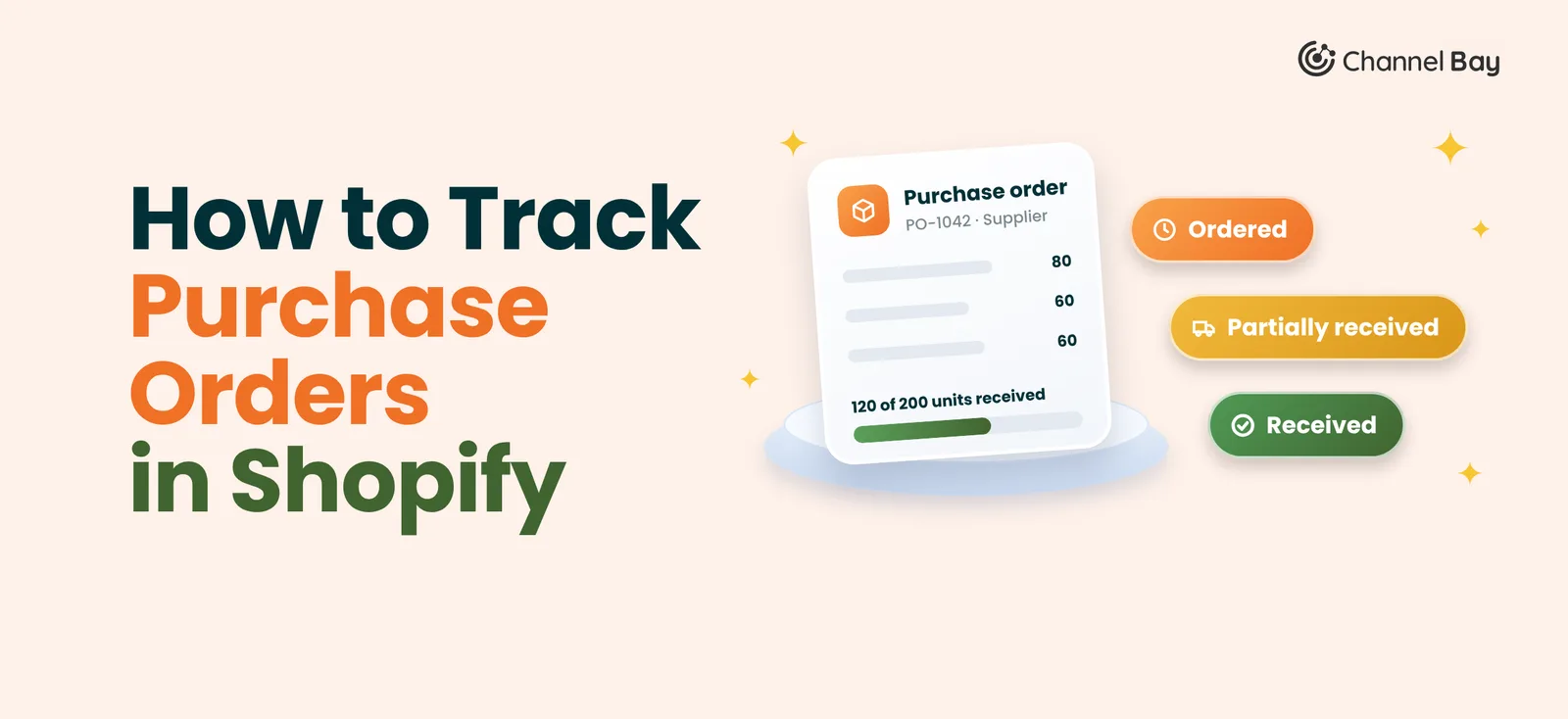
Suppliers rarely deliver the full order in one shipment. When 70 of 100 units arrive on Tuesday and 30 arrive next month, Shopify’s native workflow forces merchants to either mark the PO fully received (and lose the outstanding line) or leave it open and reconcile manually. Both options corrupt inventory counts.
Example: A buyer marks a PO fully received after the first 70 units, and the outstanding 30 units never make it into any inventory count or follow-up with the supplier.
10. PO Statuses Are Too Coarse
Shopify tracks Open, Closed, and a few others. There is no Planned, Partially Received, Overdue, or Expired status, so buyers cannot filter for POs that need attention.
Example: A retailer creates a PO for 50 units and enters the supplier's email address. However, entering the email does not automatically send the purchase order. The buyer still needs to download the document and send it separately, then follow up with the supplier outside Shopify.
11. No Reorder Planning
Reorder decisions need current stock, incoming stock, 30- and 90-day sell-through, and supplier lead time. Shopify shows current stock. Buyers do the rest in Excel. The result is predictable: stockouts on fast-movers, dead stock on slow-movers.
Example: A top SKU with a 45-day lead time runs out two weeks before the next PO lands, because the Excel reorder model missed a sell-through spike.
How to Fix Shopify Purchase Order Problems: The Solution
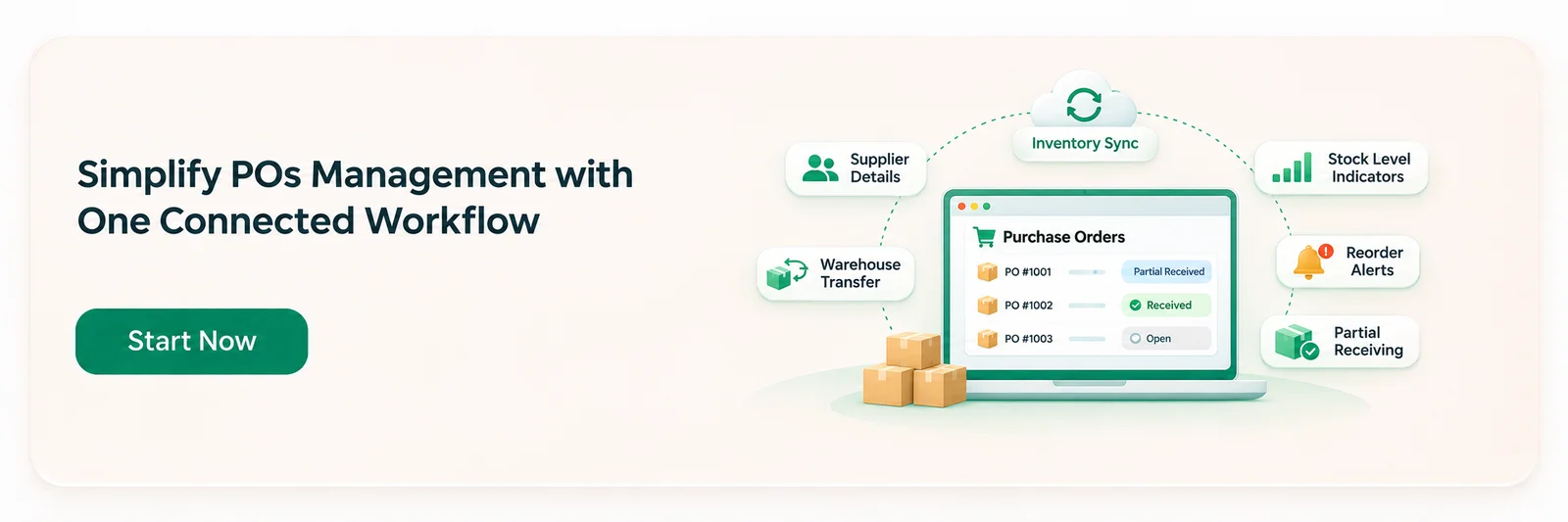
Every issue above comes from the same root cause: Shopify’s native PO is a single-step tool, and purchasing is a multi-step workflow. Fixing it means replacing that single step with a connected workflow across five areas.
Embed Live Inventory Data in the PO Cart
Reorder decisions have to happen where the PO is being built, not in a separate tab. Pull available stock, incoming stock, sell-through rate, days of stock remaining, and a suggested reorder quantity directly into the PO cart. Buyers then decide in the cart, which kills double-ordering SKUs already on the water and under-ordering top sellers in the same move.
Centralize Supplier Data Against the Supplier Record
Store supplier SKUs, pack sizes, MOQs, lead times, and tiered costs on the supplier record, not in a side spreadsheet. Those fields should auto-fill the moment a supplier is selected on a new PO. This cuts PO creation time from 30 to 60 minutes down to a few minutes, removes copy-paste pricing errors, and gives finance one place to audit supplier cost history.
Record Every Delivery as Its Own Batch
Every physical delivery against a PO should be logged as a separate batch with its own arrival date and quantity. The PO moves to Partially Received automatically, outstanding quantities stay visible on the line, and batches can be edited after the fact. The PO closes only when every line is fully received or manually closed. This fixes partial-delivery corruption and gives buyers a real list of what is still outstanding with each supplier.
Automate Landed Cost Distribution Across Line Items
Freight, customs, inspection fees, and any other charges on the PO should be entered on the PO itself and distributed across line items proportionally by value or quantity. The landed cost per unit updates automatically, with a per-line override for cases where the real distribution differs from the proportional split. That keeps COGS, margin, and reorder points accurate instead of understated by 10 to 20%.
Connect Receiving to Transfers and Multi-Location Inventory
A received batch at the central warehouse should convert to a stock transfer in one click, without re-entering line items. The transfer workflow needs to cover dispatch, in-transit, receiving, rejection, and barcode scanning at both ends, with full location-wise inventory on every product. This closes the gap where stock sits in the wrong location on the sales floor dashboard and removes the need to create one PO per destination for a single supplier shipment.
Add the Supporting Workflow Pieces
Three smaller pieces round out the fix and address the remaining issues:
- Barcode receiving that scan. Scanning a barcode should add one unit or one pack to the received quantity based on the pack configuration on the supplier-product record. This cuts a 200-SKU container receipt from about 2 hours to about 20 minutes.
- Reorder planning based on sell-through and lead time. A dashboard reorder list should surface every product that needs replenishment, grouped by supplier, based on current stock, incoming stock, sell-through, and lead time, and turn that list into draft POs in one action.
- Granular PO statuses and bulk actions. Eight statuses (Draft, Planned, Open, Partially Received, Fully Received, Overdue, Expired, Closed) let buyers filter the PO list for what needs attention. Bulk export, bulk cancellation, bulk payment updates, and CSV import handle the admin for merchants managing 40 or more active POs.
Done together, these fixes collapse the 11 problems above into one working purchase order process.
Conclusion
Shopify’s native purchase order tool can handle basic purchasing, but managing multiple suppliers, locations, incoming stock, and partial deliveries requires more than a basic PO workflow. This is where merchants often run into issues with manual PO creation, limited inventory visibility, supplier data management, receiving, landed cost calculations, and keeping purchase orders and transfers in sync.
Channel Bay addresses these gaps by bringing the key parts of the purchasing process into one connected workflow. Merchants can check live inventory while creating POs, manage up to 500 line items per purchase order, track supplier details and costs, receive stock in batches, distribute landed costs, and use barcode scanning. Received inventory can also be converted into a stock transfer in one click.
For businesses managing more complex purchasing operations, Channel Bay helps reduce manual work and keeps purchasing, receiving, and inventory movement connected within Shopify.
Frequently Asked Questions
What is the biggest problem with Shopify purchase orders?
Can I track raw materials in Shopify POs?
How do I handle a partial shipment from a supplier?
Why do my POs not factor in shipping and customs duties?

Guides from the team that builds and supports Channel Bay, the Shopify inventory app for purchase orders, stocktakes, stock transfers and multichannel stock sync. About Channel Bay