How to Sync Inventory Between Shopify Stores
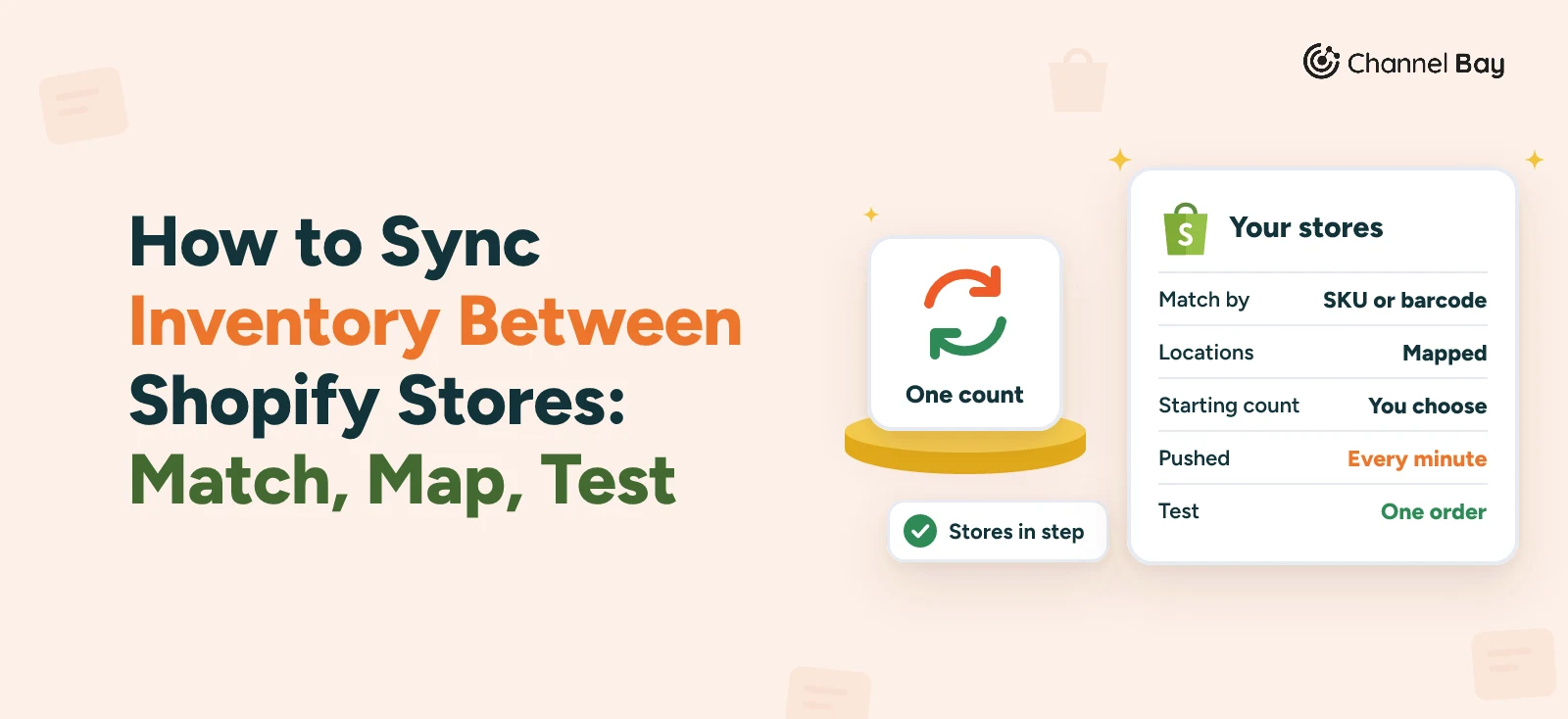
Separate Shopify stores keep their own stock. Link your stores to one count: match products, map locations, choose which count wins and test an order.
On this page
- Do you need more than one store?
- What does it mean to sync stock between stores?
- Before you connect
- How do you connect another store in Channel Bay?
- How do products match between stores?
- Which locations share a count?
- Which count wins on day one?
- Check it before it goes live
- Test one order before you trust it
- What goes wrong, and how to fix it
- What about a CSV import or another tool?
- About Channel Bay and the one-minute push
- The setup in one paragraph
Key Takeaways
- Stock isn't shared between Shopify stores by default. Shopify's help page for Plus expansion stores says inventory isn't synced between stores and that apps or ERP systems can do it, so sharing one count needs a tool that holds it.
- Three choices decide whether it works: how products match between stores, which locations share a count and which count wins on day one.
- Channel Bay matches products in extra stores by SKU or barcode, only where exactly one product has that value. Blank and duplicate values stay unlinked.
- Connect the new store as Fetch-Only first, check ten products against the shelf, then switch to Bi-Directional and choose which side's quantities are correct.
- Place a test order before you trust it. The other store's Available count should fall by the quantity ordered on the next push.
Stock isn't shared between Shopify stores by default, so a sale in one store changes nothing in the others. To share one count, every store connects to a tool that holds it, and that tool needs three answers from you: how a product in one store is matched to the same product in another, which locations share stock, and which count wins on day one.
This guide takes those three choices in order, using Channel Bay as the worked example (it is our app), then shows how to run the connection read-only first, test it with one order and fix what breaks.
Do You Need More Than One Store?
If one store can serve every market and customer you have, there is nothing to sync. A second store earns its place when it has its own currency and domain, a wholesale audience that should never see retail pages, an outlet or a separate brand. In each case the stock is the same stock, which is why the counts have to meet. For the wider picture across Shopify and Amazon, see our guide to multichannel inventory management.
What Does It Mean to Sync Stock Between Stores?
It means the count lives outside both stores. A sale in either store lowers it, and the other store is told. Shopify's help page for Plus expansion stores says that store settings, products, collections and inventory aren't synced between stores, and that third-party apps or ERP systems can sync inventory between them (Shopify Help Center: expansion stores).
Shopify splits stock at a location into states. Available is what you can sell now, and Committed is set aside for orders that aren't fulfilled yet. When an order is placed, its units move from Available to Committed (Shopify Help Center: inventory states). Channel Bay reads and sets the Available number for each location, so a sale lowers the shared count when the order is placed, not when it ships. A manual edit in either store reaches the other the same way a sale does.
| Shared through the one count | Stays in each store |
|---|---|
| Stock at each location you map | Products, titles, images and collections |
| Orders and customers |
Channel Bay doesn't create products in another store, so a product has to exist in a store before its count can reach it.
Before You Connect
- A plan with multichannel sync. It starts on Basic. Free and Lite include one store, and on those plans the Shopify card reads Upgrade to add shops. See the pricing page.
- Clean SKUs in every store. Export products from each store and look for blanks, duplicates and near-misses such as MUG-BLK in one store and MUG-BLACK in the other. Fix the side that is easier to edit.
- A list of locations in each store. A location is a place that holds stock, set up under Settings, then Locations (Shopify Help Center: setting up your locations). You will pair them in a moment.
- Counts you trust. A sync copies whatever number it starts from. If you doubt the counts, count first. Our guide to inventory accuracy covers how.
How Do You Connect Another Store in Channel Bay?
Channel Bay builds its product list from the first store you connected, called the primary store. Every store you add after that is matched to it. There is no limit on how many stores you can add, and each follows the same steps.
- Open Integrations and click Add Shop on the Shopify card.
- Log in to the store you are adding and approve Channel Bay.
- Back in Channel Bay, choose the sync direction: Bi-Directional, where Channel Bay reads the store and pushes stock to it, or Fetch-Only, where it reads and never pushes.
- Choose how to match products: SKU or Barcode. The first extra store sets this, and later stores use the same choice.
- Pair each Channel Bay location with a location in the new store.
- Choose which count is the starting point, then review.
Channel Bay's screens call a location a warehouse and a connected store a shop, so you will see Add Shop and Warehouse mapping. This guide says location and store. Afterwards, View Linked Stores on the Integrations page lists every store with its last sync time and how many locations are mapped. The next three sections cover steps 4, 5 and 6, because they decide whether the stores end up in step.
How Do Products Match Between Stores?
Channel Bay matches a product in an extra store to a product it already has by SKU, or by barcode if you chose that. The match is exact, so MUG-WHT and MUG-WHITE are two different products. A product matches only when the value is filled in and exactly one product in Channel Bay has it.
Example SKUs, invented for illustration:
| In the store you add | In Channel Bay | What happens |
|---|---|---|
| SKU MUG-WHT | One product with MUG-WHT | Linked. The two share one count |
| SKU MUG-BLK | No product with MUG-BLK | Added to Channel Bay as a new product with its own count |
| Blank SKU | Not applicable | Added as a new product and linked to nothing |
| SKU MUG-RED | Two products with MUG-RED | Left unlinked, because the match is ambiguous |
Link whatever is left by hand once the sync has run. Barcode is the better key when your SKUs differ between stores but the same barcode sits on the same product everywhere.
Which Locations Share a Count?
Stock is shared per Channel Bay location. Channel Bay copies the first store's locations in when you connect it. For each store after that, the warehouse mapping step lists your Channel Bay locations with a dropdown of the new store's locations beside each, and None as the first option. Two stores share a count wherever both are paired to the same Channel Bay location. A Channel Bay location maps to one location per store, and a location you leave on None is left out of the sync.
Example locations, invented names:
| Channel Bay location | First store | New store | Result |
|---|---|---|---|
| Main warehouse | Main warehouse | Warehouse | One count, shared by both stores |
| Shop floor | Shop floor | None | The first store only |
Each location row also has a Sync Inventory switch. Turning it off stops Channel Bay pushing that location's stock to every connected store, and Channel Bay still reads it. Use it when something else manages that location.
Which Count Wins on Day One?
When the new store holds products that already exist in Channel Bay, two counts meet. The starting-stock step makes you pick one.
- Copy Shopify Inventory. For products that match and already have a count at that location, the new store's quantity replaces Channel Bay's. This happens once, on the first sync. From then on Channel Bay's count is the one pushed.
- Use Channel Bay's count. The count Channel Bay already holds stays and is pushed to the new store, overwriting the stock levels there. Channel Bay warns that this changes live stock in Shopify. With Fetch-Only, this push waits until you resume sync.
Choose the store whose counts you trust. If the new store started as a copy of the first and nobody kept its counts up, let Channel Bay's count win. If the new store has the better counts, copy them. Either way, the number Channel Bay holds is the number every connected store receives, so a wrong starting count spreads to every store.
Check It Before It Goes Live
Fetch-Only is the safe first run. Channel Bay reads the new store and writes nothing to it, so its stock is untouched while you check the match.
- Choose Fetch-Only at the sync direction step and finish onboarding.
- When the first sync completes, pick ten linked products and compare Channel Bay's count for each with what is on the shelf.
- Fix anything that doesn't link, using the table above.
- Open Linked Stores, click the new store and turn on the Sync direction switch.
- Channel Bay asks which quantities are correct: the Shopify store, selected by default, or Channel Bay. The side you pick is copied to the other. Click Resume Sync.
In Fetch-Only, nothing is written to the new store. Your starting-count choice still decides what Channel Bay holds: Copy Shopify Inventory replaces Channel Bay's count for matched products during the first sync, and Use Channel Bay's count leaves it alone. Channel Bay's count is what your other stores receive. Once you switch to Bi-Directional, the side you pick in the Resume Sync window is copied to the other.
Test One Order Before You Trust It
Do this once, with a product that is linked and has a count in both stores.
- Note Available for the product in both stores and in Channel Bay.
- Place an order for one unit in the first store.
- Check the first store. Available is one lower and Committed is one higher.
- Wait for the next push, which runs every minute, and check the other store. Available there should be one lower. Channel Bay shows the same lower count.
- Repeat from the other store back to the first.
- Cancel the test orders and restock, or set the counts back by hand, and confirm both stores return to the number you started with.
If the numbers match at every step, the stores are in step. If they don't, the next table points to the cause.
What Goes Wrong, and How to Fix It
| What you see | Likely cause | What to check |
|---|---|---|
| A product never changes in the other store | It isn't linked: a blank, duplicate or mismatched SKU | Compare the SKU in both stores, then link it by hand |
| One location never changes | The location is on None, or Sync Inventory is off for that location | Warehouse mapping (the location pairing) in Linked Stores |
| One store receives changes and the other doesn't | The other store is on Fetch-Only | Look for the Fetch-only badge and turn the Sync direction switch on |
| Counts jumped after resuming | The wrong side was chosen in the Resume Sync window | Recount the affected products and correct them |
| Both stores disagree with the shelf | The count was wrong before you connected | Count stock first, then fix the cause |
| The other store lags for a moment | Pushes run on a one-minute cycle | Wait a cycle. See overselling on Shopify |
What About a CSV Import or Another Tool?
A CSV import copies numbers once, and the next sale in either store makes them differ again, so it only suits a catalog that rarely sells. Shopify's expansion store page names third-party apps and ERP systems as the route for syncing inventory between stores. The three choices in this guide, how products match, which locations share a count and which count wins on day one, apply to any of them, so ask each tool how it handles all three before you connect.
About Channel Bay and the One-Minute Push
Channel Bay is our app, so weigh this paragraph with that in mind. Channel Bay holds one count per product and location and pushes stock changes to every connected Shopify store and Amazon every minute. It sends the count as it is, with no safety buffer, and it connects Shopify and Amazon only. Because every push runs on a cycle, the last unit of a fast-moving product can still sell in two stores inside that gap. Our guide to syncing Shopify and Amazon stock covers the Amazon side, and the connected inventory guide covers setup from the start.
The Setup in One Paragraph
Decide how products match, which locations share a count and which count wins, then connect the new store as Fetch-Only and check ten products against the shelf. Switch it on, place one order in each store and watch the other. Count your stock first, because a sync copies a wrong number as faithfully as a right one.
Frequently Asked Questions
Does Shopify sync inventory between stores?
Can I sync stores on the Free plan?
Is there a limit on how many stores I can connect?
What happens to a product that is only in one store?
Can I use a CSV import instead of an app?

Guides from the team that builds and supports Channel Bay, the Shopify inventory app for purchase orders, stocktakes, stock transfers and multichannel stock sync. About Channel Bay