Overselling on Shopify: Why It Happens and How to Stop It
Overselling means selling stock you don't have. See the five ways it happens on Shopify and Amazon, how to tell which one hit you and how to stop it.
On this page
Key Takeaways
- Overselling comes from a wrong count, a right count that reached another channel late, or a setup mistake such as a setting left on. Work out which before you change anything.
- On Shopify alone, check the Continue selling when out of stock setting first. Overselling can be a setting you chose.
- A wrong count is a counting problem, and no sync fixes it. Fix it with stock counts, reorder points and a routine for entering deliveries and damage.
- On Shopify plus Amazon, one count pushed to both channels and matching SKUs remove most causes. A gap always remains, because every sync runs on a cycle.
- After an oversell, tell the customer first, then find the cause. The same cause will oversell again if you don't.
Overselling means selling units you don't hold. It comes from a wrong count, from a right count that reached another channel late, or from a setup mistake such as a setting left on. The quickest check after an oversell is to compare the count at the time of the orders with what was on the shelf. That tells you whether the count was wrong, and the fixes for a wrong count and a late one are different.
This guide covers what overselling costs, the five ways it happens on Shopify and Amazon, how to tell a wrong count from a late one, and the fixes for Shopify alone and for Shopify plus Amazon.
What Is Overselling, and What Does It Cost?
It is selling units you don't hold, usually because your records say you have them. Say one unit is left. Two customers buy it within minutes of each other. One order can't be filled.
The cost is rarely the product. You cancel and refund one order, write to the customer and sometimes lose the sale for good. Time goes on the apology and on finding out what went wrong.
Overselling is not the same as backordering. A backorder is a choice: you sell stock that is on its way and say so. Overselling is a surprise.
Five Ways It Happens on Shopify and Amazon
| Cause | How it shows up | Fix |
|---|---|---|
| Continue selling when out of stock is on | Orders arrive for items at zero or below | Turn it off for items you can't backorder |
| A sale on another channel or POS that the count never heard about | Two orders for the last unit, on different channels | One count that every channel reads and updates |
| A wrong count | Orders for stock the shelf doesn't have, with no sale to explain it | Stock counts, and a routine for deliveries, damage and returns |
| Unlinked or mismatched SKUs | A product sells on one channel and the other never changes | Match SKUs, link what doesn't match |
| Units you moved to Amazon FBA and still count at home | Your other channels sell units that left your warehouse | Take the units out of the count your channels sell from |
1. Continue Selling When Out of Stock Is On
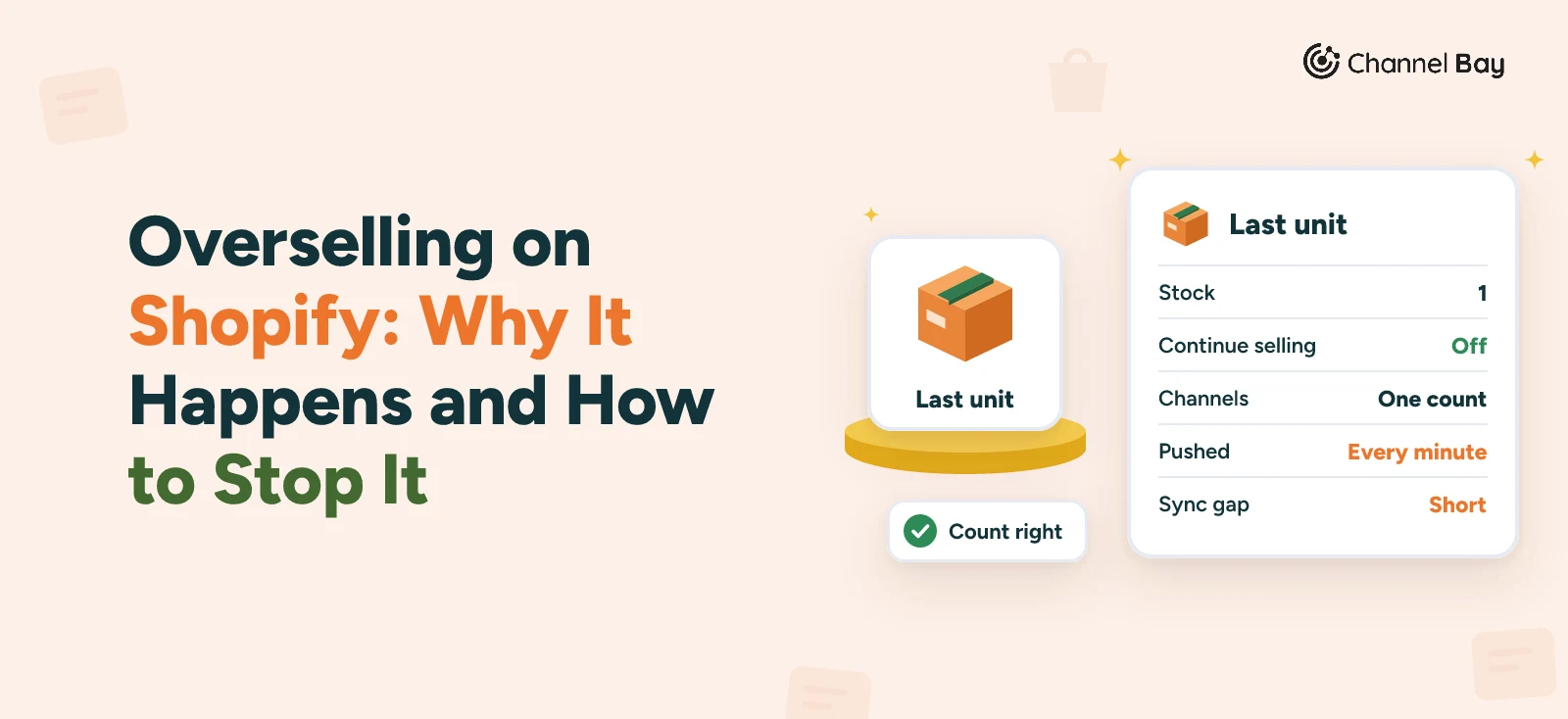
By default, customers can't buy an item once its tracked inventory is at zero or below. Continue selling when out of stock removes that stop. You set it on a product or variant, in its Inventory section, and it works only when Inventory tracked is on (Shopify Help Center: selling out of stock products). Shopify's setup guide shows where the Track quantity setting and the Sell when out of stock option sit (Shopify Help Center: initial inventory setup). If you use it for pre-orders and forget to switch it off, the oversell is a setting you chose.
2. A Sale the Count Never Heard About
Amazon and Shopify keep separate counts. Nothing links them unless you add something that does. A sale on one channel lowers that channel's count and nothing else, so the other keeps selling a unit that is gone. A second store and a physical shop work the same way, and our guide to syncing inventory between Shopify stores covers the store case. Shopify POS doesn't follow the setting above either: staff can keep selling at zero and below, and POS warns them first (Shopify Help Center: selling out of stock products).
3. A Wrong Count
A delivery that was never received into the system, a breakage nobody recorded, theft, a miscount. The channels may agree with each other and still be wrong against the shelf. This is the cause that no sync fixes, because a sync copies whatever number it starts from.
4. Unlinked or Mismatched SKUs
The same product exists on two channels, but nothing ties the two listings together. Matching usually runs on SKU, so a blank SKU, a SKU written differently on each side or one SKU shared by two products leaves a listing unlinked. A change on one channel reaches nothing.
5. Units You Sent to Amazon FBA and Still Count at Home
With Fulfillment by Amazon (FBA), you outsource storage and delivery to Amazon (Amazon, selling plans), so units sent in can't ship from your warehouse. If your own count still includes those units, Shopify keeps selling them. Move them out of the count your other channels sell from when you send them.
Is Your Count Wrong, or Just Late?
This split decides the fix. Pull the orders for the product that oversold, plus every stock change on it around that time, and walk through three questions.
- Was the count right before the orders came in? Compare it with what was on the shelf, or with your last stock count. If they differ, the count was wrong. Go to inventory accuracy and the counting fixes below. No setting and no sync would have prevented this one.
- If it was right, were the two orders close together on different channels? Then the count was right but late: the second channel hadn't heard about the first sale yet. That is the sync gap, or two channels with no sync at all.
- If the count was right and the orders were not close together, what let the channel sell? Check the setup: Continue selling when out of stock, a listing that was never linked, units counted that sit in FBA.
Our guide to cycle counting covers the counting side.
Fixes That Work on Shopify Alone
- Turn off Continue selling when out of stock on every tracked item you can't backorder. Open the product or variant and clear it in the Inventory section.
- Reorder before you hit zero. A reorder point turns "we're out" into "we're low". See our guide to reorder points.
- Hold a cushion. A safety stock level is the units you keep as cover against demand and delivery surprises, and you reorder before you reach it. See the safety stock formula.
- Count on a schedule. Count fast-moving products more often than slow ones, and apply the difference. See Shopify inventory tracking for what Shopify keeps for you.
Shopify's admin covers the one-channel case well. Shopify inventory management shows where it stops.
Fixes When You Also Sell on Amazon
Most of the causes come from two counts that nothing links, so the fix is one count that both channels read and update.
- One count, pushed to both channels. A sale on either channel lowers the one number, and the other channel gets it on the next sync.
- Matching SKUs. Compare SKUs on both sides before you connect, character for character, and correct the side that is easier to edit.
- FBA kept apart. Amazon stores and ships FBA stock itself, so it isn't part of the count your other channels sell from. Counting FBA and merchant-fulfilled stock shows how to split the pools.
- Counts that are right before you connect. A sync copies whatever number it starts from.
Then accept the limit. Every sync runs on a cycle, so for a moment the other channel doesn't know about a sale. A product down to its last unit can still be sold twice in that gap. Here is one with invented times, for one unit left and a push that runs at 10:01:00.
| Time | What happens | Shopify shows | Amazon shows |
|---|---|---|---|
| 10:00:05 | A customer buys the last unit on Shopify | 0 | 1 |
| 10:00:40 | A customer buys the same unit on Amazon | 0 | 0 |
| 10:01:00 | The push runs and both channels read 0 | 0 | 0 |
Example, invented figures. The count was right the whole time. Amazon's copy of it was stale for 55 seconds, and the second order landed 35 seconds after the first, so two orders met one unit. Syncing shrinks the window. It doesn't close it. If a product sells fast and its stock is thin, the answer is more stock, or pausing the product while you restock. Our guide to syncing Shopify and Amazon stock has the setup.
Channel Bay is our app, so weigh this paragraph with that in mind. Channel Bay holds one count per product and location and pushes stock changes to every connected Shopify store and Amazon every minute. It sends the count as it is, with no safety buffer, and it links an Amazon listing to a product by SKU only where exactly one product matches. It can't sync Amazon FBA stock, and it connects Shopify and Amazon only.
What to Do the Morning After an Oversell
- Decide on the order. Cancel and refund it, or offer a wait if the restock date is close. Tell the customer before they find out.
- Fix the count. Set the product to what is actually on the shelf, so the next order is safe.
- Find the cause. Use the three questions above, and write down which one it was.
- Change the thing behind it. A setting, a link, a routine for entering deliveries. If you only cancel the order, the same cause will oversell again.
What to Check First
Work out whether the count was wrong, late or let through by a setting, then fix that cause. On Shopify alone, that starts with the Continue selling when out of stock setting. With Amazon alongside, it starts with one count that both channels read. Whichever it is, count your stock first, because a sync copies a wrong number as faithfully as a right one.
Frequently Asked Questions
Does Shopify let you oversell?
What is the difference between overselling and backordering?
Can you stop overselling without software?
Does syncing remove the risk of overselling?

Guides from the team that builds and supports Channel Bay, the Shopify inventory app for purchase orders, stocktakes, stock transfers and multichannel stock sync. About Channel Bay