How Fast Should Inventory Sync Be?
A one-minute sync can still oversell a last unit. Work out the gap each product can live with, see what real-time leaves out and time your own sync.
On this page
Key Takeaways
- Sync is fast enough when the units you hold exceed the orders that can land in one gap. Orders per minute multiplied by the gap in minutes gives that number.
- A product with 200 units can sit through an hour-long gap. A product with one unit can oversell inside a minute, and no sync cycle prevents that.
- A sync has three delays: the event reaching the tool, the tool's own cycle and the channel applying the change. 'Real-time' usually names only one.
- Shopify says webhook delivery isn't always guaranteed and advises reconciliation jobs. A good sync has a fast path and a slower safety path, so ask about both.
- Time your own sync in both directions, keep the longest result and do the sum with that, not the average.
Inventory sync is fast enough when no product can sell out inside the gap between one channel's sale and the other channels hearing about it. That depends less on an app's headline speed than on how many units you hold and how fast the product sells. A product with 200 units can sit through an hour-long gap. A product with one unit left can oversell inside a minute.
This guide covers what sync speed measures, a sum that tells you the gap each product can live with, what "real-time" leaves out, how Channel Bay's own timings work and a ten-minute test you can run on any app.
What Does Sync Speed Measure?
A sync is three delays in a row, and a speed claim usually names only one of them.
- The event reaching the tool. Shopify and Amazon announce changes by webhook and notification. Shopify calls webhooks "near-real-time data" but says "Webhook delivery isn't always guaranteed", and that it doesn't guarantee ordering within a topic (Shopify: webhook best practices). Amazon's guide to notifications recommends having "a means to retrieve needed information in the event of an unexpected outage" (Amazon: Notifications API use case guide). Neither page gives a delivery time.
- The tool's own cycle. Most tools collect changes and push them on a schedule. This is the figure vendors quote: every minute, every 15 minutes, every hour.
- The channel applying the change. Once the tool has sent a count, the receiving channel has to show it. Amazon can take several minutes to do that.
Shopify's advice on the first delay matters for the second. It says an app "shouldn't rely on receiving data from Shopify webhooks" and should "use reconciliation jobs to periodically fetch data from Shopify" (Shopify: webhook best practices). So a well-built sync has a fast path for changes and a slower path that re-reads everything and catches what the fast path missed. When you compare tools, ask about both. The fast path sets how quickly a sale is heard. The slow path sets how long a mistake can stay.
How Do You Work Out the Gap a Product Can Live With?
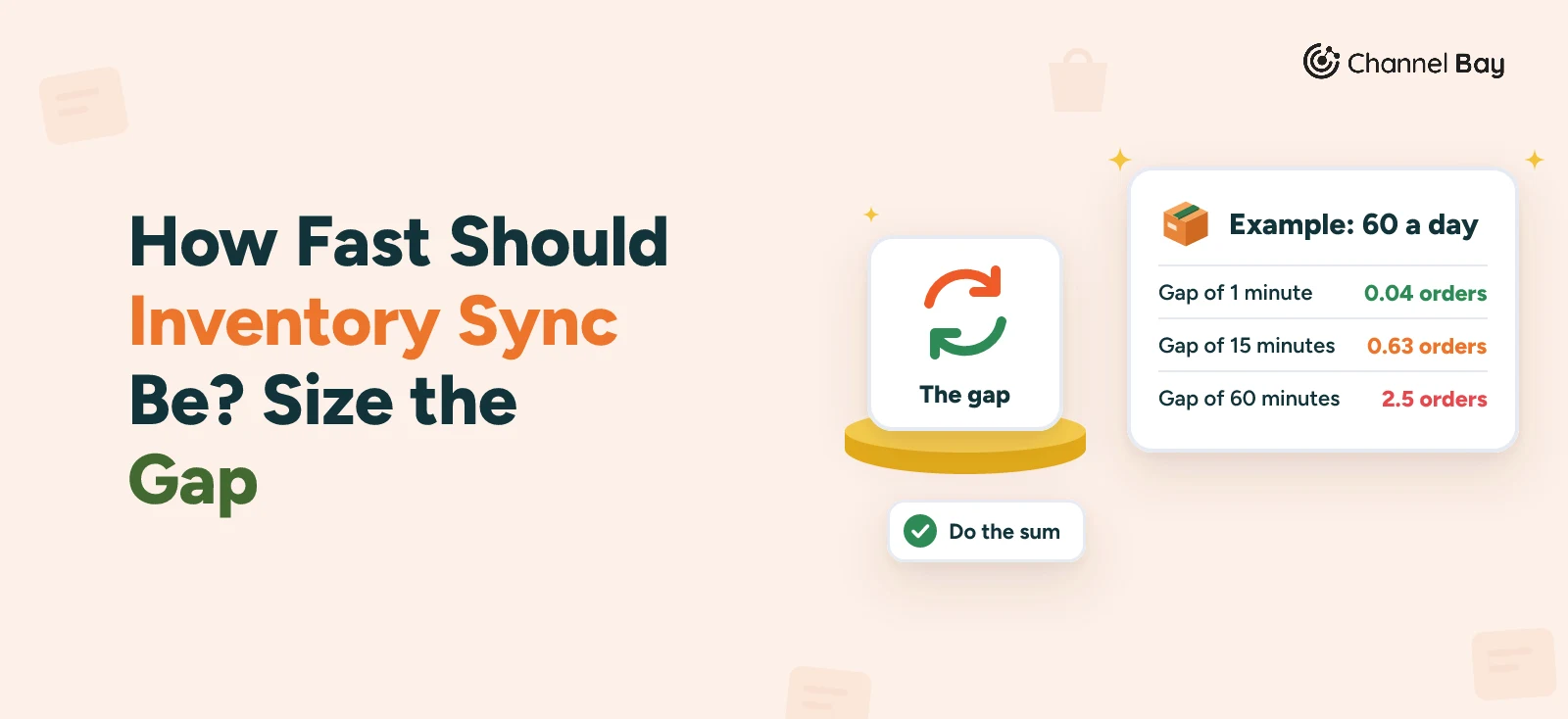
Multiply the product's orders per minute by the gap in minutes. The result is how many orders you expect to land while the other channels still show the old count. If the units you hold are well above that number, the gap can't empty the product. If they are close to it or below it, it can.
Example, arithmetic on assumed sales rates, not measured data. It assumes orders arrive evenly through the day, and it counts orders across every channel together.
| Orders a day | 1-minute gap | 5-minute gap | 15-minute gap | 60-minute gap |
|---|---|---|---|---|
| 10 | 0.01 | 0.03 | 0.10 | 0.42 |
| 60 | 0.04 | 0.21 | 0.63 | 2.5 |
| 300 | 0.21 | 1.04 | 3.13 | 12.5 |
Read it against the stock you hold:
- A product selling 10 a day barely notices an hour-long gap, unless it is down to its last unit.
- A product selling 60 a day averages 0.63 orders in a 15-minute gap and 2.5 in an hour. With three units left, an hourly sync can sell it out on one channel while the other still shows stock.
- A product selling 300 a day averages one order in a five-minute gap. Only a minute-long cycle keeps it near 0.2, and even then a product with one unit left can sell twice.
Three cautions apply to the table:
- Sales don't arrive evenly. Use your busiest hour. Divide the orders in that hour by 60 for the rate per minute, and you will often find it is several times the daily average.
- An average is not a guarantee. An average of 0.63 means some gaps see no order and some see two.
- Count units, not orders, if customers often buy several at once.
What Do You Do With the Answer?
The tool's cycle is only one of three levers.
- Shorten the gap. This is the part a tool controls, and it is the only one that sync speed changes.
- Hold more stock at the thin end. Reorder fast sellers before they reach single digits. Our guides to the reorder point and the safety stock formula show how.
- Remove the other causes. A wrong count or the Continue selling when out of stock setting oversells with no sync gap involved. Our guide to overselling on Shopify separates them.
No cycle takes the gap to zero. The last unit of a fast seller is a stock problem first and a speed problem second.
What Does "real-time" Leave Out?
It leaves out the other two delays, and it usually leaves out the failure case. A tool can receive a Shopify event the moment it happens and still push it on a 15-minute schedule. It can push on time and wait on Amazon. It can be quick when everything works and silent when a webhook is lost.
Marketplace Connect shows the problem. Its listing says "real-time integration", and no Shopify page we read gives an interval. In March 2024 one eBay seller reported on the Shopify Community that stock took "up to an hour" to update between channels and that a duplicate sale came 30 minutes after the first. That is one seller's report, but it shows why a label is not a number. Our Marketplace Connect review has the rest.
Speed also does nothing for a wrong count. A fast sync copies a wrong number to every channel as faithfully as a right one, so keep inventory accuracy up first.
Why Not Sync Every Second?
Every push is a call to a channel's API, and the channels limit those calls. Shopify's limits work like a bucket: "If the bucket fills, you get a throttle error and have to wait for more bucket capacity to become available", and it recommends waiting a second before retrying (Shopify: API usage limits). A tool that pushes every change the instant it happens would hit that wall on a busy day, so tools batch their changes. A short cycle is a trade between how stale the other channel can get and how many calls a catalog can make.
How Do Channel Bay's Timings Work?
Channel Bay is our app, so weigh this section with that in mind. As of November 2026, Channel Bay runs several loops at different speeds, and only one of them is the "every minute" you see in our other guides.
| What happens | How it works | Timing |
|---|---|---|
| A sale or count change in Shopify or Amazon | Shopify sends an event and Amazon sends a notification, and Channel Bay updates its one count | Set by Shopify and Amazon, which state no delivery time |
| That change reaches your other channels | Channel Bay pushes it to every connected Shopify store and to Amazon | Every minute |
| Amazon shows the new count | Amazon applies it | Can take several minutes |
| Events keep arriving | Channel Bay checks that events are still coming in, and if they have stopped it collects those waiting in a backup queue | Every 10 minutes |
| A new or edited Shopify product | Channel Bay re-reads your store when Shopify has reported a new product, a product edit or an order since the last read | About every 7 minutes for a store you have used in the last hour, and about every 6 hours otherwise |
| Your Amazon listings | Channel Bay re-reads them | Every 6 hours |
Stock changes don't wait for the slower rows. They travel as events and go out on the one-minute push. The slower cycles decide how soon a product you just created or renamed appears, not how soon a sale is heard. A store with a large catalog can take longer to read than the cycle suggests. To pull fresh data at once, open Channel Bay or use Force sync in Linked Stores.
On the table's own sum, a product selling 60 a day sees a gap of about a minute for a Shopify sale reaching Amazon, plus whatever Amazon adds. If Amazon takes five minutes, call it six: 6 × 0.042 is about 0.25 orders. That is fine for a product with 20 units and not for one with a single unit. Channel Bay sends the count as it is, with no safety buffer, and it has no cycle shorter than a minute. It connects Shopify and Amazon only.
How Do You Time Your Own Sync?
Run this on any app, in about ten minutes, with a product that has at least ten units.
- Pick a product that is on both channels and well stocked, so the test can't oversell it.
- Note the time and lower its count by one on the first channel. Use the inventory screen in Shopify admin, or an edit in your tool.
- Refresh the other channel every 30 seconds until the count changes, and note the time. For Amazon, check the live listing as well as Seller Central.
- Put the unit back and time that change too. A sync can run faster one way than the other.
- Repeat in both directions, and run it once at your busiest hour. A scheduler that looks instant on a quiet afternoon can be slower under load.
- Keep the longest result, not the average, and use it as the gap in the table above.
If the longest gap multiplied by your busiest-hour rate is well under your stock on every fast seller, the sync is fast enough for your catalog. If it isn't, you have three options: a shorter cycle, more stock on the thin products or a setting change such as turning off Continue selling when out of stock. The number tells you which.
What to Take From This
Ask how fast a sync needs to be for your products, not for the average product. Work out each fast seller's orders per minute, multiply by the longest gap you measured and compare that with the units you hold. Ask any vendor for all three delays and for what happens when the fast path fails. Then time it yourself. To run one count across Shopify and Amazon, connect your store in Channel Bay.
Frequently Asked Questions
Is real-time inventory sync possible?
How often does Channel Bay sync inventory?
Is a 15-minute sync fast enough?
Why does Amazon show the old quantity after the push?
How do I check how fast my own sync is?

Guides from the team that builds and supports Channel Bay, the Shopify inventory app for purchase orders, stocktakes, stock transfers and multichannel stock sync. About Channel Bay