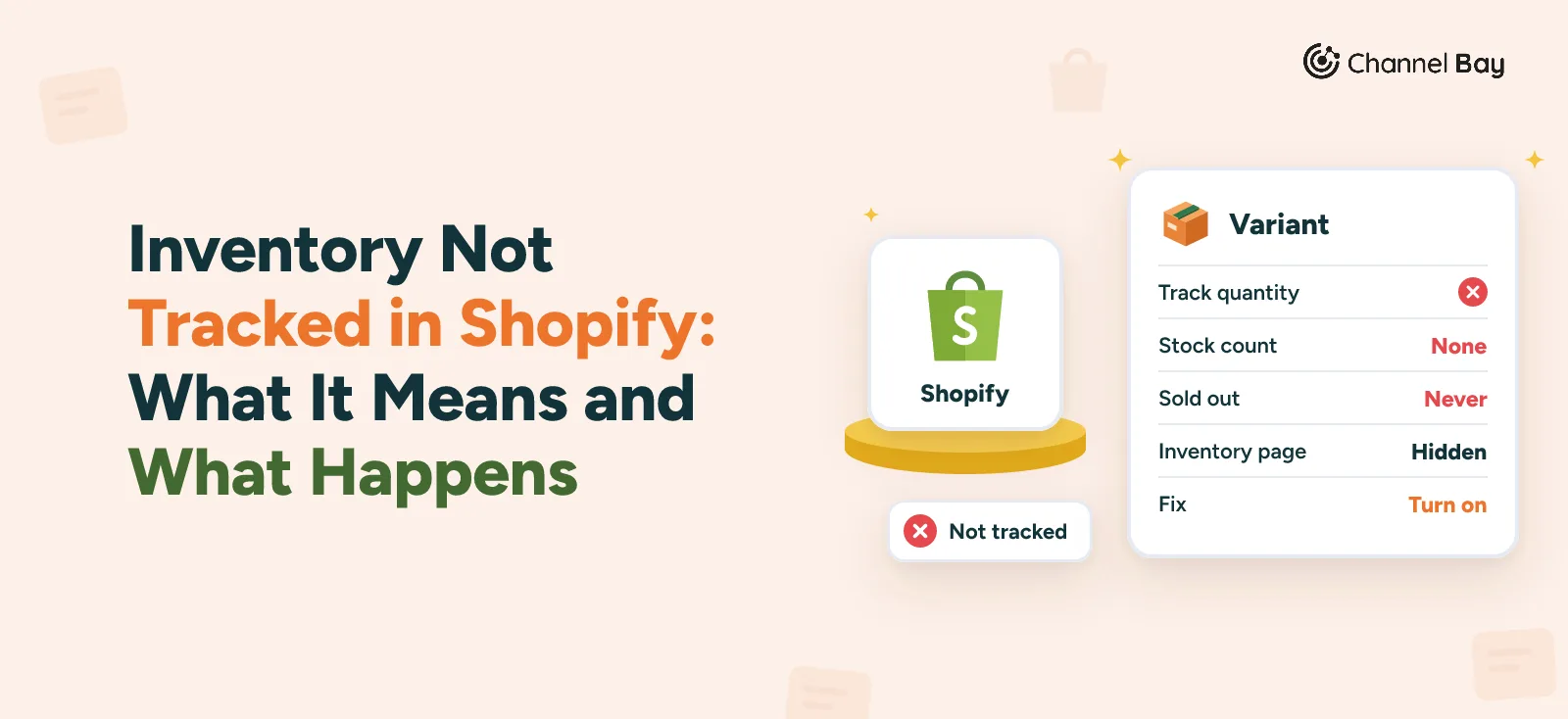
Inventory Not Tracked in Shopify: What It Means and What Happens
Inventory not tracked in Shopify means the product never sells out and has no stock history. Learn what happens, when to leave it off and how to fix it.
On this page
- Why does inventory become untracked in Shopify?
- What happens when a Shopify product is not tracked?
- How do you fix inventory not tracked in Shopify?
- When should you leave inventory untracked on purpose?
- How do you prevent overselling and tracking gaps going forward?
- How does Channel Bay help keep Shopify inventory in sync?
Key Takeaways
- What it means: Track quantity is off, so Shopify keeps no stock count and never marks the variant sold out.
- Common causes: a box missed at product creation, a variant added without the setting, a blank Inventory tracker cell in a CSV, or an app or migration that did not carry the setting over.
- Main risk: customers keep ordering physical products you no longer have, which means cancellations, refunds and late orders.
- How to fix it: turn on Track quantity for each variant, in the bulk editor or through the Inventory tracker column of a CSV, then enter your real counts.
- When to leave it off: digital products, services, gift cards and most made-to-order items.
Inventory not tracked in Shopify means the Track quantity setting is off for that product or variant. Shopify keeps no stock count for it, so it stays available to buy however many units you really have.
That is the right setting for digital downloads, services and gift cards. For anything physical it is a problem, because customers can keep ordering long after you have run out.
Most of the time it happens by accident: a Track quantity box left unticked when the product was created, a new variant added without the setting, or a CSV import with the Inventory tracker column left blank.
This guide covers why it happens, what it does to your store, when leaving tracking off is correct, and how to turn tracking on for one product, a batch or the whole catalog. It ends with habits that stop it coming back. For the wider picture of how Shopify counts stock, see our guide to Shopify inventory tracking.
Why Does Inventory Become Untracked in Shopify?
Tracking rarely breaks on its own. It gets missed or lost during ordinary product work. Four causes cover almost every case.
A Missed Checkbox When You Create a Product
The Inventory section of a product has a Track quantity checkbox. If it is left unticked, or cleared, Shopify does not count stock for that product, and the product stays available to buy after your physical stock has sold through. It is easy to miss when you are adding many products in one session and focused on titles, images and prices.
Example, with invented numbers: you add 20 new T-shirts, forget Track quantity and sell all 20. Shopify takes order 21 as readily as order 1, because it was never counting.
New Variants Added Without the Setting
Track quantity is set per variant, not per product. Do not assume a variant you add later inherits the setting from the ones already there. Check each new one.
Example: your clothing store already tracks Small, Medium and Large. You add an Extra Large. Unless Track quantity is on for that new variant, Shopify can keep selling it with no stock cap while the other sizes behave correctly.
This catches stores that change variants often, run seasonal lines or grow a catalog in stages.
CSV Imports With a Blank Inventory Tracker Column
Shopify's product CSV has an Inventory tracker column. The value shopify tells Shopify to track that variant, and a blank cell means it is not tracked. The valid values also include the names of some third-party fulfillment services (Shopify Help Center, product CSV, read 12 November 2026). So a file with that column empty imports products that are all untracked, even though names, prices and variants come across perfectly.
It usually happens when you:
- use an outdated CSV template
- migrate from WooCommerce, Magento or BigCommerce
- import a supplier file built for a different platform
- skip the column during a bulk update
Example: you import 500 products. Names, prices and variants all arrive. The Inventory tracker column is empty, so a large part of the catalog imports untracked, the opposite of what you meant.
Scan that column before you confirm any bulk import.
Third-Party Apps, Print-on-Demand and Platform Migrations
Some apps manage stock on their own terms. Dropshipping apps, print-on-demand services such as Printful and Printify, and supplier platforms often control availability through their own system rather than Shopify's quantity.
That is not always wrong. A print-on-demand item is made after each order, so there is no finished stock to count. But if an integration is meant to sync physical stock and does not set tracking, you end up with untracked products you did not expect.
Migrations carry the same risk. Product data usually moves across, but a Shopify setting such as Track quantity can arrive blank, so check it after any migration.
What Happens When a Shopify Product Is Not Tracked?
Untracked stock changes how orders flow, what shoppers see and what your reports show.
Customers Keep Ordering After Your Physical Stock Runs Out
With Track quantity off, Shopify has no count to compare orders against. The variant stays available to buy however many units you hold.
Sell the last T-shirt in a run of 20 and order 21 goes through the same way. You are left canceling, refunding or stalling delivery while you wait for new stock. In a busy week that scales fast.
Products Do Not Switch to Sold Out
Shopify marks a variant Sold out when its tracked quantity reaches zero and Continue selling when out of stock is off. With no quantity, there is nothing to reach zero.
Shoppers keep seeing Add to cart on a product you cannot ship. They check out, then get a cancellation email, and some do not come back. Your theme, sales channels and apps can change how Sold out is displayed, but the root cause is the same: Shopify has no count to act on.
Purchase Orders and Transfers Have Nothing to Add To
Shopify's own purchase order guide tells you to activate inventory tracking for the products you want to order (Shopify Help Center, purchase orders, read 12 November 2026). An untracked variant has no count, so there is nothing for received or transferred units to add to. Reorder planning turns into guesswork.
Low-Stock Reports and Alerts Skip the Product
A variant with tracking off does not appear on the Inventory page at all (Shopify Help Center, bulk editing inventory, read 12 November 2026), and its adjustment history stays empty while tracking is off. Anything that reads tracked quantities, such as low-stock workflows and most inventory apps, has nothing to work with.
That is the quiet failure. Nothing warns you that a product is nearly gone. You find out when an order sits in your queue with nothing to pick.
How Do You Fix Inventory Not Tracked in Shopify?
The fix is to turn on Track quantity and then enter real counts. Pick the method that matches the scale: one product, a batch or the whole catalog.
First, find what is untracked. Variants with tracking off are missing from the Inventory page, so compare it against your product list. For a large catalog, export the product CSV and filter the Inventory tracker column for blank cells.
Turning tracking on does not set your stock. Count the physical units and enter the quantity for each location.
Method 1: Fix One Product From the Shopify Admin
Use this for one product or a handful of them.
- Log in to your Shopify admin.
- Go to Products.
- Click the product you want to update, and then the variant if it has several.
- Scroll to the Inventory section.
- Check Track quantity.
- Enter the quantity for each location.
- Click Save.
Repeat for every variant, because tracking is set per variant.
[Screenshot: the Track quantity checkbox in the Inventory section of a variant]
Method 2: Fix Several Products With the Bulk Editor
Use this when a batch of products or variants needs updating and you want to avoid opening each one.
- In your Shopify admin, go to Products.
- Select the products you want to update.
- Click Bulk edit.
- Click Columns and add Track quantity.
- Switch Track quantity on for the affected rows.
- Click Save.
Two limits to know. The Track quantity field is grayed out for a variant that is part of an unfulfilled order or an active inventory transfer. And the bulk editor sets absolute quantities without an origin and destination, so it creates no audit trail of inventory movements (Shopify Help Center, bulk editing inventory, read 12 November 2026). If you want a history of where stock came from, adjust it on the product or variant page instead.
Do not confuse the quantity columns with Track quantity, which is the setting that makes Shopify count stock in the first place.
[Screenshot: the bulk editor with the Track quantity column added]
Method 3: Fix the Whole Catalog With a CSV Import
Use this when the problem spans hundreds of products.
- Go to Products in your Shopify admin.
- Click Export and download your product data as a CSV.
- Open the file in Excel or Google Sheets.
- Find the Inventory tracker column.
- Enter
shopifyfor every variant that should be tracked. - Leave handles, variant IDs and other identifiers untouched.
- Save the file as a CSV.
- Go to Products, click Import and upload the file.
- Review the preview, then confirm.
Keep a copy of the original CSV before you edit. One more catch: the product CSV's Inventory quantity column applies only to stores with a single location. If you have more than one location, set quantities with the inventory CSV instead (Shopify Help Center, product CSV, read 12 November 2026). After the import, open a few products and variants and confirm Track quantity is on.
When Should You Leave Inventory Untracked on Purpose?
Some products have no finite stock, and tracking them adds friction for no gain. Three cases cover most stores.
Digital Products
E-books, templates, courses, music files and software downloads have no physical stock. One file can be sold any number of times. Leave Track quantity off.
Services and Digital Gift Cards
Consultations, coaching and other digital services are not warehouse items. Digital gift cards work the same way.
If you sell a limited number of appointment slots or event tickets, manage availability through a booking or ticketing app rather than treating the service as unlimited.
Print-on-Demand and Most Made-to-Order Products
Printed shirts, mugs, custom accessories and made-to-order furniture are produced after the order lands, so there is no finished stock to count.
Raw materials are different. If you run out of blank shirts, ink or packaging, production stalls. Track those in a separate system or app, even if the finished product stays untracked in Shopify.
Rule of thumb: if the product has a limited physical quantity you would reorder, track it. If it does not, leave tracking off.
How Do You Prevent Overselling and Tracking Gaps Going Forward?
Fixing it once is easy. Keeping it fixed takes a few recurring habits.
Audit Tracking After Every CSV Upload
After any bulk upload, open ten random products from the batch and check Track quantity. Look closely at the Inventory tracker column and at any new variants.
Use Continue Selling When Out of Stock Correctly
Shopify has a separate setting called Continue selling when out of stock. People often confuse it with untracked inventory, but they are different.
- Tracking off: Shopify keeps no count, so there is no zero to react to.
- Continue selling on: Shopify counts quantity and allows orders past zero on purpose, for pre-orders or backorders.
For ordinary physical products, keep Continue selling off unless you want to accept backorders.
Set Up Automated Low-Stock Alerts
Manual checks do not scale. Shopify Flow is a free app available on the Basic, Grow, Advanced and Plus plans (Shopify Help Center, Shopify Flow, read 12 November 2026), and you can also use an inventory app. Either can alert you at a threshold you choose. Our guide to Shopify inventory alerts walks through the options.
A good setup warns you early enough to raise a purchase order and receive stock before the product runs out.
Check Every New Variant
Every new size, color or finish needs its own Track quantity check. Build it into your variant workflow so it is not a step you have to remember.
Count Your Stock Regularly
Compare physical counts with Shopify's quantities on a schedule. Monthly works for many stores, though that is our rule of thumb, not a Shopify rule. Investigate any gap, correct the quantity and confirm tracking is on. If you ship from more than one location, count each one separately. Our guide to stocktakes in Shopify covers how.
Check Stock Across Every Sales Channel and Location
If you sell on more than one channel or ship from more than one location, the same stock can look available in two places at once. That is how overselling happens even with tracking on. Review your channel and location connections each month, and make sure a stock change in one place reaches every place it should. See how to sync Shopify and Amazon inventory for the multichannel case.
How Does Channel Bay Help Keep Shopify Inventory in Sync?
Channel Bay is our app, so weigh this section with that in mind. It is an inventory app for Shopify merchants who sell across more than one channel or location. Start with the Track quantity fixes above, because an app can only manage the counts it is given. Once tracking is on, this is what Channel Bay adds:
- Stock sync across Shopify and Amazon. Channel Bay pushes stock changes to every connected Shopify store and Amazon about every minute. Amazon can take several minutes to reflect a change. Amazon FBA stock is held by Amazon, so FBA products cannot be mapped to Channel Bay stock.
- Low-stock alerts. Channel Bay notifies you when a variant falls to its reorder point, which starts at 10 units and which you can change per product. Out-of-stock items are flagged too, and a daily summary email is on by default.
- Purchase orders. Create a purchase order, email it to the supplier and receive stock in as many deliveries as it arrives in.
- Forecasting. See days of stock left, supplier lead times and a suggested order quantity, on the plans that include forecasting.
For stores past the spreadsheet stage, this puts purchasing, stock visibility and multichannel sync in one place.
Frequently Asked Questions
What does "inventory not tracked" mean in Shopify?
Can customers still buy a product when inventory is not tracked?
How do I turn on inventory tracking in Shopify?
Should I track inventory in Shopify?
Why is my variant missing from the Inventory page?
Is "inventory not tracked" the same as "continue selling when out of stock"?
How do I find all untracked products in my Shopify store?

Guides from the team that builds and supports Channel Bay, the Shopify inventory app for purchase orders, stocktakes, stock transfers and multichannel stock sync. About Channel Bay