Shopify Inventory Tracking: How It Works and How to Set It Up
Learn how Shopify inventory tracking works, how to turn Track quantity on or off, in bulk too, and when Shopify's own tools stop being enough.
On this page
- What is Shopify inventory tracking and how does it work?
- How to set up Shopify inventory tracking, step by step
- How to stop tracking inventory in Shopify
- How to manage Shopify inventory across multiple locations
- How do you keep Shopify inventory counts accurate?
- Common Shopify inventory tracking mistakes to avoid
- Where manual inventory tracking breaks as you grow
- Shopify inventory tracking apps: what to use for each gap
- How Channel Bay fits
Key Takeaways
- Shopify tracks stock per variant and per location, in five states: On hand, Available, Committed, Unavailable and Incoming. Sell and reorder from Available, not On hand.
- Turn tracking on or off with Track quantity in the Inventory section of the product or variant page. For many products, use the bulk editor or a CSV. The bulk editor leaves no audit trail of inventory movements.
- Shopify's product CSV applies its Inventory quantity column to single-location stores only. With more than one location, change quantities with the Inventory page CSV, which skips any row whose stock changed after you exported.
- Adding a location does not stock your existing products there. Each product has to be stocked at each location before it can sell from it.
- Shopify counts the stock it holds. It sends no low stock alerts by default, has no reorder points or suggested quantities, and does not sync stock with Amazon, which is where inventory apps come in.
Shopify inventory tracking is the setting that makes Shopify count your stock. Turn on Track quantity for a variant and Shopify keeps a count of it at each location, then updates that count as orders, returns, transfers and adjustments happen. Turn it off and Shopify stops counting, so customers can buy the variant without limit.
That sounds simple until you add variants, a second location or a catalog of a few thousand products. Tracking is set per variant, counts are kept per location, and each count is split into five states. Most wrong counts come from one of those three details.
This guide covers how tracking works, how to turn it on and off for one product or many, how to handle several locations, and where Shopify's own tools stop. Channel Bay is our app, so we are not neutral. Many stores can run well on Shopify's tools alone, and the guide says where that stops being true.
What Is Shopify Inventory Tracking and How Does It Work?
Inventory tracking is the admin feature that monitors stock levels and adjusts them as products are sold, returned, received or moved between locations. When it is on for a variant, Shopify updates that variant's quantities as orders and other inventory activity take place. That tells you how much you hold, how much is reserved for orders, and how much customers can still buy.
Tracking works at the variant level, not the product level. A t-shirt with 3 sizes and 4 colors has 12 separately tracked variants, each with its own count at each location. A variant that is not tracked does not appear on the Inventory page at all, so a variant you forgot to switch on is easy to miss.
What Are the Five Inventory States in Shopify?
Shopify splits each tracked variant's stock at a location into five states, so you can see what you hold and what you can actually sell (Shopify Help Center, inventory states, read 11 November 2026).
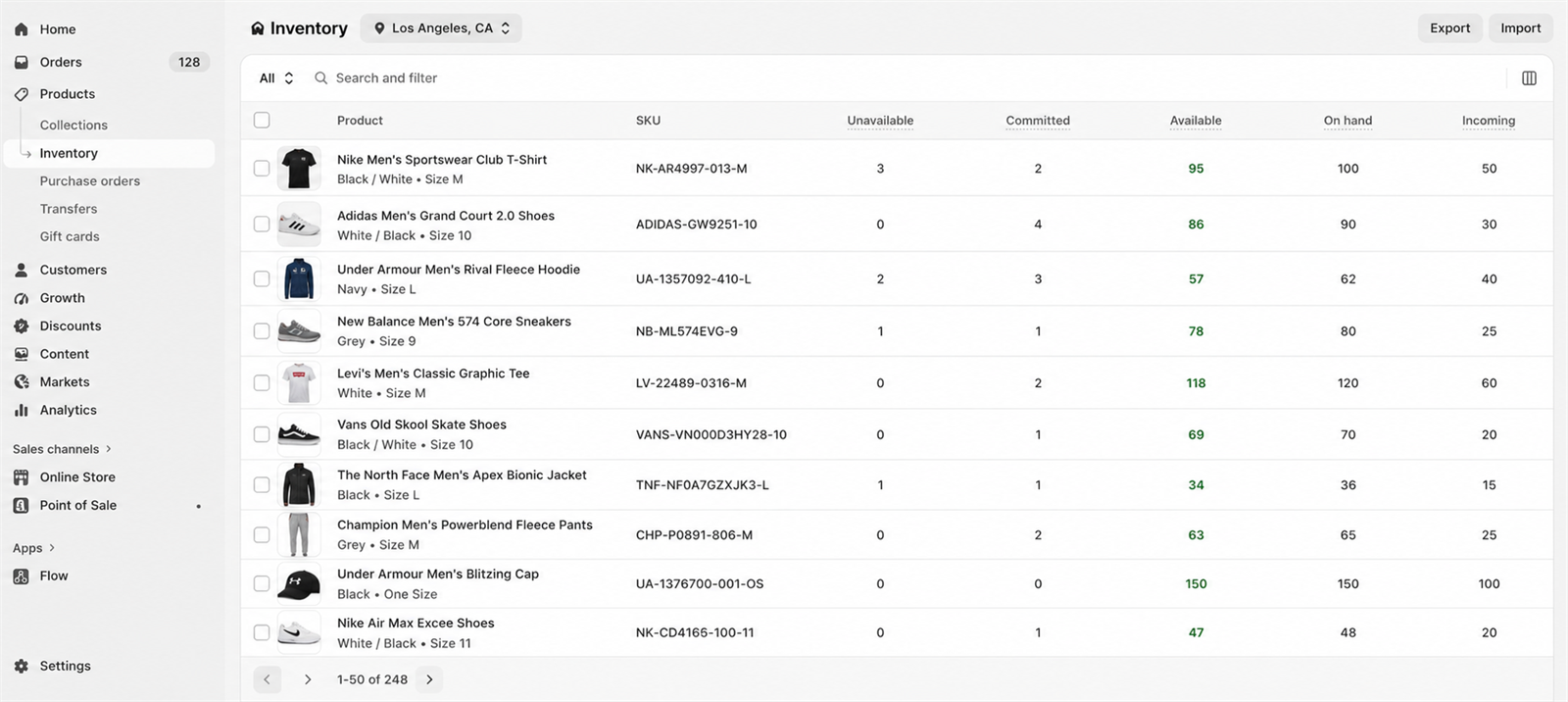
| State | What it means |
|---|---|
| On hand | All the units you have at a location. It equals Committed plus Unavailable plus Available. |
| Available | Units you can sell. |
| Committed | Units set aside that can't be sold, such as units in unfulfilled orders, units reserved on a draft order, and transfers marked ready to ship. |
| Unavailable | Units set aside by apps or held for other reasons, such as damaged stock, quality control or safety stock. |
| Incoming | Units on their way to the location from transfers, purchase orders or apps. They are not part of On hand and can't be sold until they are received. |
Take an example, with invented numbers. A variant shows 100 On hand at one location: 12 Committed to unfulfilled orders, 8 Unavailable because they are damaged, and 80 Available. A supplier delivery of 40 units is on its way, so 40 show as Incoming. Customers can buy 80, and the 40 Incoming are not in the 100.
The rule to remember: Available equals On hand minus Committed minus Unavailable. Make selling and reorder decisions from Available, because On hand includes units you can't sell. See our guide to Shopify incoming inventory for where to see the Incoming figure and why it can be wrong.
How Does Shopify Update Stock Automatically?
For tracked variants, Shopify adjusts quantities as these things happen:
- An order is placed: the units become Committed, so Available falls straight away.
- An order is fulfilled: the units leave the location, so they stop counting in Committed and On hand.
- A refund or return is processed: the refund screen has a Restock items checkbox for tracked items, selected by default. Clear it if you have shipped items the customer has not sent back. For a return, restocking happens after you receive and inspect the items (Shopify Help Center, refunding orders).
- An order is cancelled: the cancel flow also offers to restock the items.
- Stock is received: units accepted on a purchase order's linked transfer, or on a transfer between locations, become Available at the destination.
- You adjust a quantity by hand: you choose a reason, and Shopify records it.
Nothing here happens for a variant that is not tracked.
How Do Locations, Purchase Orders and Transfers Fit In?
Each location keeps its own count. If you hold 100 units across two warehouses, 60 in Warehouse A and 40 in Warehouse B, Shopify tracks the two numbers separately, and you move stock between them with transfers. Purchase orders record what you have ordered from a supplier, and the linked transfer is where you receive it. Received units then become Available at the destination location. The multi-location section below has the steps.
Shopify's admin covers these basics well. It stops at the stock Shopify holds, which is why the later sections look at the gaps. For the wider picture, see our guide to Shopify inventory management.
How to Set Up Shopify Inventory Tracking, Step by Step
You can turn tracking on for one product, for single variants, or for many products at once. Shopify changes its admin layout from time to time, so a label may differ slightly from the one below. The steps were checked against Shopify's Help Center on 11 November 2026.
How to Enable Inventory Tracking for a Single Product
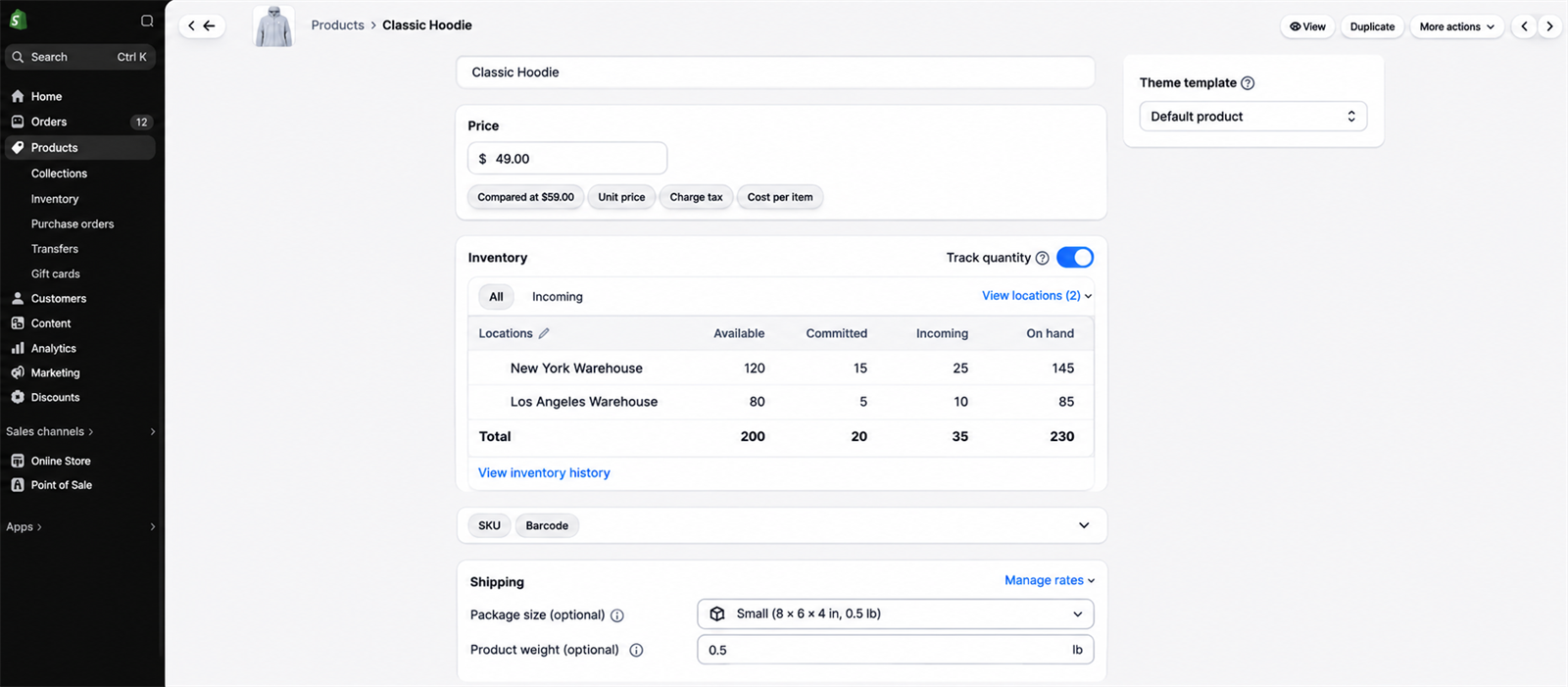
If a product has only one variant, turn tracking on from its product page (Shopify Help Center, setting up inventory).
- Open the product: in your Shopify admin, go to Products and click the product.
- Find the Inventory section: scroll down the product page.
- Turn on tracking: select Track quantity.
- Enter your stock: type the units you have in the Available field for each location.
- Decide what happens at zero: to stop sales when Available reaches 0, leave Continue selling when out of stock unselected. It sits under Sell when out of stock, and it only works while tracking is on. It does not apply to Shopify POS, where staff see a warning and can still sell at zero (Shopify Help Center, selling when out of stock).
- Save: click Save.
How to Set Up Shopify Variant Inventory Tracking (Sizes, Colors, Options)
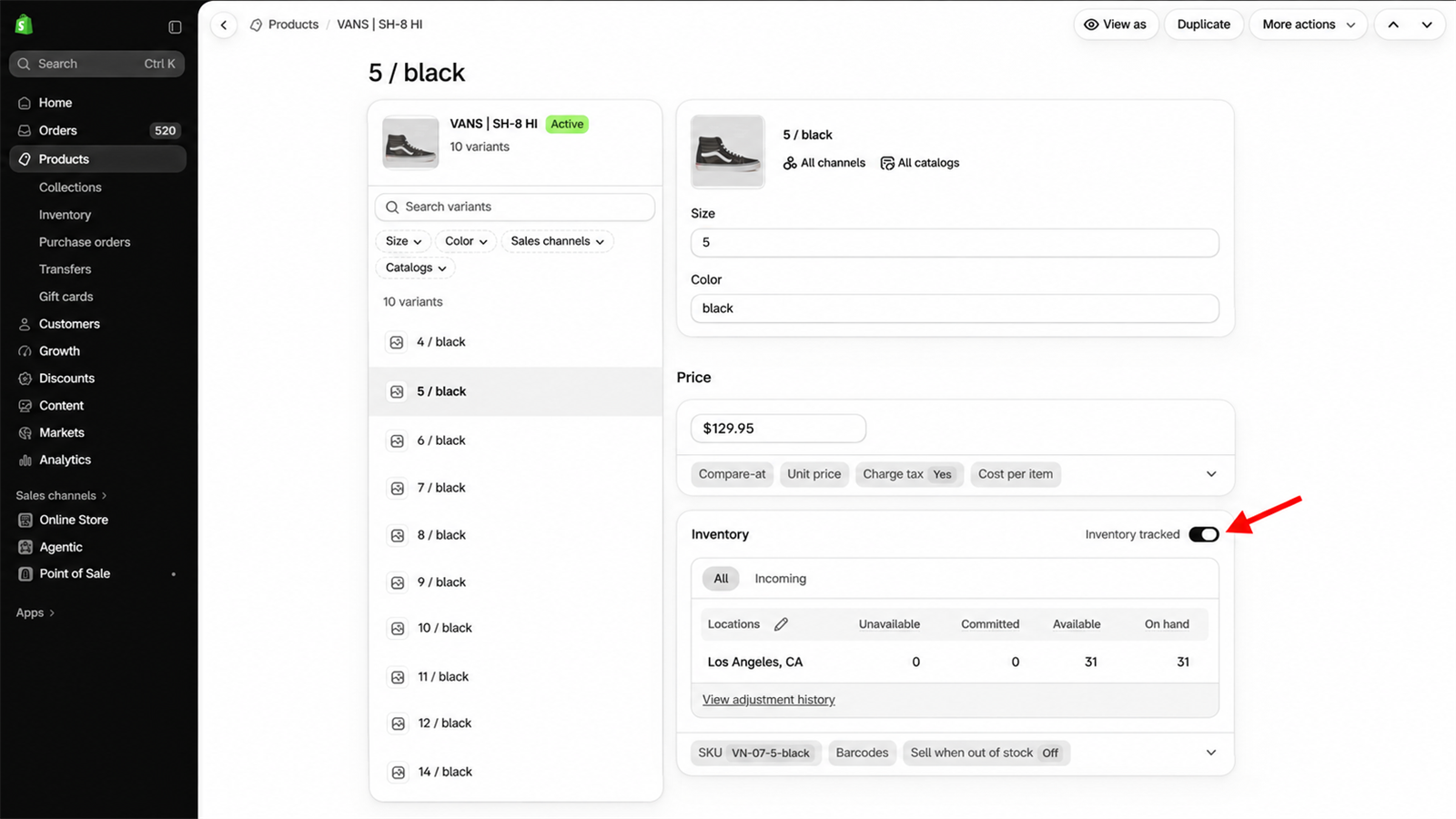
When a product has options such as size or color, Shopify tracks each variant separately, so tracking is switched on per variant.
- Open the product from Products in your Shopify admin.
- Open a variant: click the variant you want to track, such as Small / Blue.
- Turn on tracking: in the variant's Inventory section, select Track quantity.
- Enter the quantity for that variant at each location.
- Save your changes.
Whenever you add a new size, color or option, open the new variant and check that tracking is on. Don't assume it inherits the setting from its siblings.
To change several variants at once, use the product page's bulk editing for variants: select the variants, open the bulk editor, show the Track quantity column, switch tracking on, enter quantities and save. If your product page doesn't show those controls, use the Inventory bulk editor described next.
How to Enable Inventory Tracking for Many Products
There are two routes: Shopify's bulk editor, and a CSV file you edit in a spreadsheet.
Method 1: the Bulk Editor
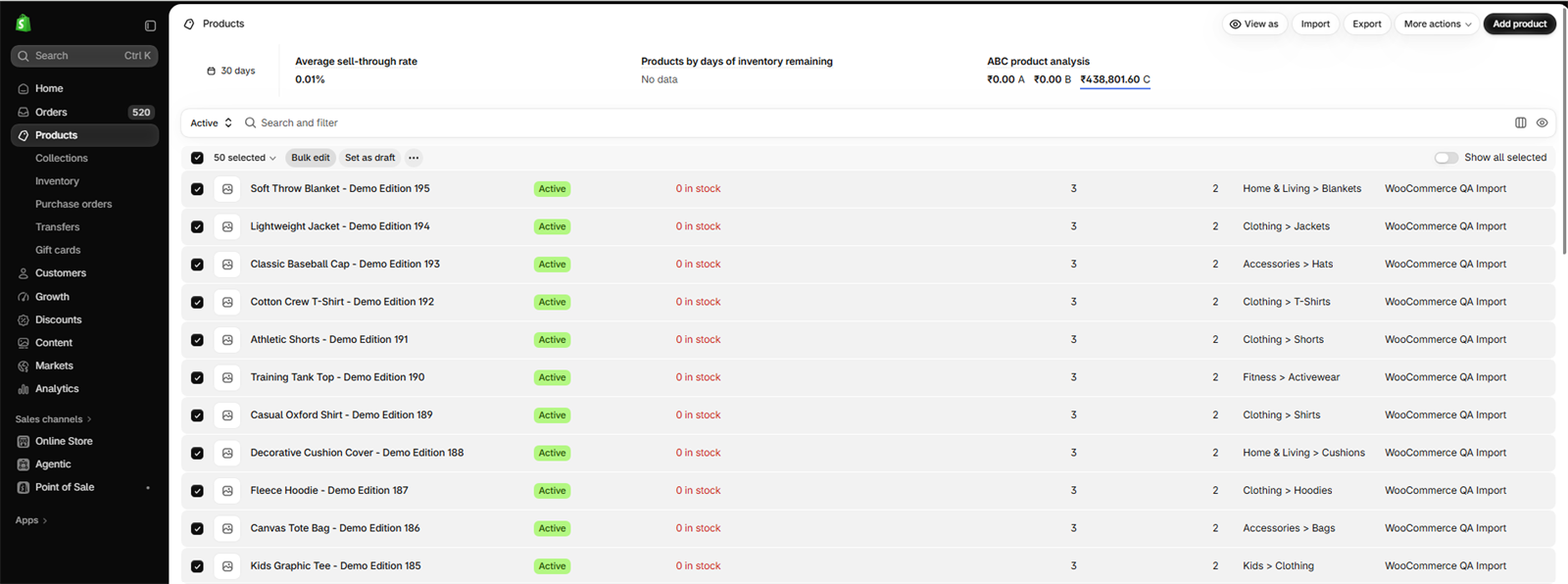
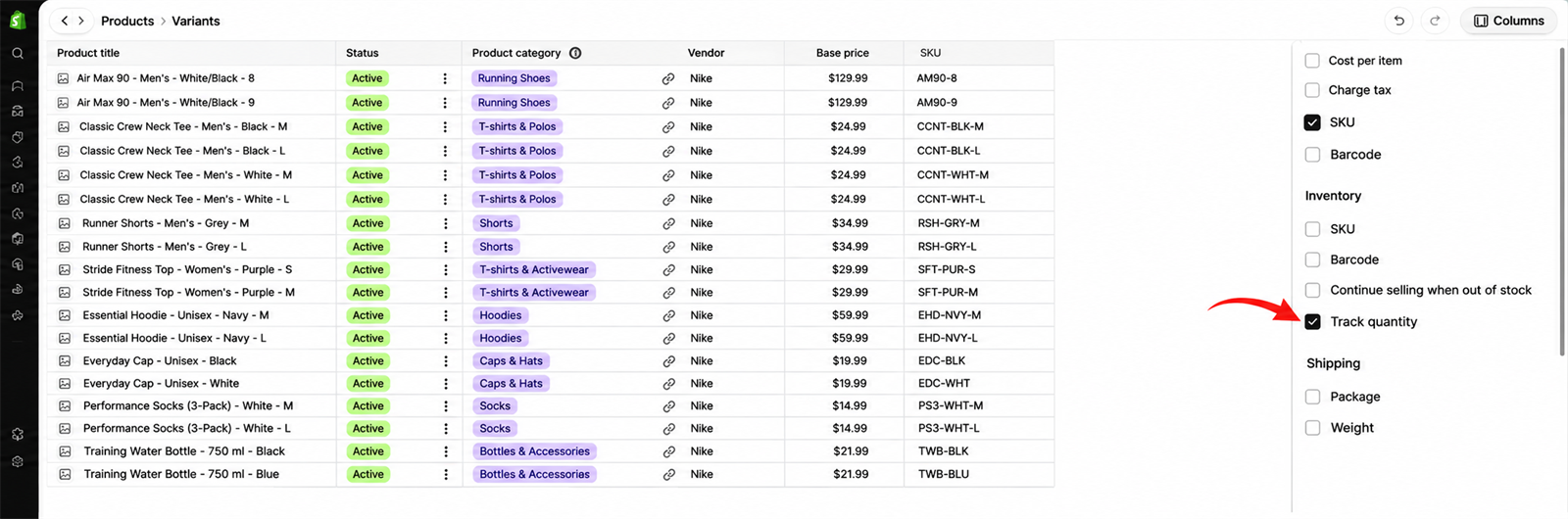
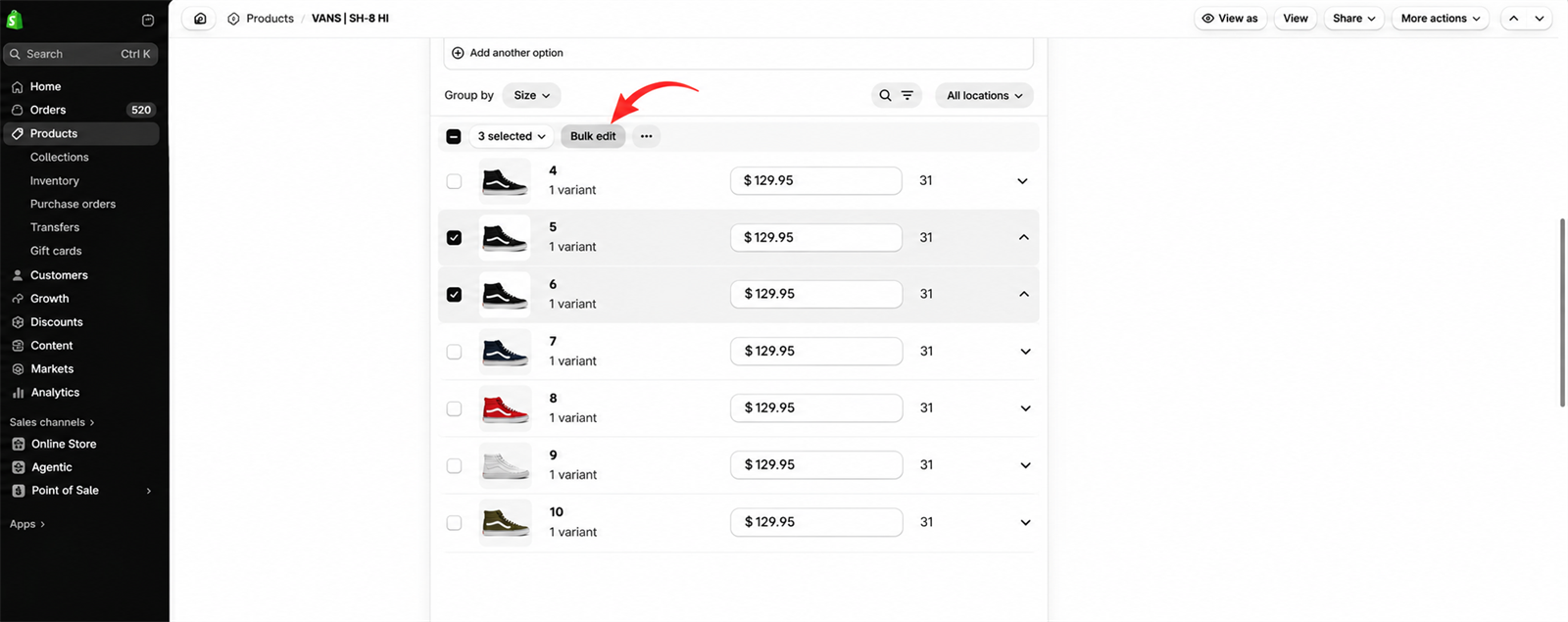
- Select the products: in Products, tick the products you want. Use the top checkbox to select everything on the page. Click Bulk edit.
- Add the tracking column: click Columns at the top right and show Track quantity.
- Switch tracking on: tick the Track quantity cells for the rows you want. Click and drag or Shift-click to select several.
- Enter quantities in the quantity column if you want to set stock at the same time.
- Review and save.
Two limits matter here. The bulk editor sets absolute quantities without an origin and destination, so it leaves no audit trail of inventory movements, and it doesn't activate a product at a location. Shopify states no cap on how many products it handles, only that larger changes take longer and that CSV suits bigger volumes (Shopify Help Center, bulk editing inventory). As a rule of thumb, we would move to a CSV once a list no longer fits comfortably on a few pages of the editor.
Method 2: a Shopify Inventory Tracking Spreadsheet (CSV Export and Import)
For a large catalog, a CSV lets you change tracking for every product in one pass.
- Export your products: in Products, click Export, choose the products and download the CSV.
- Open it in Excel or Google Sheets and find the Inventory tracker column. Enter
shopifyon every row you want tracked. Leave it blank for variants that should not be tracked. - Set the selling policy: in the Continue selling when out of stock column, enter
denyto stop sales at zero orcontinueto keep selling. - Set quantities, if you have one location: the Inventory quantity column applies to stores with a single location. With more than one location, leave it alone and use the Inventory page CSV described below.
- Keep the headers exactly as exported. Shopify's headers are case-sensitive and must match its template (Shopify Help Center, product CSV). Save the file as CSV.
- Import it: in Products, click Import, upload the file, and choose the option to overwrite existing products that have the same handle. Without that option, rows for existing handles are not applied. Check the import summary before you confirm.
- Verify: open a few products and variants and check that tracking and quantities match.
A warning about older tutorials. Many guides tell you to edit columns called Variant Inventory Tracker, Variant Inventory Qty and Variant Inventory Policy. Those are the older names. Shopify's current sample file uses Inventory tracker, Inventory quantity and Continue selling when out of stock. Download the current template from Shopify's sample CSV and match its headers, because a renamed column is the most common way an import silently changes nothing.
A safer file for quantities. If you only want to change stock counts, use the Inventory page file instead of the product CSV. Go to Products, then Inventory, and click Export. Choose All states, edit the On hand (new) column, and import it. A blank On hand (new) leaves that row unchanged, and any row whose stock changed after you exported is skipped, so you can't overwrite a sale that happened in between. Location names are case-sensitive, and the import changes quantities without activating a product at a location (Shopify Help Center, inventory CSV). If you want a spreadsheet to count against, our stock take template is a starting point.
How to Stop Tracking Inventory in Shopify
You can stop tracking at three levels: one product, one variant, or many products at once. First, know what changes when you do.
- Shopify stops counting that variant, and customers can buy it without limit.
- The variant no longer appears on the Inventory page.
- Adjustment history records nothing for it while tracking is off.
Stopping tracking makes sense for things with nothing to count, such as services, digital downloads or made-to-order items. If your real goal is to stop products showing as Sold out while you keep counting, there is a second option: leave tracking on and select Continue selling when out of stock. Shopify then keeps counting and lets the quantity run to zero or below, so you keep the record and still take the order. Which is right depends on whether you want a count at all.
How to Disable Inventory Tracking for One Product or One Variant
- Open the product: in your Shopify admin, go to Products and click the product.
- Open the variant: for a product with variants, click the variant you want to change. A single-variant product uses its own product page.
- Find the Inventory section and clear Track quantity.
- Save.
Tracking is set per variant, so stopping it on one size does not change the others. Repeat the steps for each variant you want to stop tracking. You can't turn tracking off for a variant that is on an unfulfilled order or an active transfer. The checkbox is greyed out until that order is fulfilled or the transfer is finished (Shopify Help Center, bulk editing inventory).
How to Disable Inventory Tracking in Bulk
- In Products, tick the products you want to change and click Bulk edit.
- Click Columns and show Track quantity.
- Clear the Track quantity box on each row you no longer want to track. Click and drag or Shift-click to select several.
- Click Save.
With a CSV, clear the Inventory tracker cells for those rows and import the file as described above. Keep in mind that a blank cell in an imported column overwrites the existing value, so test on a few rows first.
How to Manage Shopify Inventory Across Multiple Locations
Shopify keeps a separate count for each location instead of one global number. How many locations you can have depends on your plan: 2 on Starter, 10 on Basic, Grow and Advanced, and 200 on Shopify Plus (Shopify Help Center, locations). Setting up locations, routing rules and transfers puts stock where it should be.
Adding a Location and Stocking It
- Go to Settings, then Locations, and click Add location.
- Enter the name and address of the warehouse, shop or pop-up. The option Inventory at this location is available to fulfill online orders is on by default. Turn it off for a location that should not ship online orders.
- Click Save.
- To stock an existing product there, open the product, go to the Inventory section and click Edit locations. Select the new location, click Done, enter the quantity and save.
New products are assigned to all your locations with a starting quantity of 0. Existing products are not stocked or activated at a new location automatically (Shopify Help Center, multi-location inventory). A product sells only from locations where it is active, and a dash in the Available column means it is not active there.
Setting Up Order Routing
Order routing decides which location Shopify assigns an order to. It needs two or more locations that fulfill online orders, and a location with that option turned off is left out. Go to Settings, then Shipping and delivery, and open Order routing in the Shipping section. Click Add rule and pick one. Shopify's rules are Minimize split fulfillments, Stay within the destination market, Ship from closest location and Use ranked locations. Rules run from the top down, each one narrowing the result of the one above. Drag the six-dot handle beside a rule to change its priority, then click Save (Shopify Help Center, order routing).
Routing does not prevent overselling. It can send an order to a location with little stock, so review your out-of-stock selling setting alongside it.
Recording Transfers Between Locations
- Go to Products, then Transfers, and click Create transfer.
- Choose the origin and destination. Shopify lets you leave either blank, which suits stock coming straight from a supplier.
- Add the products and enter the quantity in the Move column, then save.
- Optionally click Mark as ready to ship, which commits the stock at the origin.
- When the goods leave, click Move to in transit. The units now show as Incoming at the destination.
- When they arrive, receive them at the destination. Accepted units become Available, and the transfer is marked Transferred once every unit is accounted for.
After a transfer is processed you can't change its origin or destination (Shopify Help Center, creating and managing transfers). Our guides to Shopify inventory transfers and receiving inventory in Shopify go through each step.
How Do You Keep Shopify Inventory Counts Accurate?
Shopify updates counts when orders, returns and transfers are recorded. It can't know about stock that is damaged, misplaced or stolen, or a sale that happened somewhere it can't see. Three habits close most of the gap: reading the adjustment history, setting up alerts and counting stock.
Viewing Inventory History
For one variant, go to Products, open the product and, if it has variants, the variant. In the Inventory section, with tracking on, click View adjustment history to see orders, returns and manual adjustments. If tracking is off, no adjustments are recorded. For the whole store, go to Analytics, then Reports, filter by the Inventory category and open Inventory adjustment changes. Use the report's filter panel to narrow it by SKU, location, staff member, app or reason (Shopify Help Center, adjustment history). Remember that quantities set in the bulk editor leave no trail here. Our inventory adjustment guide explains how to adjust with a reason.
Setting Up Low Stock Alerts
Shopify has no built-in low stock notification. The standard fix is a free Shopify Flow workflow, available on Basic, Grow, Advanced and Plus.
- Install the free Shopify Flow app from the Shopify App Store.
- Open Flow and click Browse templates.
- Pick the template Get notified by email when product variant inventory is low. It starts from the trigger Product variant inventory quantity changed.
- Set a condition on the variant's inventory quantity at your threshold. For a threshold of 5, that is a quantity of 5.
- Add a second condition on the prior quantity, so the workflow fires only when stock first crosses the threshold. Without it you get another email after every later sale.
- Enter the recipient's email address, then turn the workflow on and test it by adjusting one variant below the threshold.
Flow compares a quantity with a number you typed. It doesn't read what is already on order or how long your supplier takes. Our guide to Shopify low stock alerts covers where Flow stops.
Counting Stock (Stocktakes and Cycle Counts)
Shopify has a built-in Stock counts feature under Inventory in the admin. A manager creates a count for a location and the products to count. Staff count by barcode scanner or by typing, then a manager reviews and approves the result, and approval applies the difference and records it in adjustment history (Shopify Help Center, stock counts). Counting inside the POS app needs a POS Pro subscription at that location.
For a quick spot check on any POS device there is also Quick count. Each scan adds one unit, a session holds up to 1,000 variants, and Submit updates inventory with no review step (Shopify Help Center, planning an inventory count). Count the On hand figure, which includes Committed and Unavailable units, not only Available.
A common rhythm is to count fast-moving products often and slow movers less often. Regular counts catch discrepancies from damage, theft, misplaced stock and wrong manual adjustments. See our guides to doing a stocktake in Shopify, cycle counting and inventory accuracy.
Common Shopify Inventory Tracking Mistakes to Avoid
Small oversights in tracking create wrong counts, late shipments and unexpected stockouts. These are the six we would check first.
1. Not Turning Tracking on for Every Variant
Tracking is set per variant. If it is off for one, Shopify doesn't deduct its quantity when an order is placed, so a variant that has sold out can still look available. Because untracked variants don't appear on the Inventory page, they are easy to miss. Check tracking whenever you add or edit variants.
2. Adding a Location Without Stocking It
Creating a location doesn't make your existing products available there. Each product has to be stocked at the location before its quantities can be managed or used for fulfillment.
3. Treating On Hand as Sellable Stock
On hand includes units that are Committed or Unavailable, and Incoming units aren't part of it at all. Use Available for selling decisions, and look at Incoming before you reorder, or you will order stock that is already on its way.
4. Making Bulk Changes Without Checking the Data
A CSV with a wrong handle, a renamed header or a wrong location name can change the wrong records. Export your current quantities first and keep that file. Test on a handful of products before a full import, and remember the bulk editor leaves no audit trail. For quantities, prefer the Inventory page CSV, which skips rows whose stock changed after you exported.
5. Managing Channel Stock Separately
Shopify doesn't natively sync stock with Amazon. If each channel keeps its own count, a sale in one place doesn't lower the stock in the other, and you can sell the same units twice. Our guide to Shopify and Amazon inventory sync covers the options.
6. Delaying Updates After Stock Moves
Counts drift when deliveries, returns, transfers and write-offs aren't recorded promptly. A refund with Restock items cleared leaves the units off the shelf in Shopify's books. Record each movement when it happens and count regularly to catch the rest.
Where Manual Inventory Tracking Breaks as You Grow
Shopify's tracking works well for a small catalog. As stock, locations and suppliers grow, the manual parts start to cost real time.
Manual Updates and Human Errors
When people adjust stock by hand for returns, damaged goods, offline sales or deliveries, small entry errors add up.
- Overselling: a mistyped quantity or a missed update shows a sold-out product as available, which leads to cancelled orders and refunds.
- Phantom inventory: Shopify shows stock that is no longer on the shelf, so low stock goes unnoticed.
- Wasted time: staff compare shelf counts with Shopify and correct the gaps instead of packing orders.
Spreadsheet Dependency
Many merchants export to a spreadsheet to work out reorder quantities, track bundle parts or note supplier lead times.
- Outdated data: an export is a snapshot, and it goes stale with the next order.
- Version confusion: several copies, overwritten edits and broken formulas make the numbers hard to trust.
- Risky imports: an edited product CSV can overwrite quantities that changed while you were editing. The Inventory page CSV guards against this, the product CSV does not.
Several Locations
Shopify holds a count per location, but moving and balancing stock between them stays a manual job.
- Uneven stock: one shop runs out of a size while another warehouse holds spare units.
- Transfers in transit: someone has to create, ship and receive each transfer, and it is easy to lose track of what is on its way.
- Split shipments: poorly set routing rules can ship one order from several locations and raise shipping costs.
Reordering
Shopify's reports show sell-through and days of inventory remaining, and its Sidekick assistant can draft a purchase order or transfer when you ask. It has no reorder points, no suggested quantities, and creates no orders for you (Shopify Help Center, moving from Stocky). That leaves the arithmetic with you.
- Stockouts: without a reorder alert tied to sales speed and lead time, you may only notice a product after it has sold out.
- Overstock: ordering by feel, without seasonal demand in view, ties cash up in slow stock.
- Manual purchase orders: each reorder quantity is calculated and typed in per SKU.
Shopify Inventory Tracking Apps: What to Use for Each Gap
When Shopify's own tools stop being enough, merchants usually add an app for purchase orders, forecasting, multi-location tracking or stock sync across channels. Shopify's free Stocky app was scheduled to end on 31 August 2026, and Shopify points Stocky users to its built-in inventory features. Our Stocky guide explains what applies to your store, and our Stocky alternatives roundup compares replacements.
The table below lists the apps by what each is best for. Channel Bay is our own app and is listed first, so weigh our row with that in mind. Features are as each app's own listing or website described them on 11 November 2026. Plans and prices change, so check the listing before you decide.
| App | Best for | Key features, as listed |
|---|---|---|
| Channel Bay | Purchase orders, receiving, stocktakes and one stock count across Shopify and Amazon | Purchase orders you can email to suppliers, delivery receiving in batches, barcode stocktakes, stock transfers, stock pushed to connected Shopify stores and Amazon, FIFO or LIFO cost tracking with landed costs, and reorder points with low stock alerts. |
| Stockful | Multi-location inventory | Location-level plans, transfers, incoming stock and adjustments. A newer app, launched March 2026. |
| Fabrikatör Inventory Planner | Backorders and preorders | Backorder and preorder handling, and purchase order recommendations that use supplier lead times. |
| Sumtracker | Stock sync across marketplaces | Inventory sync across Shopify, Amazon, eBay, Etsy and Walmart, bundle inventory, and forecasting on its Replenish plan. |
| Trunk | Real-time stock sync and bundling | Keeps stock in sync across channels such as Amazon, Etsy, eBay, Faire, TikTok, Square POS and several Shopify stores. Bundling and kitting is on its Pro plan. |
| Prediko | AI demand forecasting and replenishment | AI forecasting that accounts for seasonality, revenue targets across 12 months and replenishment alerts. Forecasts can be adjusted by hand for promotions and launches. |
| Assisty | Reorder planning on a budget | A daily buying plan with reorder quantities from lead times, minimum order quantities and min/max levels, dead stock identification on higher plans, mobile access, and a free Basic plan. |
| Inventory Planner by Sage | Inventory planning for larger operations | Demand forecasting, planning and replenishment. Open-to-buy planning is described on the vendor's website. Pricing is custom. |
| Katana Cloud Inventory | Manufacturing | Production planning and scheduling, purchase orders from material requirements, and a shop floor app, across locations and channels. |
| Stocksmith (formerly Craftybase) | Small-batch makers | Raw materials, work in progress and finished goods, bills of materials with a true cost per product, and automatic material deduction when you build. |
| ShipHero | Warehouse management | Mobile pick and pack with barcode scanning and real-time shipping rate shopping. Its Shopify App Store listing showed as unavailable on 11 November 2026, so check its website. |
| Cin7 Core | Wholesale, B2B and ERP-style needs | Multi-warehouse inventory, wholesale and B2B, and QuickBooks Online and Xero integrations. EDI is available through a partner or its API. |
If you are comparing a specific app with Channel Bay, we have written up Prediko, Assisty, Sumtracker and Cin7, and our guide to the best inventory management software for Shopify covers the wider field.
How Channel Bay Fits
Channel Bay picks up where Shopify's tracking stops. It adds:
- One count per product and location, pushed to every connected Shopify store and Amazon. It pushes stock changes every minute, so there is a short gap between a sale and the other channels hearing about it. See multichannel sync.
- Purchase orders that start from the numbers. Days of stock left and a suggested quantity come from your recent sales and each supplier's lead time, with units already on open purchase orders taken off. You can email a purchase order to the supplier and receive deliveries in batches. See purchase orders and forecasting.
- A reorder point on every product, 10 units by default and editable, with a low stock notification and a daily summary email. It is a number you set, not one Channel Bay works out for you.
- Stocktakes in a browser, with barcode scanning, variance at cost, and only the difference applied when you submit. See stocktakes.
- Transfers that reach your channels. Dispatched stock leaves the source location, shows as in transit and appears at the destination when received. See stock transfers.
- Cost tracking with FIFO or LIFO cost layers by location, plus landed costs calculated on each purchase order, so you can see what your stock cost, not only how much you have. See our landed cost guide.
It doesn't sync Amazon FBA stock, because Amazon holds that stock itself. It connects Shopify (any number of stores) and Amazon only. A purchase order has one supplier and one warehouse, as in Shopify. It doesn't suggest transfers from a location with spare stock, and it is a web app, not a POS app. What is included depends on your plan, so check the pricing page.
Frequently Asked Questions
Can you track inventory with Shopify?
What is the best inventory tracker for Shopify?
Why is my Shopify inventory count wrong?
Why isn't my inventory tracked on Shopify?
How can I track my inventory in Shopify?
How do I turn off inventory tracking in Shopify?
What is the best product variant tracking app for Shopify?

Guides from the team that builds and supports Channel Bay, the Shopify inventory app for purchase orders, stocktakes, stock transfers and multichannel stock sync. About Channel Bay