Free Purchase Order Template (Excel, Google Sheets, Word, PDF)
Download a free purchase order template in Excel, Google Sheets, Word or PDF. See the fields a PO needs, the total formulas and a filled-in example.
On this page
- What is a purchase order template?
- What to include in a purchase order template
- Download the free purchase order template
- A filled-in purchase order example
- Build your own purchase order template in Excel or Google Sheets
- Using the purchase order template in Word
- How to number your purchase orders
- When a purchase order template stops being enough
- Purchase order templates for Shopify stores
Key Takeaways
- A purchase order template is a reusable layout for the orders you send suppliers: PO number, dates, buyer, supplier, ship-to, line items, totals and terms.
- The Excel and Google Sheets versions work out line totals, subtotal, discount, tax, freight and the grand total for you. The Word and PDF versions are blank forms.
- Every PO needs its own number, a SKU or supplier part number on every line, payment terms and a delivery date. Vague lines are what cause wrong shipments.
- The Receiving tab shows what is still outstanding on each line, so a short delivery doesn't get paid in full or forgotten.
- A template stops being enough when you track partial deliveries across many POs, or need received stock and costs to update your store.
A purchase order template is a reusable document with every field a purchase order needs: the PO number, order and delivery dates, buyer, supplier and ship-to details, a line for each product, the totals, and the payment and shipping terms. You fill it in for each order instead of starting from scratch, so every PO you send a supplier is complete and laid out the same way.
Our free purchase order template comes in four formats, with no sign-up: Excel (.xlsx), Google Sheets, Word (.docx) and a blank, printable PDF. The spreadsheet versions work out the totals for you.
This page lists the fields a template needs, explains what's in each download, walks through a filled-in example, and gives the layout and formulas if you'd rather build your own. It uses the same example order as our guide to purchase orders: PO-2026-0142, for 500 white mugs.
What Is a Purchase Order Template?
A purchase order template is the blank, reusable version of a purchase order. A purchase order is the buyer's written commitment to a supplier, stating what you will buy, how many, at what price and on what terms. The template is the layout you fill in each time you place one.
You'll also see it called a purchase order form, a PO form or a purchase order format. They mean the same thing: a set of fields in a fixed order. Once you fill a template in and send it, it becomes the purchase order itself, and the supplier accepting it is what makes it binding. For how POs work from approval to payment, see what a purchase order is and how it works.
A template is the right tool for any small business that buys stock: a shop restocking shelves, an online store ordering from a factory, a café ordering supplies. It costs nothing, everyone can open it, and it makes sure no order goes out without a PO number, a price or a delivery date.
What to Include in a Purchase Order Template
A purchase order template needs fifteen fields. These are the same fields our purchase order guide lists, shown here with the values from PO-2026-0142.
| Field | What it contains | PO-2026-0142 |
|---|---|---|
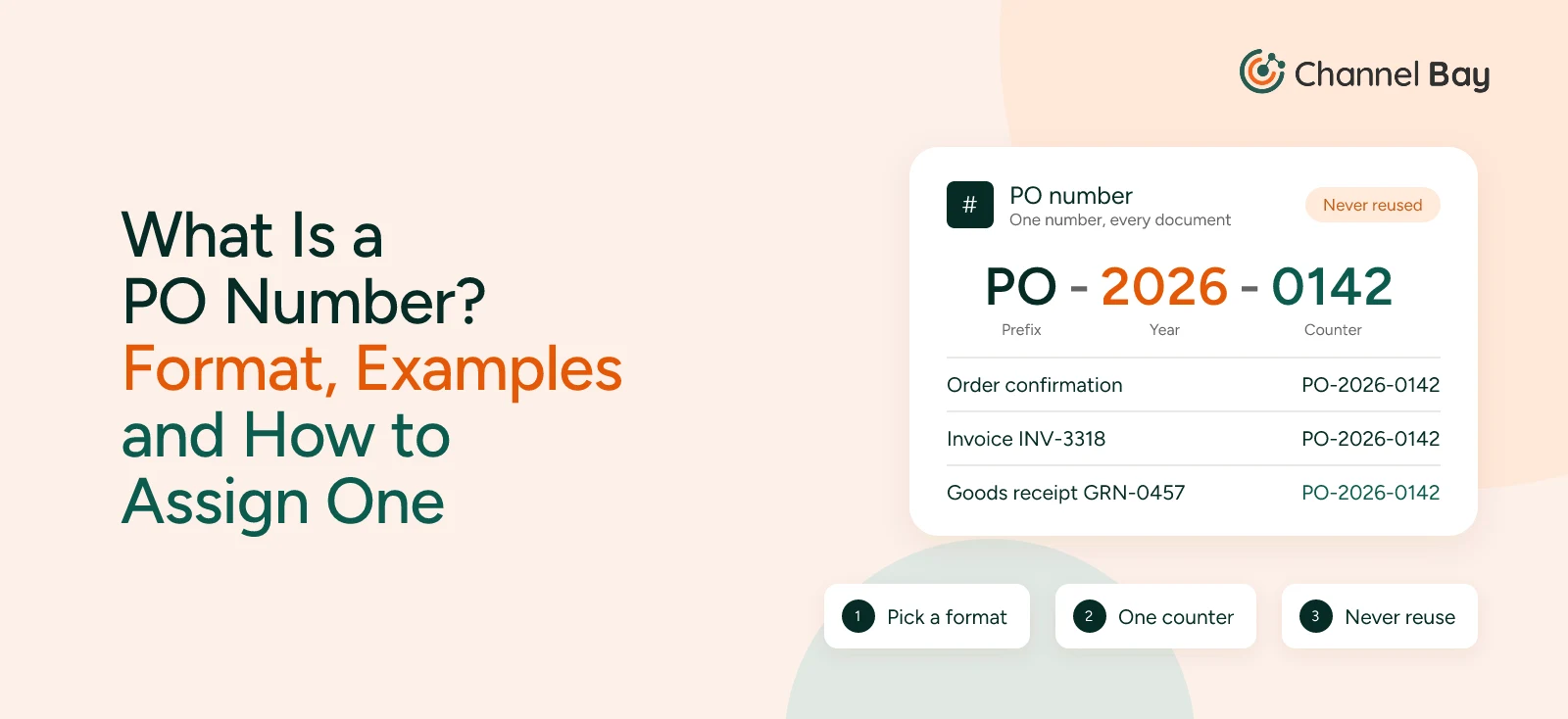
| PO number | A unique, sequential reference | PO-2026-0142 |
| Order date | When the PO was issued | 16 October 2026 |
| Buyer details | Company name, billing address, contact person | Your business and purchasing contact |
| Supplier details | Supplier name, address, contact, supplier ID | Factory or wholesaler |
| Ship-to address | Where the goods should be delivered | Warehouse, store or 3PL |
| Line items | SKU or supplier part number, description, variant | MUG-WHT-12, white ceramic mug, 12 oz |
| Quantity | Units ordered per line | 500 |
| Unit price and line total | Agreed price per unit, and quantity x price | $3.20, $1,600.00 |
| Additional costs | Freight, duties, taxes, discounts | $180 freight |
| Grand total | Sum of all lines and additional costs | $1,780.00 |
| Delivery date | When the goods are expected | 10 November 2026 |
| Payment terms | When and how the supplier is paid | Net 30 |
| Shipping terms | Who pays for, and carries the risk of, goods in transit (Incoterms) | FOB Shenzhen |
| Notes and conditions | Packaging, labeling, quality requirements | Barcode labels on every unit |
| Authorization | Name or signature of the approver | Operations manager |
Our template adds four things to that list, because they come up as soon as you order from more than one supplier:
- Supplier SKU: a column for the supplier's own product code next to yours. Suppliers rarely use your SKUs, and an order that quotes their code doesn't need translating before it can be picked.
- Currency: a field in the header. If you buy from overseas, "3.20" means nothing until you say whether it is dollars, euros or yuan.
- Discount and tax as separate lines: so you can see what a discount took off and what tax added, rather than one blended "adjustments" figure.
- Receiving log: a second tab (Excel and Google Sheets only) for recording what arrives in each delivery and what is still outstanding.
Two fields cause most of the trouble. Line items need a SKU or part number and the full variant (size, color, pack size) on every line, because a description like "white mugs" is how you end up with 500 of the wrong mug. And shipping terms should name the Incoterms rule and a place, such as FOB Shenzhen, with a line in your terms saying you mean Incoterms 2020. "F.O.B." has a different meaning under the US Uniform Commercial Code, so naming the rulebook avoids an argument later. The rule decides whether freight and import duties sit with you or the supplier (International Chamber of Commerce).
Download the Free Purchase Order Template
All four versions have the same fields in the same layout, so you can switch between them without retyping anything. They're free to use and edit for your business, with no sign-up, no macros and no links to other files.
| Format | What you get | Best for |
|---|---|---|
| Excel (.xlsx) | A blank PO with 20 line rows and working formulas, a Receiving tab, a filled-in example and a How to use tab | Most businesses; calculates every total |
| Google Sheets | The same four tabs and formulas as the Excel file. The link asks you to make a copy in your own Google Drive | Teams who share files in Google Drive |
| Word (.docx) | A blank, editable one-page form with 15 line rows | Businesses that write all their documents in Word |
| The same one-page form, blank, ready to print | Filling in by hand, or keeping a paper copy at the receiving desk |
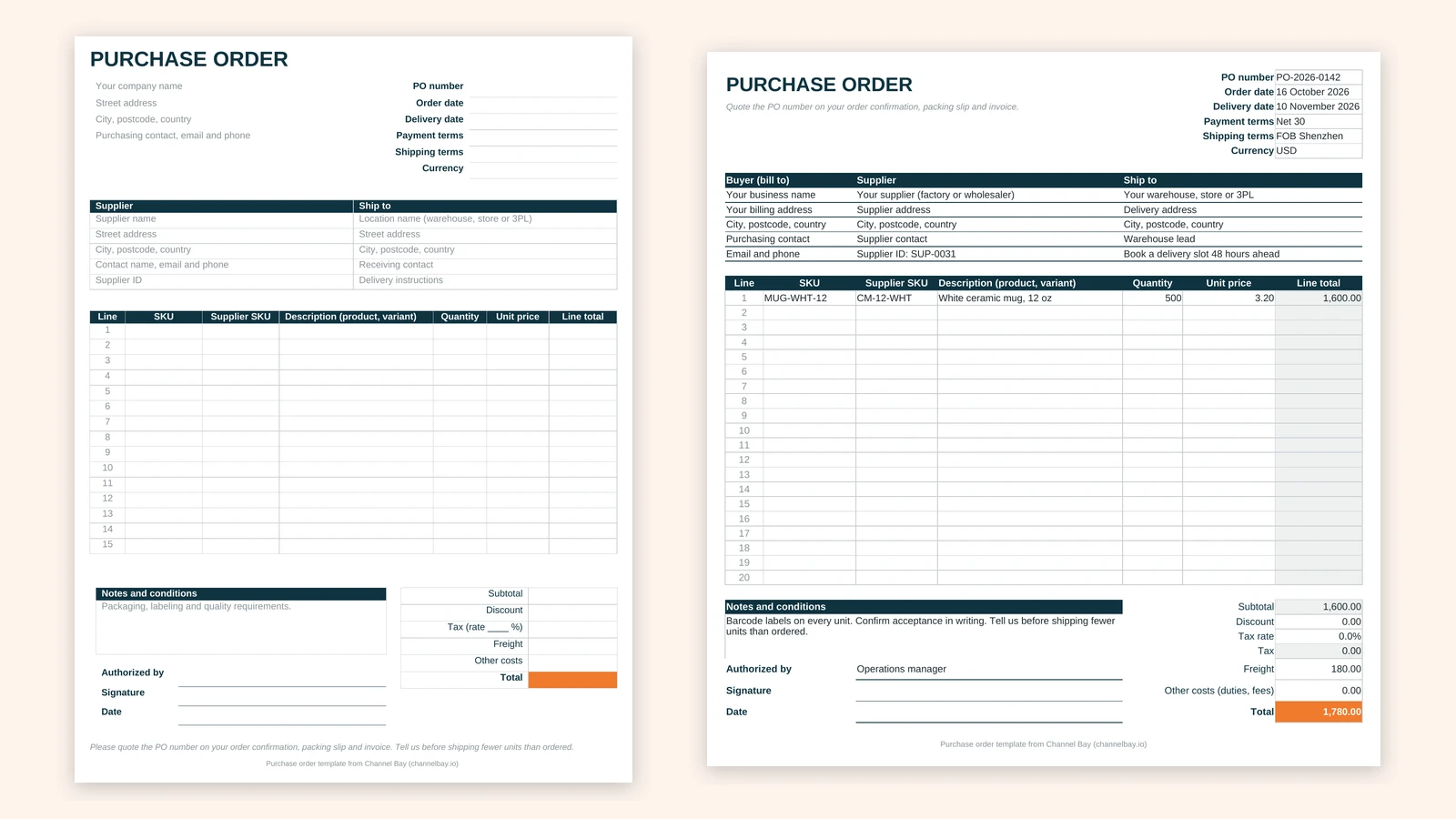
Which one should you use? If you're not sure, use the Excel file or the Google Sheets copy. They're the only versions that do the arithmetic, and the Excel file also opens in LibreOffice and Apple Numbers. Use Word if your company letterhead and documents already live there, and the PDF if you write orders by hand. The Word and PDF versions don't calculate totals, so work them out in the spreadsheet or on a calculator before you fill them in.
How to Fill in the Purchase Order Template
- Save a copy for this order. Name the file after the PO number, such as PO-2026-0142.xlsx, or duplicate the Purchase order tab. Keep the original blank.
- Fill in the header. Add the next PO number in your sequence, the order date, the delivery date, the payment terms, the shipping terms and the currency.
- Add the three address blocks. Your billing details, the supplier (with your supplier ID for them, if you use one) and the ship-to location, with a receiving contact and any delivery instructions.
- List each product on its own line. Your SKU, the supplier's SKU, a full description including the variant, the quantity and the agreed unit price. The line total fills in by itself.
- Add the extra costs. Enter any discount as a positive amount, the tax rate if the supplier charges tax, the freight, and any other costs such as duties the supplier is billing you. The total updates as you type.
- Add notes and approval. Packaging, labeling and quality requirements go in the notes. The approver's name goes in Authorized by.
- Export to PDF and send it. Ask the supplier to confirm acceptance in writing, and check that the confirmation matches your quantities, prices and dates.
On tax: in the US, suppliers usually don't charge sales tax on stock you buy to resell once you give them a resale certificate, though the rules vary by state. In countries with VAT or GST, a domestic supplier normally charges it and a registered business reclaims it, and on imports it is usually paid at the border rather than to the supplier. Enter the rate your supplier charges, or leave it at 0%.
A Filled-in Purchase Order Example
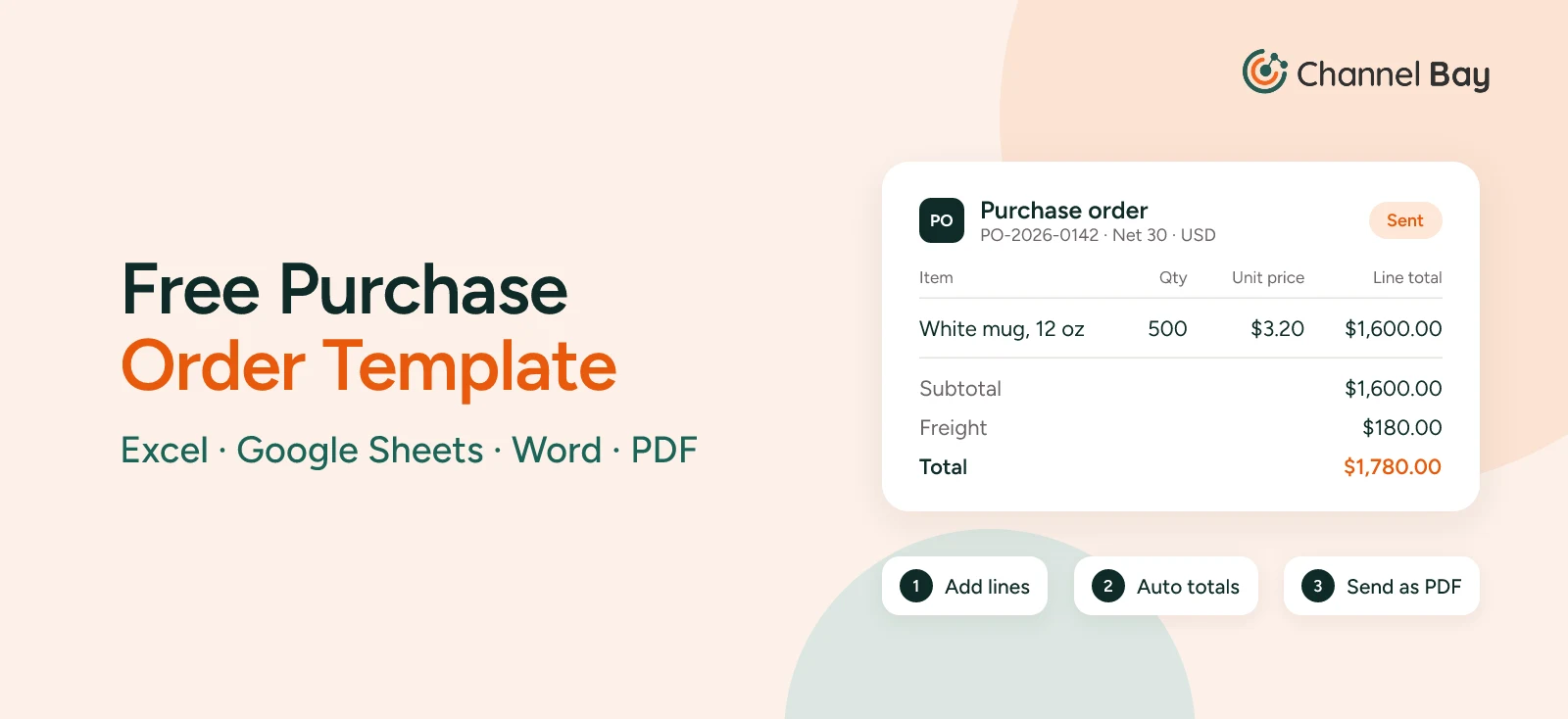
Here is PO-2026-0142 as it appears on the template's Example tab. A kitchenware brand's white mugs dropped below their reorder point, so it ordered 500 from its supplier.
| Section | PO-2026-0142 |
|---|---|
| Header | PO-2026-0142, ordered 16 October 2026, due 10 November 2026, Net 30, FOB Shenzhen, USD |
| Line 1 | MUG-WHT-12 (supplier SKU CM-12-WHT), white ceramic mug, 12 oz: 500 x $3.20 = $1,600.00 |
| Subtotal | $1,600.00 |
| Discount | $0.00 |
| Tax (0%) | $0.00 |
| Freight | $180.00 |
| Other costs | $0.00 |
| Total | $1,780.00 |
| Notes | Barcode labels on every unit. Confirm acceptance in writing. Tell us before shipping fewer units than ordered. |
| Authorized by | Operations manager |
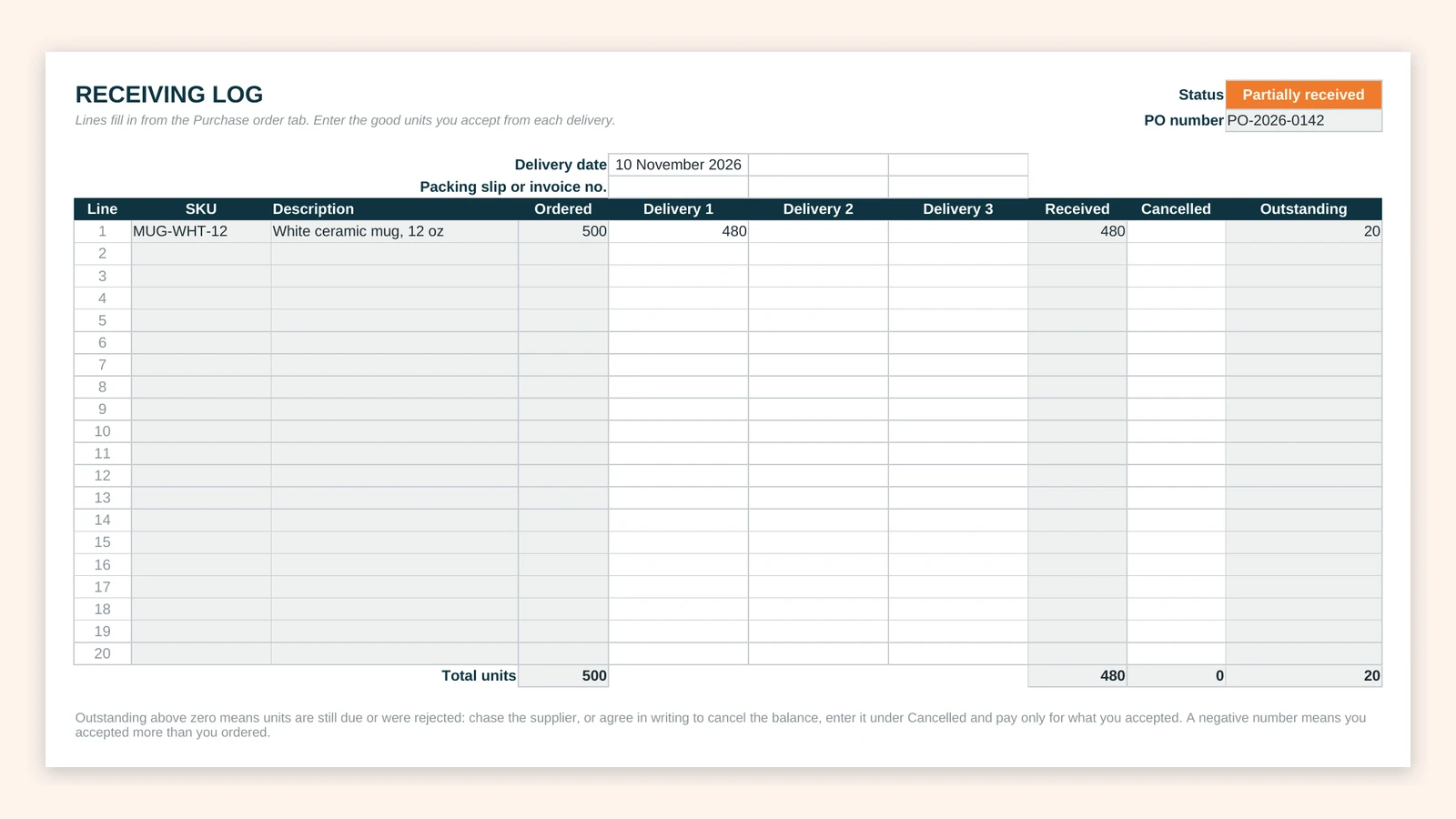
The PO's job doesn't end when you send it. On 10 November the delivery arrived with 480 good mugs and 20 broken ones. Entering 480 in the Receiving tab shows 20 outstanding and the status "Partially received". That is what stops you paying the supplier's $1,780 invoice in full. The brand held payment, got a $64 credit note for the broken mugs and paid $1,716. Entering the 20 under Cancelled then brings Outstanding to zero and the status to "Received". The goods receipt guide covers checking a delivery and handling short or damaged units in more detail. The purchase order guide follows the same order through matching, payment and what each mug really cost once freight and duties were added, and how to calculate landed cost shows how to split those costs across a PO with several products.
Build Your Own Purchase Order Template in Excel or Google Sheets
To add these formulas to a layout you already use, or to build one from scratch, here's how ours is put together. Everything below works in both Excel and Google Sheets. The cell references match the downloadable file, so you can check your version against it.
Header and Address Blocks
Name the first tab "Purchase order" and use seven columns, A to G.
| Cells | What goes there |
|---|---|
| A1 | PURCHASE ORDER, in large bold type |
| F1:F6 | Labels: PO number, Order date, Delivery date, Payment terms, Shipping terms, Currency |
| G1:G6 | The values for each label. Format G2 and G3 as dates |
| A8:B13 | Buyer (bill to): company name, address, contact, email and phone |
| C8:D13 | Supplier: name, address, contact, supplier ID |
| E8:G13 | Ship to: location, address, receiving contact, delivery instructions |
Line Items and Line Totals
Put the column headings in row 15 and leave 20 rows for products, rows 16 to 35. Column G works out each line total: put the formula shown below in G16 and copy it down to G35.
| Column | Heading | What goes in it | Example |
|---|---|---|---|
| A | Line | 1 to 20, typed in once | 1 |
| B | SKU | Your product code | MUG-WHT-12 |
| C | Supplier SKU | The supplier's code for the same product | CM-12-WHT |
| D | Description | Product name and variant | White ceramic mug, 12 oz |
| E | Quantity | Units ordered | 500 |
| F | Unit price | Agreed price per unit | 3.20 |
| G | Line total | =IF(OR(E16="",F16=""),"",E16*F16) |
1,600.00 |
The IF keeps unused rows blank instead of filling them with zeros. Format E as a whole number and F and G as numbers with two decimals; use the currency field in the header rather than currency symbols in the cells, so the same file works for any supplier.
Subtotal, Discount, Tax, Freight and Total
The totals sit in column G, below the line items, with labels in column E.
| Cell | Label | Formula or value | PO-2026-0142 |
|---|---|---|---|
| G37 | Subtotal | =SUM(G16:G35) |
1,600.00 |
| G38 | Discount | Typed in, as a positive amount | 0.00 |
| G39 | Tax rate | Typed in, as a percentage | 0% |
| G40 | Tax | =ROUND((G37-G38)*G39,2) |
0.00 |
| G41 | Freight | Typed in | 180.00 |
| G42 | Other costs (duties, fees) | Typed in | 0.00 |
| G43 | Total | =G37-G38+G40+G41+G42 |
1,780.00 |
Tax here is worked out on the goods after the discount, and ROUND stops a fraction of a cent from creeping into the total. Where freight is taxable too, change G40 to =ROUND((G37-G38+G41)*G39,2). SUM ignores the blank text that the line total formula leaves in empty rows, so the subtotal is right whether you use one line or twenty.
Use the space to the left of the totals, A37 to D43, for the notes and conditions and the Authorized by, Signature and Date lines.
The Receiving Tab
Add a second tab called "Receiving". It pulls each line from the Purchase order tab and gives you three columns to record deliveries, so a short or split delivery shows up straight away. Put the column headings in row 6 and start the lines in row 7: row 7 reads row 16 of the PO, row 8 reads row 17, and so on down to row 26.
| Column | Heading | Formula or source |
|---|---|---|
| A | Line | ='Purchase order'!A16 |
| B | SKU | =IF('Purchase order'!B16="","",'Purchase order'!B16) |
| C | Description | =IF('Purchase order'!D16="","",'Purchase order'!D16) |
| D | Ordered | =IF('Purchase order'!E16="","",'Purchase order'!E16) |
| E, F, G | Delivery 1, 2, 3 | Good units accepted from each delivery, typed in |
| H | Received | =IF(D7="","",SUM(E7:G7)) |
| I | Cancelled | Units you and the supplier agreed to cancel, typed in |
| J | Outstanding | =IF(D7="","",D7-H7-I7) |
Put the delivery date and the supplier's packing slip or invoice number above each delivery column, in rows 4 and 5. A status cell at the top (J1 in our file) saves checking every line:
=IF(COUNT(D7:D26)=0,"",IF(SUMIF(J7:J26,">0")=0,IF(SUM(H7:H26)=0,"Cancelled","Received"),IF(SUM(H7:H26)=0,"Ordered","Partially received")))
Enter only the units you accept. Damaged or missing units stay in Outstanding until the supplier delivers them, or until you both agree in writing to cancel them and you enter them under Cancelled.
Finishing Touches
- Give formula cells a grey fill and leave the cells people type into white, so nobody overwrites a total. In Excel, you can also lock the formula cells and protect the sheet.
- Set the print area to one page (in Excel, Page Layout > Scale to Fit > Width: 1 page; in Sheets, File > Print > Scale: Fit to width), so the PDF you send has the totals on the same page as the lines.
- Format SKU columns as text, so codes with leading zeros, like 00412, keep them.
Using the Purchase Order Template in Word
The Word template is a set of tables you type into, laid out to print on one page. It's the easiest version to brand: replace "Your company name" with your logo and details, and save it as your own template (File > Save As > Word Template) so every new PO starts from it.
Word doesn't calculate as you type. Its table formulas only update when you update fields by hand, which is easy to forget, so a total can be out of date without you noticing. Work out line totals and the grand total in the spreadsheet or on a calculator, then type them in. If you need more than 15 lines, click in the last cell of the last row and press Tab to add a row, but check the print preview: extra rows can push the totals onto a second page.
How to Number Your Purchase Orders
Give every PO its own number from one sequence, and never reuse or skip one. A year prefix and a four-digit counter, such as PO-2026-0142, sorts correctly and tells you at a glance when an order was raised. The supplier quotes the number on the order confirmation, packing slip and invoice, and that's how you match the delivery and the bill back to the order.
With a spreadsheet, the counter is the part that breaks first. Two people saving copies of the same template on the same day can both send PO-2026-0143. Keep a simple list of issued numbers (number, date, supplier, total, status) in a shared file, and take the next number from it before you start a new PO. That list also gives you a running view of every open order.
When a Purchase Order Template Stops Being Enough
A template is a good way to send a clear order. It does nothing once the order is sent, and that's where the work goes as you grow. Three things usually mark the point where a spreadsheet costs more time than it saves:
- Partial deliveries: a supplier ships 480 of 500, then the balance two weeks later, or never. The Receiving tab copes with one PO at a time. Across twenty open POs, someone has to open each file to see what's still due, and an unfinished balance can sit there unnoticed for months.
- Costs that never reach your store or books: the template knows the mug cost $3.20 plus freight, but your store's cost per item and your stock count don't. Every delivery means typing the received quantity and the cost into another system, and a missed update means oversold stock or margins worked out on the wrong cost.
- No single record of what's outstanding: with one file per PO, there's no one place that shows what's on order, from whom, arriving when, and how much cash it will take. You find out when a supplier chases an invoice or a product runs out.
Re-keying is the other cost. Copying SKUs, quantities and supplier codes from a stock report into a template, and later from the template into your store, is where typos come from, and the time grows with every supplier you add.
If you raise a few POs a month with one or two suppliers, a template is all you need. Past that, look for software that creates the PO from your product and supplier data and receives stock against it. For the options by business type, see the purchase order software section of our purchase order guide.
Purchase Order Templates for Shopify Stores
If you sell on Shopify, you can create purchase orders in Shopify admin under Products > Purchase orders, then download a PDF of the PO and email it to your supplier yourself. For the native steps, see how to create a purchase order in Shopify, and for the PO document Shopify gives you and how to send it, see our Shopify purchase order template guide.
Channel Bay, our Shopify inventory app, creates POs from your Shopify products and suppliers and emails each one to the supplier as a PDF, using an email template you set once. You can import PO lines from a CSV file, show the supplier's SKU next to yours on the PO, and keep a different PO layout for each supplier. If you want a PO that looks exactly like your current document, see how a custom Shopify purchase order template is built from your own design. When the stock arrives, you receive it against the PO: stock updates on every channel in the same step, the PO shows what's still outstanding, and with cost sync on, the new cost per item goes to Shopify too. See how Channel Bay handles purchase orders.
Frequently Asked Questions
What is a purchase order template?
What is the format of a purchase order?
How do I create a purchase order in Excel?
Can I use a purchase order template in Google Sheets?
How do I make a purchase order PDF?
Is a purchase order form the same as a purchase order template?
Do I need a new PO number for every order?
When should I stop using a purchase order template?

Guides from the team that builds and supports Channel Bay, the Shopify inventory app for purchase orders, stocktakes, stock transfers and multichannel stock sync. About Channel Bay