Shopify Suppliers: How to Add and Manage Them For Purchase Orders
How to add, edit and organize suppliers in Shopify for purchase orders: what the supplier record holds, what it leaves out, and what an app adds.
On this page
Key Takeaways
- A Shopify supplier is a record you pick on a purchase order, not a sourcing tool. Add one from Products > Purchase orders > Create purchase order > Select supplier > Create new supplier. It holds contact details and an address.
- A supplier is not the product's Vendor field. Vendor is a text field with one value per product. The supplier is a separate record you choose each time you raise a PO.
- Currency and payment terms are set on each PO, not saved on the supplier. Shopify's supplier help describes no import, archive or delete, and no minimum order quantity, pack size or lead time.
- Keep the rest in one supplier sheet: terms, minimums, pack sizes and how long each supplier really takes. For a handful of suppliers that is enough.
- Channel Bay saves currency, payment terms and several email addresses on each supplier, and a lead time for each supplier, measured from your receipts, plus a minimum and pack size for each product and supplier. It has a supplier CSV import, and archive keeps the PO history.
A Shopify supplier is a record you pick on a purchase order. To add one, go to Products > Purchase orders > Create purchase order, open Select supplier, click Create new supplier, enter the details and click Save. It holds a contact and an address, and you pick it on each PO you raise for that supplier.
This guide is about those records: the businesses you buy stock from. It isn't about finding suppliers. If you're looking for dropshipping or wholesale suppliers, start with Shopify's page on choosing suppliers. Here you'll see what a supplier record holds, what it leaves out, what to keep somewhere else, and where an app picks up. It's one step in our guide to Shopify purchase order management.
What Is the Difference Between a Supplier and a Vendor in Shopify?
A supplier is a record you select on a purchase order. Vendor is a field on a product. They look like the same thing and they aren't.
According to Shopify's help on vendors, a vendor "represents the origin or source" of a product, each product can be assigned to one vendor, and a product with no vendor defaults to your store name. You can filter the product list by vendor and edit vendors in bulk with the bulk editor or a CSV file. It's a label on the product.
A supplier is where the order goes: a contact, an address and a place to send a PO. Shopify's help describes the two separately and doesn't say that setting a product's vendor creates or fills in a supplier. Treat them as two lists, and keep the names the same so you can tell which is which.
What Does a Shopify Supplier Record Hold?
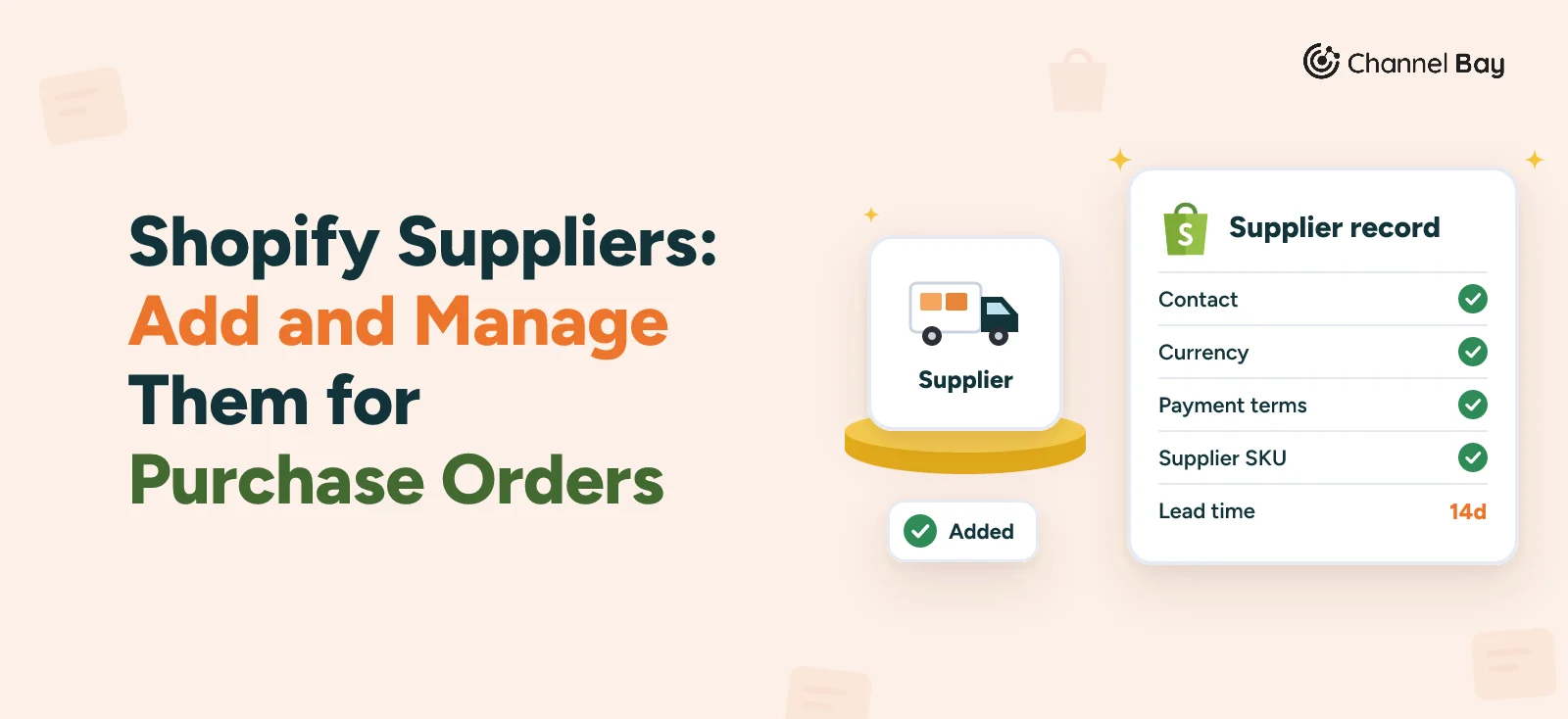
A Shopify supplier holds contact information and an address, kept in separate cards. Currency and payment terms belong to each purchase order. These details come from Shopify's help on managing suppliers, read on 6 November 2026:
- Contact information and address: two cards, each edited and saved on its own. To open them, select a supplier on a PO and click View details.
- Recent purchase order line items: on the same page, a searchable list of the products you've ordered from that supplier before.
- Edits reach every PO: change a supplier's details and they change on all of that supplier's existing purchase orders. Keep them current, because a wrong edit changes your past POs too.
- Supplier currency: it starts as the supplier's currency and you can change it on the PO. Changing it updates all the pricing fields on that PO.
- Payment terms: optional, and set on each PO. Examples are payment in advance, on receipt, or within a set number of days. Payments themselves are made outside Shopify.
- Not saved as defaults: Shopify's help says payment terms and currency aren't saved as defaults on the supplier. You set them again on each PO.
Two things on the PO line also make a supplier easier to work with. The supplier SKU is optional, and Shopify uses the variant's SKU if you leave it blank. Cost and tax are filled in from earlier POs with the same supplier. Our guide to creating a purchase order in Shopify covers both in the steps.
What Does a Shopify Supplier Leave Out?
Shopify's supplier help describes no import, no archive or delete, and no place to keep a minimum order quantity, a pack size or a lead time. It says so by omission: those pages cover creating a supplier from a PO, viewing it and editing its cards, and nothing more. Check your admin, in case Shopify has added them since.
That matters once the list grows. If there is no import, a long supplier list is entered by hand, one PO at a time. If there is no archive, a supplier you've stopped using stays in the Select supplier list. And the facts that decide how much to order and when, such as the supplier's minimum, whether they sell in cartons of 12, and how many days they really take, have no field you can point to.
Here is where each piece of supplier information sits in Shopify, and where to keep the rest.
| What you need to know | In Shopify | Where to keep it otherwise |
|---|---|---|
| Contact and address | Supplier record | Not needed |
| Currency | Set on each PO, starting from the supplier's currency | Your supplier sheet, so each PO matches the last |
| Payment terms | Set on each PO | Your supplier sheet |
| Supplier SKU | PO line, optional | Your supplier sheet, one row per product |
| Cost per unit | PO line, filled from earlier POs | Not needed, the PO keeps it |
| Minimum order quantity | Not described | Your supplier sheet |
| Pack or carton size | Not described | Your supplier sheet |
| Lead time | Not described. An expected arrival date goes on the shipment | Your supplier sheet, from the dates on past POs |
| Notes on how they work | Note to supplier on each PO | Your supplier sheet |
How Should You Set Up Your Suppliers?
Set them up once, with a short list of rules, so every PO starts from the same details:
- One record per supplier. Use the supplier's trading name, the same way every time. Search the list before you create one, because two spellings of one business split its history in two.
- Name a contact who reads the POs. The address on the record is where the PO goes. Use the person who confirms orders, not a general inbox.
- Write down the currency and terms you agreed. Put them on the PO each time, and keep a copy in your supplier sheet so the second PO matches the first.
- Record the minimum and the pack size. A PO below a supplier's minimum may be refused or changed, and a PO in singles for a supplier who sells in cartons orders in the wrong unit.
- Measure the lead time from your own POs. Take the days from the date you marked a PO as ordered to the date the first stock arrived. Do it for the last few orders and use the middle value, not the best case. Our guide to the reorder point shows where that number goes.
- Review the list every few months. Check that each contact still works, and mark suppliers you've stopped using so nobody raises a PO to them by mistake.
For a few suppliers, Shopify's record plus a sheet is enough. A supplier sheet with columns for the items above takes minutes to set up, and the tracker in our purchase order management guide covers the orders themselves.
When Do You Need More Than Shopify's Supplier Records?
You need more when the sheet becomes the thing you maintain instead of the thing that helps you. Signs that point that way:
- A long supplier list. If Shopify has no import, typing 40 suppliers in one PO at a time is slow.
- Several suppliers for one product. A product has one vendor and Shopify describes no supplier list per product, so the cost, SKU and lead time for a second source live in your head or in a sheet.
- Minimums and cartons. You have to remember each supplier's rules for every order.
- Lead times that vary. One number in a sheet drifts out of date as suppliers speed up or slow down.
- More than one person raising POs. Everyone needs the same contact, terms and currency, and the sheet is the only copy.
At that point, look at an app. Our guide to how to choose a Shopify purchase order app lists what to check, and 11 apps compared puts them side by side. If you're coming from Stocky, which let a product have several suppliers, Stocky vs Shopify purchase orders lists what Shopify's records leave out.
How Channel Bay Handles Suppliers
Channel Bay is our app, so we're not neutral here. It keeps a supplier list of its own, which is where it differs from Shopify's records. This section is from Channel Bay's help guides and its product, checked on 6 November 2026.
- Your Shopify vendors are already there. The vendor names on your Shopify products show up as suppliers, marked as coming from Shopify. You can't rename or delete those in Channel Bay, so manage them in Shopify. You can add suppliers of your own as well.
- One form for the details. Add a supplier with a company name, one or more email addresses, a contact person and number, a payment term, a currency and an address, plus notes. Company names must be unique, ignoring capital letters, so a duplicate is rejected. Every saved email address can fill the recipient list when you send a PO.
- Currency is chosen once. The supplier's currency is set when you create it and can't be changed afterwards. New POs for that supplier use it. Payment terms are saved on the supplier too.
- A CSV import for the list. On the Suppliers page, click Import and upload a CSV. The only required column is the company name. You can add email, contact name, phone, payment terms, notes and address columns. Several email addresses go in one cell, separated by commas. Download the sample CSV to see the layout. Rows with a problem, such as an invalid email address, are skipped or trimmed and listed in an error report you can download. There's no currency column, so imported suppliers have no currency, and one can't be added later. Add any supplier who invoices in another currency by hand.
- Terms for each product and supplier. Link products to a supplier and save a supplier SKU, a unit cost and a minimum order quantity for each. If a supplier sells in cartons, tick This supplier delivers products in packs and set a pack size for each product. Suggested order quantities then round up to whole packs. Sync cost from Shopify copies your cost per item into the supplier's unit costs. A product can be linked to more than one supplier, each with its own terms.
- A lead time for each supplier. Lead time follows the supplier, so the same product can have a different one for each supplier that sells it. It is saved on each product you buy from that supplier. It starts at 14 days, marked as estimated. Once at least two POs with that supplier have received the product, Channel Bay measures it: days from placing a PO to the first receipt of that product, taking the middle value of your five most recent POs. You can set your own from 1 to 365 days, and reset it to automatic whenever you like. A value you set is never overwritten. It shows when you add a product to a PO, in the PO's detail panel (the slowest among its products), and in the forecast figures. When a product has more than one supplier, the forecast uses the quickest supplier's lead time.
- Archive instead of delete. Archiving takes a supplier off the active list and keeps its PO history. Delete is only for suppliers you created in Channel Bay.
- Each PO has one supplier. The supplier's products, costs, currency and lead time all apply to that PO. To buy from two suppliers, raise two POs.
What it doesn't have: an approval step before a PO goes out. See how Channel Bay handles purchase orders, and check the pricing page for what each plan includes.
Frequently Asked Questions
How do I add a supplier in Shopify?
What is the difference between a vendor and a supplier in Shopify?
Can I import, archive or delete suppliers in Shopify?
Can a Shopify product have more than one supplier?
Can I set a lead time or minimum order quantity for a Shopify supplier?
Does this help me find dropshipping suppliers for Shopify?

Guides from the team that builds and supports Channel Bay, the Shopify inventory app for purchase orders, stocktakes, stock transfers and multichannel stock sync. About Channel Bay