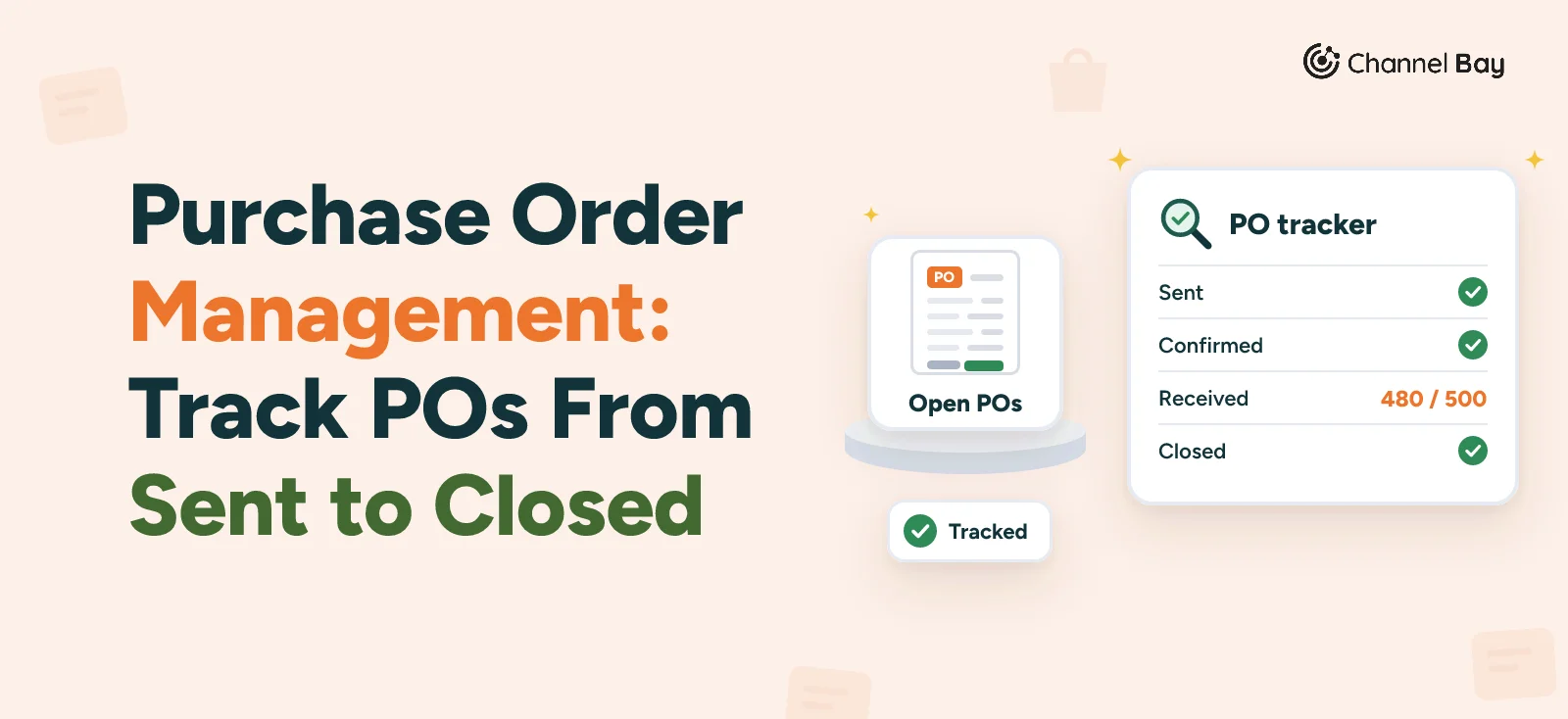
Purchase Order Management: Track POs From Sent to Closed (Free Tracker)
Purchase order management is what happens after you send a PO: tracking, chasing, receiving and closing it. Get a free tracker and see where it breaks.
On this page
Key Takeaways
- Purchase order management is everything you do with a PO after you send it: track its status, chase the supplier, receive the goods, check the invoice and close it.
- A weekly review of every open PO catches the late supplier, the forgotten balance and the invoice that arrived before the goods did.
- A spreadsheet tracker with one row per PO works well for a handful of open orders and one person. Our free tracker works out status, units outstanding and days late for you.
- A spreadsheet breaks on partial deliveries, on incoming stock that sales and reorder decisions can't see, and on costs that never reach the product cost in your store.
- Software can automate numbering, PO emails, status changes on receiving and incoming quantities. Chasing suppliers and deciding what to do with a short delivery stay manual.
Purchase order management is everything you do with a purchase order after you send it: track where it stands, follow up with the supplier, receive the goods, check the invoice and close the PO. The aim is that no order sits half finished, you never pay for stock that didn't arrive, and you always know how much stock is still on its way.
The top results for this term come from procurement and accounts payable software vendors, and they describe approval chains and supplier portals. This guide is for a small team running purchase orders from a spreadsheet or an inventory app. It gives you a working tracker to download, then shows where a spreadsheet tracker stops working. It follows the same example as our guide to what a purchase order is and how it works: PO-2026-0142 for 500 white mugs at $3.20, plus $180 freight, $1,780 in total, due on 10 November.
What Purchase Order Management Covers
Purchase order management starts after the PO has been raised and sent. How to write a PO, which type to use and how the process starts are covered in our purchase order guide. From the moment the PO goes out, there are five jobs:
- Track the status. Know whether each PO is sent, confirmed, part received, received, closed or cancelled. The purchase order process in our guide lists the statuses and what to do at each one.
- Follow up with the supplier. Get a confirmation and a delivery date, and chase when either is missing.
- Receive the delivery. Record what arrived against the PO, including anything short, damaged or extra.
- Check the invoice. Compare what the supplier billed with what you ordered and what arrived.
- Close the PO. Settle the balance, pay, update your costs and mark it closed.
An open PO is any PO that is not yet closed or cancelled. Managing purchase orders is mostly the job of keeping every open PO moving until it is not open any more. Approval workflows, three-way matching and choosing purchase order software are separate topics, and this guide only touches them where they affect tracking.
How to Manage a Purchase Order After You Send It
Step 1: Get a Confirmation and a Delivery Date
A PO becomes binding once the supplier accepts it, so the first job is to get that acceptance in writing and a date to hold them to. Record both: the day the supplier confirmed, and the delivery or ship date they promised.
A PO with no confirmation is the one most likely to be forgotten. It has been sent, but nothing says the supplier has seen it or agreed to the price. For PO-2026-0142, the supplier accepted the same day it was sent and promised delivery by 10 November. That date is what you measure lateness against.
Step 2: Track the Status and Chase
Once a week, go through every open PO and decide what each one needs. There are four possible answers: nothing yet, a chase, a receipt, or a decision about a balance. A tracker makes this quick because you can sort by the date of the next action instead of reading every row.
When you chase, ask three things: when it will ship, how it is being shipped (so you can get a tracking number), and whether the whole order is going in one delivery or in parts. Start chasing a few days before the promised date rather than after it, because a supplier who is going to be late usually knows it already.
"Late" isn't one of the standard statuses in our guide. It is a flag that comes from comparing today's date with the promised date, which is how the tracker below treats it.
Step 3: Receive Against the PO
When a delivery arrives, count it against the PO, not the packing slip, accept the units that are in sellable condition and note anything you rejected. Each delivery you record updates how many units are still outstanding on the PO.
For PO-2026-0142, 480 good mugs arrived and 20 were broken, so the PO is partially received with 20 units outstanding. What to do about those 20, and how to handle short, extra and damaged deliveries in general, is covered step by step in our guide to goods receipt.
Step 4: Check the Invoice Against the PO and What Arrived
Supplier invoices often bill the full PO even when part of it didn't arrive. Before you pay, compare the invoice with both the PO and the delivery: quantities, unit prices, freight and any extra charges.
The supplier of PO-2026-0142 billed $1,780 on invoice INV-3318. Because 20 mugs were broken, they issued a $64 credit note, and the business paid $1,716. Without the check, it would have paid for stock it couldn't sell. Larger teams formalise this as a three-way match of the PO, the receipt and the invoice. For small sellers, the practical version is in our guide to purchase order vs invoice.
Step 5: Close the PO
A PO is ready to close when all four of these are true:
- Every unit has arrived, or the balance has been cancelled with the supplier.
- The invoice has been matched to the delivery and paid, or a credit note has settled the difference.
- The cost of the delivery, including freight and any duty, has been recorded against the products.
- You've marked the PO closed.
Don't leave a balance open that is never coming. Units on an open PO still count as stock on order, so a dead balance can hold back your next reorder and keep the PO in your weekly review for no reason.
A Free Purchase Order Tracker
Our free purchase order tracker is a register with one row per PO. It comes as an Excel file (.xlsx), which also opens in Google Sheets (File > Import, or upload it to Google Drive). There is no sign-up. It has a PO tracker tab, an Example tab with six POs including PO-2026-0142, and a How to use tab.
To raise the PO itself, use our free purchase order template. Its Receiving tab logs the deliveries for a single PO line by line. The tracker is the other half: one row for each PO, so you can see all your open orders in one place.
What the Tracker Records
You fill in the white columns. The grey columns are formulas.
| Column | What it holds |
|---|---|
| PO number, Supplier | Which order, and who it is with |
| Order date, Date sent | When it was raised, and when it went to the supplier |
| Supplier confirmed, Promised delivery | When they accepted, and the date they promised |
| Units ordered, Units received | What you ordered, and the good units that have arrived so far |
| PO total | The total from the PO |
| Supplier invoice no., Invoice amount | The invoice, once it arrives |
| Cost updated in store | Yes once the delivery's cost is in your store or inventory system |
| Closed or cancelled | Leave blank while the PO is open |
| Next action date, Notes | What happens next and when |
| Status (formula) | Draft, Sent, Confirmed, Part-received, Received, Closed or Cancelled |
| Units outstanding, % received (formulas) | How much is still due |
| Days late (formula) | Days past the promised date while units are still due |
| Check (formula) | Flags for late, not confirmed, invoice before full delivery and cost not updated |
At the top, three numbers sum it up: how many POs are open, how many are late and how many units are still due.
The Tracker in Use
On 12 November, the Example tab shows this:
| PO | Status | Outstanding | Days late | Check |
|---|---|---|---|---|
| PO-2026-0141 | Closed | 0 | ||
| PO-2026-0142 | Part-received | 20 | 2 | Late. Invoice before full delivery. Store cost not updated. |
| PO-2026-0143 | Sent | 300 | Not confirmed. |
PO-2026-0142 shows everything that matters about it at a glance. It is two days past its promised date with 20 mugs outstanding (the supplier wasn't late; the flag stays until the broken balance is cancelled), the invoice arrived before the delivery was complete, and the cost of the 480 mugs that did arrive hasn't been entered in the store. PO-2026-0143 was sent 23 days ago and nobody has confirmed it, so someone needs to phone the supplier.
How to Use It Each Week
- Update Units received for anything that arrived since last time, adding to the number already there.
- Sort by Next action date and work down the list.
- Clear each Check flag: chase the supplier, settle the invoice, enter the cost.
- Pick Closed or Cancelled for every PO that is done, so it drops out of the open count.
Where a Spreadsheet Tracker Breaks
A tracker like this works well for a handful of open POs and one person keeping it up to date. It is the right tool until one of three problems stops it.
Partial Deliveries
The tracker holds one row per PO, but a PO has several lines and each can arrive on a different day. The row tells you that 480 of 500 units are in. It doesn't tell you which lines are short, or which delivery the supplier's invoice belongs to. To track that properly, you need a row for every line of every delivery. The sheet grows quickly, and every delivery brings its own invoice number, its own freight and its own decision about the balance. The 20 broken mugs are a small case. When a PO of 12 products arrives over three weeks, the register stops being an answer and becomes a chore.
Incoming Stock That Sales and Reorder Decisions Can't See
A tracker lives in a file. Your stock count lives in your store. Nothing connects them, so the stock on order isn't visible where decisions get made.
- Reordering. When you check whether a product is below its reorder point, the units already on order aren't in front of you. You either order again and double up, or you don't and wait. See how stock already on open purchase orders changes the reorder point.
- One product on several POs. The register has a row for each PO, not each product. If white mugs are on three POs, nobody can see the total on its way without adding it up by hand.
- Whoever sells. A customer-facing team can't see that a sold-out product has 480 units due on Friday, so they can't promise a date or keep a back-in-stock list.
- Late POs. A PO past its date still has stock coming, unless it doesn't. In a spreadsheet, you decide each time whether to count it. Nothing does it for you.
Costs That Don't Reach the Product Cost
A supplier invoice, the freight and any duty all change what a unit really cost. The tracker has a Yes or No column for whether that cost made it into your store, because someone has to type it in. Until they do, your reports use the old cost.
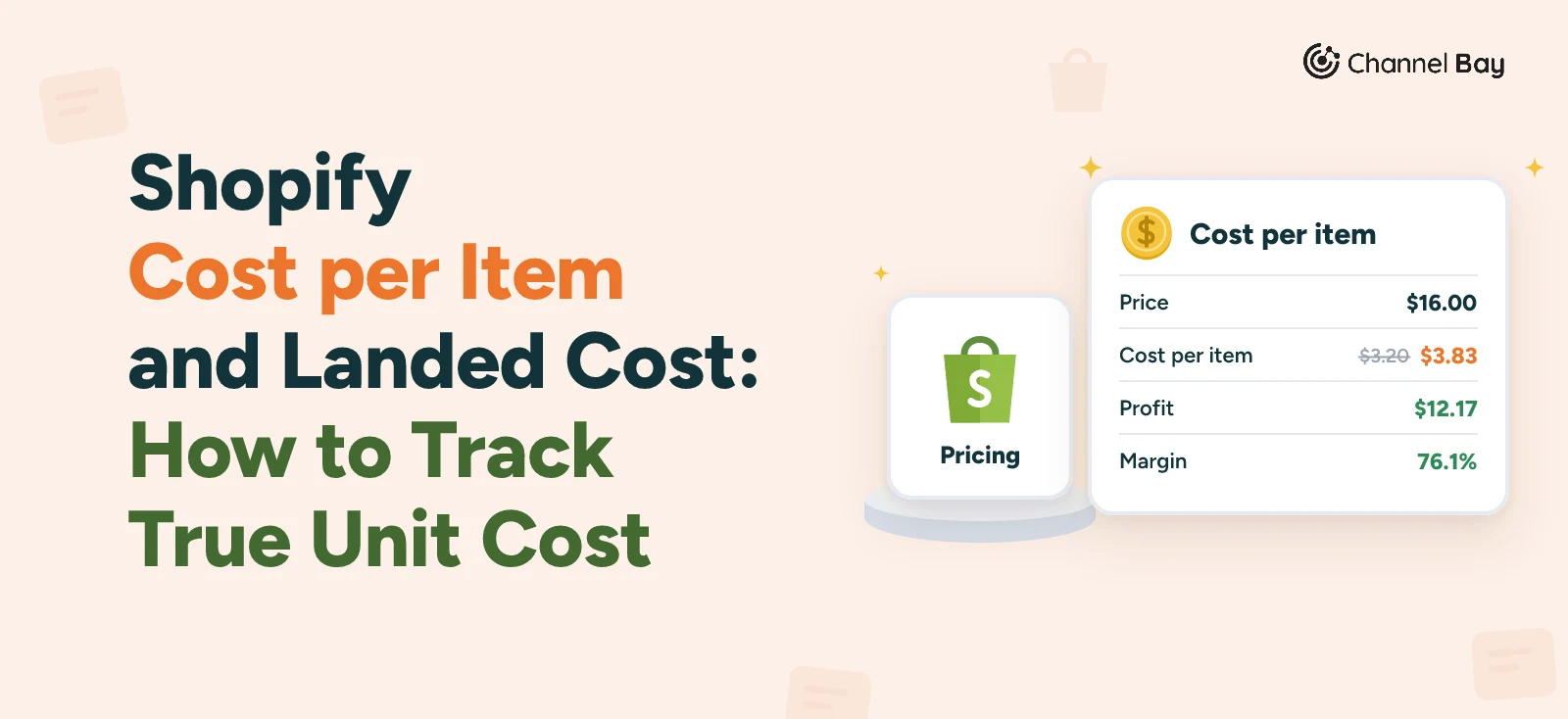
On PO-2026-0142, the PO price is $3.20 a mug. Once freight, duty and fees are spread across the mugs that arrived, the real cost is $3.83, a gap of 63 cents on every sale. Our guide to landed cost shows how to work it out. A spreadsheet can calculate it. It can't put it into your store for you.
When to Move off a Spreadsheet
You don't need a rule with a number in it. Move when the tracker is out of date by the time you need it. The usual signs are:
- More than one person edits it.
- Deliveries arrive in parts.
- You sell the same stock on more than one channel.
- You copy figures from the tracker into your store by hand.
Purchase Order Automation: What Can Be Automated
Purchase order automation means software does the repeated steps of the PO process so that a person doesn't have to. Here is how that compares with a spreadsheet:
| Task | Spreadsheet | Inventory software |
|---|---|---|
| Numbering POs in sequence | By hand | Automatic |
| Emailing the PO to the supplier | Export a PDF and email it | Sent from the app |
| Status change when stock arrives | By hand, or a formula like ours | Updates when you receive |
| Incoming quantity for each product | A formula you build and maintain | Shown next to available stock |
| Cost update when a delivery arrives | Retyped into the store | Calculated and passed on |
| Alert when a PO is late or expires | Check the Days late column | Notification, in some apps |
Some things stay manual in any system. A person has to chase the supplier, decide the quantity and price, and decide what to do about a short delivery. Approving spend is a human decision too. Procurement platforms add approval workflows and automated three-way matching, but most small teams approve by hand and match invoices by eye, and that is fine.
Be careful with claims that purchase order management can be "fully automated". The steps that can be automated are the ones with no decision in them. The value is in not retyping numbers, not in removing the person.
Purchase Order Management for Ecommerce Sellers
For an online seller, the PO matters because it ends as stock in the store. Shopify's own purchase orders cover creating and sending a PO, and since 22 June 2026 you receive one through a linked inventory transfer. Receiving, freight and landed cost, and the gaps that native POs leave, are covered in our guide to Shopify purchase order management. If you also sell on Amazon or another marketplace, the on-order and available numbers have to reach every channel, which is another reason a standalone spreadsheet falls behind.
Where Channel Bay Fits
Channel Bay is our app, so we're not neutral here. It is a Shopify inventory app for purchase orders, stocktakes, transfers and multichannel stock sync, and it replaces the tracker above in these ways:
- Suppliers and sending. Each product can have several suppliers, with the supplier SKU, cost, pack size and minimum order, so a PO starts with the right codes and prices. The PO is emailed to the supplier as a PDF from the app.
- Dates and status. You can set a delivery date and a cancel date on the PO. A PO that passes its cancel date is flagged as expired and raises a notification. The PO list shows each PO's supplier invoice number and location, and you can filter by location and search by invoice number.
- Receiving and costs. Each delivery is its own batch, with its own invoice number and freight, and each line shows the last date it was received for POs created in Channel Bay. The PO stays partially received until the rest arrives or you close it. Freight and discounts are spread across the lines by value, supplier currency is converted, and with cost sync on, the new cost goes to Shopify.
- Incoming stock. Units still due on open, partly received and expired POs count as incoming in your inventory, next to available stock. Draft, fully received, cancelled and deleted POs don't. You decide when to reorder, and Channel Bay doesn't raise POs on its own.
It doesn't have approval workflows or a QuickBooks or Xero connection, so if you need either, check that before you choose. Channel Bay is free for stores with fewer than 1,000 orders in the last 365 days, and the free plan includes purchase orders, PO emails and partial receiving. Paid plans are on the pricing page. See how Channel Bay handles purchase orders.
Frequently Asked Questions
What is purchase order management?
How do you track a purchase order?
What is purchase order automation?
How often should you review open purchase orders?
What should a purchase order tracker include?
When should you move from a spreadsheet to software?

Guides from the team that builds and supports Channel Bay, the Shopify inventory app for purchase orders, stocktakes, stock transfers and multichannel stock sync. About Channel Bay