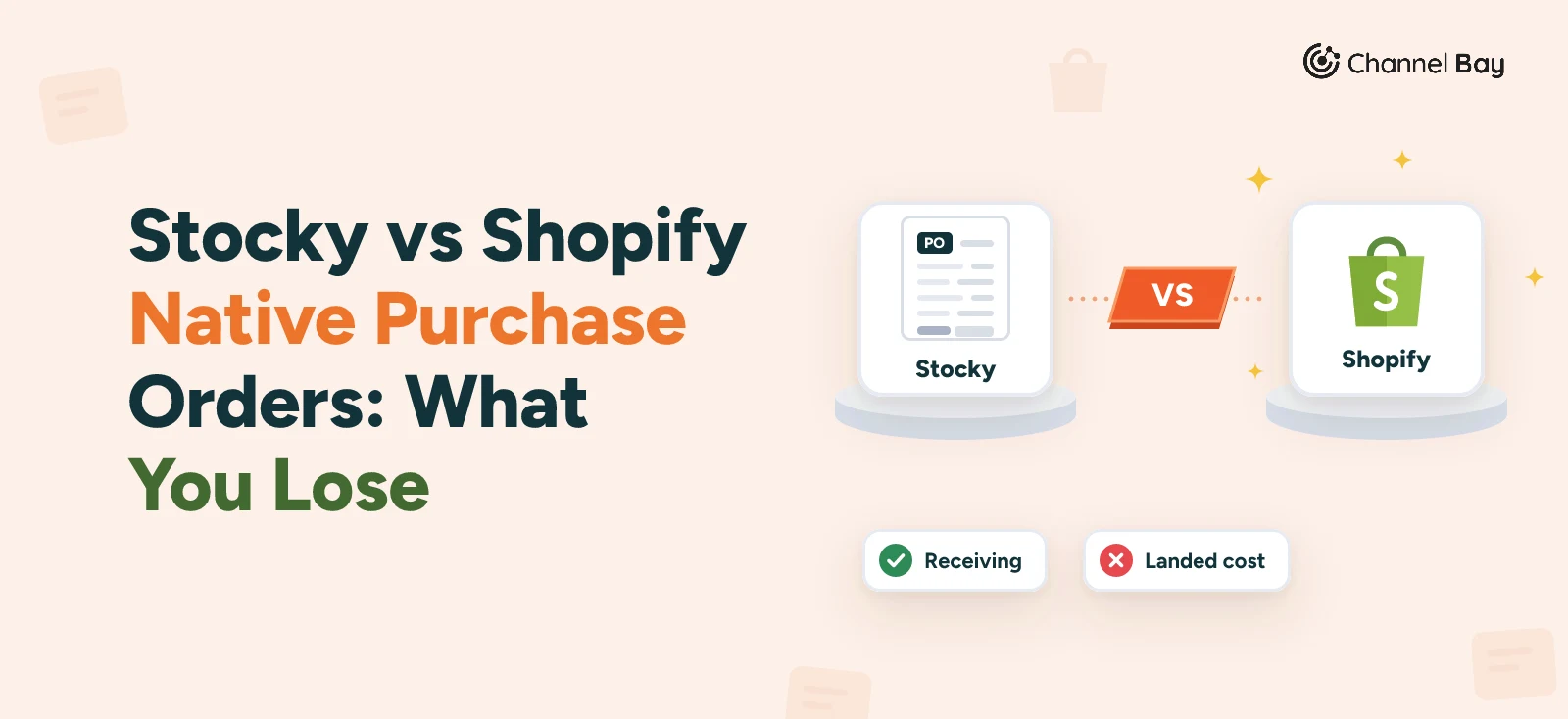
Stocky vs Shopify Native Purchase Orders: What You Lose
Stocky vs Shopify purchase orders, feature by feature: what native POs do now that Stocky has closed, the gaps you'll notice, and how to fill each one.
On this page
- Stocky vs Shopify purchase orders at a glance
- What Shopify's native purchase orders do well
- Gap 1: No reorder suggestions from your sales history
- Gap 2: One vendor per product, with no supplier prices or pack sizes
- Gap 3: You can't email a PO from Shopify
- Gap 4: Receiving takes a second record
- Gap 5: Landed cost and average cost don't reach the cost per item
- Gap 6: Fewer purchasing reports
- Stocktakes: not a gap
- Your old Stocky purchase orders don't move across
- Native purchase orders or an app?
Key Takeaways
- Shopify's native purchase orders cover the basics Stocky handled: suppliers, draft and ordered POs, a PDF for the supplier, and receiving with partial deliveries and rejected units. Since 22 June 2026, you receive on a linked inventory transfer, not on the PO.
- The biggest loss is reorder suggestions. Stocky forecast what to order from your sales history and lead times. Shopify has no suggested quantities on the purchase order, so you work them out yourself, ask Sidekick, or use an app.
- Shopify keeps one vendor per product and one fixed cost per item per variant. Stocky's supplier price lists, pack sizes and average unit cost don't carry over, and receiving a PO doesn't change the cost per item.
- You can't email a PO from the Shopify admin. Export it as a PDF and send it yourself.
- Stocky has been unavailable since 31 August 2026, with read-only access to export data for at least 90 days. Export completed POs and cost history now, because Shopify can't import them.
Shopify's native purchase orders do most of what Stocky's did when it comes to placing and receiving an order: you can keep suppliers, raise draft and ordered POs, export a PDF and receive deliveries in parts. What you lose is everything Stocky did around the order. Shopify doesn't suggest what to reorder or let one product have several suppliers with their own prices and pack sizes. It doesn't email the PO to the supplier, and receiving doesn't update the cost per item. Since 22 June 2026, receiving also happens on a separate inventory transfer rather than on the PO.
Stocky has been unavailable since 31 August 2026, and it was delisted from the Shopify App Store on 2 February 2026, so it can't be reinstalled. Stores keep read-only access to export their data for at least 90 days after the end date (Shopify Help Center). If you're still checking what you can do in Stocky, see how to use the Stocky app after the sunset.
This post compares purchase orders only, feature by feature, and says where each gap can be filled. It's part of our guide to Shopify purchase order management. The example is the same order used across our purchase order guides: PO-2026-0142, for 500 white mugs (MUG-WHT-12) at $3.20 each, packed in cartons of 20, with $180 freight.
Stocky vs Shopify Purchase Orders at a Glance
| Stocky | Shopify native purchase orders | |
|---|---|---|
| Availability | Unavailable since 31 August 2026. Read-only data export for at least 90 days | Built into the Shopify admin |
| Suppliers per product | Several, each with its own price and currency | One Vendor field per product. Supplier records hold contact details and past PO lines |
| Pack sizes | Order by the pack for each supplier | None. Case quantities can be kept in metafields, for reference only |
| Reorder suggestions | Demand forecasting from sales history and lead times, plus low stock reports | None on the PO. Ask Sidekick, or set up low-stock alerts with Shopify Flow |
| Creating a PO | By hand or from a forecast | By hand, by CSV import of line items, or drafted by Sidekick |
| Sending it to the supplier | Email from Stocky with an optional CSV, or download a PDF, text or CSV file | Export a PDF and email it yourself |
| Supplier currency | Set on the supplier, converted at current exchange rates | Set on each PO and not saved to the supplier |
| Receiving | On the PO, in Stocky or Shopify POS, with a barcode scanner | On a linked inventory transfer, in the admin or Shopify POS (POS Pro) |
| Freight and duty | Spread across the lines to give each one a landed cost | Recorded as cost adjustments on each shipment |
| Cost per item | An average unit cost, updated on every receipt and optionally synced to Shopify | One fixed cost per item that receiving doesn't change |
| Stocktakes | Full or partial counts in Stocky on a desktop | Stock counts in the admin with manager approval, and counts in POS on POS Pro |
| Barcode labels | DYMO label printing from Stocky | The Retail Barcode Labels app, from the product list, not from the PO |
| Reports | Purchase order, low stock, ABC analysis and stock on hand reports | PO list export and custom Analytics reports. No report of PO spend by supplier |
| Old purchase orders | Export them as CSV before read-only access ends | Can't be imported |
Sources: Stocky's vendors and suppliers, inventory management, purchase orders, average unit cost, stocktakes and report types pages, and Shopify's migration guide, creating purchase orders and suppliers pages, all in the Shopify Help Center.
What Shopify's Native Purchase Orders Do Well
The native tools aren't a stripped-down Stocky. For the order itself, they're arguably better:
- One system for all your stock: POs, transfers, adjustments and counts live in the Shopify admin and update inventory across every sales channel, with no separate app to sync.
- Partial deliveries handled properly: A PO's linked transfer can hold several shipments, tracked separately, and staff receive in the admin or, at locations with POS Pro, in Shopify POS, wherever the delivery arrives (Shopify Changelog). Each unit is accepted, rejected or cancelled, so a short or damaged delivery is recorded rather than worked around (Shopify Help Center).
- Faster PO building: Import line items from a CSV by SKU or barcode, and costs fill in from your last PO with that supplier or from the variant's cost per item (Shopify Help Center). One merchant testing Stocky replacements told us CSV import was a must-have.
- Counts with approval: Stock counts in the admin let staff count in parallel and a manager approve the results before inventory changes (Shopify Help Center).
If you raise a handful of POs a month from one or two suppliers, buy single units and enter costs by hand anyway, native purchase orders may be all you need. Start with how to create a purchase order in Shopify.
The gaps show up around the order: deciding what to buy, buying it from the right supplier in the right packs, and knowing what it cost once it arrived.
Gap 1: No Reorder Suggestions From Your Sales History
Stocky let you "create purchase orders with demand forecasting to determine the right quantities to order based on your sales history and lead times" (Shopify Help Center). Its low stock reports listed products that were out of stock and not on order (Shopify Help Center). Merchants moving off Stocky ask us about it, and one told us Stocky's sales-based PO suggestions were the one thing stopping them from switching.
Shopify's purchase orders have no suggested quantities. Shopify's own migration guide points to three workarounds (Shopify Help Center):
- Ask Sidekick, Shopify's assistant, what to reorder. It recommends products from your sales data and can draft the PO.
- Set up low-stock alerts with Shopify Flow.
- Store minimum and maximum levels for each variant in custom metafields, and build reports in Shopify Analytics to decide when and how much to order.
Each of those leaves the sum to you, or to Sidekick's reading of it. For the mugs, selling 4 a day with a 25-day supplier lead time, you'd need to know that 80 on hand runs out five days before a new order would arrive, and that the order should cover the lead time and the weeks after it. Our guide to the reorder point works through that calculation, including stock already on open POs.
Where Channel Bay fills it: Channel Bay's forecast compares each product's days of stock left with the lead time measured from your own purchase orders, and its suggested quantity subtracts stock already on open POs. For the mugs, 20 days of stock against a 25-day lead time shows as a stockout risk. Covering the 25-day lead time plus 60 days, minus the 80 on hand, the forecast suggests 260, and pack sizes and the supplier's 500 minimum apply when you build the PO. That's how PO-2026-0142 came to be 500 mugs. Separately, every product has a reorder point, 10 units by default, which you can change for each one. The dashboard lists products below their reorder point, grouped by supplier. You still create and send the PO yourself.
Gap 2: One Vendor per Product, With No Supplier Prices or Pack Sizes
In Stocky, suppliers were separate from Shopify's vendor field. A product could have several suppliers, each with its own price in any currency, and you could order by the pack instead of by the unit (Shopify Help Center).
Shopify keeps one Vendor field per product. Its supplier records hold contact details, an address and the lines you've ordered from that supplier before (Shopify Help Center). For a second supplier, supplier SKUs, lead times, minimum order quantities or case packs, Shopify suggests variant metafields. They're for reference only. They don't feed into ordering or receiving, so staff convert case packs into units by hand (Shopify Help Center).
For PO-2026-0142, that means remembering that the mugs come in cartons of 20 and typing 500, not 25 cartons, then checking the supplier's carton count against units when the delivery arrives. Several merchants moving off Stocky asked us how to order in cases. A few wanted to bring case quantities over from their Stocky reports.
Currency changed too. Stocky assigned a currency to each supplier and converted costs at current exchange rates. In Shopify, the supplier currency and payment terms are set on each PO and aren't saved to the supplier, so you pick them again on every order (Shopify Help Center).
Where Channel Bay fills it: In Channel Bay, each product can be linked to more than one supplier, each with its own supplier SKU, cost, pack size and minimum order quantity. When you build a PO for a supplier, its costs, packs and minimums fill in. A PO can be in the supplier's currency, converted to your shop currency at the rate on the day it was opened.
Gap 3: You Can't Email a PO From Shopify
Stocky could send the PO itself. You entered the supplier's email addresses and a reply-to address, edited the message and could attach a CSV copy. You could also download it as a PDF, plain text, CSV or a CSV for DYMO labels (Shopify Help Center).
Shopify's help is direct: "You can't email a purchase order from your Shopify admin." Open the PO, click More actions, then Export PDF, and attach it to your own email (Shopify Help Center).
Where Channel Bay fills it: Channel Bay emails the PO as a PDF from your own template, to more than one address at the supplier, with CC, BCC and a CSV copy if the supplier wants one.
Gap 4: Receiving Takes a Second Record
In Stocky, you received against the purchase order itself, with a barcode scanner if you had one (Shopify Help Center). Store staff could receive the same PO from a tile in Shopify POS (Shopify Help Center).
Since 22 June 2026, you create an inventory transfer from a Shopify purchase order and receive on the transfer (Shopify Changelog). The PO keeps two statuses, Draft and Ordered, and partial, received and closed states live on the transfer (Shopify Help Center). Each PO has one linked transfer, and once it's created, the two records work independently: changing a quantity on one doesn't change the other (Shopify Help Center).
The receiving itself is good. Each unit is accepted, rejected or cancelled, and one transfer can take several shipments. But every PO now has a second record, the transfer, that you create and process to receive the stock, even with one location. Our guide to receiving inventory in Shopify covers every step, including the 20 broken mugs on PO-2026-0142.
Scanning works differently too. In the admin, scanning a shipment's barcode with an external scanner opens its receiving page (Shopify Help Center). In Shopify POS, which needs POS Pro at that location, staff can scan each item as they count it (Shopify Help Center). One merchant who scanned items at the POS terminal while receiving in Stocky told us that moving receiving anywhere else meant changing how the team worked.
Barcode labels used to come from the same place. Stocky printed DYMO labels directly. In Shopify, you print them with the Retail Barcode Labels app from the product list, not from the PO, and quantities don't fill in from a partial receipt (Shopify Help Center).
Where Channel Bay fills it: Channel Bay receives against the PO, with no transfer to create. Each delivery is a batch with its own supplier invoice number and freight. You count by scanning barcodes or SKUs, and each line shows what's still outstanding. Received stock updates every channel. If part of a delivery needs to go on to a shop, the received batch becomes a stock transfer.
Gap 5: Landed Cost and Average Cost Don't Reach the Cost per Item
This is the gap merchants notice in their margins. Stocky kept an average unit cost for each variant and updated it every time you received a PO. It spread shipping and other adjustments across the lines by value, using a landed margin of (subtotal + adjustments + shipping) / subtotal, and could sync the average to Shopify's cost per item (Shopify Help Center).
For PO-2026-0142, the subtotal is 500 x $3.20 = $1,600. With $180 freight, the landed margin is $1,780 / $1,600 = 1.1125, so Stocky would have costed each mug at $3.20 x 1.1125 = $3.56.
Shopify keeps "a single static Cost per item field" for each variant, and it "stays fixed when you receive a purchase order or transfer". For weighted-average costing or landed cost allocation, Shopify points you to a third-party app (Shopify Help Center). You can add the $180 to the shipment as a cost adjustment, and the transfer's cost summary compares it with the PO (Shopify Help Center). But the mugs' cost per item stays at whatever it was before the delivery. If that's $3.20, every sale of a mug overstates its margin by 36 cents until someone updates it. Our guide to Shopify cost per item and landed cost shows how to work it out and update it yourself.
Where Channel Bay fills it: Channel Bay spreads each delivery's freight and adjustments across its lines by value to give each unit a landed cost. It records both the last received cost and a rolling average on the variant. With cost sync on, it sends the one you choose to Shopify as the cost per item. Cost sync is off until you turn it on.
Gap 6: Fewer Purchasing Reports
Stocky's reports included a purchase order report, low stock reports by product, variant and vendor, ABC analysis, and current and historical stock on hand (Shopify Help Center).
In Shopify, you can search, filter, sort and export the purchase order list, build custom reports in Shopify Analytics, and use the purchase order cost and PO transfer reports that Shopify links from its migration guide. Shopify says plainly that "there isn't a dedicated native report for total purchase order spend by supplier", and that depending on your plan, you might need an app for ABC analysis (Shopify Help Center).
Where Channel Bay helps: Channel Bay doesn't have a spend-by-supplier report either. Each PO exports to a 25-column file, and the PO list shows the supplier invoice number and delivery location for every order, so a spend rollup is a short spreadsheet job rather than a rebuild from PDFs.
Stocktakes: Not a Gap
Stock counts are one area where nothing is lost. Stocky ran full or partial stocktakes on a desktop, with a barcode scanner, but not in Shopify POS (Shopify Help Center). Shopify's stock counts in the admin let you plan a count, have staff count in parallel and approve the results before inventory changes. On POS Pro, staff can count in Shopify POS too, and Quick count handles spot checks of up to 1,000 items (Shopify Help Center). See how to do stocktakes in Shopify.
Your Old Stocky Purchase Orders Don't Move Across
Shopify can't import historical purchase orders. Its CSV upload only adds product lines to a new draft PO, without past statuses or received quantities. Shopify's guide also says suppliers can't be exported from Stocky (Shopify Help Center).
While read-only access lasts, export your completed purchase orders as CSV files, your stocktake history and your cost data from Stocky's reports. Because old POs can't come across, your first native PO with each supplier has no past prices to fill in from, so keep the export as your price reference. For moving the data into another system, see our guide to Stocky migration and API replacement.
Native Purchase Orders or an App?
Native purchase orders are enough if you buy from a few suppliers in single units, decide quantities yourself and are happy to update cost per item by hand.
An app earns its place when you miss at least one of the following:
- Suggested quantities: You want to be told what to reorder and how much, instead of working it out or asking Sidekick.
- Supplier terms on the product: One product comes from more than one supplier, with its own price, packs or minimums.
- Sending from the PO: You want to email the PO from where you built it.
- Landed cost in your margins: Freight and duty should reach the cost per item without a spreadsheet.
If that's you, compare apps in our roundup of the best Shopify Stocky alternatives, or see how Channel Bay handles purchase orders.
Frequently Asked Questions
Does Shopify have purchase orders without Stocky?
What's the difference between Stocky and Shopify purchase orders?
Can I email a purchase order to a supplier from Shopify?
Does receiving a purchase order update the cost per item in Shopify?
Can I import my old Stocky purchase orders into Shopify?
Does Shopify suggest how much stock to reorder?

Guides from the team that builds and supports Channel Bay, the Shopify inventory app for purchase orders, stocktakes, stock transfers and multichannel stock sync. About Channel Bay