How Shopify Tracks Inventory Across Locations and POS
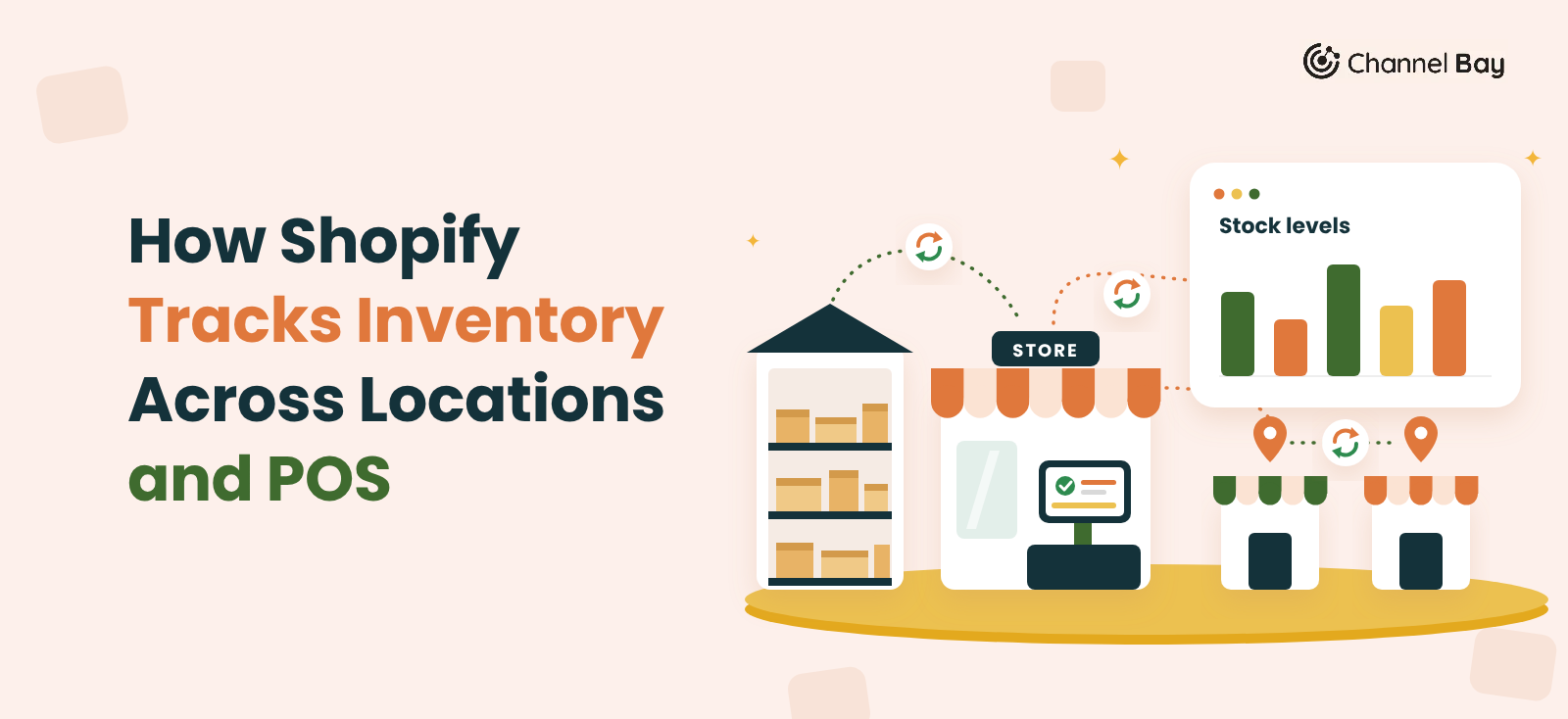
How Shopify tracks inventory across locations and POS: one count per location, 10 locations on most plans, and where retail stores need more control over stock.
On this page
- How Does Shopify POS Inventory Tracking Work?
- What Are the Different Inventory States in Shopify?
- What Should You Turn On for Each Product Variant?
- Can Shopify POS Sell Items That Are Out of Stock?
- How Do You Set Up Locations in Shopify POS?
- How Does Shopify Track Inventory Across Multiple Locations?
- How Do You Transfer Inventory Between Shopify Locations?
- How Do You Count and Adjust Inventory in Shopify POS?
- How Do You Keep Inventory Accurate Across Sales Channels?
- Does Shopify POS Track Inventory When Offline?
- Do You Need a Shopify Inventory Tracking App?
- How Does Channel Bay Help With Shopify Inventory Tracking?
Key Takeaways
- POS sells from the location each device is assigned to, using the same counts as your online store, but only for variants with Track quantity on.
- Shopify splits each count into states. Available stock is what you can sell, and it is lower than on hand stock whenever units are committed or unavailable.
- POS can sell at zero and below. Staff see a warning, but the sale goes through.
- Each location keeps its own count per variant, so location-level counts and transfers catch what a store-wide total hides.
- POS sales made offline sync when the device reconnects.
Shopify POS inventory tracking works by keeping one inventory count for each variant at each location. Every POS device sells from the location it is assigned to, and each sale deducts from that location's count. Your online store reads the same counts. Tracking only happens for products with Track quantity turned on.
Basic, Grow, and Advanced plans allow 10 active locations. Shopify Plus allows 200. That setup covers a single store well. Once you run several locations, sell on Amazon, or buy from multiple suppliers, you need regular audits and, often, an inventory tracking app.
How Does Shopify POS Inventory Tracking Work?
Shopify uses one inventory system for POS and the online store. When a customer buys in person, POS deducts the quantity from the location the device is assigned to. When a customer buys online, Shopify deducts from the location that fulfills the order. Both channels draw on the same per-location counts, so a POS sale lowers what the online store can sell from that location.
This only works for products with inventory tracking enabled. A product with tracking off never deducts, and its count stays wrong no matter how many units you sell. Our guide to Shopify inventory tracking covers the setting in full.
What Are the Different Inventory States in Shopify?
Shopify splits the stock at each location into five inventory states: available, on hand, committed, unavailable, and incoming. Only available units can be sold, which is why the quantity on your shelf and the quantity POS will sell can differ.
| State | What it means | Can you sell it? |
|---|---|---|
| Available | Units you can sell. | Yes |
| On hand | All units physically at a location. | Not on its own, because it includes committed and unavailable units. |
| Committed | Units set aside for unfulfilled orders, draft orders, and transfers marked ready to ship. | No |
| Unavailable | Units at the location that can't be sold, such as safety stock held by an app, damaged items, or units in quality control. | No |
| Incoming | Units on their way to the location. | No, until you receive them. |
The relationship is simple: on hand equals committed plus unavailable plus available. Incoming stock stays outside that total until you receive it. Editing on hand changes available by the same amount, and editing available changes on hand by the same amount.
For example, a store shelf holds 100 units of a variant. If 12 are committed to unfulfilled orders and 5 are damaged and marked unavailable, POS shows 83 available. Nothing is missing. The other 17 units are on the shelf but not for sale.
When a physical count and Shopify disagree, check the committed and unavailable columns first. They explain most gaps before you assume a miscount.
What Should You Turn On for Each Product Variant?
Turn on Track quantity for every variant that needs stock monitoring. Shopify tracks inventory per variant, so a T-shirt in three sizes and four colors has 12 variants with 12 separate counts.
Check this setting each time you add a size, color, or material. Do not assume a new variant inherits the setting from the rest of the listing. A new colorway added to a tracked T-shirt can sit untracked while its siblings show accurate counts. If a variant's stock never moves, see why inventory is not tracked in Shopify.
Can Shopify POS Sell Items That Are Out of Stock?
Yes. The Continue selling when out of stock setting does not apply to POS orders. Staff can sell when available inventory reaches zero and below, and POS warns them before the sale.
This helps when stock has arrived but nobody has received it yet. It also means your count can go negative. Review negative quantities during every audit, because they usually signal a receiving error or a miscount, not a real oversell.
How Do You Set Up Locations in Shopify POS?
Add each store as a location in Shopify admin, stock it, and then select that location on the POS device. POS deducts every sale from the location the device is set to.
- In Shopify admin, go to Settings > Locations, and click Add location.
- Enter the location name and address.
- Decide whether this location's stock can fill online orders. The setting Inventory at this location is available to fulfill online orders is on by default. Turn it off to keep a store's stock for in-person sales only.
- Turn on Physical storefront. On mobile, this setting also allows POS logins at that location.
- Click Save.
A new location starts with a quantity of 0 for every product. To stock it, go to Products > Inventory, select the location, and edit the variant quantities. Use the bulk editor or a CSV file for large catalogs.
Then select the correct location on each POS device. The selling location affects taxes and order tracking by location, and sales and restocks made in POS update that location's count automatically.
To check stock, search for a product in POS and open its details. You see available, committed, unavailable, and incoming quantities. Staff can view inventory for all locations in POS, regardless of the location they are assigned to. Some features, such as receiving transfers and inventory stock counts, require the location to be on Shopify POS Pro.
How Does Shopify Track Inventory Across Multiple Locations?
Each location keeps its own count for every variant. A T-shirt can show 40 units at your warehouse and 6 at your retail store, and Shopify tracks each number separately. Basic, Grow, and Advanced plans allow 10 active locations. Shopify Plus allows 200. Deactivated locations do not count toward the cap.
Assign inventory to the location where the stock physically sits, so POS and fulfillment draw from the right count. Review location assignments whenever you transfer stock or open a new location.
How Do You Transfer Inventory Between Shopify Locations?
Create an inventory transfer, send it from the source location, and receive it at the destination. Transfers move and track stock between your own locations, or to and from external locations such as suppliers. Shopify creates and manages the shipments for you.
- Create the transfer in Shopify admin and choose the origin and destination locations, then add the products and quantities.
- Move the transfer along as it progresses: ready to ship, in transit, and transferred. You can add tracking information, or split one transfer into several shipments if stock leaves in separate batches.
- Receive the stock at the destination, in full or in part.
- Check the destination count after receiving.
Inventory changes at each step. Units on a transfer marked ready to ship count as committed at the origin. Stock on its way shows as incoming at the destination, and you can't sell it until you receive it. After receipt, incoming units usually become available and count toward on hand. For more detail, see our guide to Shopify inventory transfers.
To receive in Shopify POS, tap Products > Incoming transfers, and open the transfer. Tap Accept all for a full receipt. To accept one shipment at a time, tap the shipment and then Accept. For a partial receipt, scan or count the quantity you received for each line item and select Accept. Receiving in POS requires a location on Shopify POS Pro, the Inventory and Manage transfers staff permissions, and an internet connection.
How Do You Count and Adjust Inventory in Shopify POS?
Compare physical stock with Shopify's available quantity, one location at a time. A store-wide total can look right while two locations are wrong in opposite directions.
- Count stock at one location and note the quantity for each variant.
- Compare each count with the available quantity Shopify shows for that location.
- Investigate differences, starting with negative quantities and variants where Track quantity is off.
- Correct the record in Shopify, then repeat for the next location.
Shopify gives you three ways to count and adjust stock:
- Quick count (POS): Staff scan or search products on a device and enter the on hand quantity. It suits small batches, and each session supports up to 1,000 variants.
- Inventory stock counts (POS Pro): You create a count in Shopify admin for one location, and staff submit counts for review. This leaves an audit trail.
- Admin adjustments or CSV import: Change quantities on the Inventory page, in the bulk editor, or by CSV file. Use this to reconcile in bulk after a count.
Prepare before you count. Finish pending orders, transfers, and shipments, and mark received shipments as received. Pause transfers between locations while you count, and count all locations on the same day if staffing allows. A positive variance at one location paired with a negative variance at another often points to a transfer nobody recorded. Recount any variant with a variance over 5%. Our guide to stocktakes in Shopify walks through a full count.
When you adjust a quantity, pick a reason: Correction, Count, Received, Return restock, Damaged, Theft or loss, or Promotion or donation. Without a reason, Shopify logs the change as Manually adjusted. Make adjustments while your stores are closed and no major online sale is running. Most retailers count quarterly, and high-shrink items justify a monthly count.
To review what changed, open the product in Shopify admin, confirm Inventory tracked is on, and click View adjustment history. It shows the date, the activity, who or what made the change, and the quantity change in each inventory state. History covers the last 180 days. For older records, use the Inventory adjustment changes report.
How Do You Keep Inventory Accurate Across Sales Channels?
Keep every channel reading the same stock. Without synchronization, the same units can show as available in several places, and you risk accepting more orders than you can fulfill. Review your inventory connections on a schedule and confirm that a stock change in one channel shows up in the others. Our guide to overselling on Shopify covers the common causes.
Does Shopify POS Track Inventory When Offline?
Yes, for sales. POS keeps recording orders on the device when the internet drops, and orders and inventory should sync automatically when connectivity returns. You can also force a manual sync.
Some actions keep working offline: cash and custom payment methods, manual discounts, and supported printers, barcode scanners, and cash drawers. Card payments can be taken, but they can't be captured until the device reconnects. Stores using a Shopify POS Terminal Reader with Shopify Payments and offline checkout turned on can authorize card-present payments in real time.
Other actions stop until you reconnect. These include creating products, creating or editing customers, tips and gift cards, discount codes and automatic discounts, ship-to-customer and buy online, pick up in store orders, and exchanges, returns, and voids. Because returns can't be processed offline, those restocks wait until the device syncs.
During an outage, do not turn off the device or sign out of Shopify POS. Doing so can lose offline orders. Offline orders may appear in your Orders list with a register ID prefix and receipt number instead of a standard order number.
Do You Need a Shopify Inventory Tracking App?
Not always. Shopify's built-in inventory covers a single store or a few locations with simple stock needs. An app starts to pay off when you sell on more than one channel, raise purchase orders, work with several suppliers, or need forecasting and stocktakes beyond what location counts give you.
How Does Channel Bay Help With Shopify Inventory Tracking?
Channel Bay is an inventory management app for Shopify merchants. It covers stock visibility, inventory synchronization, purchasing, and replenishment across Shopify and Amazon. Here is what it adds on top of Shopify's location counts:
- Inventory synchronization: Syncs stock between connected Shopify and Amazon channels. A background job runs every minute, so sync typically finishes in under two minutes.
- Stock visibility: Shows available inventory, incoming stock, days left, and supplier lead times in one place.
- Low-stock alerts: Sends email and dashboard notifications for low-stock, out-of-stock, and back-in-stock products.
- Purchase orders: Covers creating, tracking, and receiving orders. You can store supplier details and receive stock in partial batches when shipments arrive separately.
- Inventory forecasting: Estimates future stock needs from inventory and demand data. With incoming quantities and supplier lead times, it supports reorder planning.
Frequently Asked Questions
Does Shopify POS track inventory?
Can Shopify POS sell items that are out of stock?
How many locations can Shopify track inventory for?
Does Shopify POS share inventory with the online store?
Do I need a Shopify inventory tracking app?

Guides from the team that builds and supports Channel Bay, the Shopify inventory app for purchase orders, stocktakes, stock transfers and multichannel stock sync. About Channel Bay