Uncounted Items in a Stocktake: Remove Them, Zero Them Or Recount?
What to do with products nobody counted in a stocktake: when blank means zero, the cost of zeroing by mistake, and what Channel Bay's two options do.
On this page
Key Takeaways
- In Channel Bay a blank count box means not counted, and a 0 you type means you counted none. Only the blank rows are treated as uncounted.
- Save and review asks what to do with uncounted products. Remove from stocktake is the default and leaves their stock unchanged. Set counted qty to 0 records zero on hand and adjusts stock when you submit.
- Remove a product you didn't look for, such as one outside the area you counted. Zero a product only after you looked for it and it isn't there.
- Use the Uncounted filter and a last walk to shrink the list before you choose, because a zero on a product that is on the shelf writes off stock you still have.
- Nothing in the stocktake changes inventory until Submit and Sync. The report marks each zero-filled line with an Uncounted badge so you can check them first.
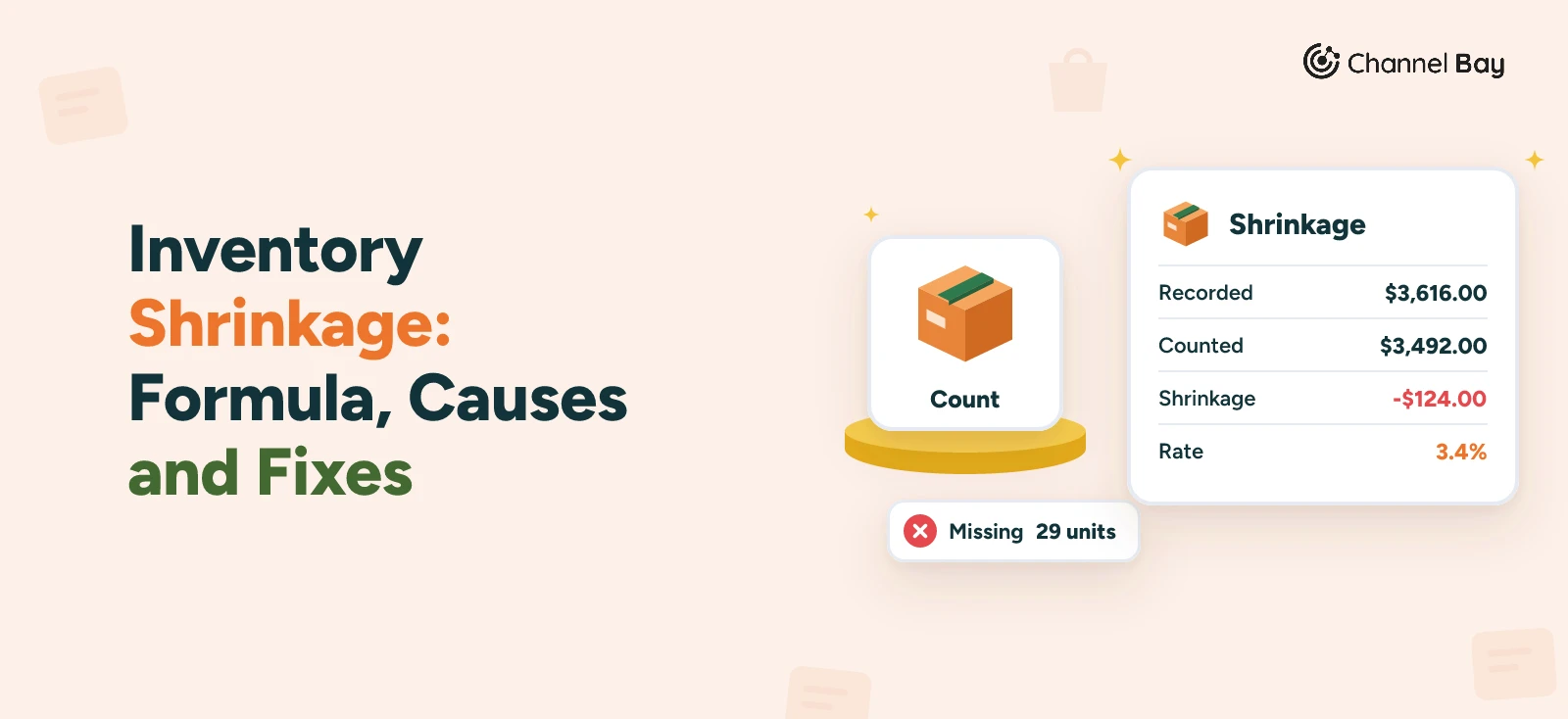
In Channel Bay, a blank Counted Qty box means a product was not counted, and a 0 you type means you counted none. When you click Save and review with blank rows left, a window asks what to do with them. Remove from stocktake, the default, takes the products out of the session and leaves their stock alone. Set counted qty to 0 records zero on hand and adjusts stock when you submit. Remove a product you didn't look for. Zero a product only after you looked for it and it isn't there.
This guide explains the difference between blank and zero, what each option does, how to choose by type of count, and how to shrink the uncounted list before you choose. It describes Channel Bay as of November 2026. The method around it, including a rule for uncounted items made before the count, is in our stocktake guide.
Blank Is Not Zero
A product can have three states on the count page.
| State | What the box shows | Counted as |
|---|---|---|
| Not counted | Blank | Uncounted |
| Counted, none found | 0 typed by a person |
A count of zero |
| Counted | A quantity | That quantity |
Channel Bay's help page "Count Products in a Stocktake" says it plainly: an explicitly entered 0 is a count, and a blank field is uncounted. The difference matters because a typed zero says you looked and found nothing, and a blank says nobody looked. A report that treats them the same can't tell a missing product from a shelf nobody walked.
In a team count, a product is counted once any person has a count for it. A row you haven't touched but a teammate has counted is not uncounted. Our guide to counting with a team covers how those counts are added together.
What Each Option Does
Clicking Save and review saves your counts and, if any rows are blank, opens a window titled N products weren't counted. The two choices behave like this.
Remove from stocktake |
Set counted qty to 0 |
|
|---|---|---|
| Default | Yes | No |
| Counted quantity | None | 0 |
| In the variance report | Left out | Included, with an amber Uncounted badge, and its zero counts toward the variance |
| Stock when you submit | Unchanged | Taken to 0 at the stocktake's location |
| Good for | Products you didn't look for | Products you looked for and couldn't find |
Two details come from how the app works. First, clicking Continue applies your choice and Go back keeps you counting, so nothing is lost by opening the window. Second, no stock moves at either step. The adjustments are applied when you press Submit and Sync. A line whose system quantity is already 0 has nothing to adjust, so a zero on it changes no stock. It still appears in the report with the badge.
Choose by the Type of Count
The window offers two choices, but the first move is a third one, recount. Count every blank row you can find before you open the window, and use the window only for what is left. The right choice for that remainder depends on what your list was meant to cover. An uncounted row is a product on the list that no one counted, and the list may be wider or narrower than what you meant to count.
- A full count of a location. If the list holds everything that should be there, a product still blank after a last search most likely isn't there. Zero it, and the adjustment writes the loss off. This is the same rule as in step 1 of our stocktake process: in a full stocktake, expected items nobody finds are usually set to zero after a final check.
- A partial count or a cycle count. If the list is wider than what you counted, for example a whole vendor's products when you walked only one aisle, remove the rest. Zeroing them writes off stock nobody looked at. Our cycle counting guide lists zeroing uncounted lines in a partial count as a common mistake.
- You aren't sure. Remove them. That is also the app's default, and it changes no stock. The cost is that a product that really is gone still shows stock, which the next count should catch.
Both mistakes cost something. Zeroing a product that is on the shelf makes your records short by stock you still have. Removing a product that is truly missing leaves your records too high. Remove is the choice that changes no stock, so it is the safer one when you are unsure.
Shrink the List Before You Choose
Don't let the window be the first time you see the list. Before you click Save and review:
- Filter to
Uncounted. The count filter hasAll,CountedandUncounted. TheFilter bybar also has aMatchfilter with aNot countedoption. - Ask why each one is blank. Nobody reached the shelf, it is in a box or a bin you skipped, or it isn't there.
- Count the ones you can find. Type a quantity, or scan the barcode, which adds 1 to your count for that row.
- Search for the rest. Check other locations, open transfers and anything set aside, such as returns or damaged stock. Our inventory reconciliation guide lists the usual places stock hides.
Only what is still blank after that goes to the window.
A Worked Example
These figures are made up. A back room stocktake has 40 products. Thirty-four are counted and six are blank.
| Product | System shows | What you find | Choice |
|---|---|---|---|
| Mug, sage | 12 | A box on the top shelf nobody reached: 11 | Count it, 11 |
| Spoon set | 6 | The same box: 6 | Count it, 6 |
| Apron, grey | 0 | Nothing, and it is out of stock | Zero or remove, no stock changes |
| Candle, small | 4 | You searched the room and the transfer list: nothing | Zero, writes off 4 units |
| Tote bag | 15 | On the list because you loaded the whole vendor, but not in today's aisle | Remove |
| Tea towel | 9 | You didn't reach the shelf and have no time | Remove, and count it next time |
Of the six blanks, only the candle is a loss you would write off by choosing zero, and the mugs turn out one short once counted. If you had picked Set counted qty to 0 for all six, you would have written off 12 + 6 + 4 + 15 + 9 = 46 units on the system, and at least 41 of them are on the shelf (11 mugs, 6 spoon sets, 15 tote bags and 9 tea towels). That is the cost of the wrong click, and why the list is worth cleaning first. If you do need to write stock off, our inventory write-off guide explains when and how.
If You Chose Wrong
Because stock moves only at Submit and Sync, there is time to correct a choice.
- After removing a product, scan its barcode or type its exact SKU on the count page. A product that isn't on the stocktake is added, and you can count it. The count log records the removal, so you can see what left the session.
- After setting products to zero, open the variance report and check each line with an
Uncountedbadge. If one is wrong, useBack to Counton the report and count it before you submit. The badge goes once a person enters a real count for the row.
After Submit and Sync the adjustments are applied, so check the report first. Our inventory reconciliation guide covers what to do if a variance turns out to be wrong.
Common Mistakes With Uncounted Items
| Mistake | What happens | Fix |
|---|---|---|
| Treating blank as zero | A product nobody looked at is written off | Zero a row only after you searched for it |
| Zeroing in a partial count | Stock outside the area you counted is wiped out | Remove the rest |
Typing 0 to clear a row |
A count of zero is recorded, with no badge | Leave the row blank if you didn't look |
Never opening the Uncounted filter |
The list is a surprise in the window | Filter before you click Save and review |
| Removing everything blank | Blocked if no product is counted | Count at least one product first |
| Not checking the report | Zeroed lines go through unseen | Read each Uncounted badge before you submit |
Uncounted Items in Shopify
Shopify's help for stock counts lets you complete a count while products are still left to count. It doesn't say what happens to the quantities of those products. It does say that completing a count without a review updates inventory levels right away and can't be undone, and that a manager can approve results before inventory is updated (Shopify Help Center). Check how your own admin treats uncounted products before you rely on it. Our guide to stocktakes in Shopify compares the two tools, and Channel Bay has no approval step, so the window is your check.
Decide Before You Press Continue
Make the call in the count, not in the window: filter to the blanks, count what you can find, and only then remove or zero what is left. The figures in the example are made up to show the arithmetic.
Frequently Asked Questions
Is a blank count the same as zero in a stocktake?
Which uncounted option does Channel Bay choose by default?
Can I remove every uncounted product from a stocktake?
Does Set counted qty to 0 change my stock straight away?
I removed a product by mistake. Can I add it back?

Guides from the team that builds and supports Channel Bay, the Shopify inventory app for purchase orders, stocktakes, stock transfers and multichannel stock sync. About Channel Bay