Barcode Scanning for Stocktakes: Scanners, Set-Up and How Scans Are Counted
How barcode scanning works in a stocktake: which scanner to use, how a scan reaches the count page, label tips, and what to do about double or failed scans.
On this page
Key Takeaways
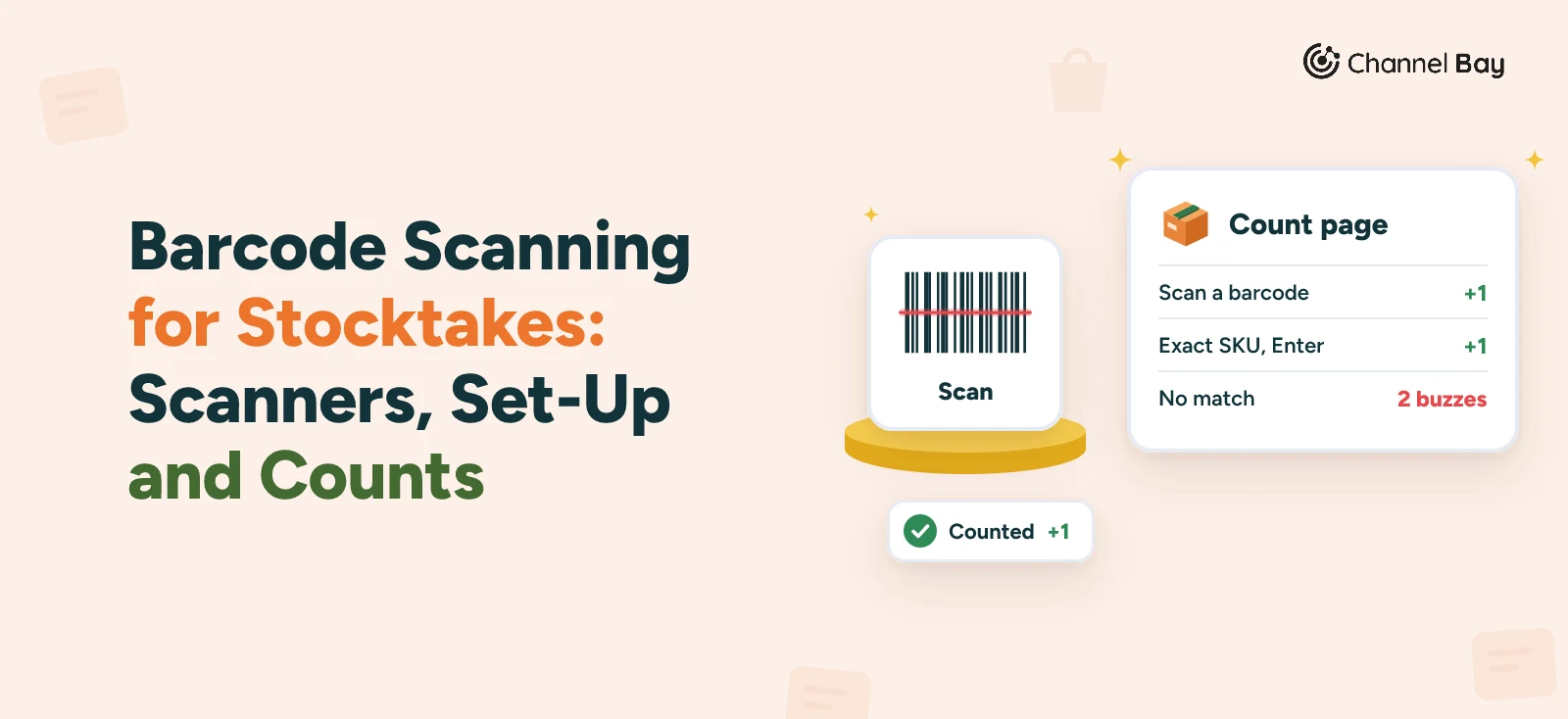
- A scanner that works like a keyboard types the barcode into the count page's scan field and presses Enter. In Channel Bay, each scan adds 1 to your count of that product.
- Channel Bay matches a scan to a product's barcode first and then to its SKU, comparing the digits exactly, so barcodes with a lost leading zero or an extra digit return no match.
- Most scan problems come from set-up, not the count: a scanner that sends no Enter, a barcode on two products, a damaged label, or a scan that lands in a Counted Qty box instead of the scan field.
- A failed scan gives two low buzzes and an error message. If the message says the scan could not be confirmed, check the row's quantity before you scan again, because it may have counted.
- Channel Bay's count page has no camera scanning as of November 2026. Without a scanner you can type an exact SKU and press Enter, or type the quantity on each row.
Barcode scanning for a stocktake means reading each product's barcode with a scanner instead of typing its SKU or its quantity. In Channel Bay, a scanner that works like a keyboard types the code into the count page's scan field and presses Enter, and each scan adds 1 to your count of that product. A scanner doesn't mistype digits the way a person can. It can still land on the wrong product, count twice or fail to match, and most of those problems start with the scanner's settings or the barcode data, not with the count.
This guide covers which scanner to use, how a scan reaches the count page, how to get your barcodes and labels ready, how Channel Bay counts a scan, what to do about double scans and mis-scans, and how to count without a scanner. The method around it, blind counts, a cut-off and recounts, is in our stocktake guide.
Types of Barcode Scanner for Inventory Counts
What matters for a stocktake is what the scanner can read and how it connects.
| Scanner | How it reads | What it reads | Watch out for |
|---|---|---|---|
| Laser (1D) | Sweeps a laser line across the code | Printed 1D barcodes. It can't read a code on a backlit screen such as a phone | Dirty or damaged barcodes, and bright sunlight |
| 2D imager | Takes a picture of the code and decodes it | 1D and 2D codes at any angle, including a code on a phone screen | Check that it reads the label format you print |
| Phone camera | Uses the camera as the imager | Depends on the app | Channel Bay's count page doesn't use the camera. See the no-scanner section below |
The laser and imager rows come from Zebra's guide to 2D barcodes. For stock with printed labels, either type works. Choose a 2D imager if you ever scan from a screen, if your labels get scuffed in storage, or if some products carry a 2D code.
Wired scanners plug into the computer's USB port. Bluetooth scanners pair with a phone, tablet or computer, the way a Bluetooth keyboard does. The next section is the part that decides whether either one works with the count page.
How a Barcode Scanner Talks to the Count Page
Most scanners can send what they read as typed characters. Socket Mobile calls this Basic Keyboard Mode (HID): the scanner acts as a keyboard to the host device, needs no software, and suits barcodes that hold small amounts of data (Socket Mobile). The scanner types the code into whichever field has the cursor.
Channel Bay's scan field acts on the Enter key. It reads the field when Enter is pressed, so the scanner has to send Enter after the code. Scanners usually let you set this by scanning a configuration barcode from the manual. Zebra's DS2208 reference guide has a barcode that adds an Enter key (carriage return/line feed) after the scanned data (Zebra DS2208 guide), and Socket Mobile lists Carriage Return among its suffix options.
Two other settings are worth knowing about:
- Keyboard country. Zebra's guide lets you choose a country keyboard type for a USB scanner in keyboard mode. If digits or letters arrive wrong in the field, check that setting in your scanner's manual.
- The on-screen keyboard on iOS. Socket Mobile's guide says its scanners in keyboard mode use the power button to show the on-screen keyboard on iOS. If you also type SKUs on the same device, check how yours behaves before count day.
Test the scanner on the count page itself, with a draft stocktake you won't submit:
- Click the scan field,
Search, scan barcode or enter SKU. - Scan a product that has a barcode in Channel Bay. A row should appear, or its count should go up by one.
- Scan a barcode that isn't in Channel Bay. You should hear two low buzzes and see
No product was found for that barcode or SKU.That proves the failure signal works. - Scan a label into any text box and compare what appears with the product's Barcode field, digit for digit.
Get Your Barcodes Ready Before the Count
Channel Bay matches a scan to an active product's Barcode field first, and then to its SKU, ignoring upper and lower case. The digits have to match exactly. Four common causes of a no-match scan are below.
Lost zeros and different lengths. A UPC-A is a GTIN-12 and an EAN-13 is a GTIN-13, and GTINs can be 8, 12, 13 or 14 digits long (GS1 US). GS1 shows a 12-digit UPC stored as 00614141000012 in a 14-digit database field (GS1 US GTIN guide). If the Barcode field holds one form and the scanner sends another, the scan won't match.
Scan one label of each barcode type you stock and compare it with the field.
Spreadsheets. Excel drops leading zeros from entries it reads as numbers, and long numbers can turn into scientific notation such as 1.23E+15. Format the column as Text before you paste barcodes in, because zeros that were already lost aren't restored (Microsoft Support).
One barcode on two products. A scan counts one product, so a barcode used on two variants can only ever count one of them. Give each variant its own barcode before the count.
More than one code on a unit. A unit can carry the manufacturer's barcode and a second code you or a marketplace added. A scan only matches the Barcode field or the SKU, so a sticker code that is in neither returns no match.
Amazon's Seller Forums announcement says that, for inventory shipped on or after March 31, 2026, resellers without the Brand Representative role in Brand Registry must use Amazon barcode stickers even when a product has a manufacturer barcode (Amazon Seller Forums). Decide which code your counters will scan, and keep that one in the Barcode field.
If a product has no barcode at all, print a label from its SKU. A scanned SKU matches the same way a typed one does. Check that your scanner reads the format your label printer uses.
Label Problems That Stop a Scan
These come from GS1 US's printing guidelines and, for shiny surfaces, GS1's guide to 2D codes.
| Problem | Why it fails | Fix |
|---|---|---|
| Red or pale bars | Scanner light is red, so a scanner can't read red bars. Low contrast, such as yellow on white, is hard to read | Black bars on a white background |
| Barcode stretched or shrunk | Height and width are tied together, and a cut-down height can cause incorrect scanning | Print a new label at the new size from the original data |
| No white space either side | The clear area on both sides, called the quiet zone, is part of the code | Keep text and graphics out of it |
| Label on an edge or a rough surface | The code should sit away from edges, on a smooth surface | Put it on a flat, smooth area |
| Glossy or metallic surface | GS1 warns against printing 2D codes directly on shiny or reflective material, because it reflects the scanner's red light | Use a matte label |
| Scuffed or dirty label | A 1D (laser) scanner has difficulty with dirty or damaged codes | Replace the label before the count |
Shelf and bin labels have no standard we could cite, so this part is practical advice. Label each zone clearly, count one zone at a time, and mark each finished zone so nothing is counted twice. Channel Bay's count page tracks counts by product, not by shelf.
Scanning Versus Typing Counts
Scanning removes the typing, and typing is where mistakes get in. One observational study of two clinical laboratories in Glasgow found no errors with bar code readers against 55 with keystroke entries, and a report took 21.1 seconds to enter by keyboard against 14.1 with bar-coded entry (Journal of Clinical Pathology, 1999). That was report entry in a laboratory, not a stockroom count, and the paper gives no error rate, so read it as direction and not as a number. We found no verified error rate for scanning against typing stock counts, so we don't quote one.
A scan is only as good as the barcode data behind it. It counts quickly against whatever the Barcode field says, right or wrong. Scanning also works best when each scan means one unit. For a sealed case or a pallet of one product, scan once to bring up the row and type the total in Counted Qty. Open a sample case first to confirm what is inside.
How Channel Bay Counts a Scan
As of November 2026, the count page works like this.
- The scan field is always there. It is labelled
Search, scan barcode or enter SKU, and it is focused automatically while a stocktake has no products. Once there are rows, click it before you scan. - Each scan adds 1. A scan, or an exact SKU typed with Enter, adds 1 to your own count for that row. A repeat scan adds another 1.
- A product not on the list is added. If the stocktake doesn't have the product yet, the scan adds it and counts one. When you are counting a set list, check the page for products you didn't expect.
- A failed scan is loud. Channel Bay plays two low buzzes, shows an error message and outlines the scan field in red, so you can tell without looking.
- Counters add up. Each person has their own count, a row shows
+N by otherswhen someone else has counted it, and everyone's counts are added together when the stocktake is submitted. Our guide to counting with a team covers how to split the areas.
Scans are sent one at a time, in order. For how the rest of the count works, see our stocktakes feature page.
Double Scans, Mis-Scans and Failed Scans
| What happens | What it looks like | What to do |
|---|---|---|
| A double scan | The row is one too high | Type the right quantity in Counted Qty. It replaces your count for that row |
| A scan lands on the wrong product | One row is high and another is low, often two variants sharing a barcode | Correct both rows by typing, then fix the shared barcode |
A scan goes into a Counted Qty box |
The box accepts digits only, so the barcode's digits become the quantity | Look for a count far larger than any real one, correct it, and click the scan field before you scan |
| No product found | Two buzzes and No product was found for that barcode or SKU. |
Check that the product is active, the Barcode field and the SKU, then type the SKU |
| The scan could not be confirmed | The message says The scan could not be confirmed. Check the count before scanning it again. |
The scan may have counted. Check the row's quantity before you scan again |
| Nothing happens after a scan | The code sits in the field with no result | The scanner isn't sending Enter. Set the suffix, or press Enter by hand |
Take two variants of a mug that share one barcode. Every scan of either mug lands on the same row, so that row runs high and the other stays low, and neither gap is a real variance. A scan that arrives while you are still typing in another box is the other common trap, so agree one rule for the team: click the scan field, then scan.
No Scanner? Other Ways to Count
You can count on the same page without scanner hardware.
- Type an exact SKU and press Enter. It adds 1 to your count, the same as a scan, and SKU matching ignores upper and lower case.
- Type the quantity on each row. Counts save as you type or leave the field.
- Start from a list. Import a CSV with a single
SKU/Barcodecolumn, or browse products by vendor, type, collection or tag, then enter each count.
Channel Bay's count page has no camera scanning. Shopify's own app does: its inventory scanner works on iOS, iPadOS and Android, and a scan can add one to a quantity or assign a barcode to a product (Shopify Help Center). That is a Shopify tool, and it doesn't feed a Channel Bay stocktake.
Shopify, Amazon and Channel Bay
Shopify's stock counts in the admin let staff record quantities with a barcode scanner or by typing, and a manager approves the result before the difference is applied (Shopify Help Center). Our guide to stocktakes in Shopify walks through it, and the Shopify stocktake apps comparison covers the apps that add camera counting.
| Shopify admin stock count | Shopify app scanner | Channel Bay stocktake | |
|---|---|---|---|
| How you scan | Barcode scanner or typing | Phone camera | A scanner that types and sends Enter, or a typed SKU |
| What a scan does | Records the count | Adds one to a quantity or assigns a barcode | Adds 1 to your count of the product |
| Approval | A manager approves | No approval step | No approval step, so record a sign-off outside the app |
The count page shows the current quantity beside each row, so counting by scanning is not a blind count. For a blind first count, count from a printed list and key the numbers in afterwards. A scanner speeds up the counting, but the cut-off, the recount rule and the variance review still decide how accurate the result is. For that part, see our guides to inventory reconciliation and inventory accuracy, and the stock take template if you want a paper count sheet to go with the scanner.
This guide describes how the count page reads a scanner's input. Scanners differ, so run the four-step test above on each scanner your team will use before the count.
Frequently Asked Questions
What is the best barcode scanner for a stocktake?
Can I use my phone as a barcode scanner for a stocktake?
Do I need a special inventory scanner app?
Why does my scan say no product was found?
What happens if I scan the same item twice?
Should I scan every unit or type the quantity?

Guides from the team that builds and supports Channel Bay, the Shopify inventory app for purchase orders, stocktakes, stock transfers and multichannel stock sync. About Channel Bay