Stock Take Template: A Free Count Sheet and Checklist (Excel and PDF)
Download a free stock take template: an Excel workbook that flags recounts and totals gains and losses, plus a printable count sheet and checklist.
On this page
Key Takeaways
- A stock take template needs two sheets: a count sheet that counters fill in without seeing the expected quantities, and a reconciliation sheet where the stocktake lead compares the counts with your records.
- The free Excel workbook adds up every count for a SKU, flags lines outside your tolerance for a recount and totals gains and losses separately, so a surplus can't hide a loss.
- The printable PDF has a blank count sheet with the same seven columns as columns A to G of the Count tab, and a checklist for before the count, count day and after the count.
- Common spreadsheet count errors come from the setup: expected quantities visible to counters, SKUs that don't match, blanks read as zero, and an export taken after trading restarted.
- A spreadsheet stops being enough when expected quantities go stale during the count, counts are typed in twice, or several people need to count at once.
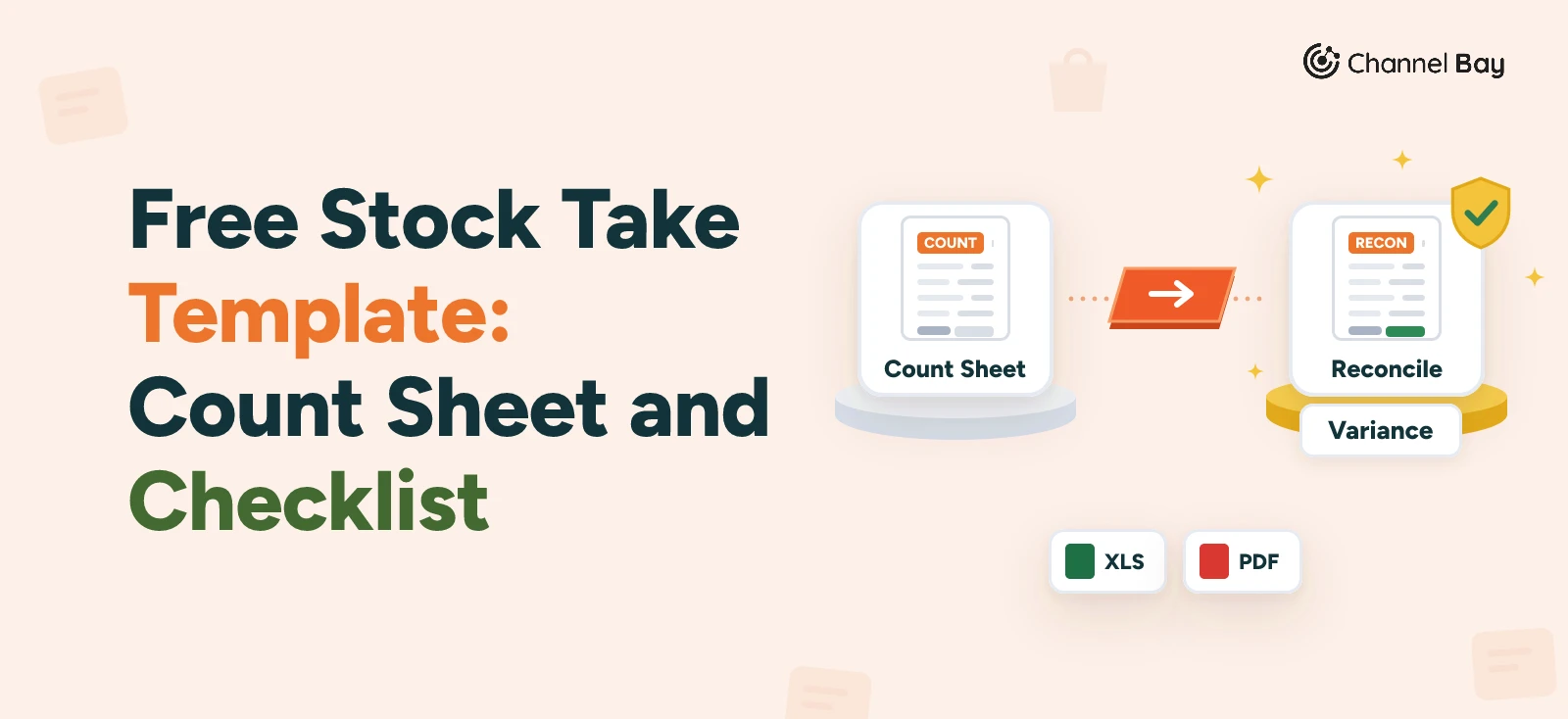
A stock take template is a sheet where counters write down what they find on the shelf, plus a second sheet where the stocktake lead compares those counts with your inventory records. Ours is free, with no sign-up. It is an Excel workbook with Start here, Count, Reconcile and Summary tabs, and a printable PDF count sheet and checklist in A4 and US Letter. The workbook's formulas use only functions that Google Sheets also has.
This page lists the fields a count sheet needs, explains what is in each download, walks through a filled-in count, gives the checklist and then the formulas if you would rather build your own. The method behind it, blind counts, a cut-off and recounts, is in our stocktake guide.
What a Stock Take Template Needs
A count sheet and a reconciliation sheet, kept apart. The count sheet is what counters see. It never shows the expected quantity, so they record what is on the shelf and not what the system says should be there. The reconciliation sheet is for the stocktake lead. It holds your export of expected quantities, adds up the counts and flags every line that needs a recount.
These are the fields on the count sheet and why each one is there.
| Field | Why it is on the sheet |
|---|---|
| Zone | Lets you send someone back to one shelf, and shows when the same SKU turns up in two places |
| SKU | The key that matches a count to your records. Product names get edited, SKUs should not |
| Product and variant | So a person can see at a glance that the SKU and the item agree |
| Counted quantity | A whole number. 0 means counted and none found, and a blank means not counted |
| Counted by | Initials, so you know who to ask about a doubtful line |
| Recount quantity | Its own column, so the first count stays next to the recount. Fill it in on every row of a flagged SKU |
| Notes | Damaged, open case, found in the wrong place |
The reconciliation sheet needs three things from your system: the SKU, the expected quantity at the cut-off and the unit cost. The cost turns each variance into money, which is what decides whether a small miss on an expensive item deserves a recount.
Download the Free Stock Take Template
The PDF count sheet has the same seven columns, in the same order, as columns A to G of the Excel Count tab, so counts written on paper can be typed straight in.
| Format | What you get | Best for |
|---|---|---|
| Excel (.xlsx) | Four tabs: Start here, Count, Reconcile and Summary. Formulas are filled down for 1,000 count rows and 2,000 SKUs, and four sample products show how they behave | Most stores, because it does the arithmetic |
| Google Sheets | Upload the Excel file to Google Drive, open it with Google Sheets (double-click it, or right-click and choose Open with) and choose File, then Save as Google Sheets | Teams who share files in Google Drive |
| PDF, A4 or US Letter | Two landscape pages: a blank count sheet with a header for the stock take name, location, cut-off and checker, then a second page with the checklist, and a box to tick beside each item | Counting with a clipboard where there is no screen, then typing the lines in |
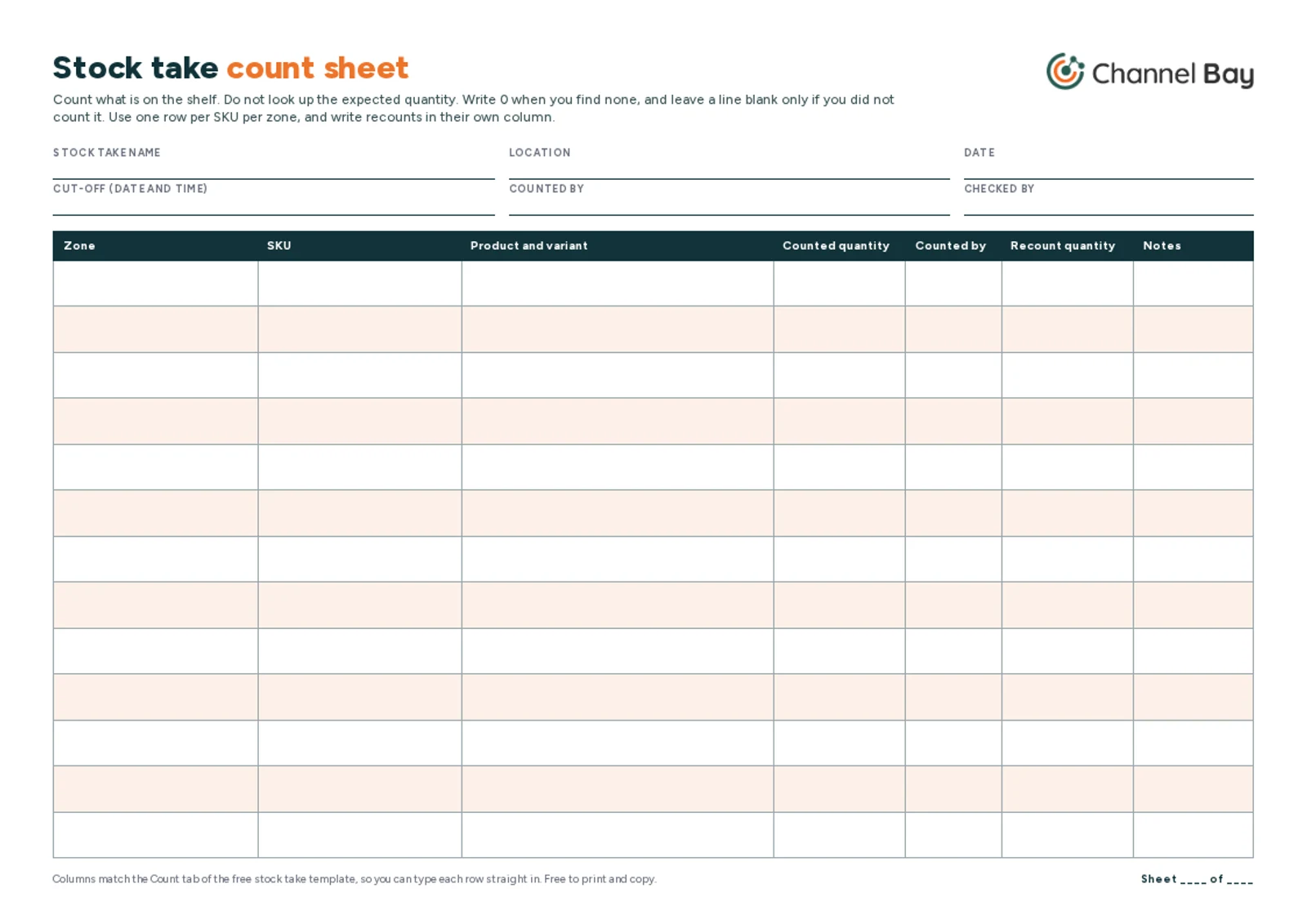
Paper has one weakness: every line gets typed in later, and that is where typos creep in. Have a second person read each sheet back as it is typed, or count straight into the Count tab on a laptop or tablet if you have one.
How to Use the Excel Template
- Export your stock at the cut-off. Take the SKUs, expected quantities and unit costs when trading is frozen, and paste them into the Reconcile tab, columns A to C.
- Give counters a printout of columns A to G of the Count tab (select them and print the selection), or the PDF sheet. It never shows expected quantities, which keeps the count blind. A shared copy of the workbook is not blind, because the Reconcile tab is one click away.
- Counters fill in columns A to E, and G for notes: zone, SKU, product, counted quantity, their initials and any note. Count the same SKU in several zones on separate rows, and the Reconcile tab adds them together.
- Check the recount flags. Every line outside your tolerance shows "Recount" on the Reconcile tab. The limits sit on the Start here tab: 5% of expected units or $50 (in your currency) at cost, either of which flags the line. The flag is set from the first count and stays after you recount, so to see what is still out, compare Confirmed variance (column H) and Value at cost (column I) with those limits.
- Recount the flagged SKUs. Record recounts in column F of the Count tab, and the first count is kept. Enter a recount on every row of a flagged SKU: a SKU on two shelves has two rows, and a recount on one row alone would leave the other row's first count in the total. Have a different person do the recount where you can, and give them the flagged SKUs and zones without the first counts.
- Clear every "Not in export" row on the Count tab before you approve. Either fix a mistyped SKU or add a product that was on the shelf but missing from your records, with an expected quantity of 0 and its unit cost.
- Add a cause for each confirmed variance in column J of the Reconcile tab, then post the approved adjustments in your inventory system and read the totals on the Summary tab.
Yellow cells are for you to fill in, and grey cells hold formulas. Clear the contents of the yellow sample cells on the Count and Reconcile tabs before your own count (select them and press the Delete key, and don't delete whole rows or columns), and leave the grey ones. The count cells accept whole numbers only, so if you count by weight or length, remove that rule from columns D and F of the Count tab.
A Filled-in Example
The sample count in the workbook is a small gift shop with four products. The recount tolerance is 5% of expected units or $50 at cost.
| SKU | Expected | Unit cost | First count | Variance | Recount? | Confirmed | Value at cost | Cause |
|---|---|---|---|---|---|---|---|---|
| CANDLE-LG-VAN | 40 | $9 | 36 | -4 | Recount | 39 | -$9 | Miscounted, stock behind another product |
| CANDLE-SM-VAN | 120 | $5 | 118 | -2 | 118 | -$10 | Within tolerance | |
| DIFFUSER-LAV | 15 | $22 | 10 | -5 | Recount | 10 | -$110 | Likely theft from open shelf, moved behind counter |
| GIFTBOX-MED | 60 | $3 | 72 | +12 | Recount | 72 | +$36 | Delivery not received; receive against its PO |
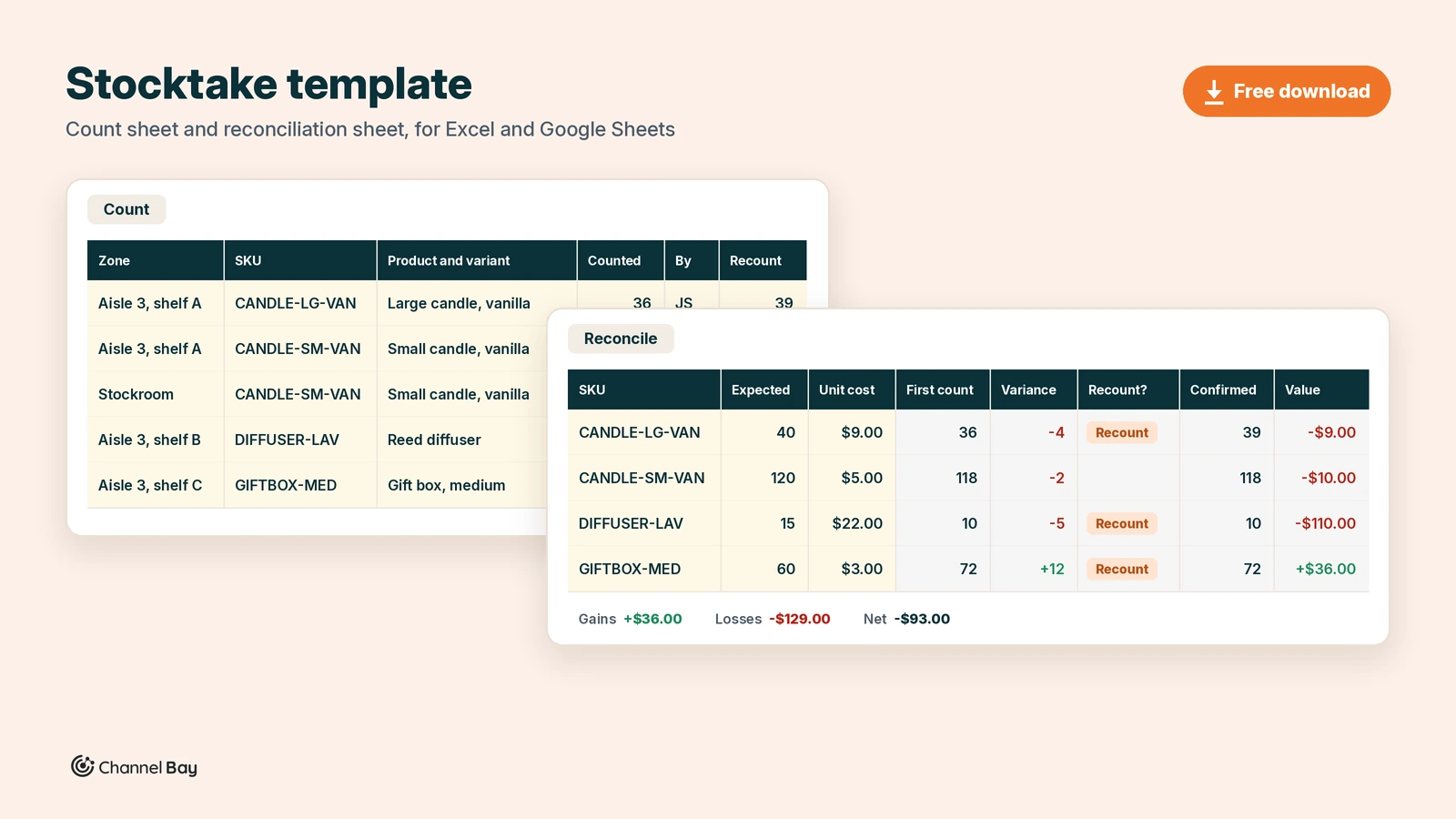
Read it from the top.
- The large candle was a counting slip. The recount found 3 more candles behind the diffusers, so the line closed 1 short.
- The small candle shows why counts are added by SKU. 100 on the aisle shelf and 18 in the stockroom are two rows on the Count tab and one line of 118 on the Reconcile tab. It is 2 short, which is under both limits, so it is not recounted.
- The diffuser is the real shortfall. The recount confirmed 10, which is 5 short and $110 at cost. The workbook's cause note says likely theft from an open shelf, which is a hypothesis to test and not a finding. Our inventory reconciliation guide shows which explanations to rule out first.
- The gift boxes are 12 over in this sample because a delivery was shelved but never received. The fix is to receive it against its purchase order and add the 12 to that SKU's expected figure on the Reconcile tab, not to post a stocktake adjustment. A receiving tab like the one in our purchase order template shows which deliveries are still outstanding.
The Summary tab then reports gains of 12 units ($36) and losses of 8 units ($129), a net of -$93. The net hides the $129 loss behind a $36 gain, which is why the tab shows both lines. These totals include the gift box surplus, which you clear by receiving the delivery, not by adjusting. The Summary tab also counts the lines that matched exactly after the recount: none of the four, so the sample scores 0 of 4. If your rule counts a line within tolerance as accurate, count those yourself. Our inventory accuracy guide compares the ways to score a count.
Stocktake Checklist: Before, During and After
The same checklist is on page 2 of the PDF, with a box to tick beside each item. The method behind each step is in the stocktake guide.
Before the Count
- Decide the scope: all stock, one location or some categories.
- Set the cut-off time and tell staff and suppliers.
- Receive deliveries that arrived before the cut-off.
- Set aside damaged stock, returns and packed orders in labeled areas. Count each area on its own sheet, or leave it out of the export, so the count and the expected quantity cover the same stock.
- Export SKUs, expected quantities and unit costs at the cut-off, and save the file untouched.
- Split the site into zones and give each zone one counter.
- Agree the recount tolerance and what happens to uncounted items.
- Print the sheets. Never show counters the expected quantities.
On Count Day
- Pause picking and receiving, or log every movement after the cut-off.
- Count blind, in the same unit as the SKU.
- Open boxes, back rooms, returns shelves and stock behind counters.
- Write 0 when you find none, and leave a line blank only if you did not count it.
- Note damage, open cases and stock found in the wrong place.
- Initial each line, and sign each zone off when it is done.
- Have a second person check every zone sheet and the page numbers.
- Collect every sheet before anyone leaves.
After the Count
- Type the counts into the Count tab, and have a second person read them back.
- Clear every "Not in export" row.
- Recount every row of each flagged SKU, and keep the first count.
- Apply your rule to items nobody counted.
- Write the cause of each confirmed variance.
- Post approved adjustments, and fix the document instead when a receipt or transfer is wrong.
- Report gains and losses separately.
- File the sheets, the export and the summary. An accountant or auditor may ask for them, as our inventory audit guide explains.
Build Your Own Stock Take Template in Excel or Google Sheets
You can build both sheets in a few minutes. The formulas below are the ones in the download.
The Count Sheet
Name this tab "Count". It is what counters see: one row per product per zone, and never the expected quantity.
| Column | Heading | What goes in it | Example |
|---|---|---|---|
| A | Zone | The shelf, bin or area being counted | Aisle 3, shelf A |
| B | SKU | The product code | CANDLE-LG-VAN |
| C | Product and variant | Name, size, color | Large candle, vanilla |
| D | Counted quantity | What the counter found | 36 |
| E | Counted by | Initials, so you know who to ask | JS |
| F | Recount quantity | Filled in only for lines flagged for a recount | 39 |
| G | Notes | Damaged, open case, found in the wrong place | 3 found behind diffusers |
| H | Final count | =IF(F2="",IF(D2="","",D2),F2), copied down every row |
39 |
| I | Check | =IF(B2="","",IF(COUNTIF(Reconcile!$A:$A,B2)=0,"Not in export","")) |
(blank) |
Columns H and I are for the stocktake lead. Resolve every "Not in export" row before you approve.
The Reconciliation Sheet
Name this tab "Reconcile". Export your SKUs, expected quantities and unit costs at the cut-off into columns A to C, one row per SKU, then put these formulas in row 2 and copy them down. Counts of the same SKU from different zones are added together automatically.
| Column | Heading | Formula or source |
|---|---|---|
| A | SKU | From your inventory export |
| B | Expected quantity | From your inventory export |
| C | Unit cost | From your inventory export |
| D | First count | =IF($A2="","",IF(COUNTIFS(Count!$B:$B,$A2,Count!$D:$D,"<>")=0,"",SUMIF(Count!$B:$B,$A2,Count!$D:$D))) |
| E | Variance | =IF(D2="","",D2-B2) |
| F | Recount? | =IF($A2="","",IF(D2="","Not counted",IF(OR(ABS(E2)>ABS(B2)*'Start here'!$C$14,ABS(E2*C2)>'Start here'!$C$15),"Recount",""))) |
| G | Confirmed count | =IF(D2="","",SUMIF(Count!$B:$B,$A2,Count!$H:$H)) |
| H | Confirmed variance | =IF(G2="","",G2-B2) |
| I | Value at cost | =IF(H2="","",H2*C2) |
| J | Cause | Your note after investigating |
Column F reads its two limits from cells, so you can change them without editing a formula. The download keeps them on the Start here tab, C14 for the share of expected units (0.05) and C15 for the value at cost (50). If you build your own, put them in any two cells and point the formula at them. Recounts go in column F of the Count tab, on every row of the flagged SKU, so the first count is kept and the confirmed figures update on their own.
Rows marked "Not counted" are never treated as zero. In a partial count, clear columns A to C of the rows outside your scope, rather than deleting the rows, so the formulas and the Summary ranges stay intact. In a full count, apply the rule you agreed before the count (see the checklist).
The Summary
Total gains and losses on their own lines rather than as one net figure. The download's Summary tab uses =SUMIF(Reconcile!I2:I2001,">0") for the value gained and =SUMIF(Reconcile!I2:I2001,"<0") for the value lost, then =SUM(Reconcile!I2:I2001) for the net. Use the same pair of formulas on column H for units. Extend the ranges if you have more than 2,000 SKUs.
Two details save time. Format the SKU columns in both tabs as text, so a SKU such as 00123 keeps its zeros. And avoid *, ? and ~ in SKUs, because SUMIF and COUNTIF treat * and ? as wildcards and ~ as the escape character (Microsoft's SUMIF documentation). A SKU that starts with =, < or > can be read as a comparison, so avoid those too. Also avoid SKUs that differ only by leading zeros, such as 00123 and 123, which these functions can treat as the same number.
Adapting the Template to Your Stock
| Situation | What to do |
|---|---|
| Cycle counts of a few SKUs | Fill in the Reconcile tab with only the SKUs you are counting, and clear columns A to C of the rest. Our cycle counting guide covers choosing what to count |
| Several locations | Keep one workbook per location. The Reconcile tab matches on SKU alone, so mixing locations would add their counts together |
| Variants | One row per variant SKU, so the count and the expected quantity refer to the same item |
| More than 1,000 count rows or 2,000 SKUs | Copy the grey formula cells further down, and extend the ranges on the Summary tab |
| Batch, lot or expiry dates | Add a column after Check on the Count tab and fill it in. The Reconcile tab still adds up by SKU, so each batch is summed into its SKU |
| Counting by weight or length | Remove the whole-number rule from columns D and F of the Count tab |
| A year-end count for the accounts | The workbook values each difference at the unit cost you export. Valuing closing stock, with a cost method and write-downs, is a separate step in the physical inventory count guide |
Where Spreadsheet Counts Go Wrong
| Mistake | What goes wrong | How to avoid it |
|---|---|---|
| Counters can see expected quantities | Counts can drift towards the system figure | Give counters a printout or the PDF only |
| SKUs that don't match | A count shows as "Not in export" and the real SKU shows as not counted | Format SKUs as text, trim stray spaces and copy SKUs from the export |
| A blank read as zero | An item nobody counted gets written off | Treat "Not counted" as its own result and apply your rule to it |
| The export taken after trading restarts | Sales since the cut-off lower the system figure, so counts look like surpluses, and receipts since then look like shortfalls | Export at the cut-off, or keep the movements after it on a separate list |
| Two counters covering one shelf | The units are counted twice and the line shows a surplus | One counter per zone, and a zone column on every row |
| Overwriting the first count with the recount | You lose the evidence for the line | Write recounts in their own column |
| Counts typed in later by one person | Typos nobody catches | A second person reads each sheet back as it is typed |
When a Spreadsheet Stops Being Enough
A spreadsheet is fine for a small catalog counted by a few people over an afternoon. It starts to cost more than it saves when:
- The expected quantity goes stale. The export is a snapshot, and every sale after it changes the answer.
- Counts are typed twice. Once on paper or a phone, once in the file, with every adjustment typed again into your store.
- Many hands on one file. A shared workbook is not blind, because the Reconcile tab is one click away, and counts on paper still have to be keyed in by someone.
As of November 2026, Channel Bay runs a stocktake as a session with a name, a warehouse and a date. You can scan items straight in with a barcode scanner, or add a set list first by browsing products or by importing a CSV with a single SKU/Barcode column. To make one from this template, copy the SKU column from the Reconcile tab into a new sheet by itself, head it exactly SKU/Barcode and save that sheet as a CSV. Then you search by SKU or scan, and enter each count on the count page. Here is how that answers the spreadsheet's problems.
| Spreadsheet problem | In Channel Bay |
|---|---|
| Expected quantities from a stale export | The count page shows the location's available quantity, so there is no export to paste in. It is the quantity as of when the page loads, so pause picking and sales while you count |
| Counts typed twice | When you count on the page, each count is entered once and saves as you type |
| Several people counting at once | Several people can count the same stocktake at once, and their counts are added together when it is submitted |
| Adjustments typed into the store | Submitting the stocktake applies the adjustments to inventory |
| Initials on a sheet | The count log exports who added, counted or removed each product, and when |
The variance report shows expected, counted and variance for each line, with a notes field. For a submitted stocktake it uses the expected quantity the stocktake captured, which can differ from what the count page showed. It exports as a CSV with cost price and retail price beside each line.
Some things stay the same. The count page shows the current quantity beside each box, so a count there is not blind. For a blind first count, count from a printed list and key the numbers in afterwards. The CSV import takes a list of SKUs or barcodes, not counted quantities, so counts from a paper sheet are still typed in. There is a notes field on each line but no cause field, and no approval step on a count, so a sign-off is recorded outside the app. Shopify's own counts check against the on-hand quantity recorded in Shopify, and approving one applies the difference (Shopify Help Center). If you use Shopify's counts or another app, our guide to stocktakes in Shopify compares them.
Frequently Asked Questions
What should a stock take template include?
What is the difference between a stock take template, a count sheet and a stocktake sheet?
How do I make a stock take sheet in Excel?
Can I use the stock take template in Google Sheets?
Should a count sheet show the expected quantity?
What recount tolerance does the template use?
Can I import the template's counts into Channel Bay?

Guides from the team that builds and supports Channel Bay, the Shopify inventory app for purchase orders, stocktakes, stock transfers and multichannel stock sync. About Channel Bay